Overview
To authenticate with Formbricks, you need:- API Key — an API key from your Formbricks organization.
Prerequisites
- A Formbricks account. If you don’t have one, sign up.
Step 1: Create an API key
- Log in to Formbricks.
- Click your organization name in the breadcrumbs at the top left and open the settings, or go to Settings → Organization.
- In the sidebar, under Organization, click API Keys.
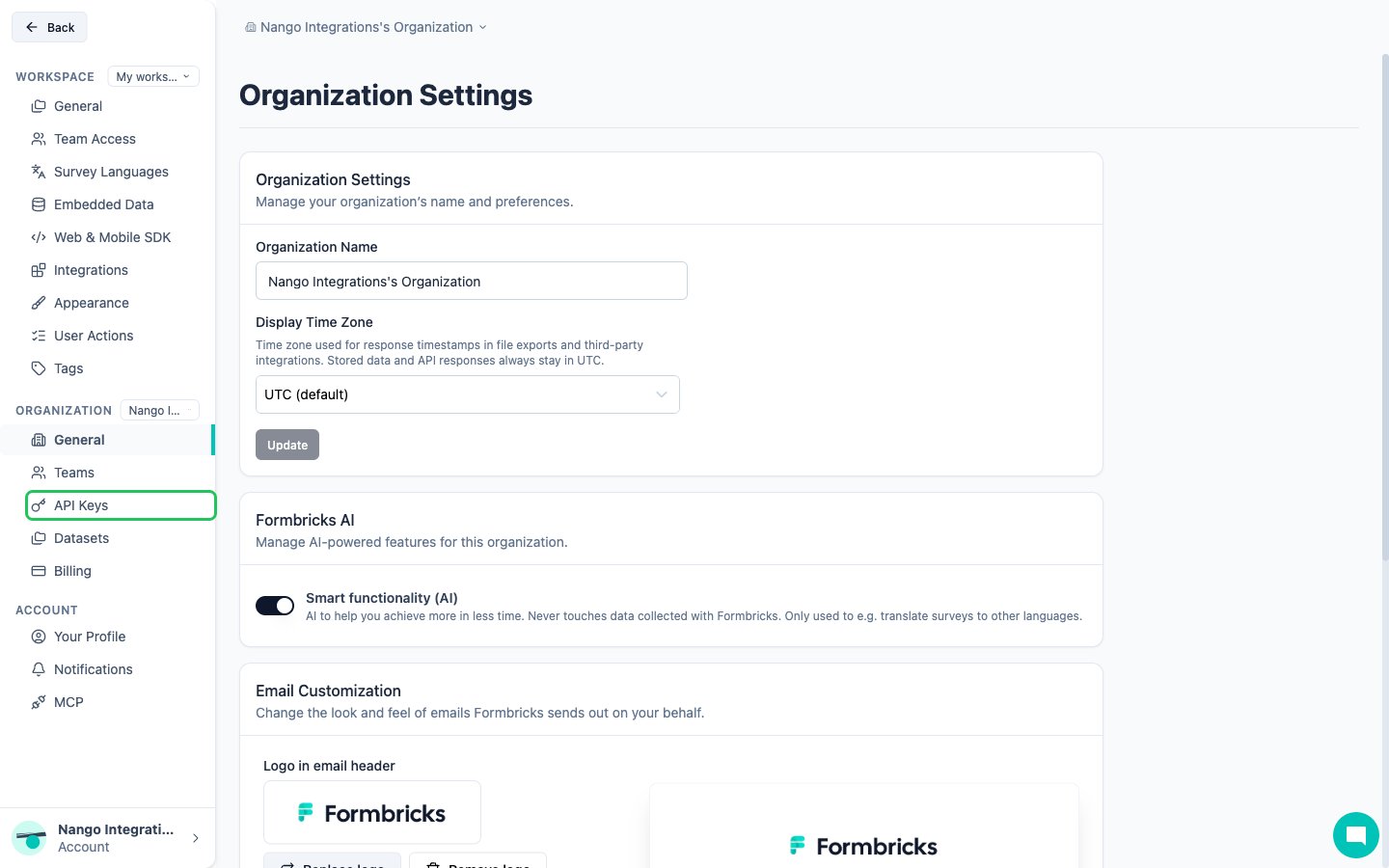
- Click Add API key.
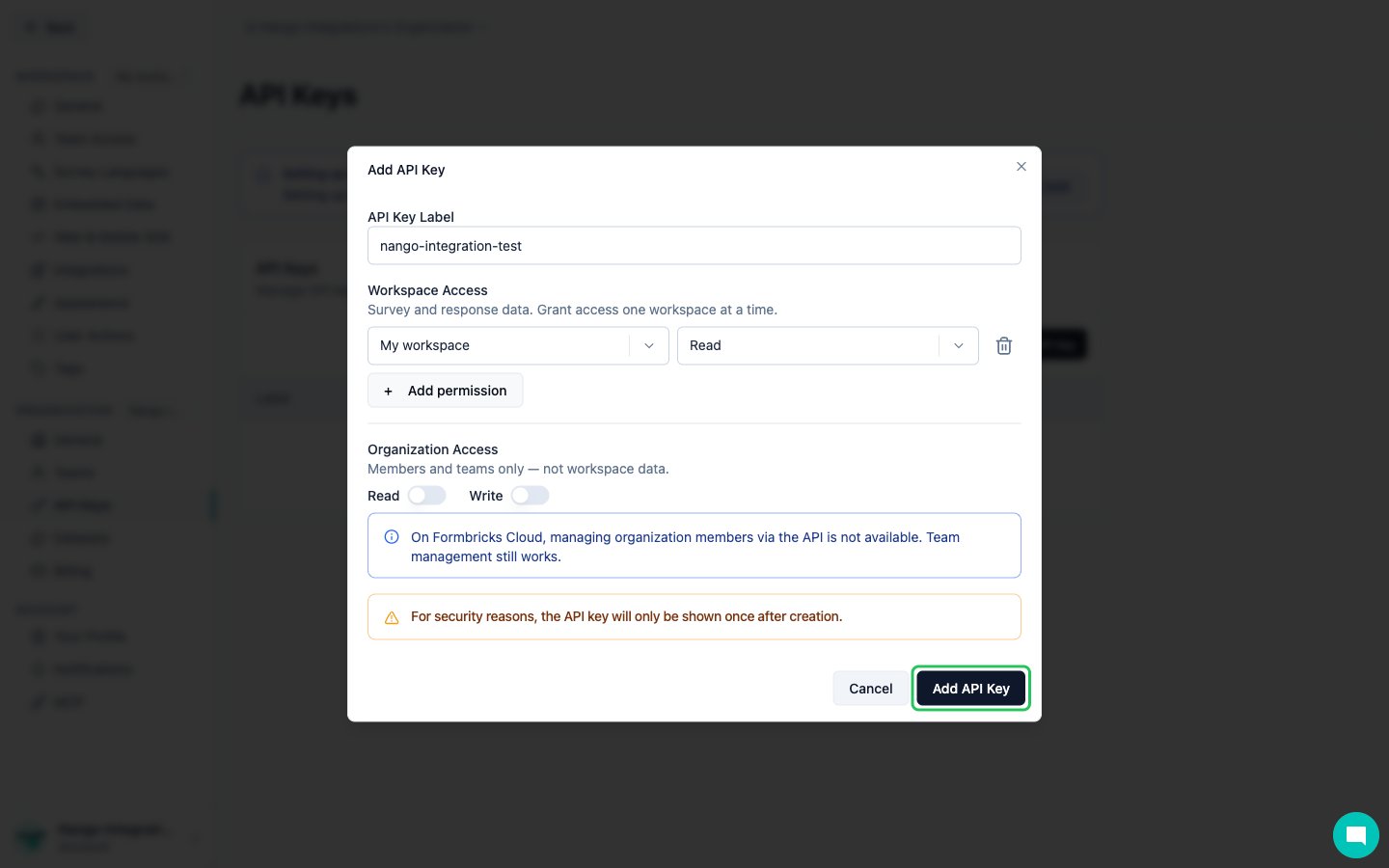
- Enter a label, for example the name of your app.
- Under Workspace Access, click Add permission for each workspace the key should reach and choose Read, Write or Manage.
- Leave Organization Access off unless you need organization endpoints, then click Add API Key.
- Copy the new key (it starts with
fbk_) with the copy icon in the API Key column.
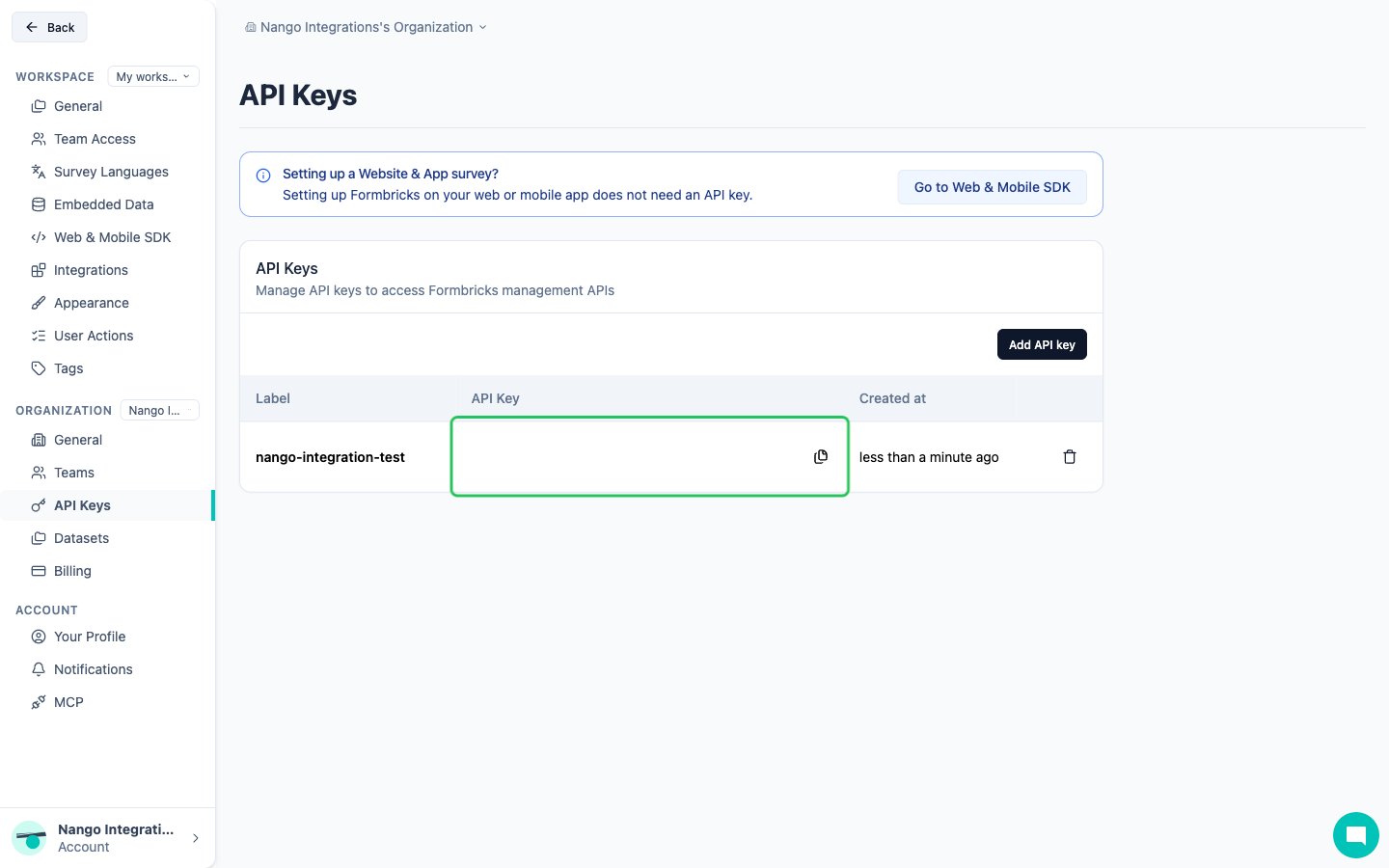
Formbricks shows the API key only once. Copy it now and store it somewhere safe.
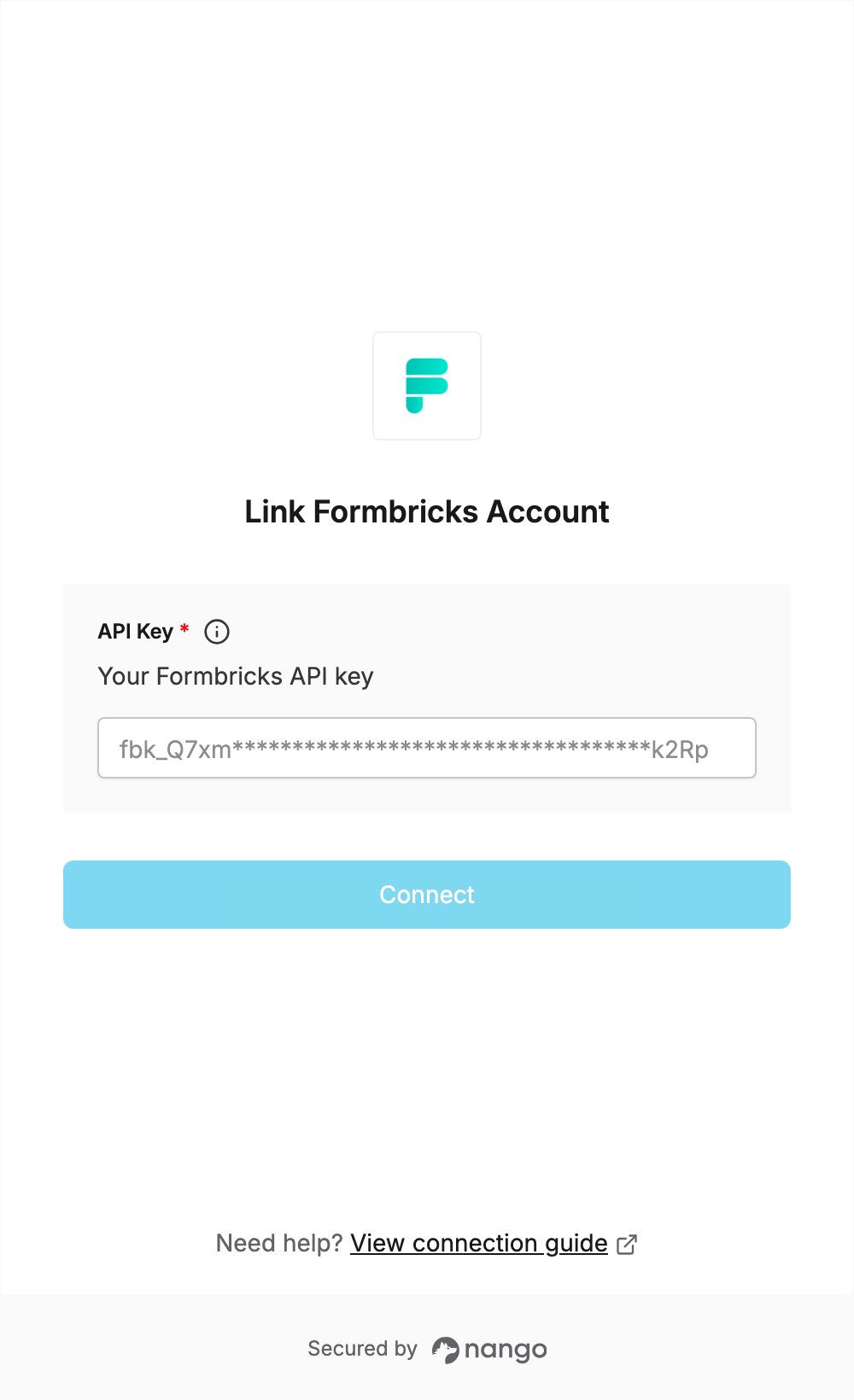
Step 2: Enter your API key in the Connect UI
- Open the form where you need to authenticate with Formbricks.
- Enter your API key in the API Key field.
- Submit the form, and you should be successfully authenticated.