Overview
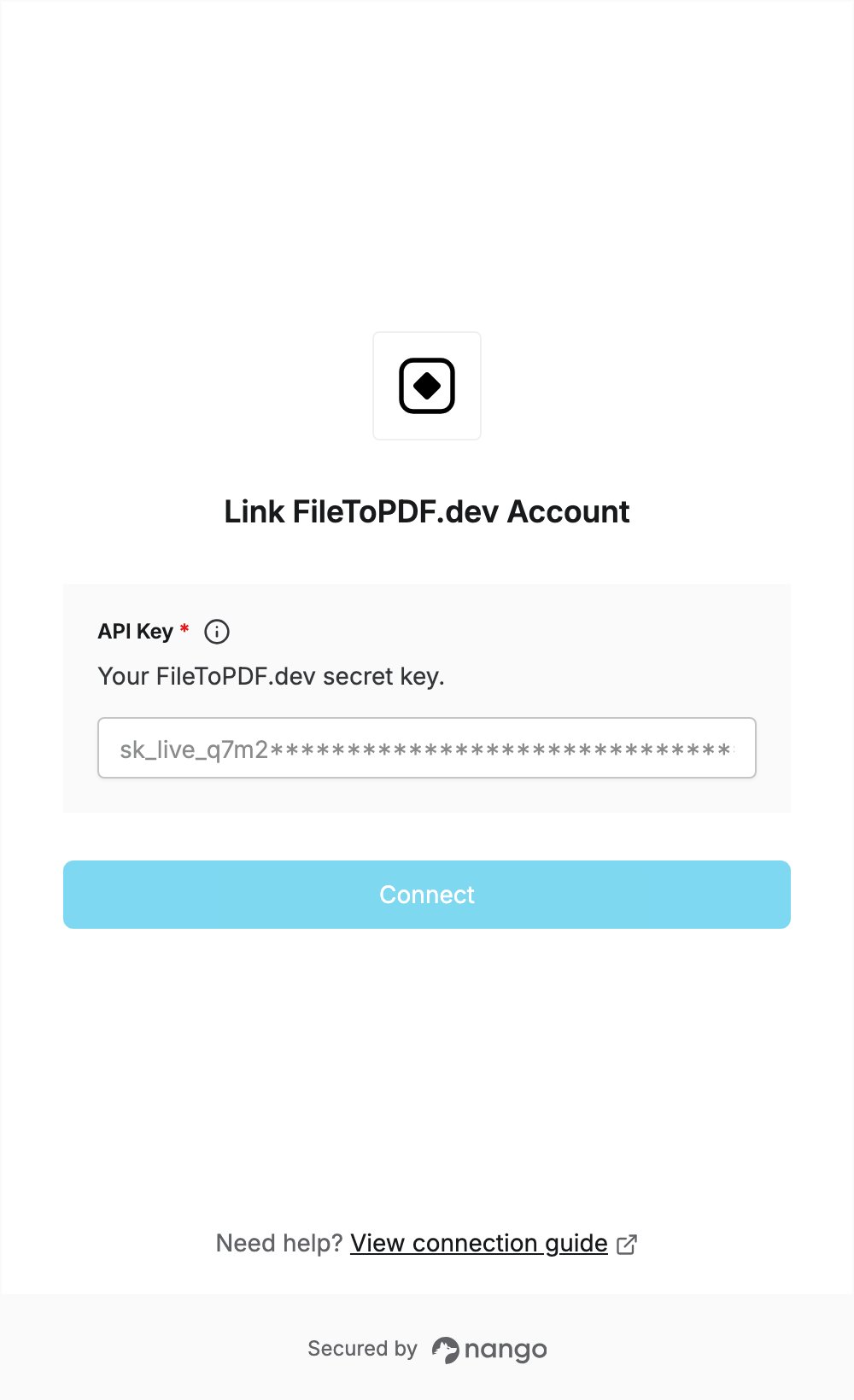
To authenticate with FileToPDF.dev, you need:- API Key — a secret key created in your FileToPDF.dev workspace.
Prerequisites
- A FileToPDF.dev account. Sign up with Google or your email to get 10 free conversions.
Step 1: Create an API key
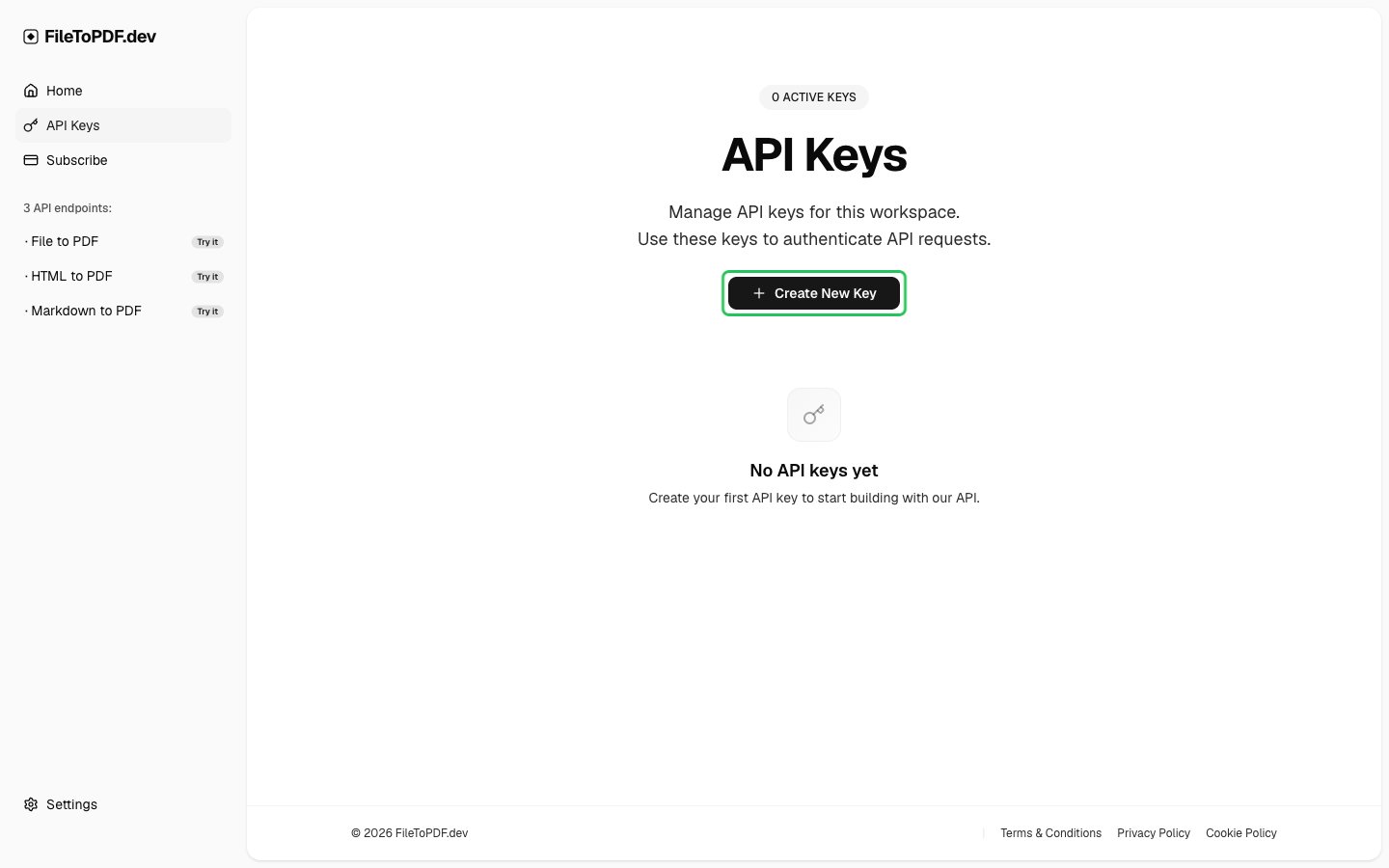
- Log in at filetopdf.dev and click API Keys in the sidebar.
- Click Create New Key.
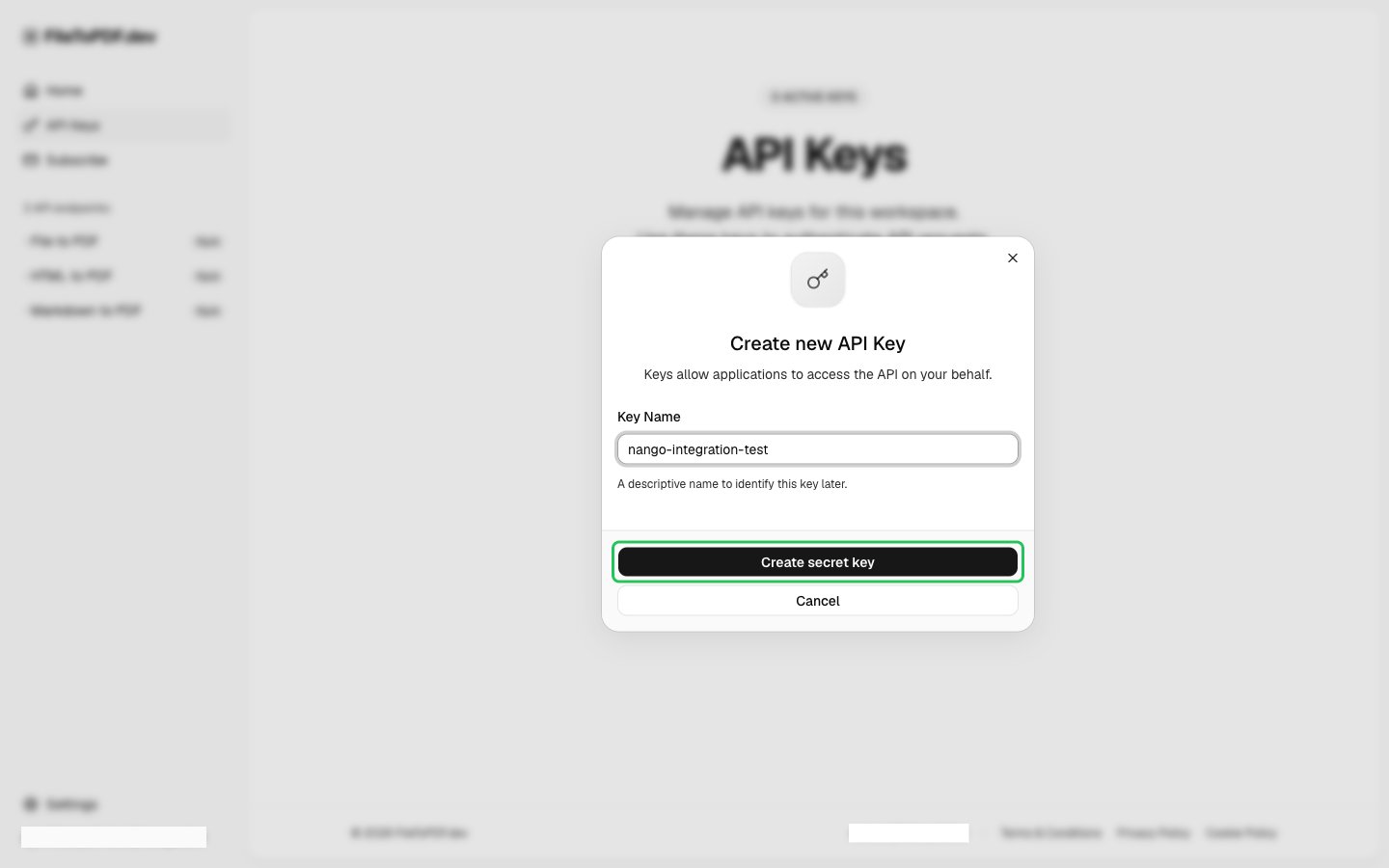
- Enter a name for the key, then click Create secret key.
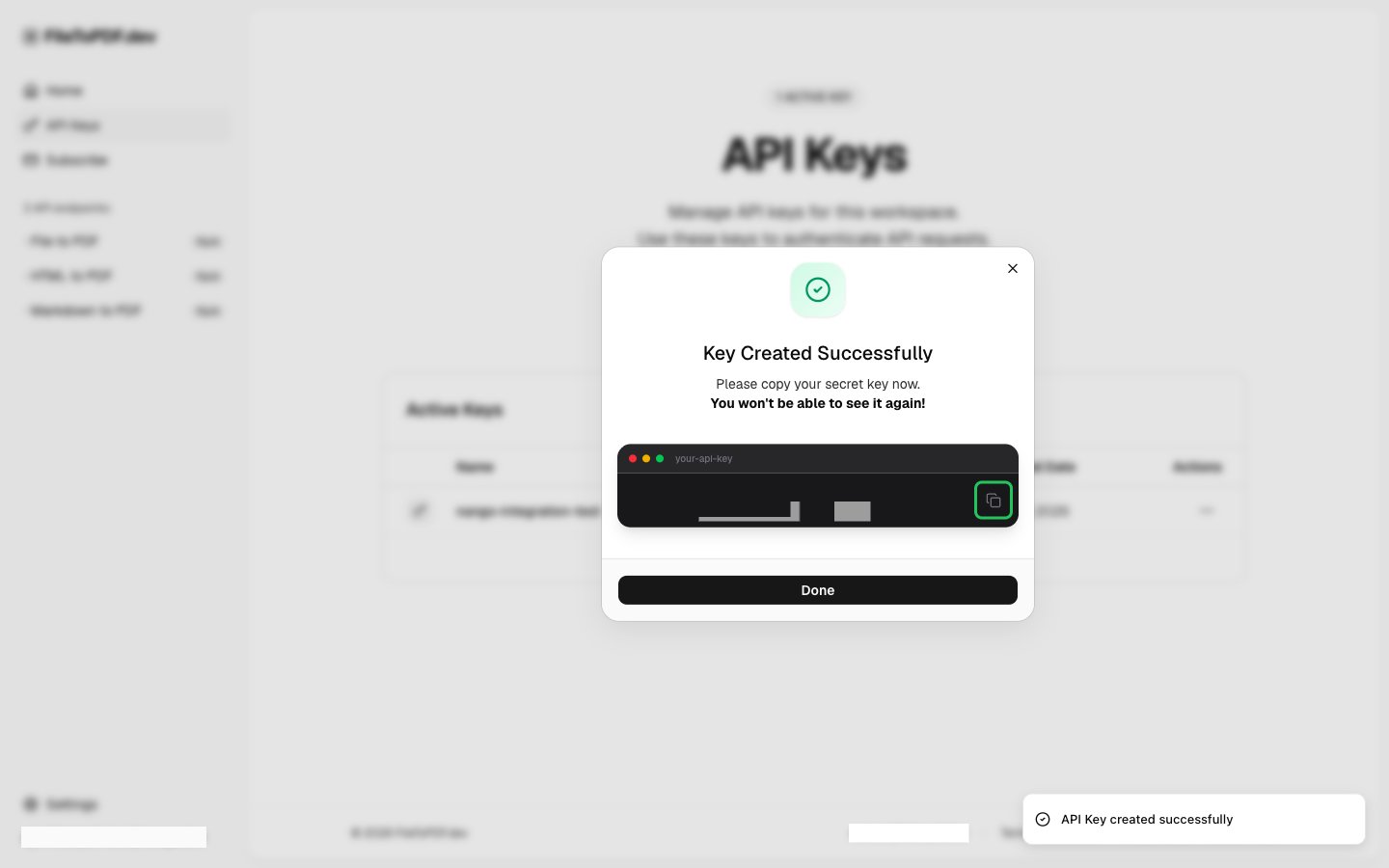
- Click the copy icon to copy the secret key, then click Done. The key starts with
sk_live_and is shown only once.
Step 2: Enter your API key in the Connect UI
- Open the form where you need to authenticate with FileToPDF.dev.
- Enter your secret key in the API Key field.
- Submit the form. The connection is saved without checking the key: if the key is wrong, the first API request returns an authentication error.