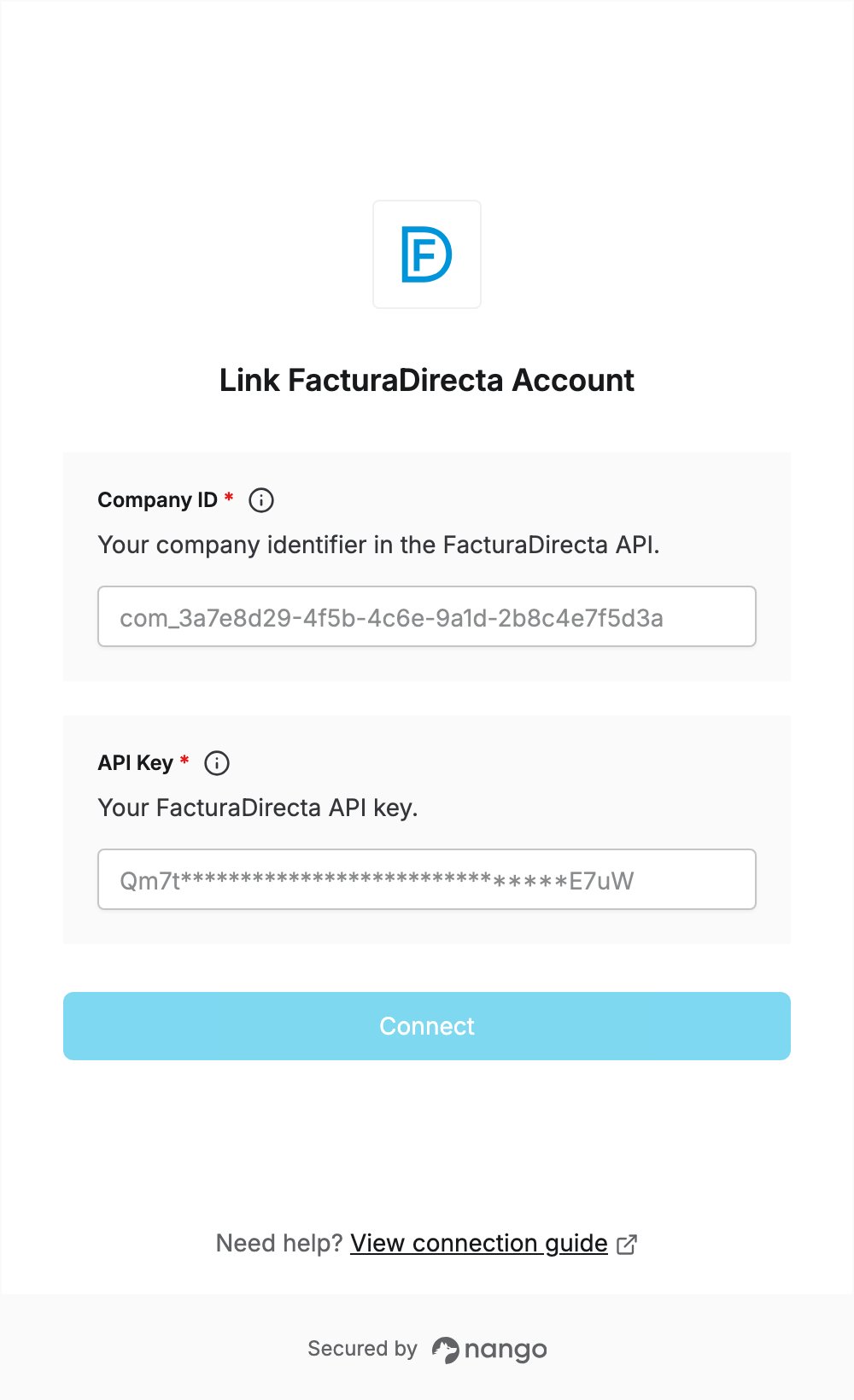
Overview
To authenticate with FacturaDirecta, you need:- Company ID — the identifier of your company in the FacturaDirecta API.
- API Key — an API key created for that company.
Prerequisites
- A FacturaDirecta account with a company. API keys are available on every plan, including the free Gratis plan.
Step 1: Copy your company ID
- Log in to FacturaDirecta and open the company you want to connect.
- Click the Settings (gear) icon in the top bar.
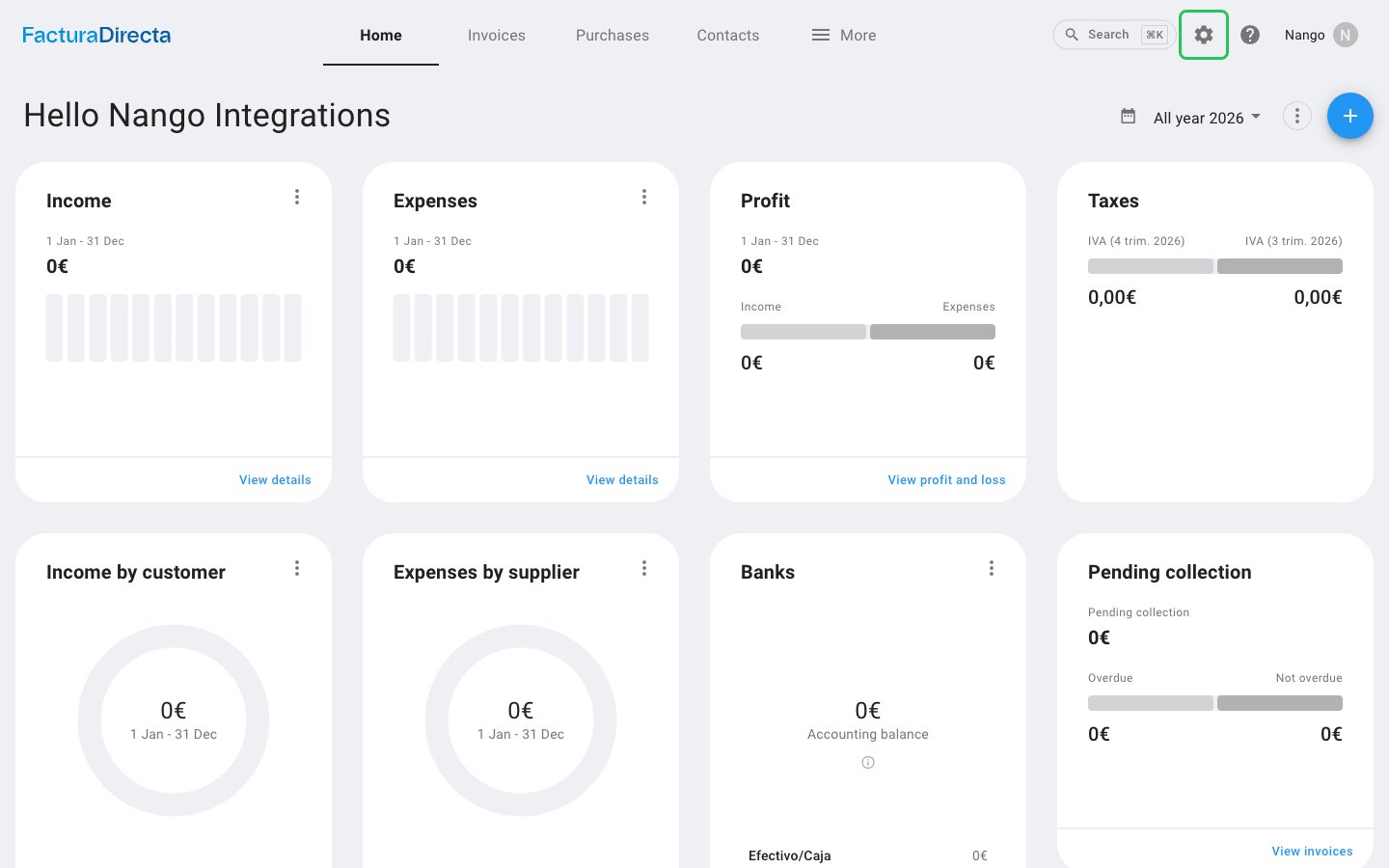
- In the Settings menu, click API and integrations (API e integraciones).
- In the API card, copy the value under Your company identifier in the API: this is your Company ID.
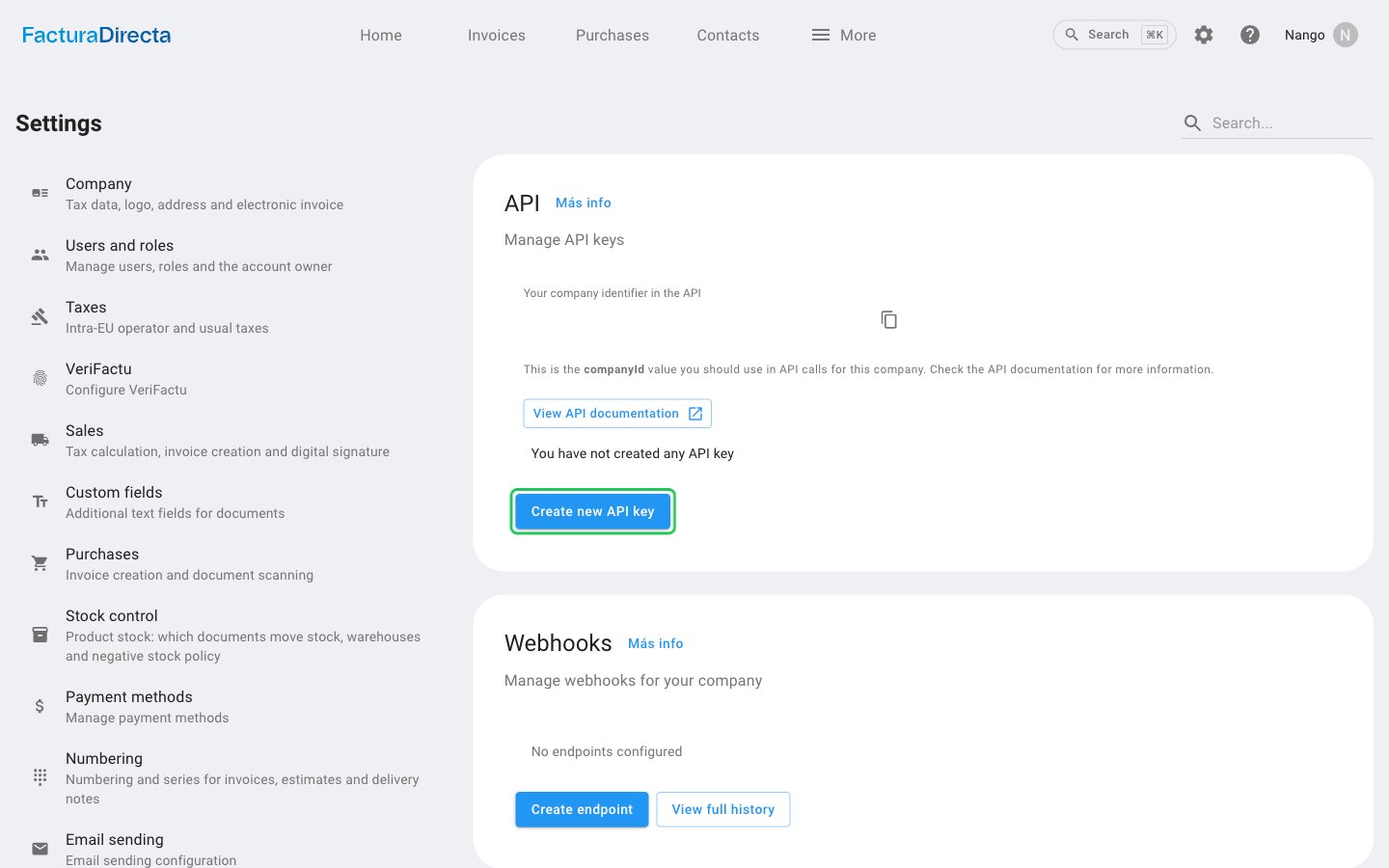
An API key only works for the company it was created in. Use the company ID of that same company.
Step 2: Create an API key
- On the same page, click Create new API key.
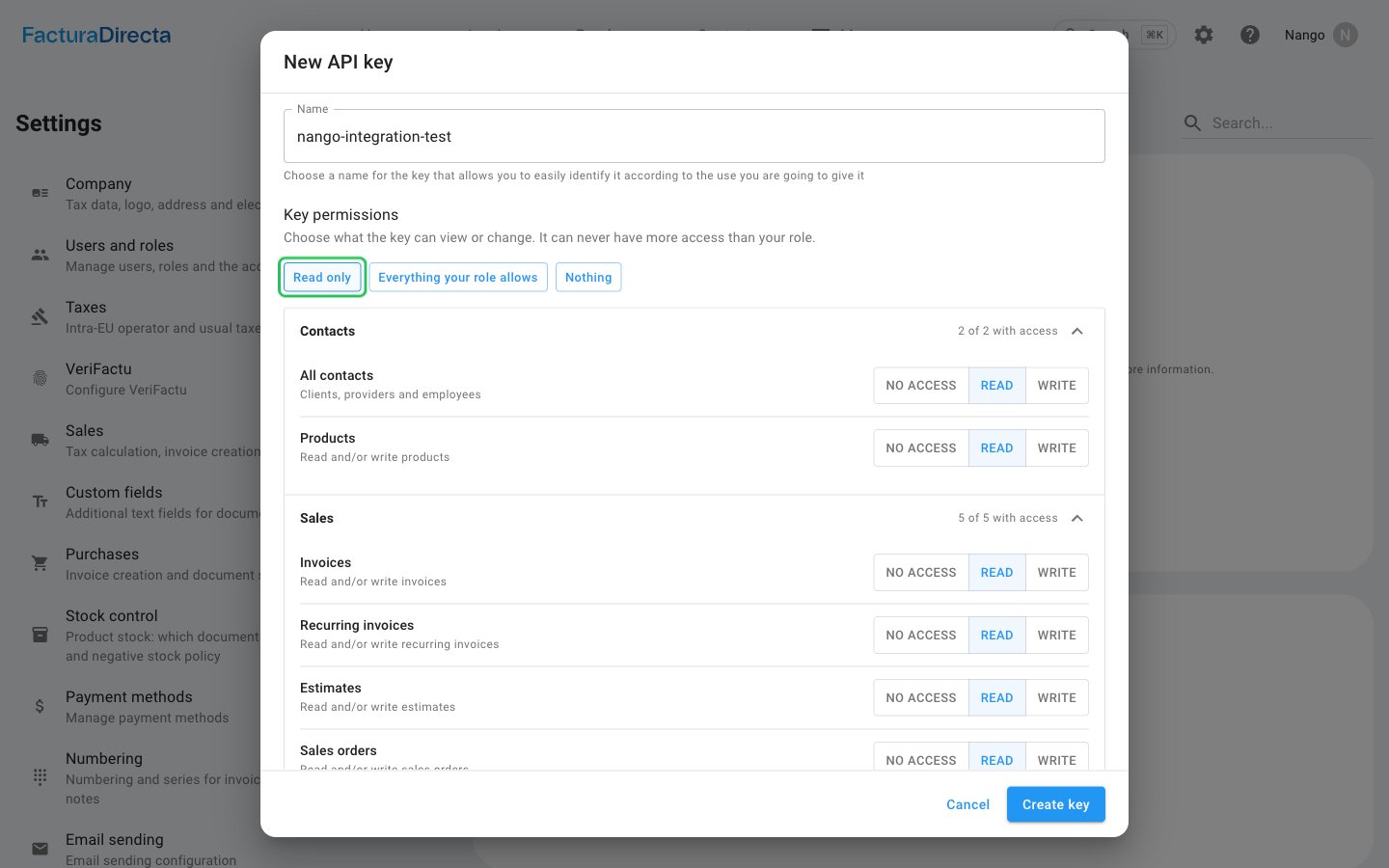
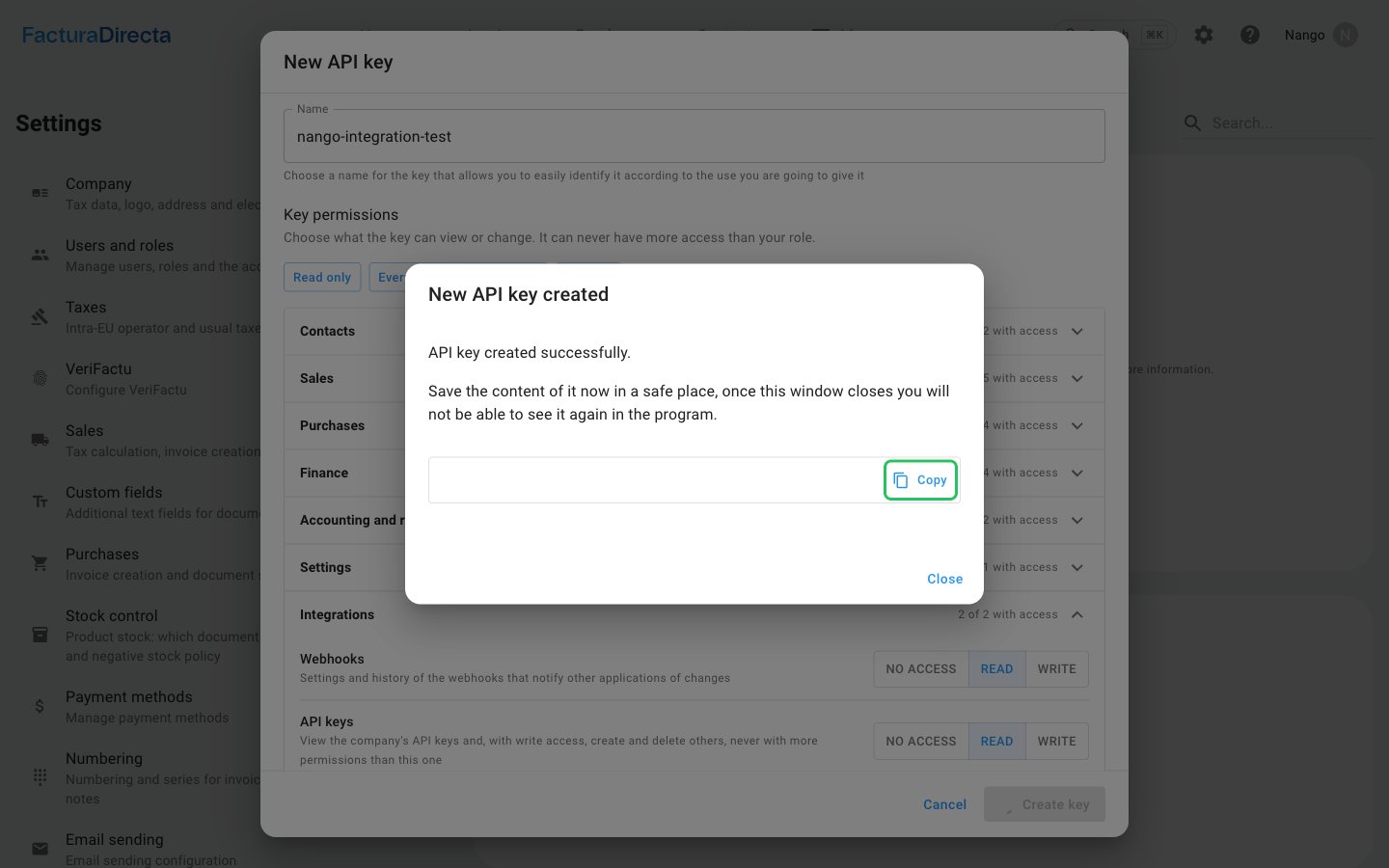
- Enter a Name for the key, then set the permissions your integration needs. Click Read only to grant read access to every resource.
- Click Create key, then confirm with Yes, create key.
- In the New API key created dialog, click Copy to copy the full API key. It is shown only once.
Step 3: Enter your credentials in the Connect UI
- Open the form where you need to authenticate with FacturaDirecta.
- Enter your company ID in the Company ID field.
- Enter your API key in the API Key field.
- Submit the form, and you should be successfully authenticated.