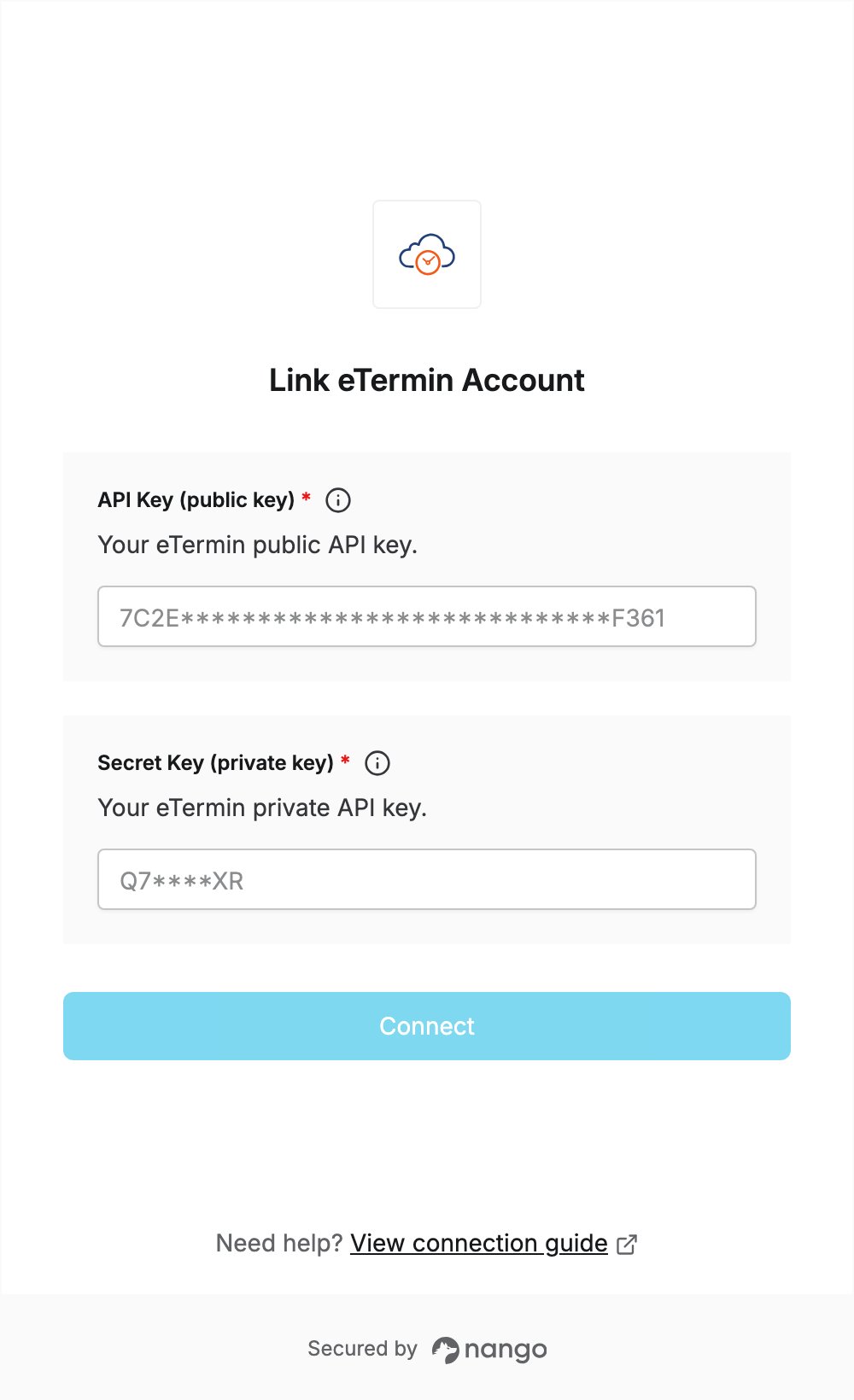
Overview
To authenticate with eTermin, you need:- API Key (public key) — your eTermin public API key.
- Secret Key (private key) — one of your eTermin private API keys.
Prerequisites
- An eTermin account.
Step 1: Open the API settings
- Log in to your eTermin account at etermin.net/Login.
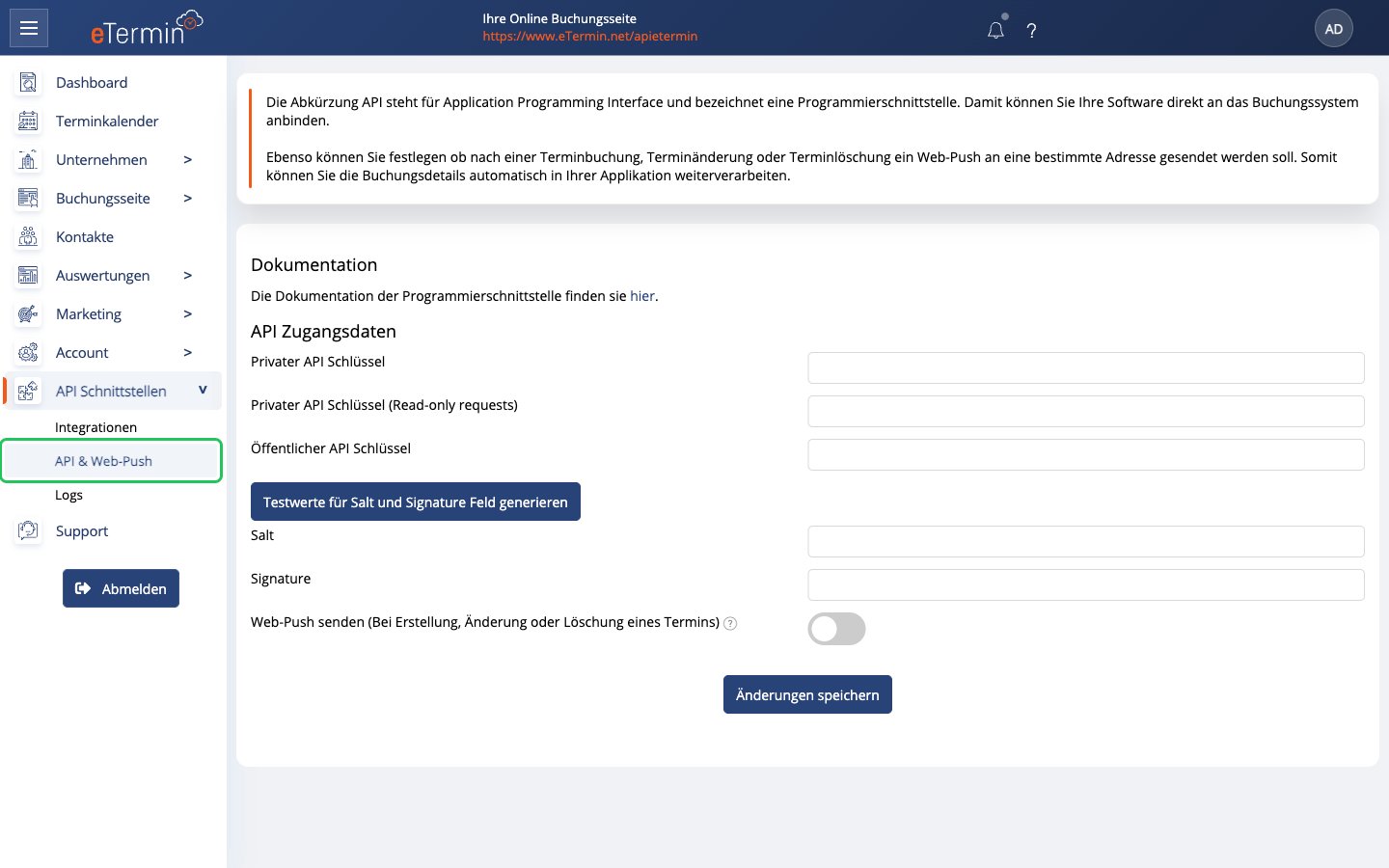
- In the left menu, expand API Schnittstellen (API interfaces) and click API & Web-Push.
Step 2: Copy your API keys
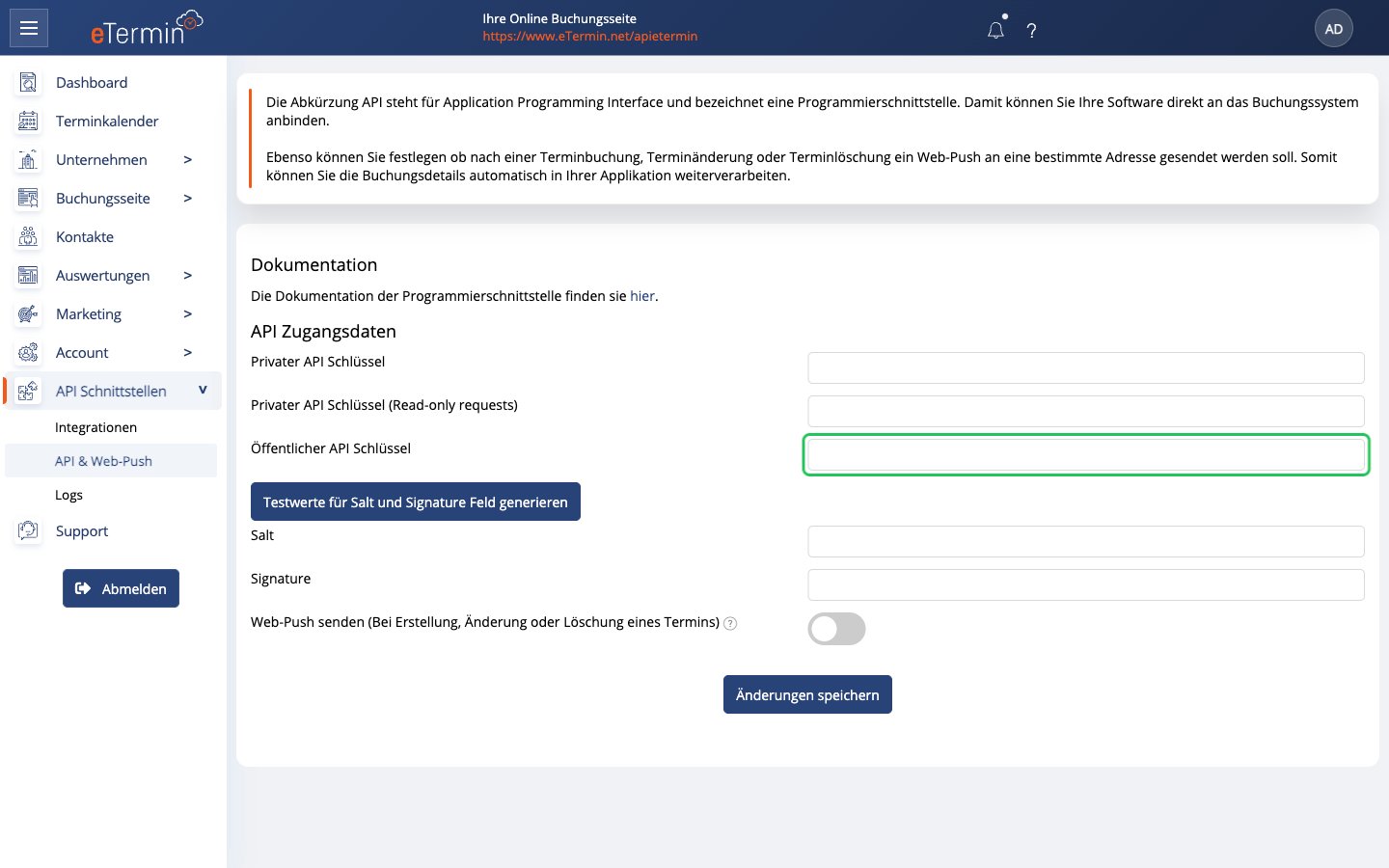
eTermin creates the keys for your account automatically, so there is nothing to generate. Under API Zugangsdaten (API credentials):- Copy the Öffentlicher API Schlüssel (public API key). This is your API Key (public key).
- Copy a private key. This is your Secret Key (private key):
- Privater API Schlüssel (Read-only requests) if your integration only reads data.
- Privater API Schlüssel if your integration also creates, updates or deletes data.
Step 3: Enter your keys in the Connect UI
- Open the form where you need to authenticate with eTermin.
- Paste the Öffentlicher API Schlüssel into the API Key (public key) field.
- Paste the private key you chose into the Secret Key (private key) field.
- Submit the form. Nango checks the keys with eTermin and rejects them if they are wrong.