Overview
To authenticate with eSputnik, you need:- API key - an API key created in your eSputnik account.
Prerequisites
- An eSputnik account. You can create one with a starter package to test the API.
Step 1: Create an API key
- Log in to your eSputnik account.
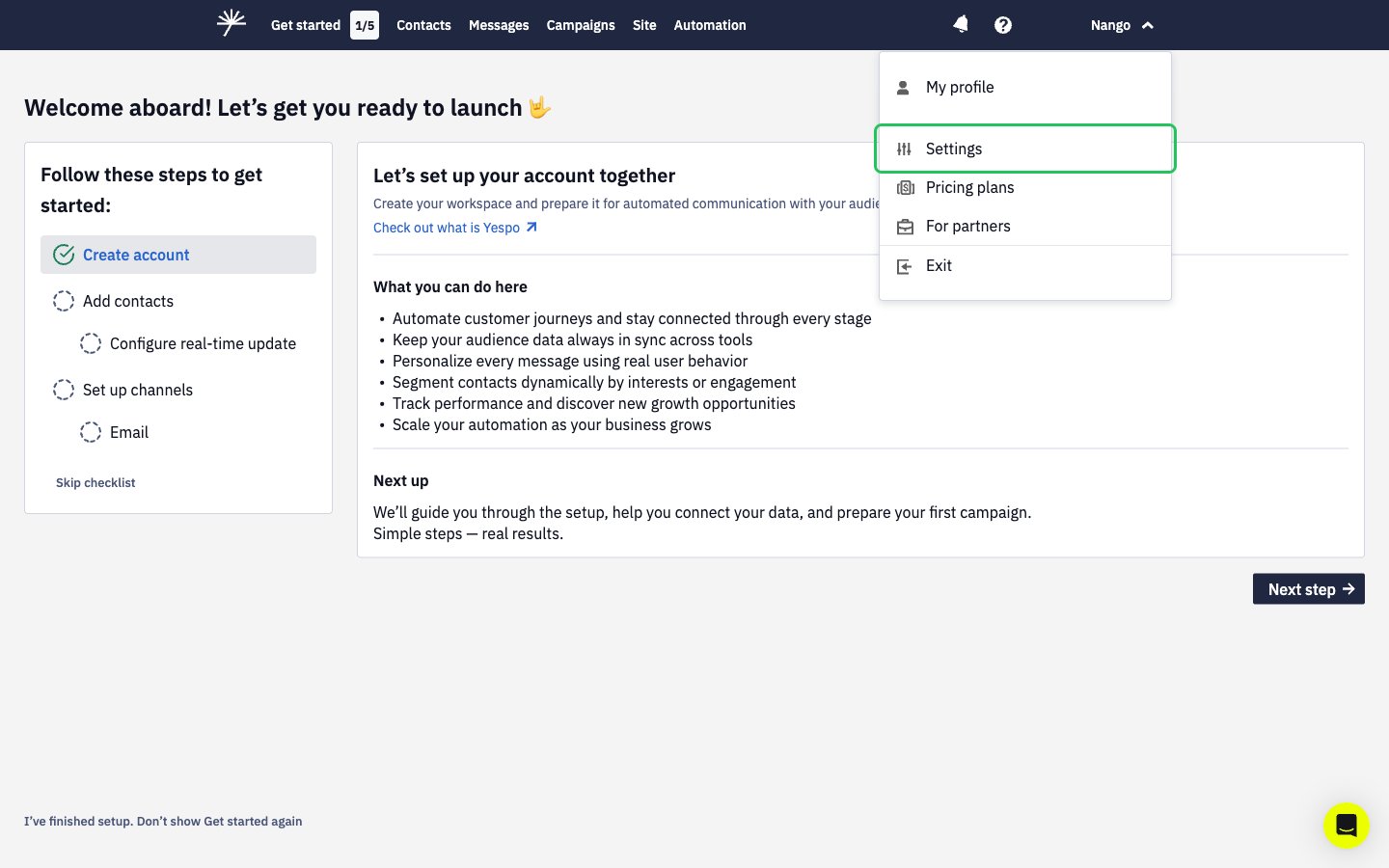
- Click your account name in the top-right corner, then choose Settings.
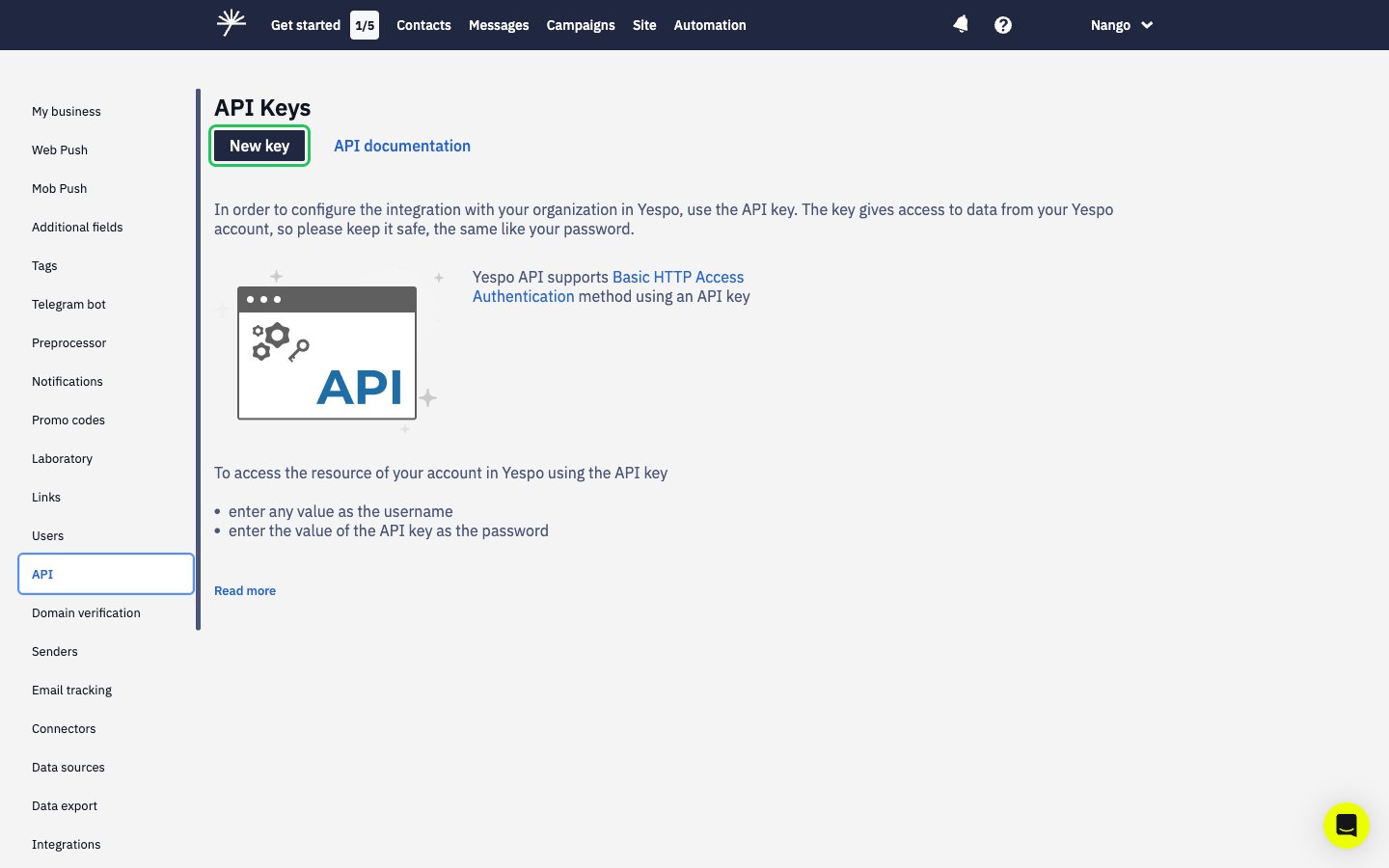
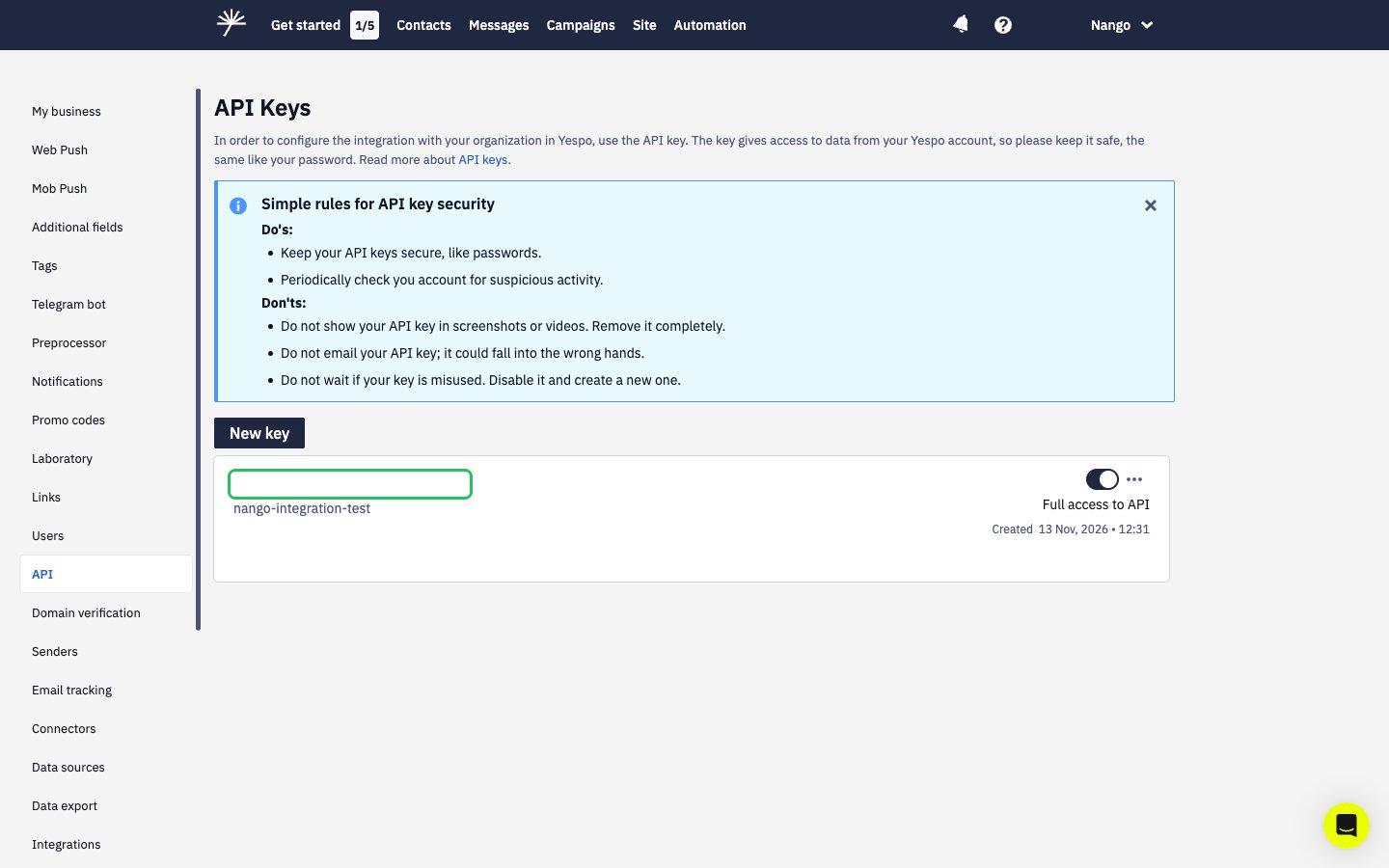
- In the Settings sidebar, click API, then click New key.
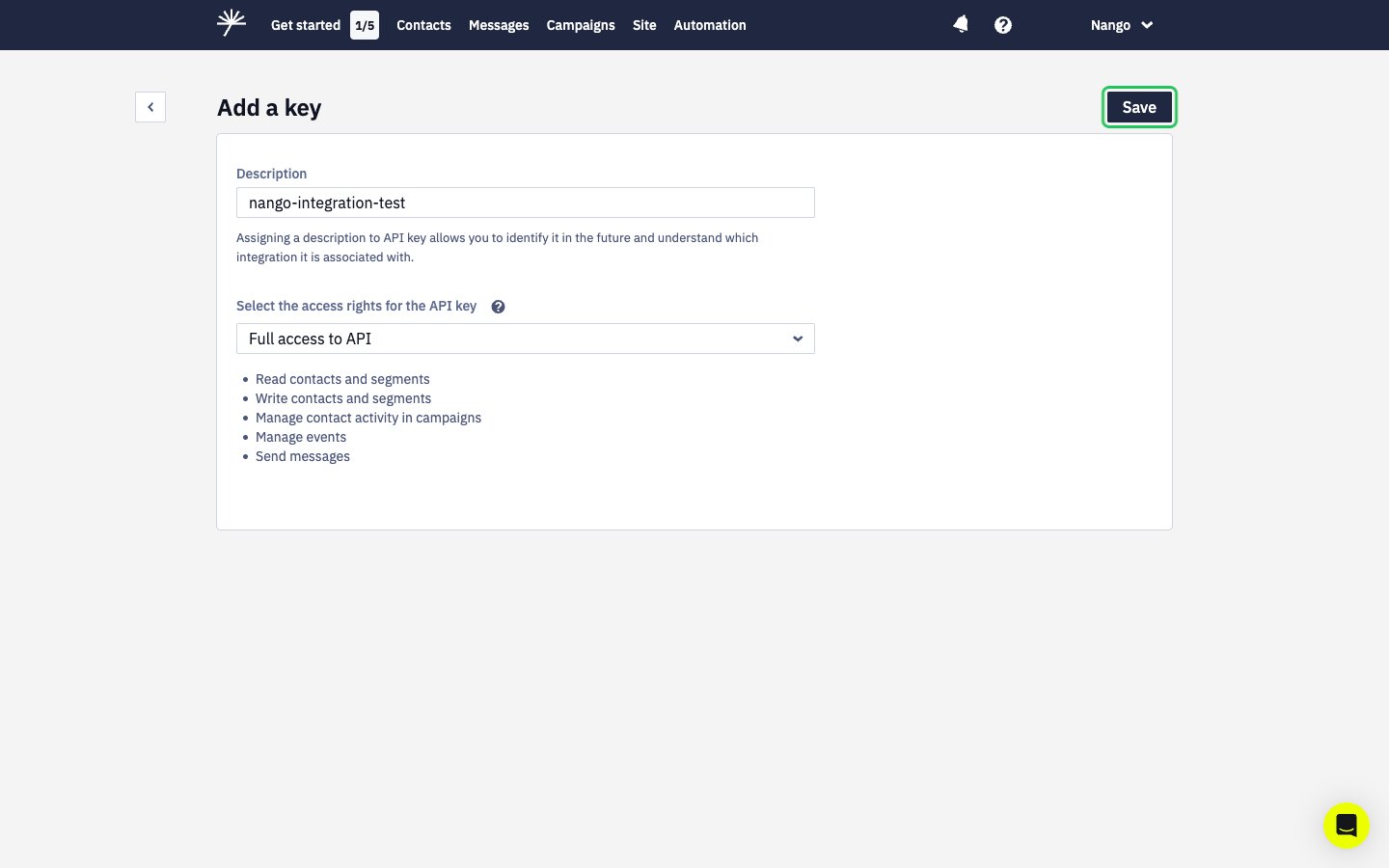
- In Description, enter a name for the key, such as the name of your app.
- In the access rights dropdown, select Full access to API, then click Save.
- In the API keys list, click the masked key number of your new key to copy it to your clipboard.
Step 2: Enter your API key in the Connect UI
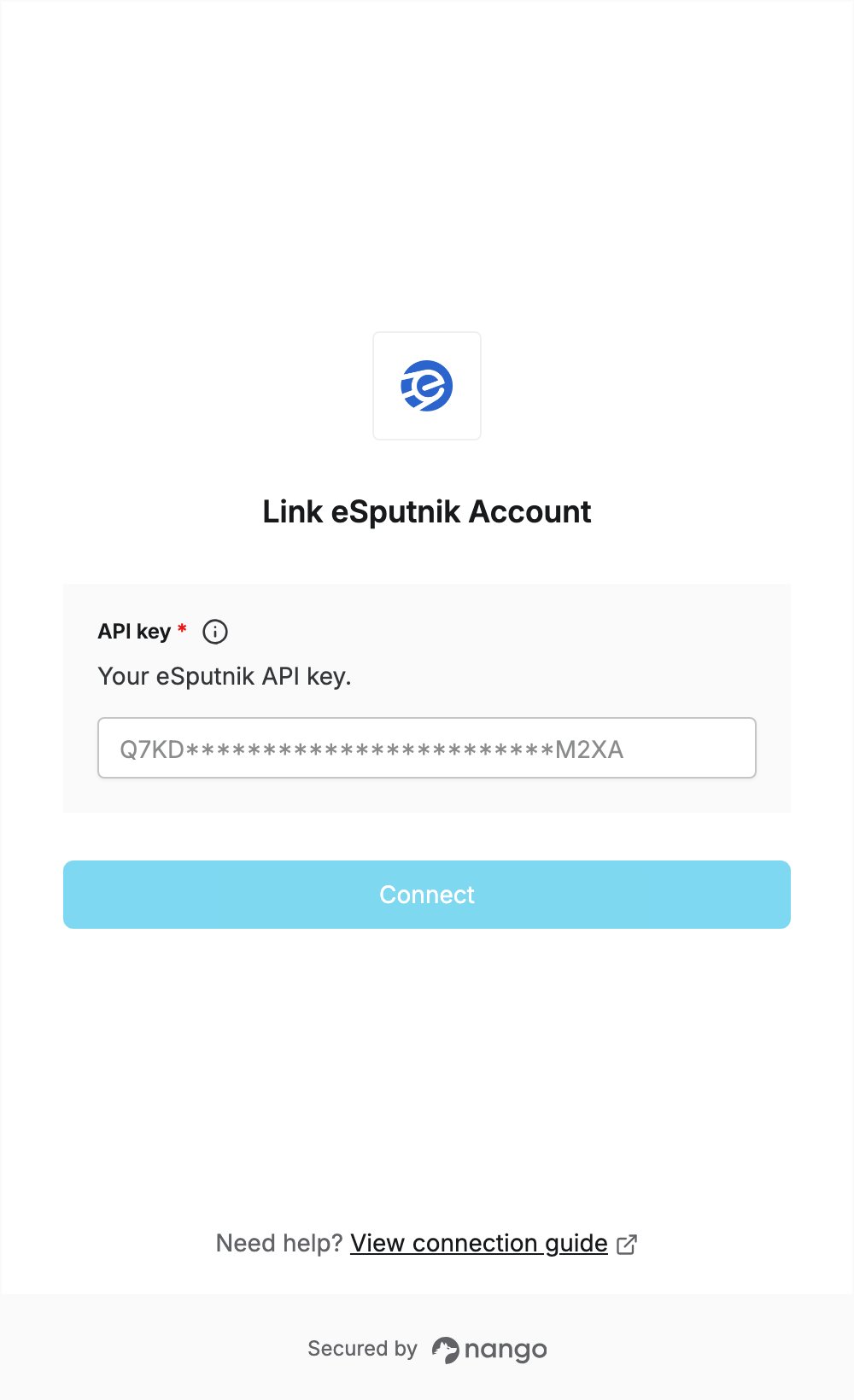
- Open the form where you need to authenticate with eSputnik.
- Paste the key you copied in Step 1 into the API key field.
- Submit the form, and you should be successfully authenticated.