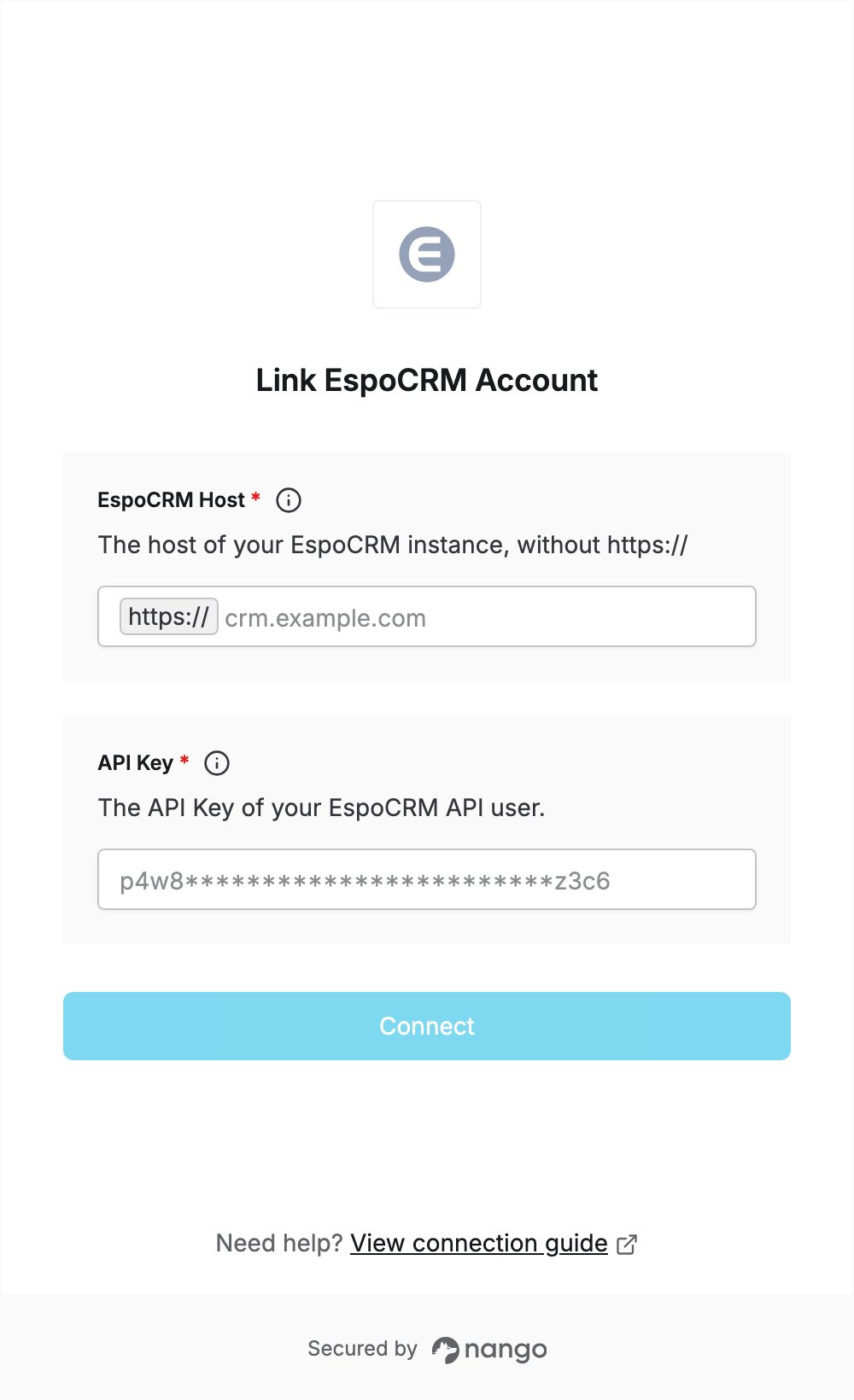
Overview
To authenticate with EspoCRM, you need:- EspoCRM Host — the host of your EspoCRM instance, for example
crm.example.com. - API Key — the API key of an EspoCRM API user.
Prerequisites
- An EspoCRM instance, self-hosted or on EspoCRM Cloud. EspoCRM Cloud offers a 30-day free trial.
- An administrator account on that instance. API users are created under Administration.
Step 1: Find your EspoCRM host
- Open your EspoCRM instance in your browser.
- Copy the host from the address bar, without
https://or any path. On EspoCRM Cloud it looks likeyourcompany.espocloud.com; on a self-hosted install it is your own domain, such ascrm.example.com.
Step 2: Create a role for the API user
An API user can only access what its role allows, so create a role that covers the data your integration needs.- In EspoCRM, open Administration and, under Users, click Roles.
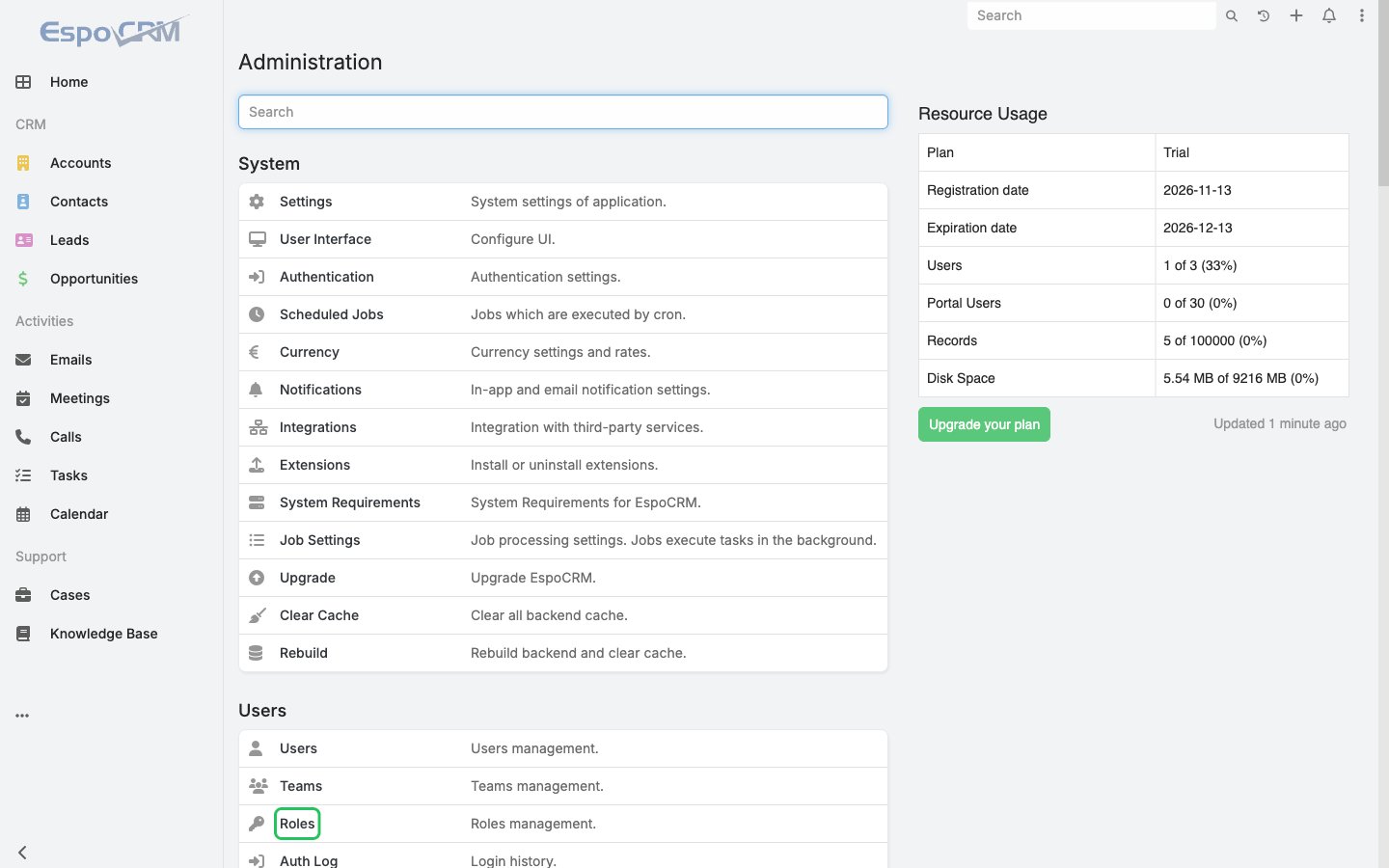
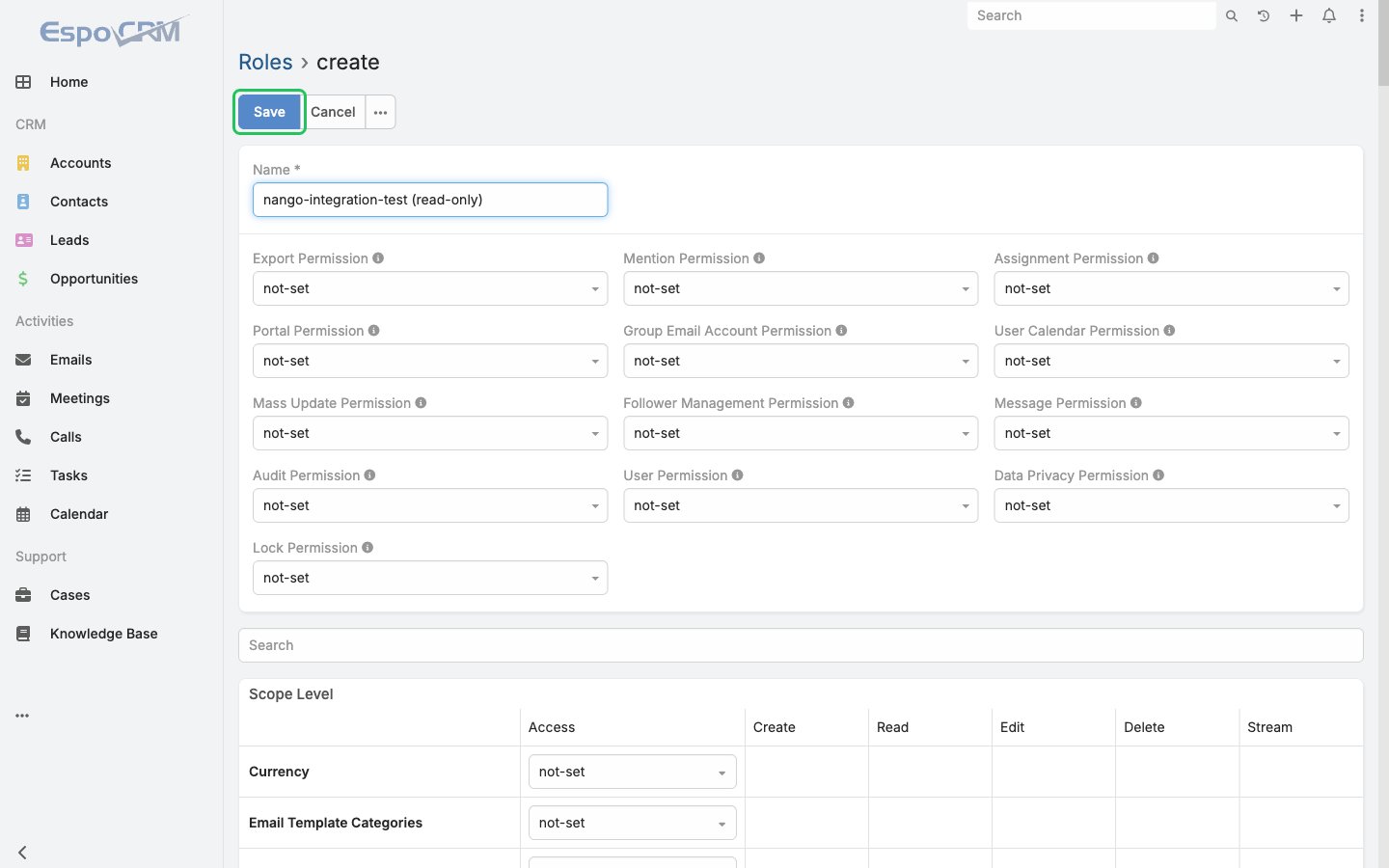
- Create a new role and enter a Name.
- Under Scope Level, set Access to enabled for each entity the integration needs (for example Accounts and Contacts), and choose the Create, Read, Edit and Delete levels it should have.
- Click Save.
Step 3: Create an API user
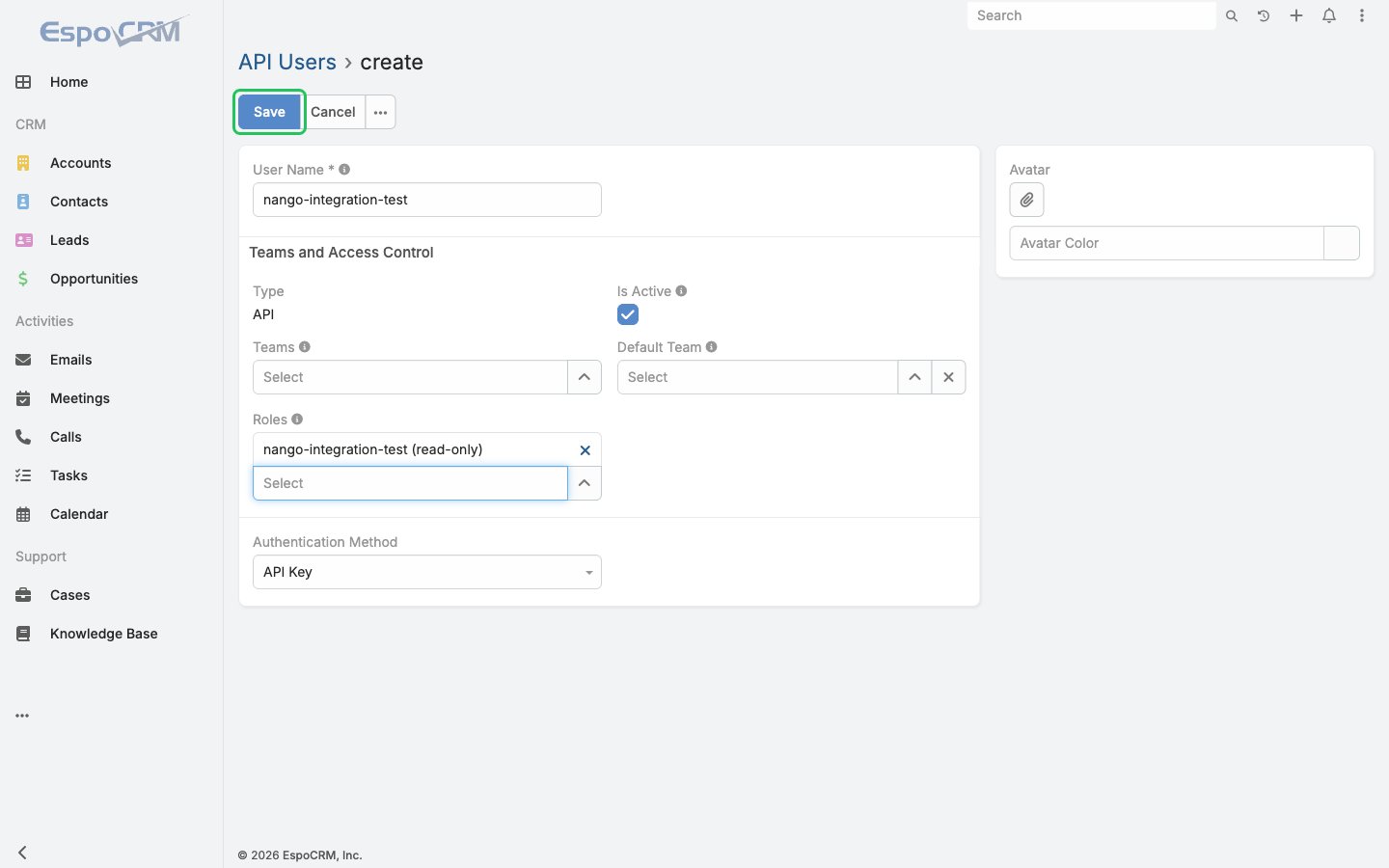
- Go back to Administration and, under Users, click API Users, then click Create API User.
- Enter a User Name and select the role from Step 2 under Roles.
- Leave Authentication Method set to API Key, then click Save.
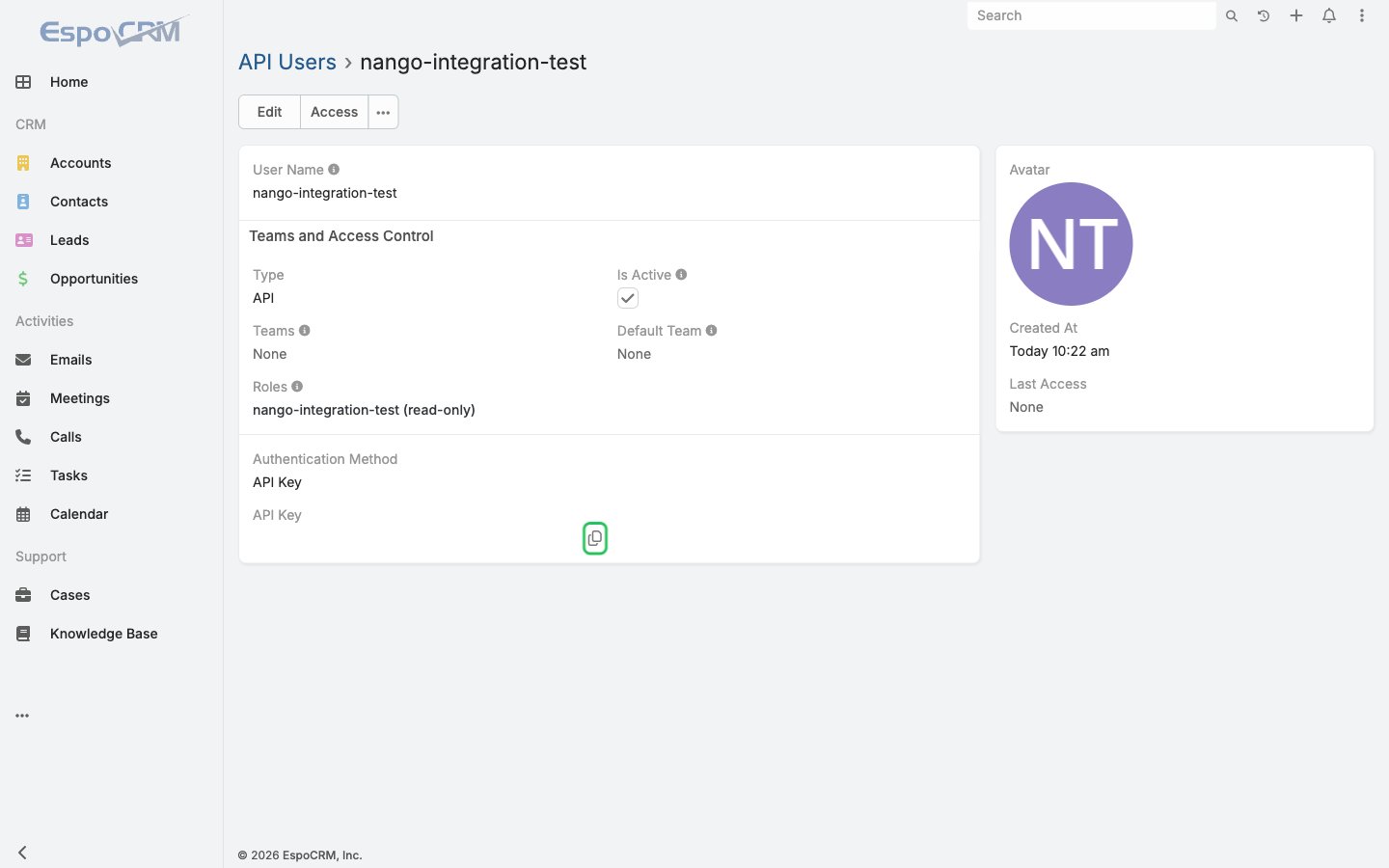
- On the API user’s detail view, click the copy button next to API Key to copy the key.
Step 4: Enter your credentials in the Connect UI
- Open the form where you need to authenticate with EspoCRM.
- In EspoCRM Host, enter your host from Step 1 (for example,
crm.example.com). - In API Key, paste the API key from Step 3.
- Submit the form. Nango checks the API key with your EspoCRM instance before saving the connection.