Overview
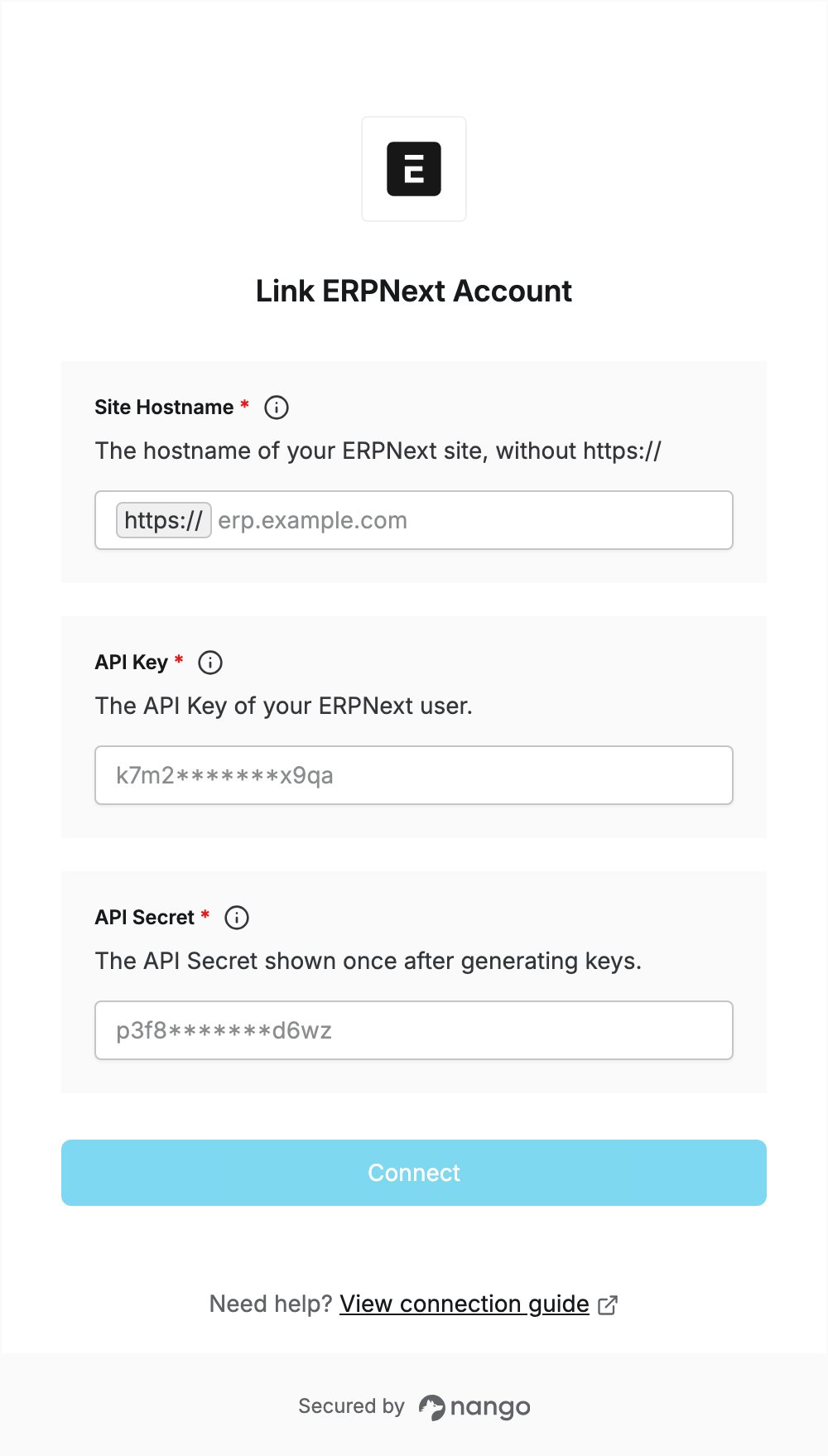
To authenticate with ERPNext, you need:- Site Hostname — the hostname of your ERPNext site, for example
erp.example.com. - API Key — the API key of the ERPNext user the integration acts as.
- API Secret — the API secret generated together with the API key.
Prerequisites
- An ERPNext site, self-hosted or on Frappe Cloud. Frappe Cloud offers a 14-day free trial.
- A user with the System Manager role. Only System Managers can generate API keys.
Step 1: Find your site hostname
- Open your ERPNext site in your browser.
- Copy the hostname from the address bar, without
https://or any path. On Frappe Cloud it ends in.frappe.cloud; on a self-hosted install it is your own domain, such aserp.example.com.
Step 2: Generate your API key and API secret
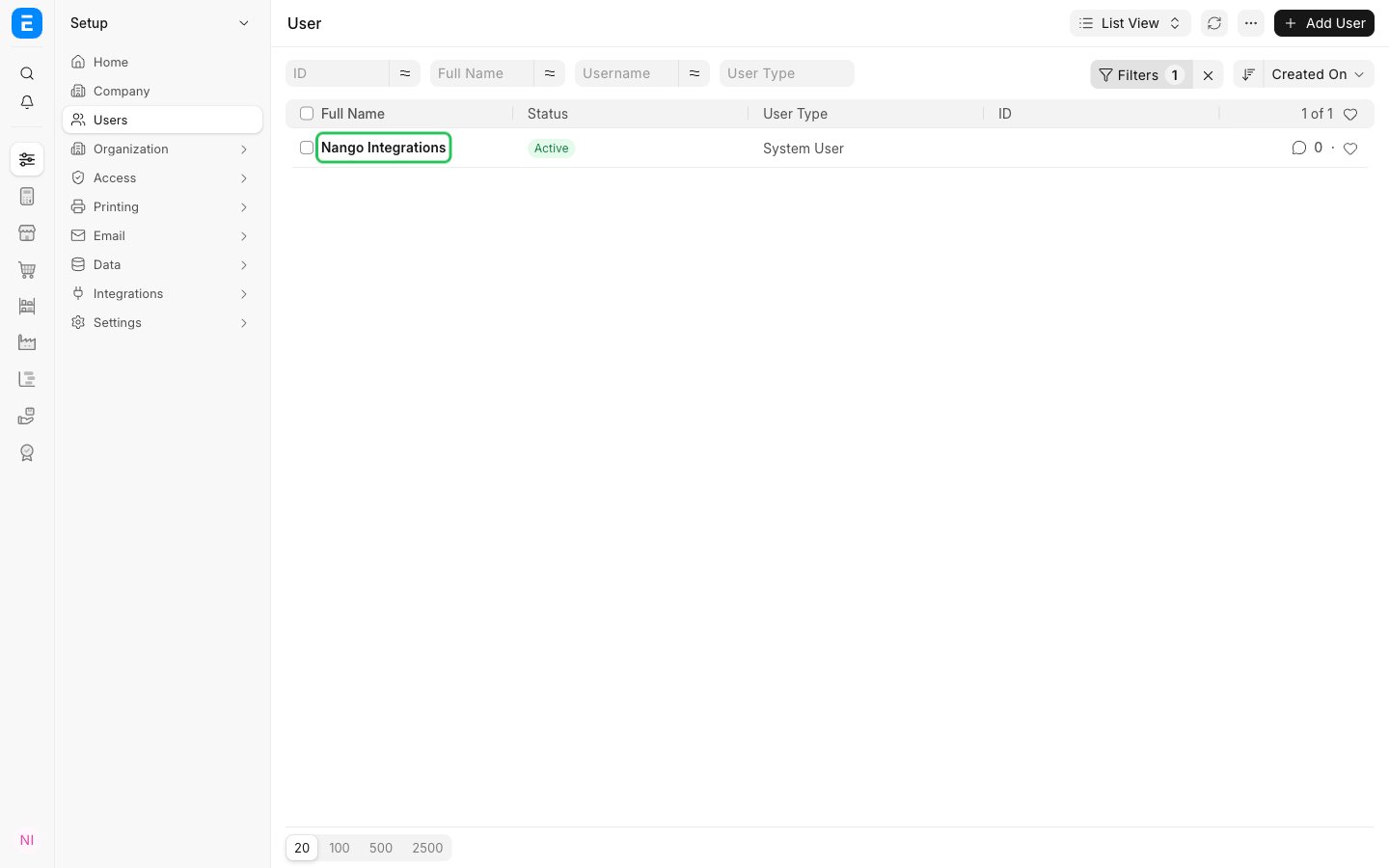
API requests run with the permissions of the user the keys belong to, so pick a user whose roles cover the data your integration needs.- In your ERPNext site, go to Setup > Users and open the user the API key should act as.
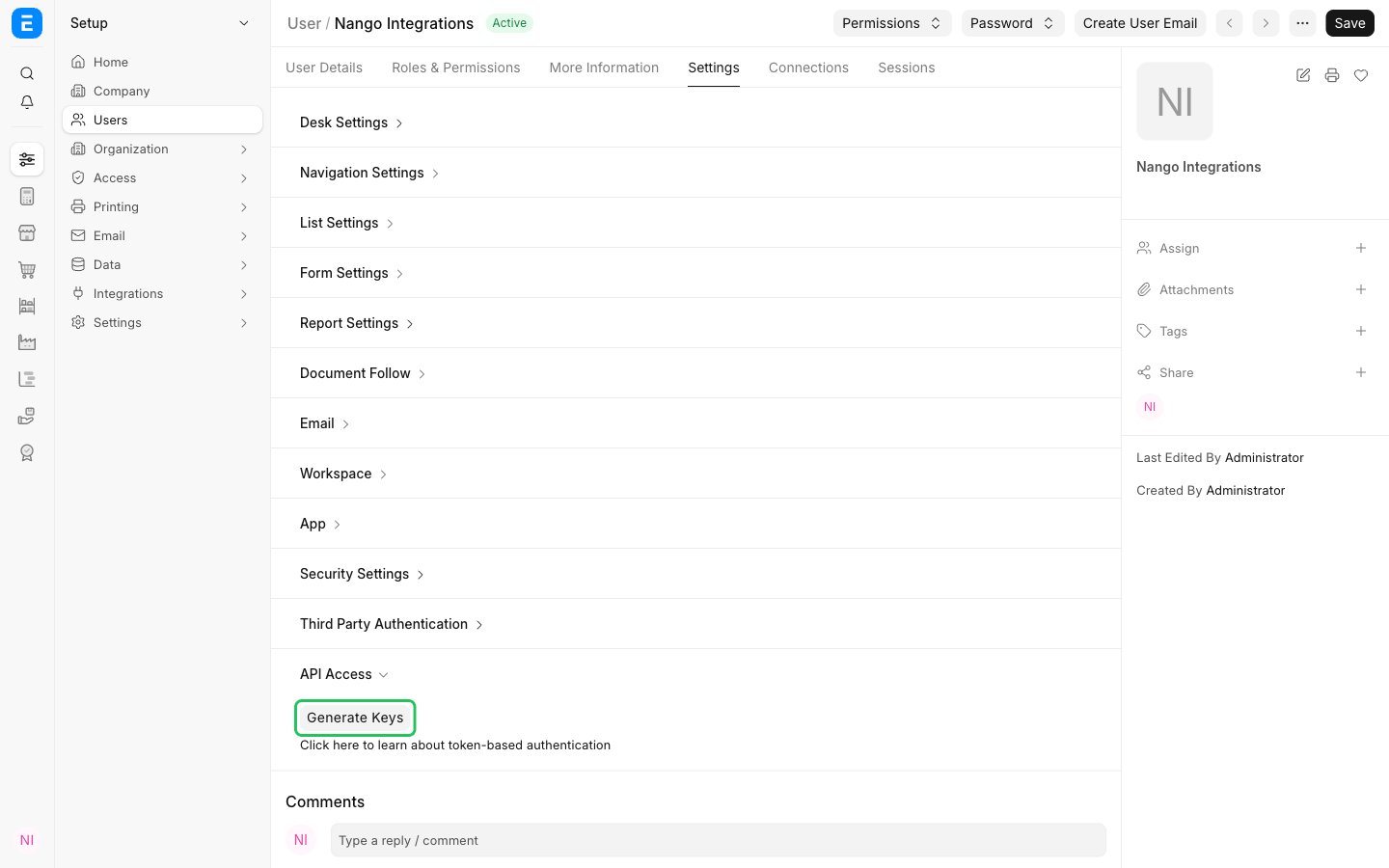
- Open the Settings tab, expand API Access and click Generate Keys.
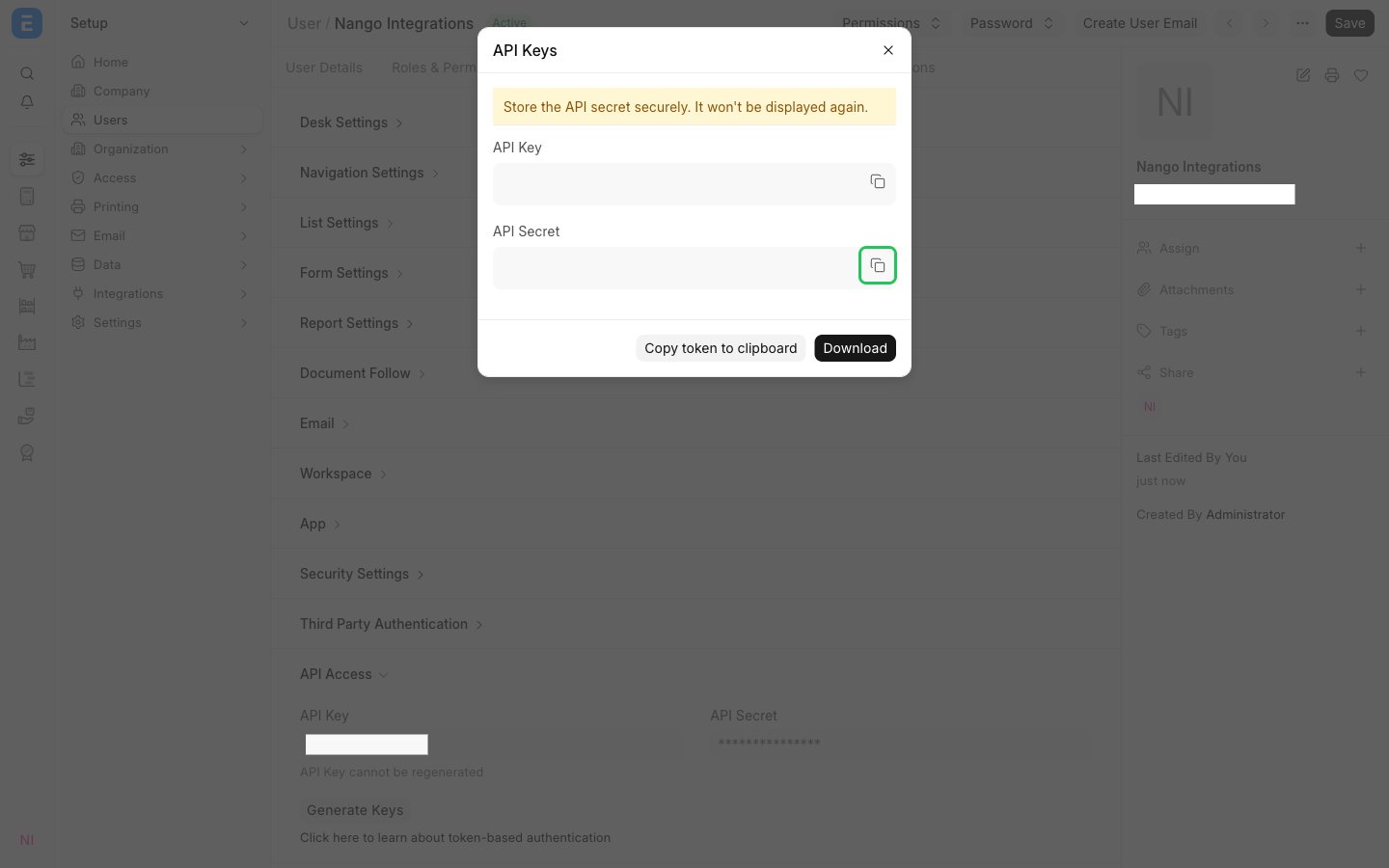
- In the API Keys popup, copy the API Secret and the API Key. The API Secret is shown only once: store it somewhere safe. If you lose it, click Generate Keys again to get a new secret.
Step 3: Enter your credentials in the Connect UI
- Open the form where you need to authenticate with ERPNext.
- In Site Hostname, enter your hostname from Step 1 (for example,
erp.example.com). - In API Key, paste the API Key from Step 2.
- In API Secret, paste the API Secret from Step 2.
- Submit the form. Nango checks the credentials with your ERPNext site before saving the connection.