Overview
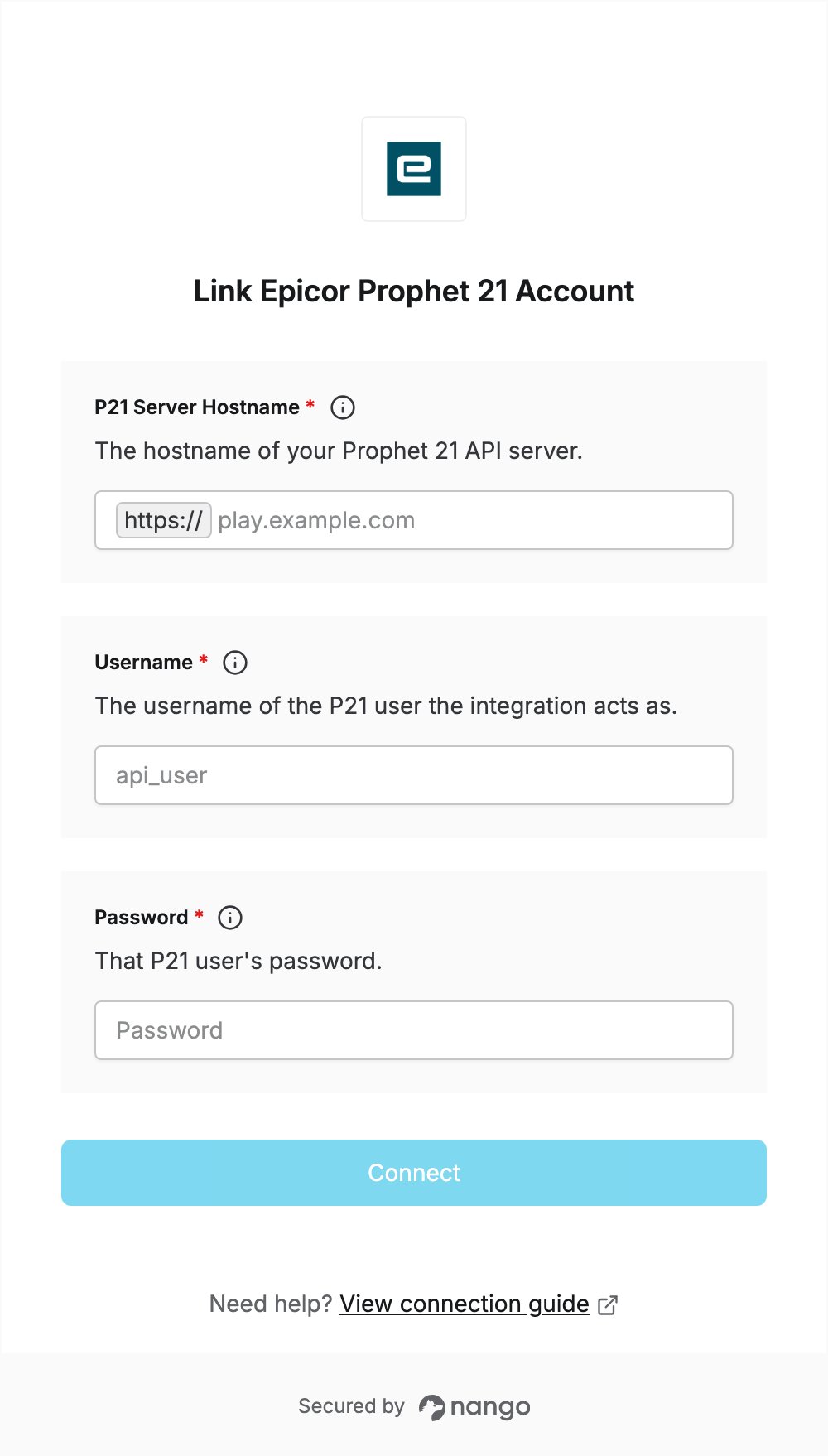
To authenticate with Epicor Prophet 21, you need:- P21 Server Hostname - The hostname of the P21 server that hosts the P21 API.
- Username - The username of the P21 user the integration acts as.
- Password - That user’s password.
Prerequisites
- A Prophet 21 server reachable from the internet over HTTPS.
- Access to the P21 Desktop Client with permission to edit users and roles, to set up the API user.
Instructions
Step 1: Find your P21 server hostname
- Find the address of your P21 API server, for example
https://play.example.com. It is the same host that serves the SOA Admin page athttps://<hostname>/api/admin. - Copy the hostname only, for example
play.example.com. Do not includehttps://or a path.
Step 2: Set up a P21 API user
Use a dedicated service account for the integration. The user must be a valid, non-deleted Prophet 21 user associated with a Windows, AAD, or SQL user. A valid username and password are not enough to read data: the user also needs API permissions in the P21 Desktop Client. Without them, API calls fail withYou are not authorized to access API.
- In the P21 Desktop Client, open User Maintenance and pull up the user.
- On the Application Security tab, set Allow OData API Service to Yes.
- Open Role Maintenance and pull up the role assigned to the user.
- On the Dataservice Permission tab, set each table and view the integration needs to Allow.
Step 3: Enter credentials in the Connect UI
- Open the form where you need to authenticate with Epicor Prophet 21.
- Enter your P21 Server Hostname, Username, and Password in their respective fields.
- Submit the form. Nango requests an access token from your P21 server, so a wrong username or password is rejected right away.