Overview
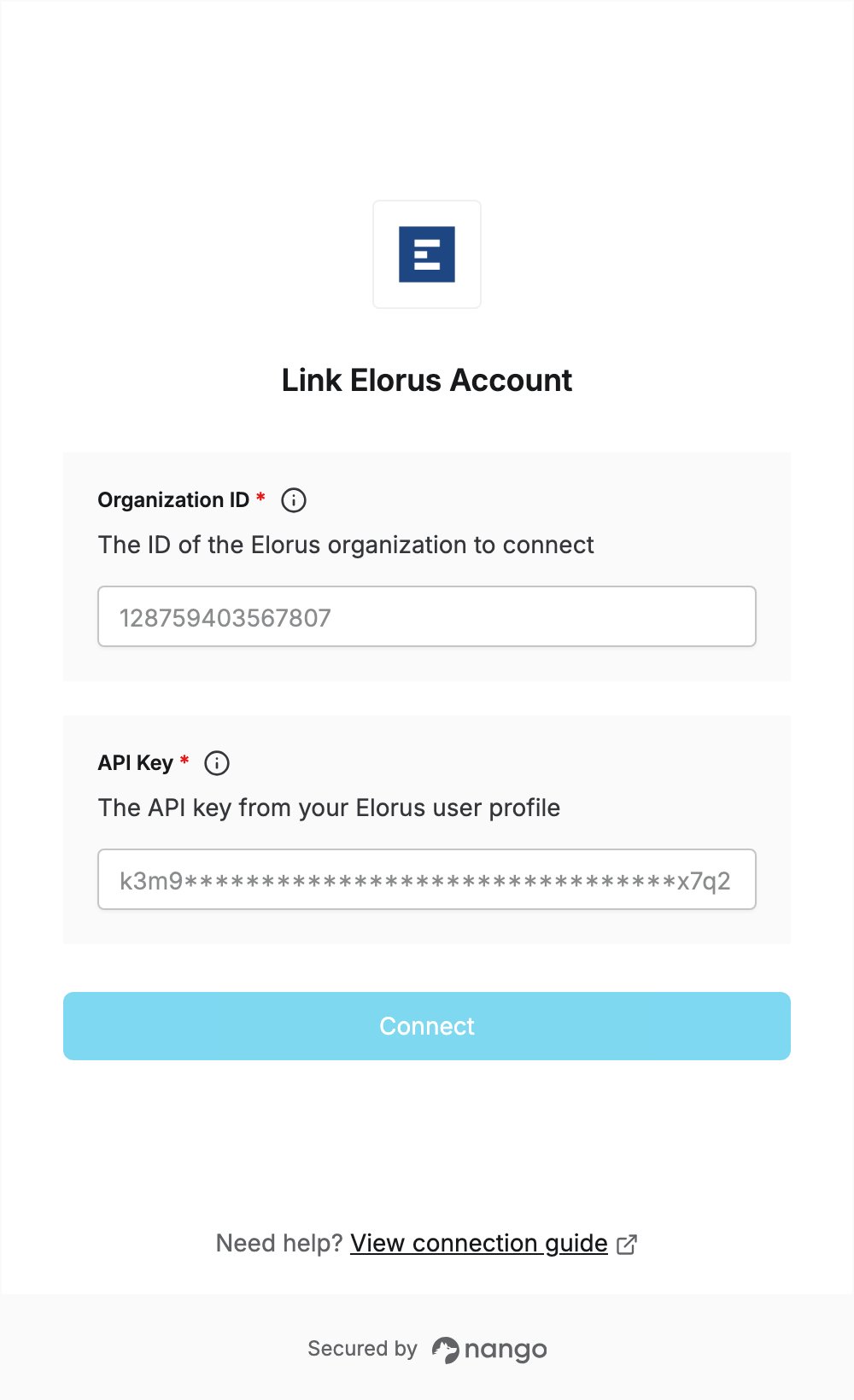
To authenticate with Elorus, you need:- API Key — the API key from your Elorus user profile.
- Organization ID — the ID of the Elorus organization to connect.
Prerequisites
- An Elorus account. You can sign up for free.
Step 1: Create an API key
- Log in to Elorus, click your name in the top right and choose User profile.
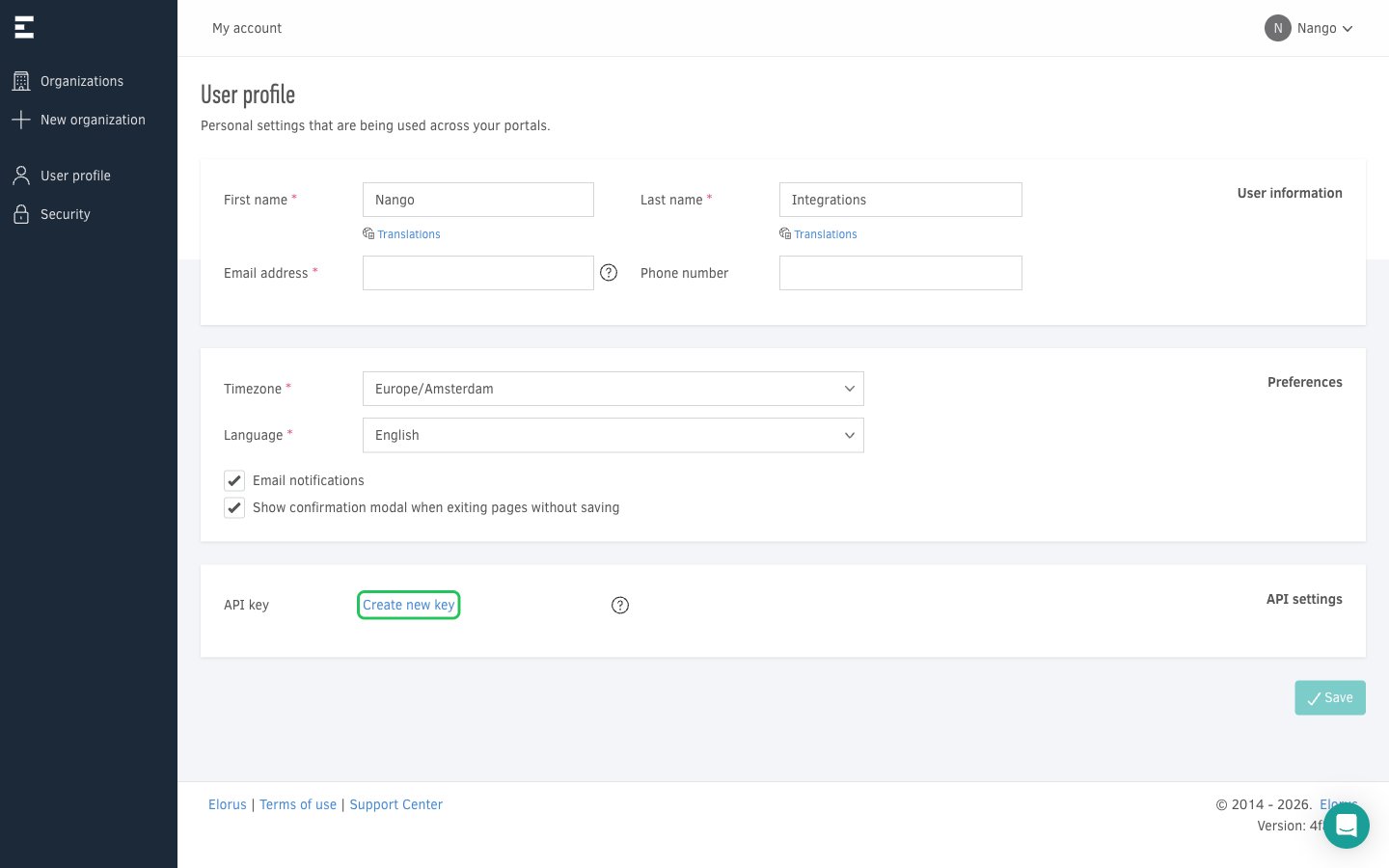
- In the API settings section, click Create new key.
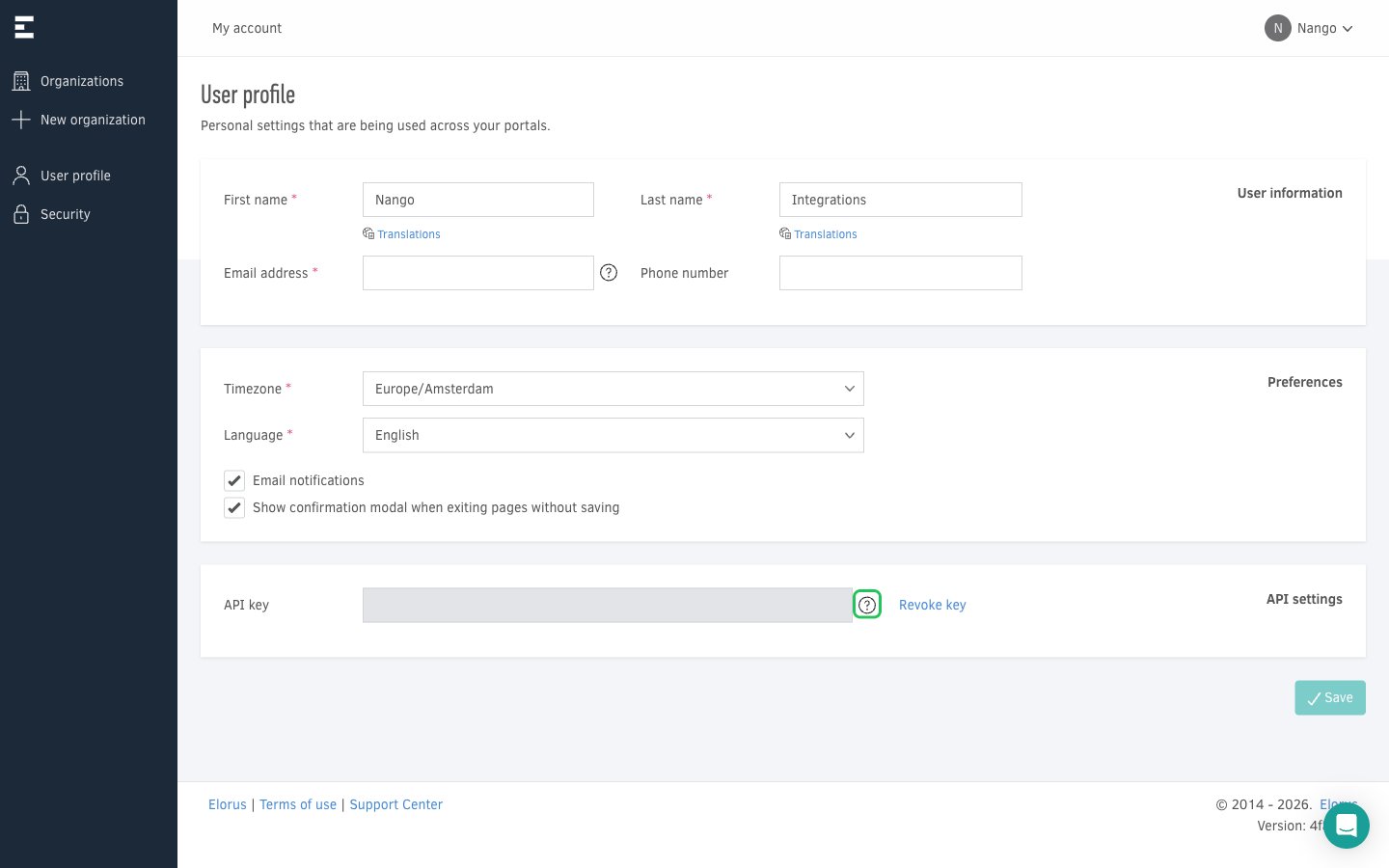
- Copy the key from the API key field with the copy button next to it.
Step 2: Find your organization ID
- Switch to the organization you want to connect.
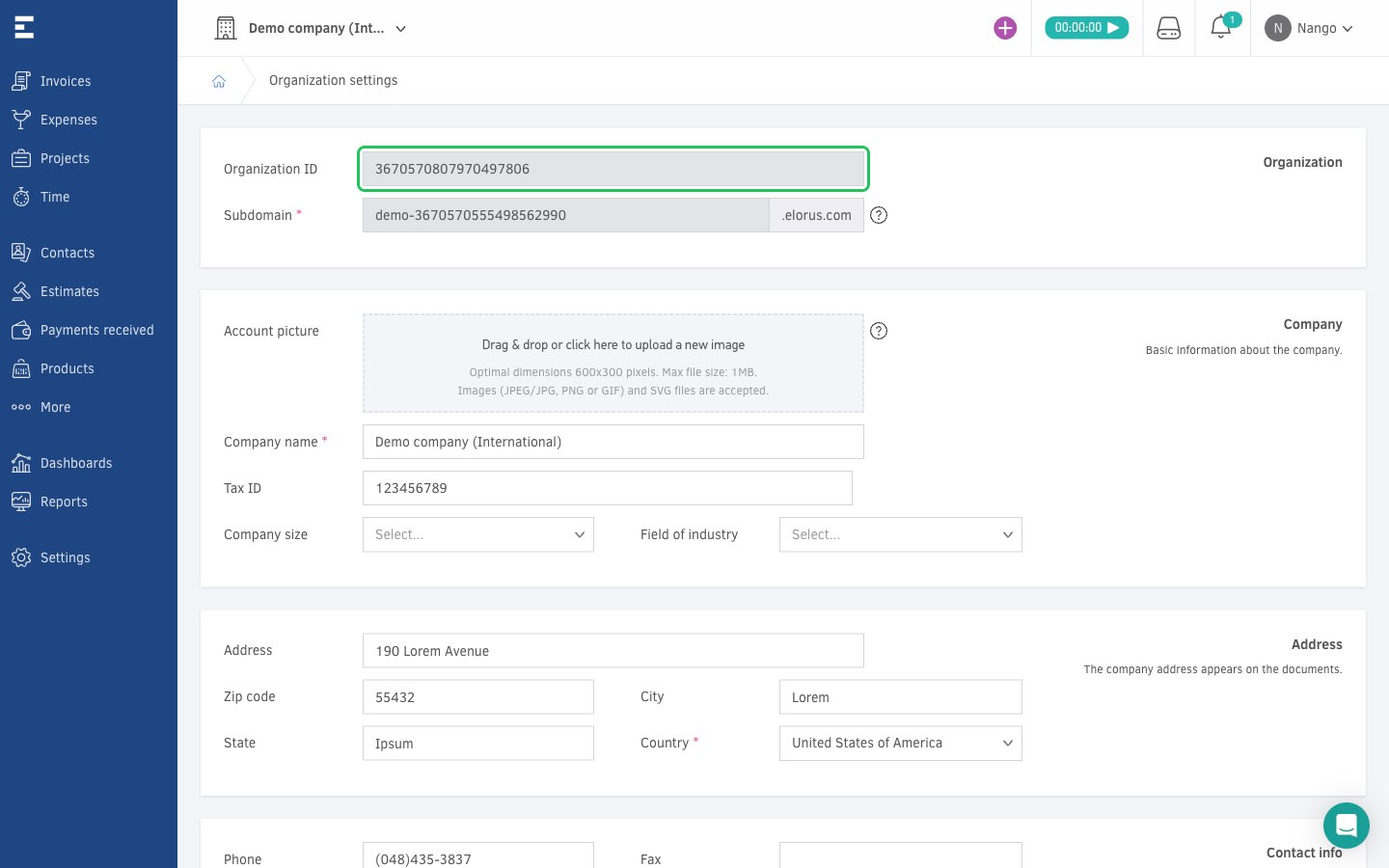
- Go to Settings > Organization and copy the Organization ID value.
Step 3: Enter your credentials in the Connect UI
- Open the form where you need to authenticate with Elorus.
- Enter your key in the API Key field and your organization ID in the Organization ID field.
- Submit the form. Nango checks the key against your organization and rejects the connection if it is invalid.