Overview
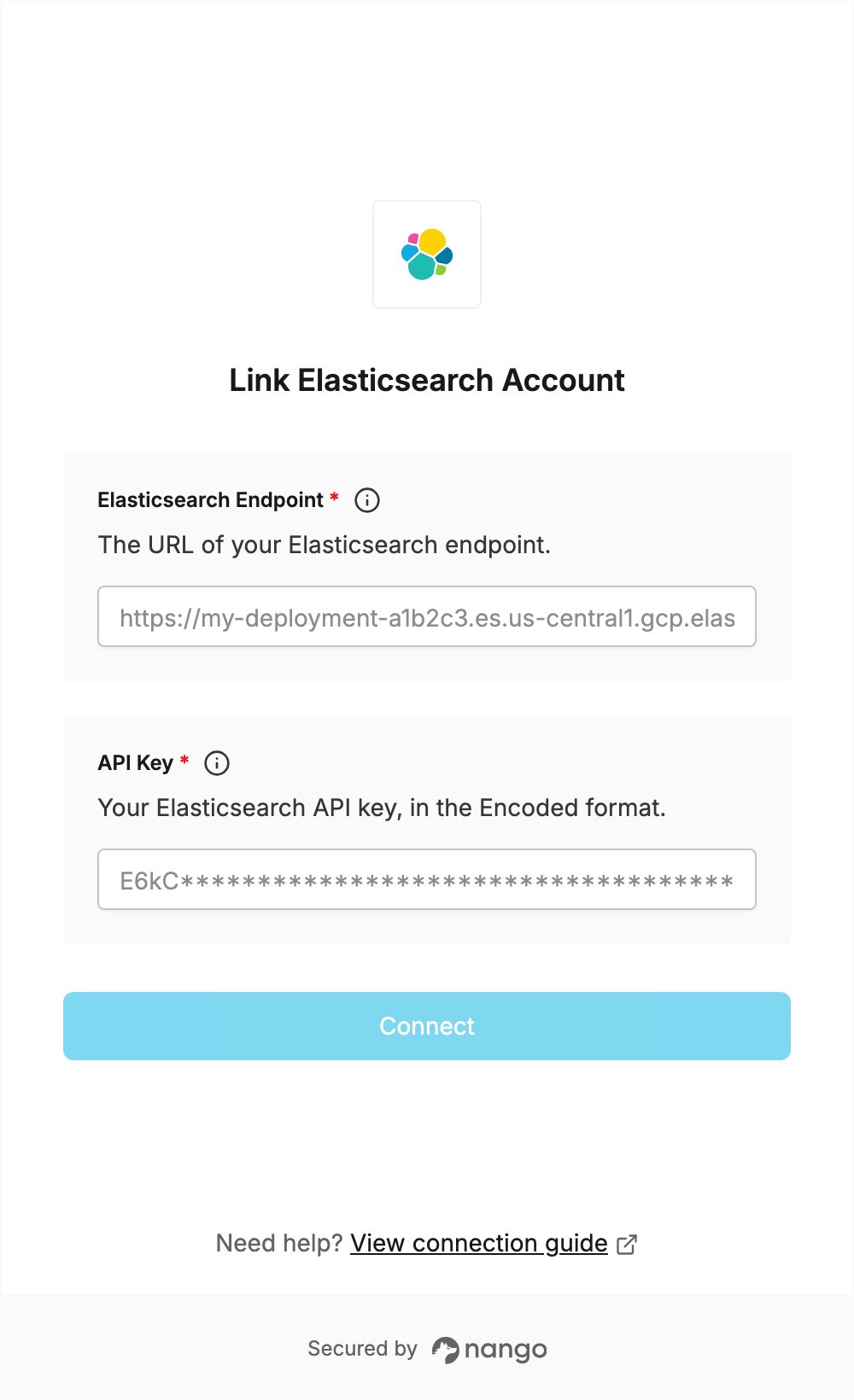
To authenticate with Elasticsearch, you need:- Elasticsearch Endpoint — the URL of your Elasticsearch project, deployment or cluster.
- API Key — an Elasticsearch API key in the Encoded format.
Prerequisites
- An Elasticsearch cluster, or an Elastic Cloud project or deployment. You can sign up for Elastic Cloud with a free trial, no credit card required.
Step 1: Find your Elasticsearch endpoint
- Sign in to the Elastic Cloud Console and select Open on your project or deployment to open Kibana.
- Open the Help menu at the top right and select Connection details.
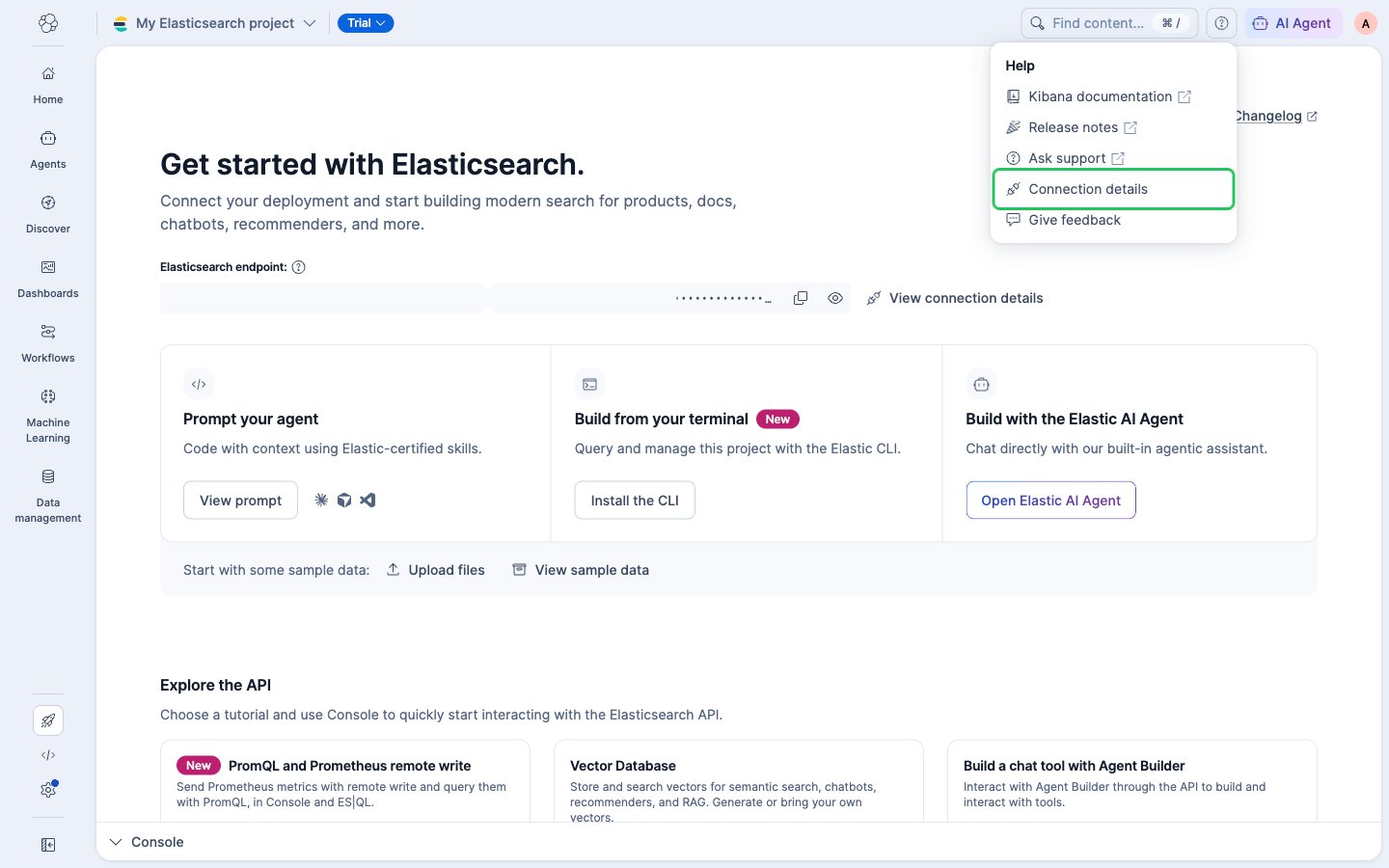
- On the Endpoints tab, copy the Elasticsearch endpoint, for example
https://my-deployment-a1b2c3.es.us-central1.gcp.elastic-cloud.com.
<scheme>://<host>:<port>. Enter it without a trailing slash.
Step 2: Create an API key
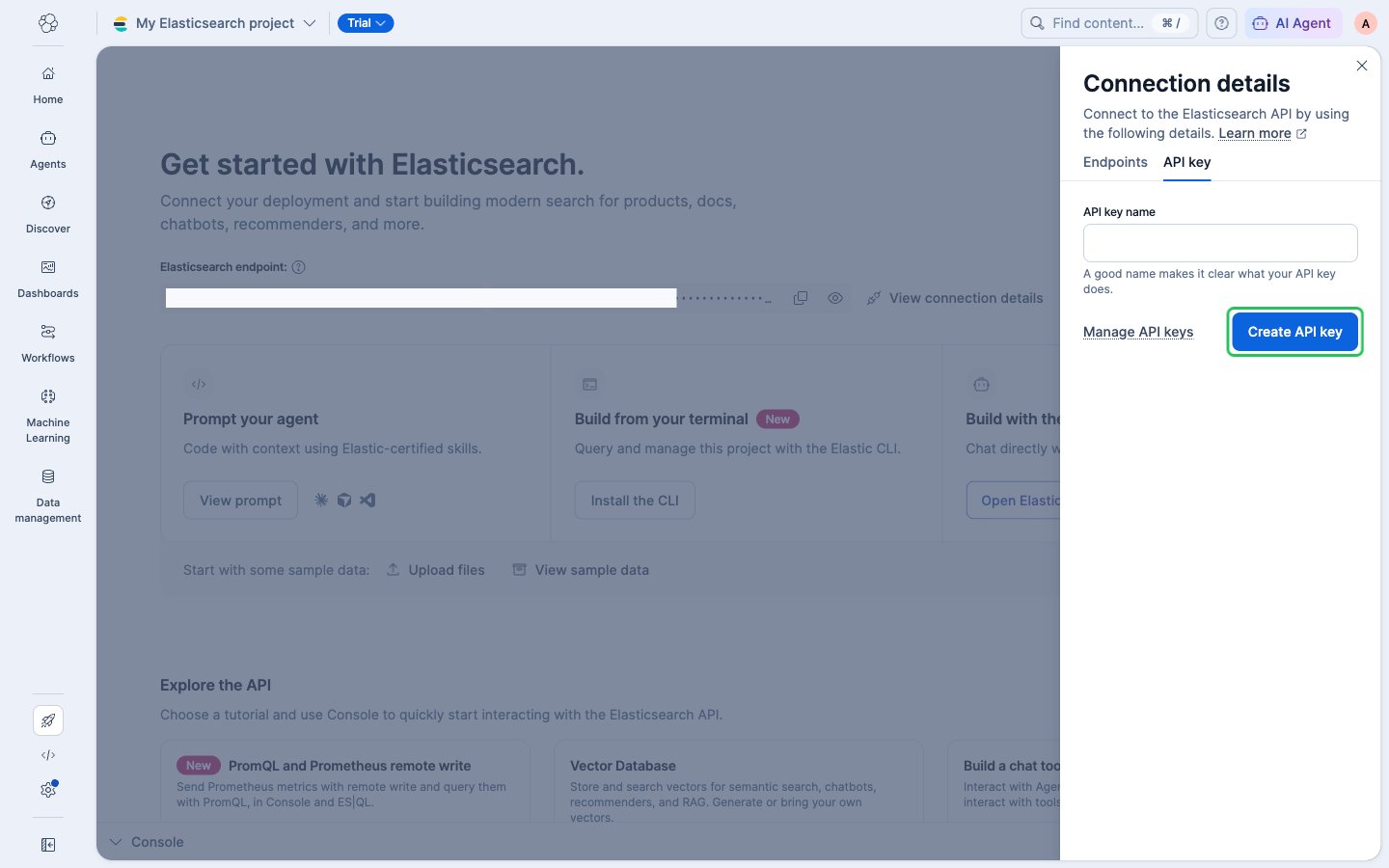
- In the Connection details panel, select the API key tab. To create a key with your own privileges, enter a name and select Create API key. To restrict what the key can do, select Manage API keys instead.
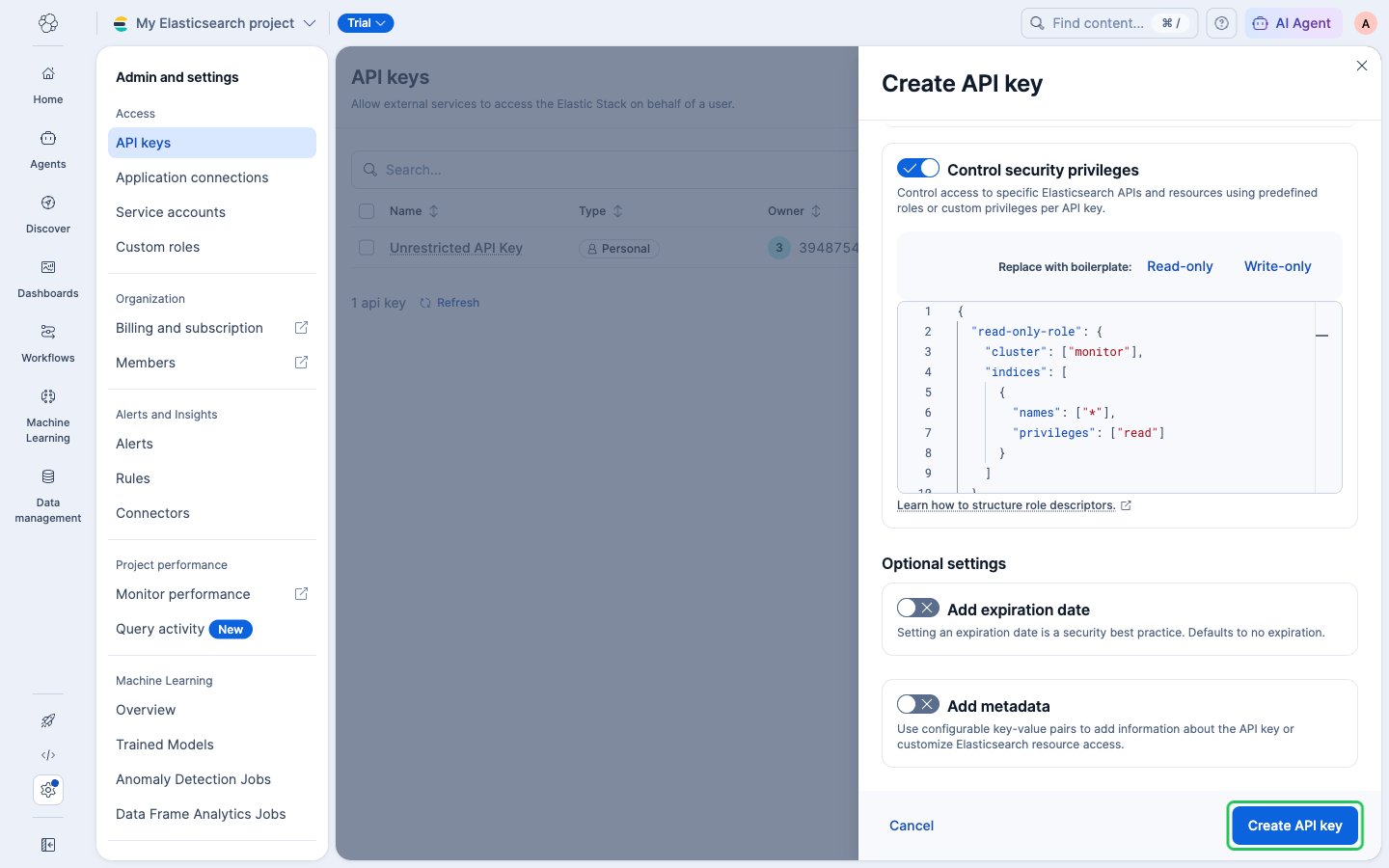
- On the API keys page, select Create API key and enter a name. Turn on Control security privileges and set the privileges your integration needs. For read-only access, select the Read-only boilerplate. Then select Create API key.
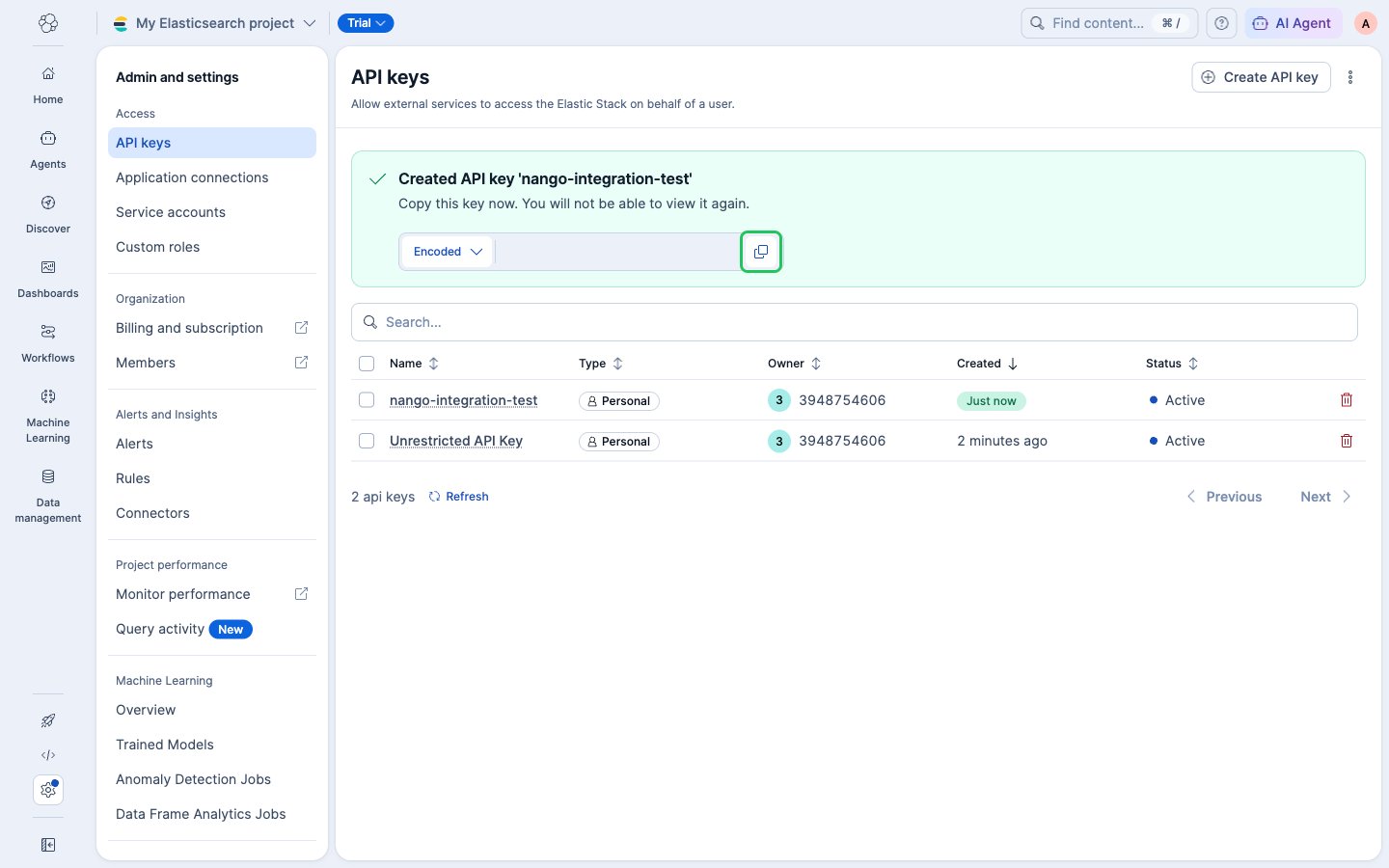
- Keep the Encoded format selected and copy the key. It isn’t available after you close the panel.
Step 3: Enter your credentials in the Connect UI
- Open the form where you need to authenticate with Elasticsearch.
- Enter your Elasticsearch Endpoint and your API Key.
- Submit the form. Nango checks the key against your endpoint, and you should be successfully authenticated.