Overview
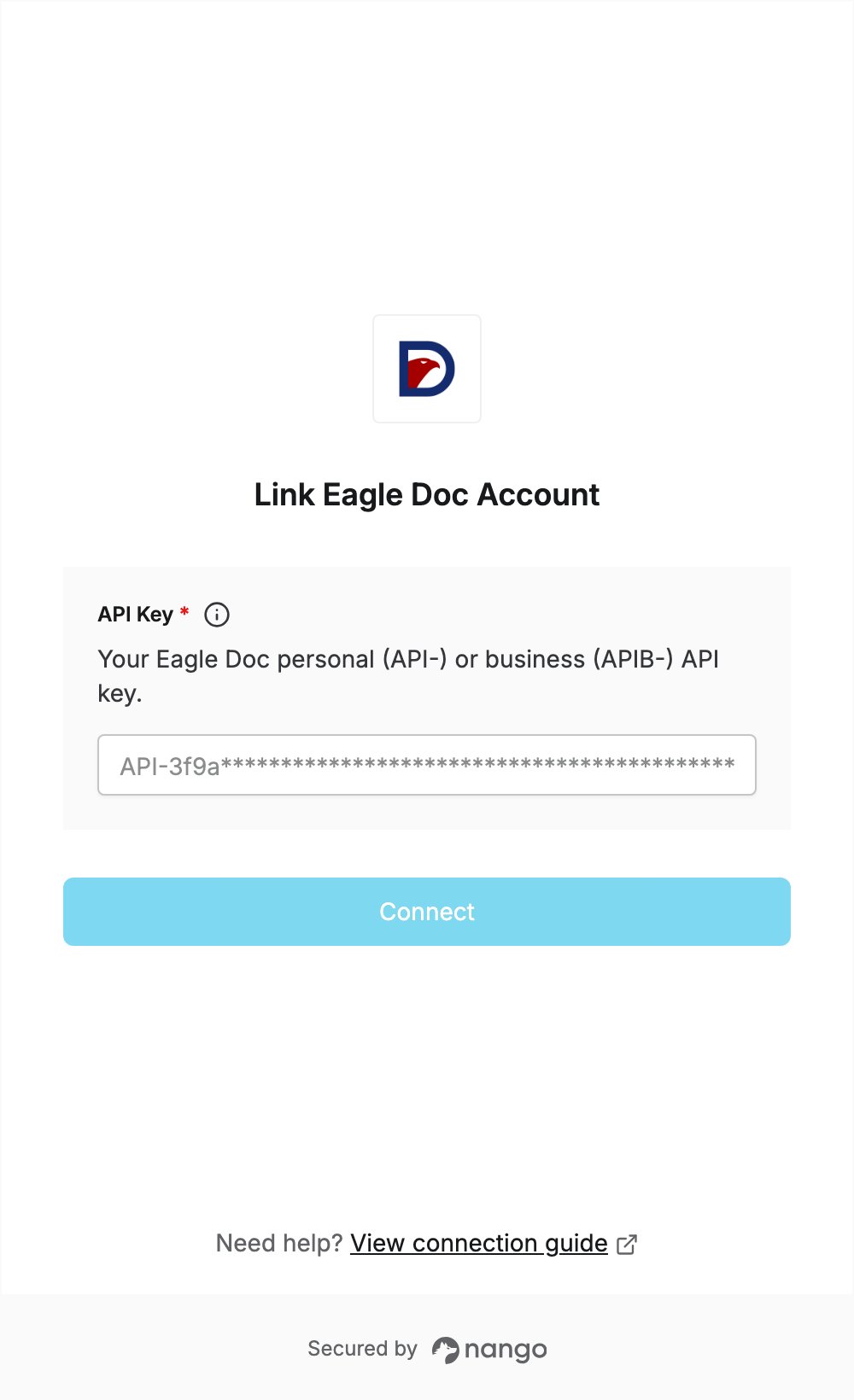
To authenticate with Eagle Doc, you need:- API Key — a personal Eagle Doc API key (starts with
API-) or a business API key (starts withAPIB-).
Prerequisites
- An Eagle Doc account. You can sign up for the free plan; no credit card is required.
Step 1: Get your API key
Both kinds of key work. Use a personal key for your own account, or a business key to call the API on behalf of an Eagle Doc business. Personal API key- Log in to the Eagle Doc dashboard.
- In the left menu, expand For Developer and click API key.
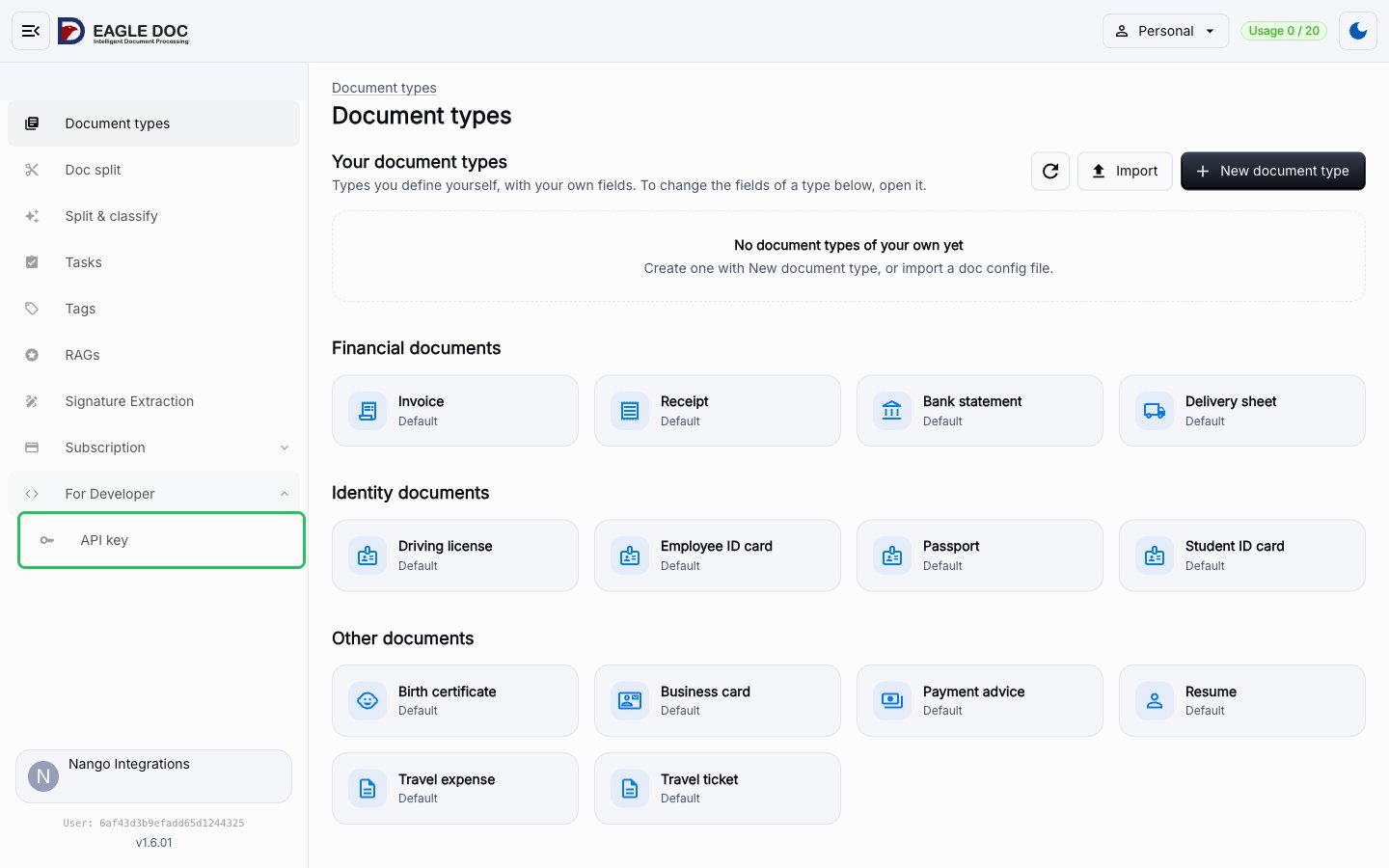
- Your personal API key (starts with
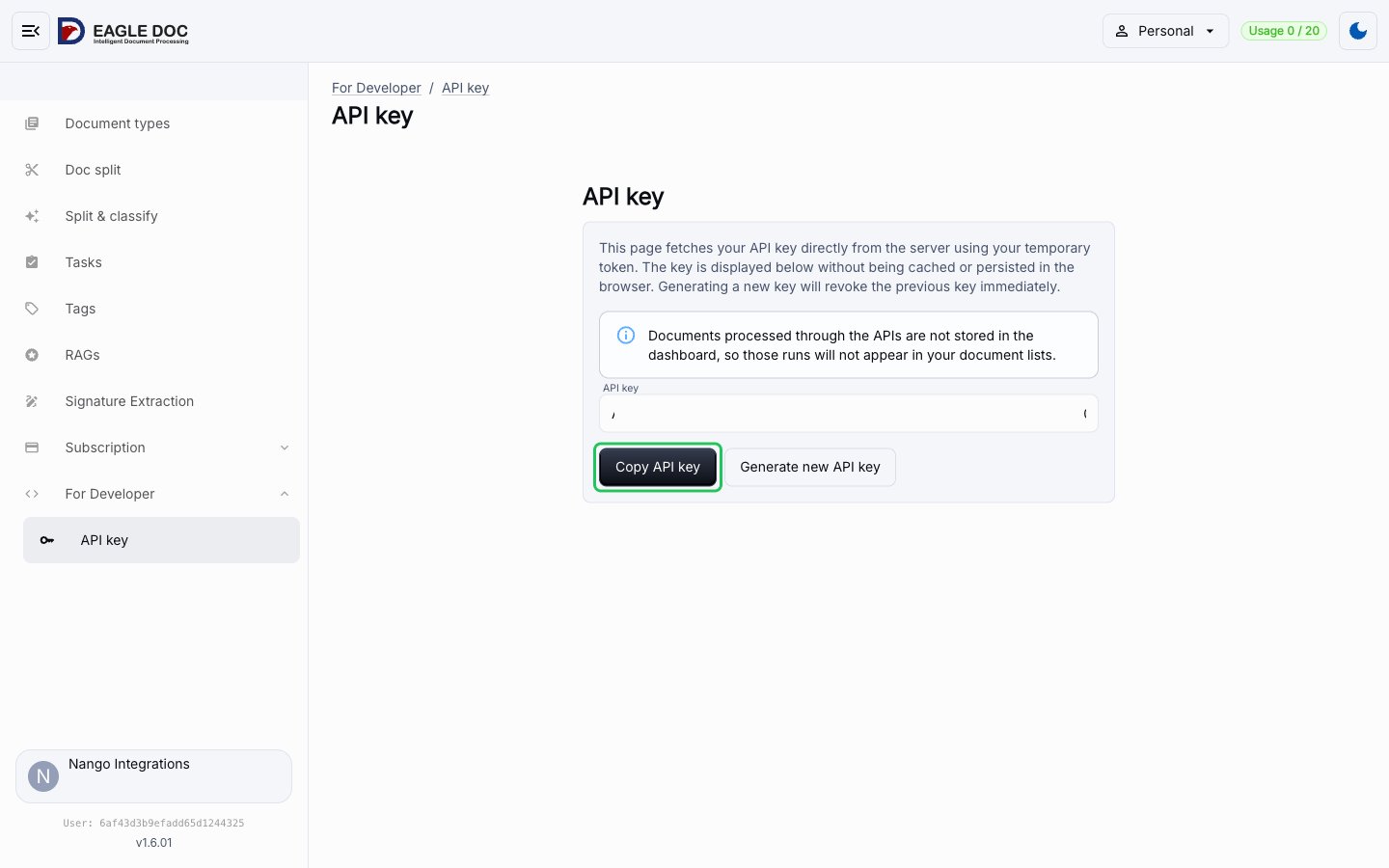
API-) is shown on the page. Click Copy API key. Do not click Generate new API key: it revokes the current key right away.
- If you don’t have a business yet, click the account switcher at the top of the dashboard (Personal) and choose Create business.
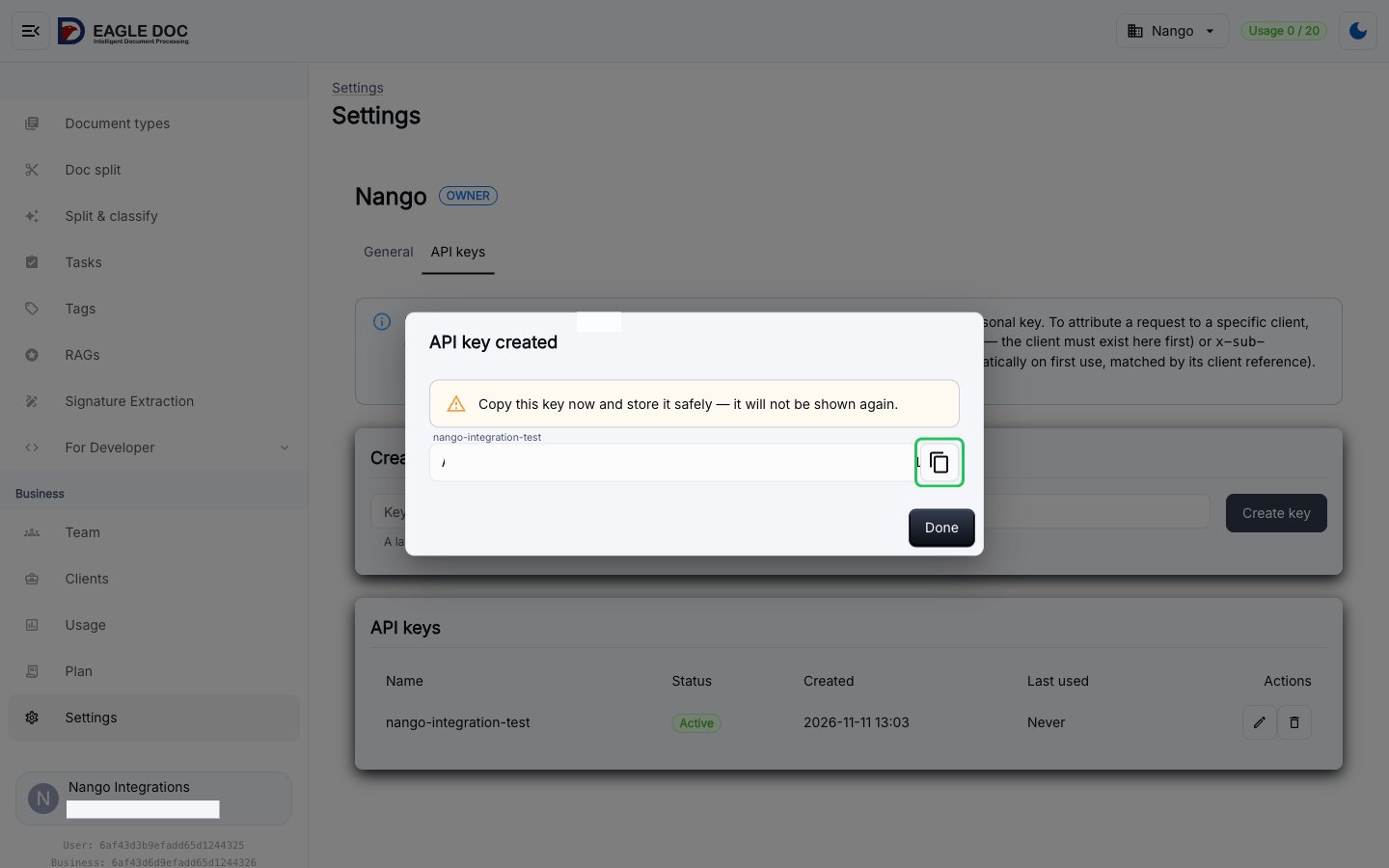
- Switch to your business, open Settings under Business, and select the API keys tab.
- Enter a key name, then click Create key.
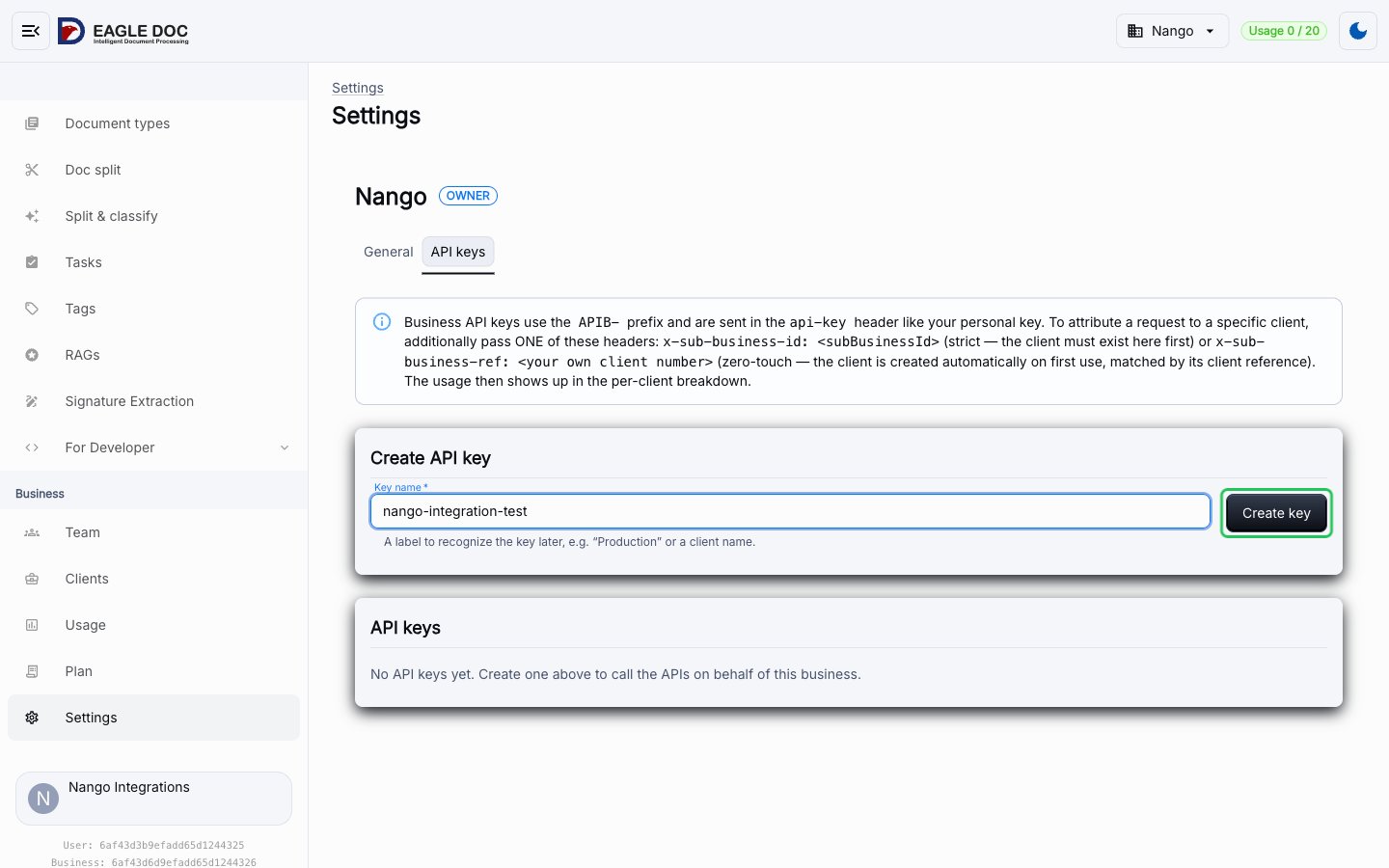
- Copy the key (starts with
APIB-) from the API key created dialog. It will not be shown again.
Step 2: Enter your API key in the Connect UI
- Open the form where you need to authenticate with Eagle Doc.
- Enter your API Key in the designated field.
- Submit the form, and you should be successfully authenticated.