Overview
To authenticate with Dropcontact, you need:- API Key — an API key from the API page of the Dropcontact app.
Prerequisites
- A Dropcontact account. If you don’t have one, create one for free.
- API access on your account. If Dropcontact rejects your key with a message asking you to contact support, email support@dropcontact.com to enable API access.
Step 1: Create an API key
- Sign in to Dropcontact.
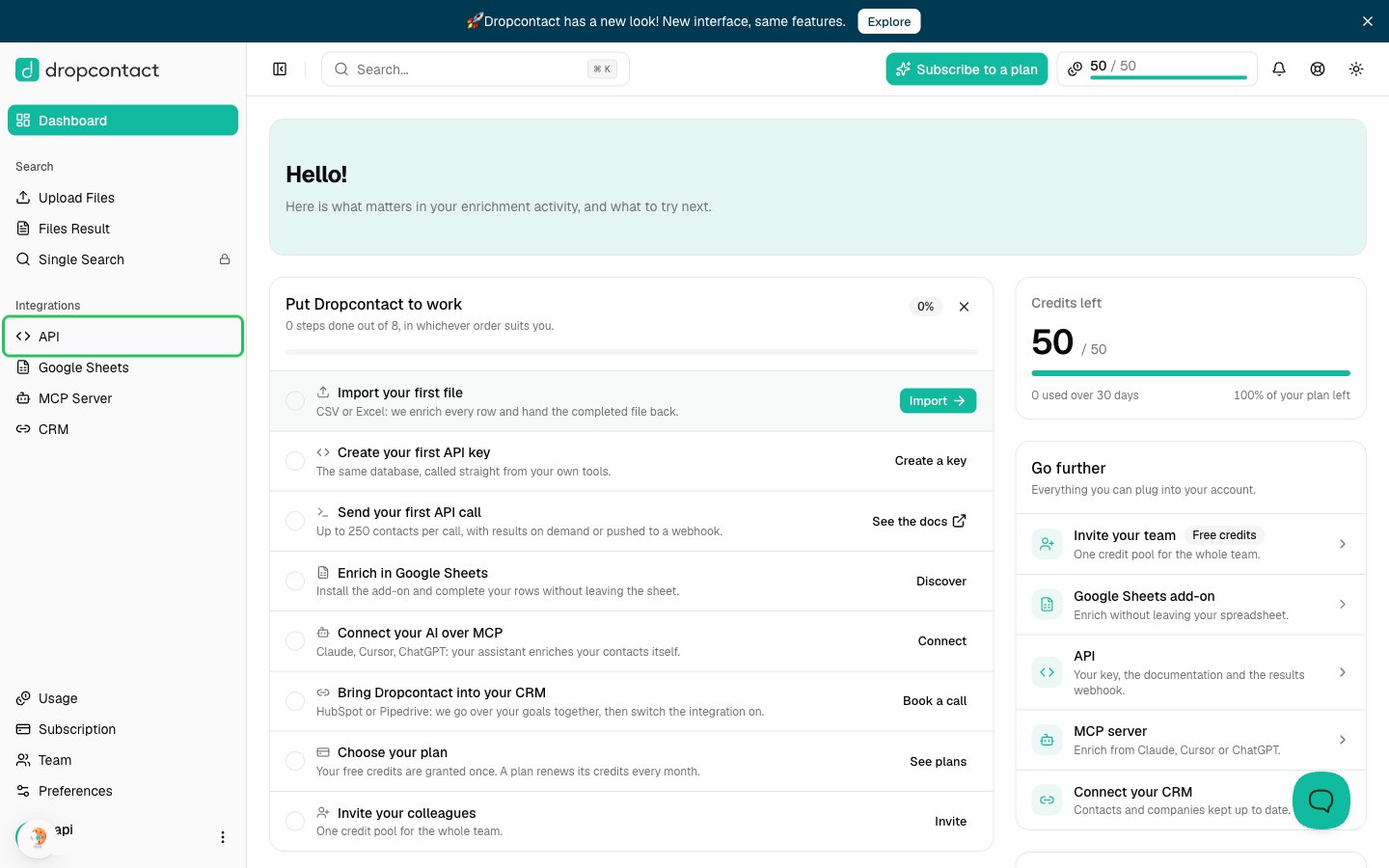
- In the left sidebar, under Integrations, click API.
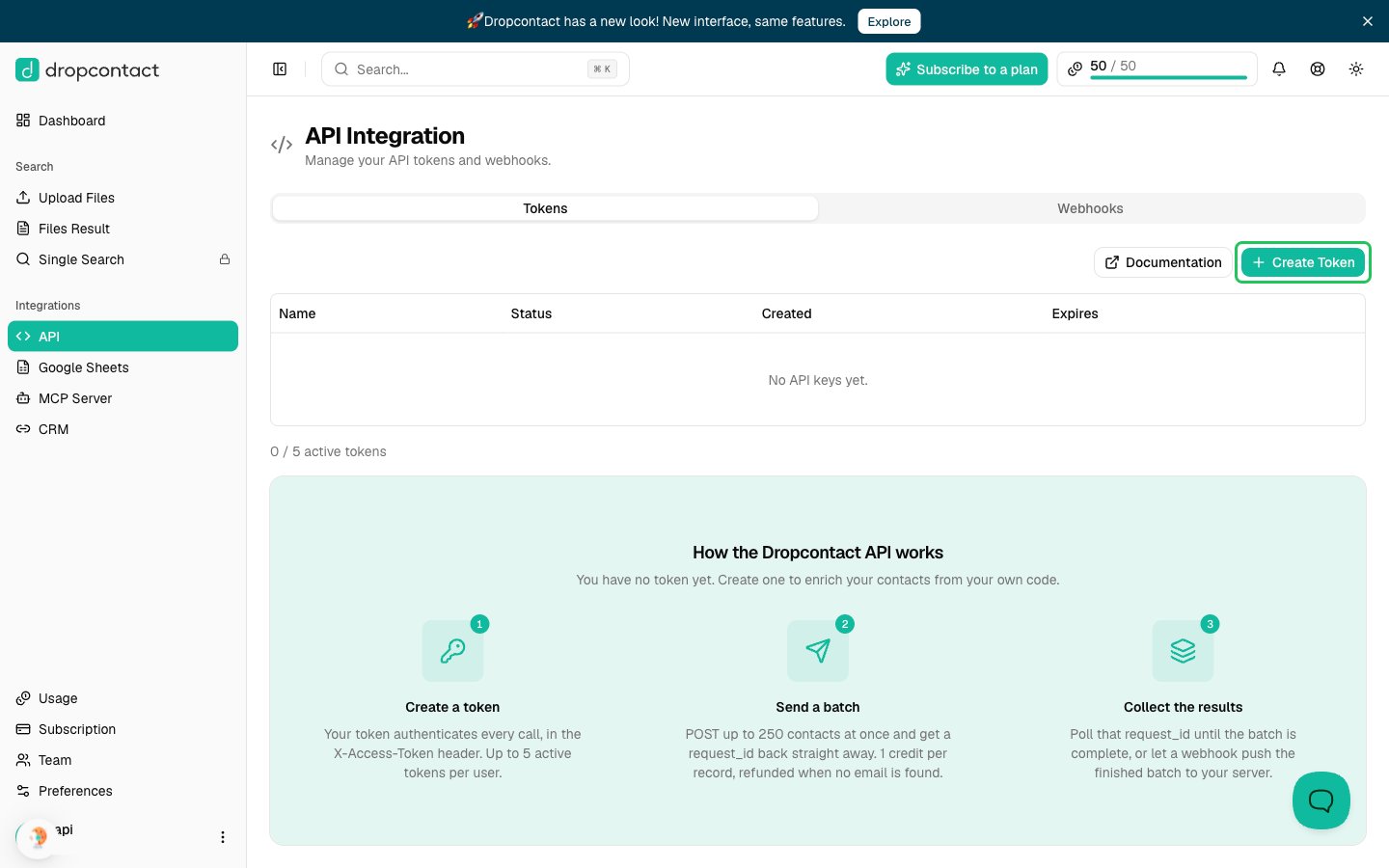
- On the Tokens tab, click Create Token.
- Enter a name for the token, leave Expiration as No expiration, and click Create Token.
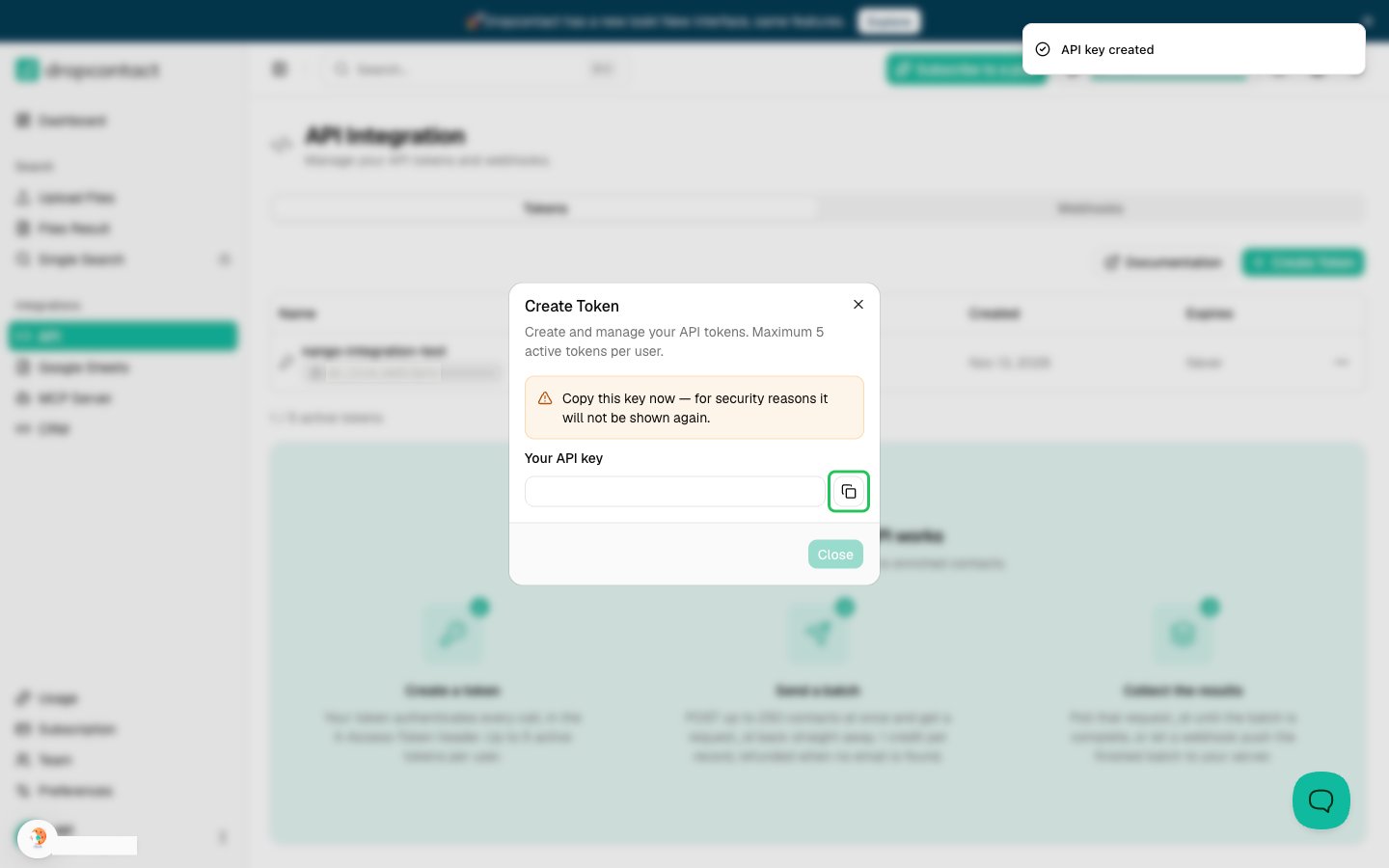
- Copy the API key from the dialog, then click Close. The key is shown only once, so store it somewhere safe.
Step 2: Enter your API key in the Connect UI
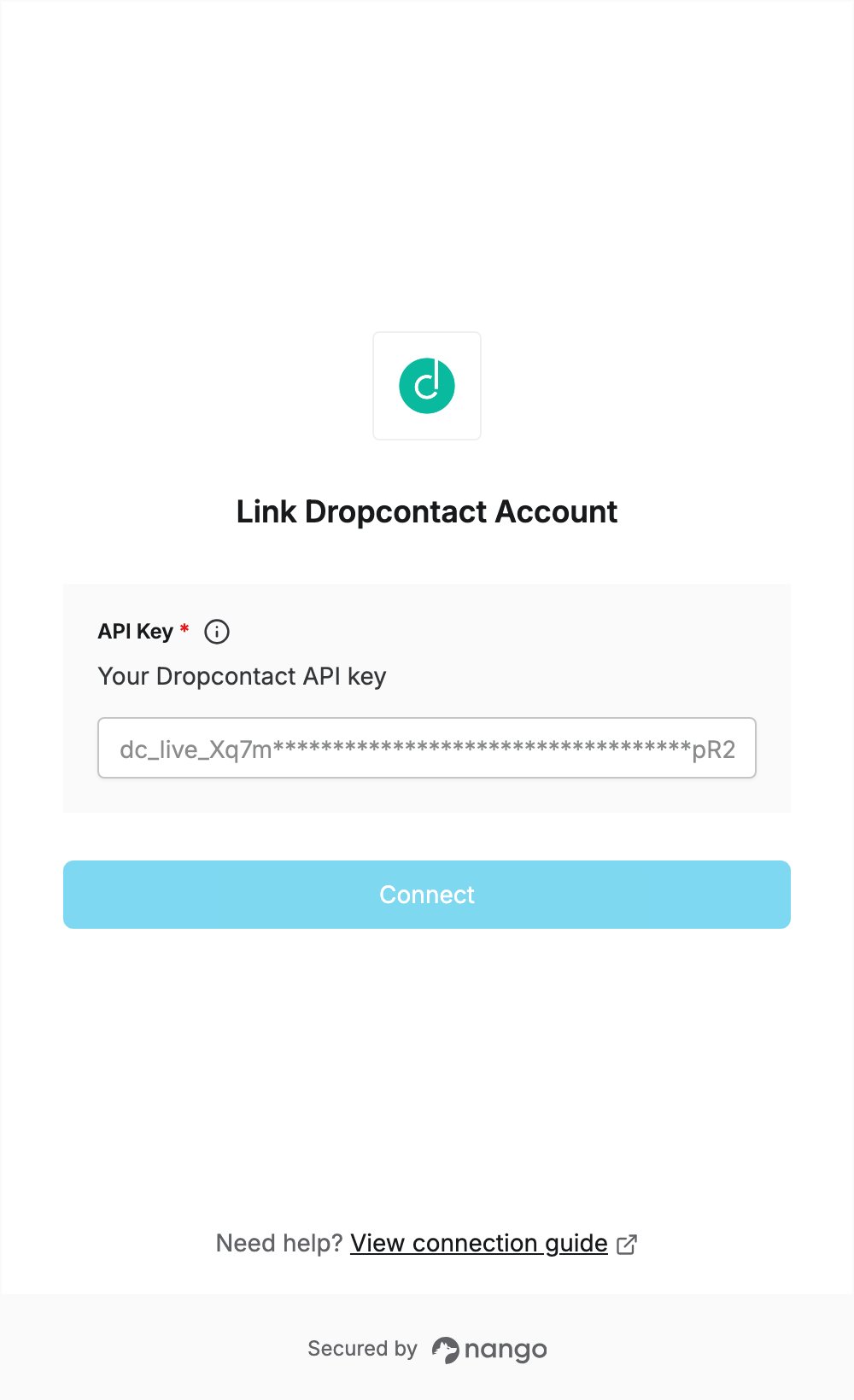
- Open the form where you need to authenticate with Dropcontact.
- Enter your API key in the API Key field.
- Submit the form, and you should be successfully authenticated.