Overview
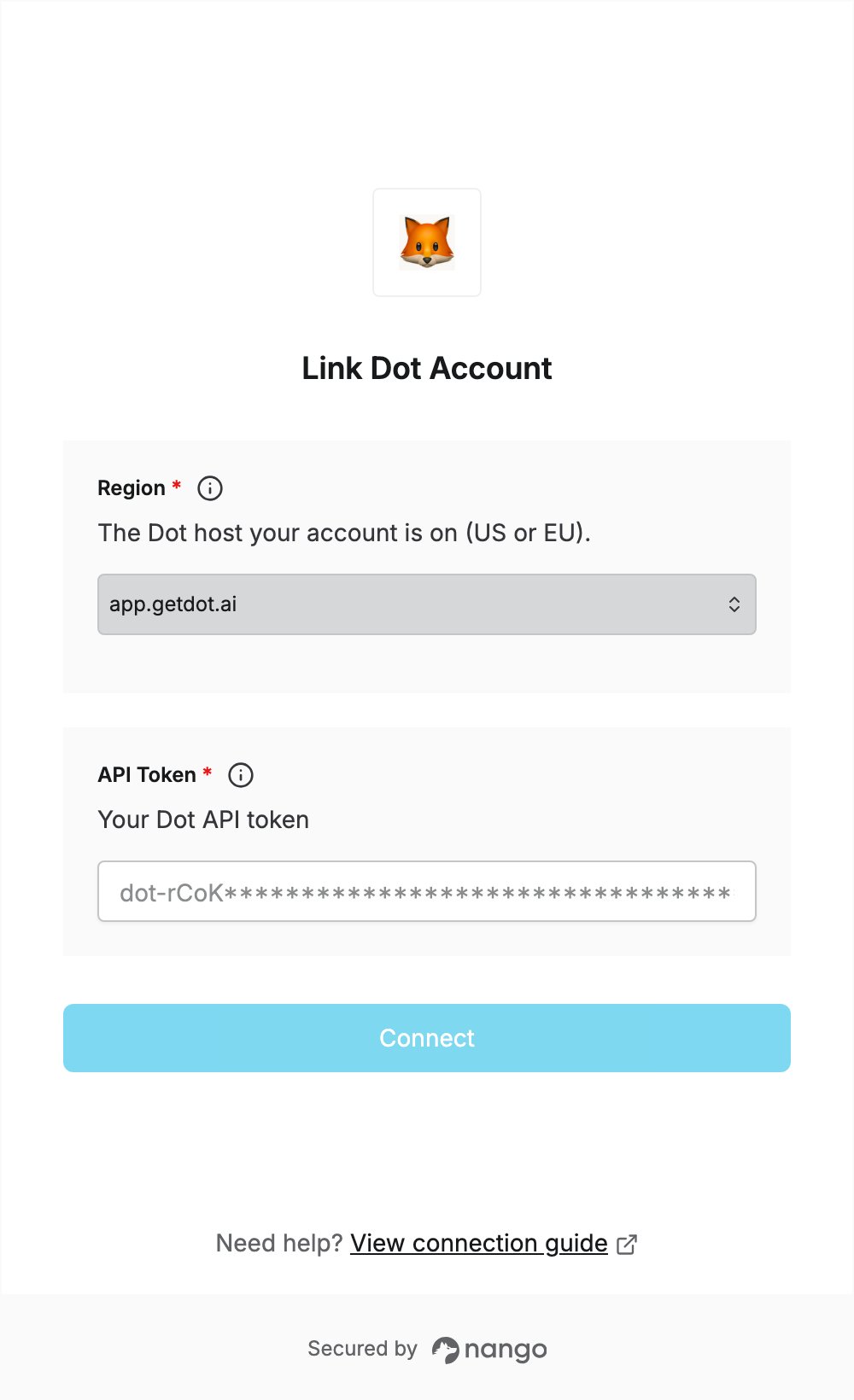
To authenticate with Dot, you need:- Region — the Dot host your account is on.
- API Token — a Dot API token.
Prerequisites
- A Dot account. Sign up for free; no credit card is required.
Step 1: Find your region
Check the address you use to sign in to Dot:app.getdot.aifor the US region.eu.getdot.aifor the EU region.
Step 2: Create an API token
The token acts with the permissions of the user it belongs to.- Sign in to Dot, click Settings in the left sidebar and open the Users tab.
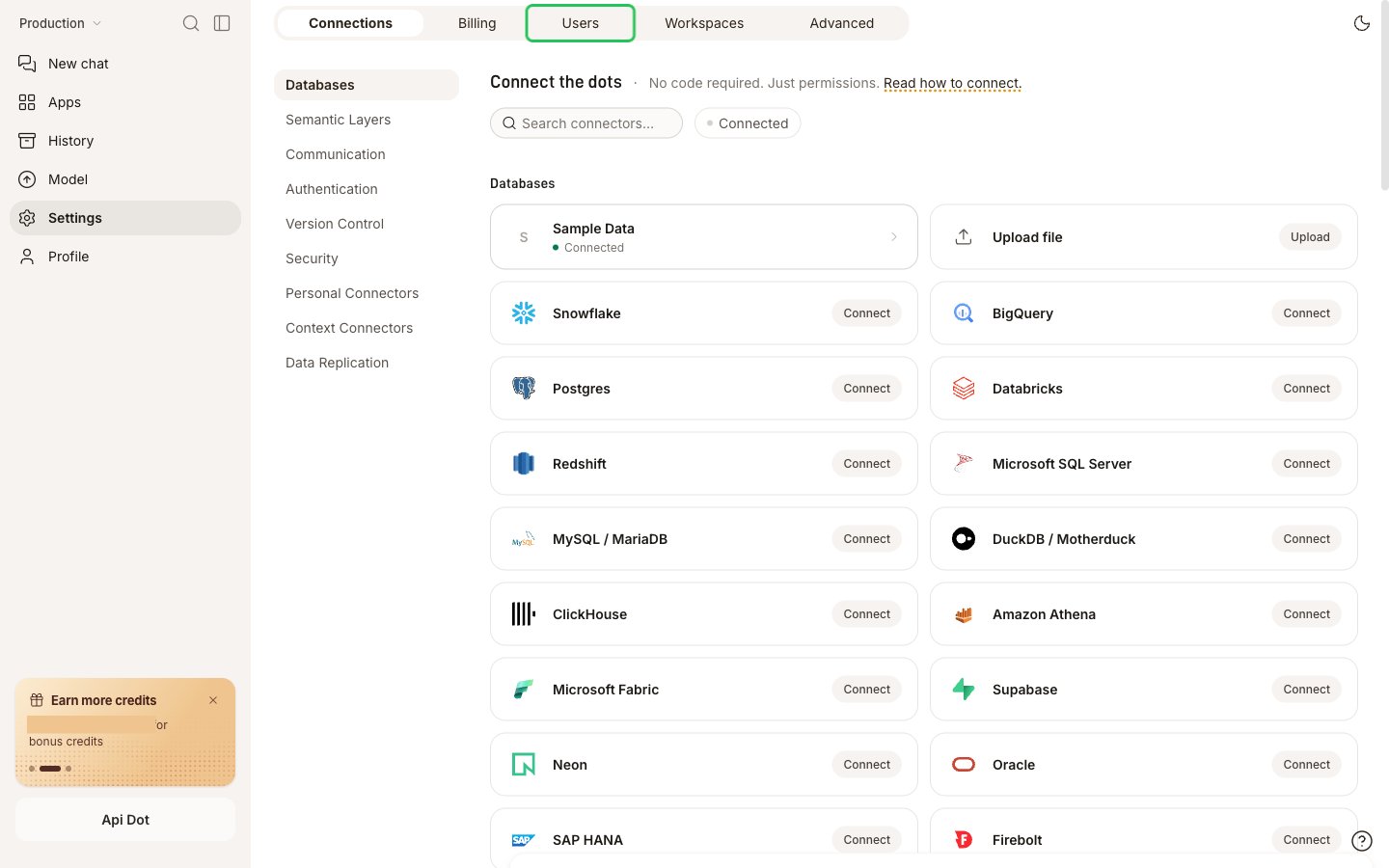
- Scroll to the API Tokens section and click Create Token.
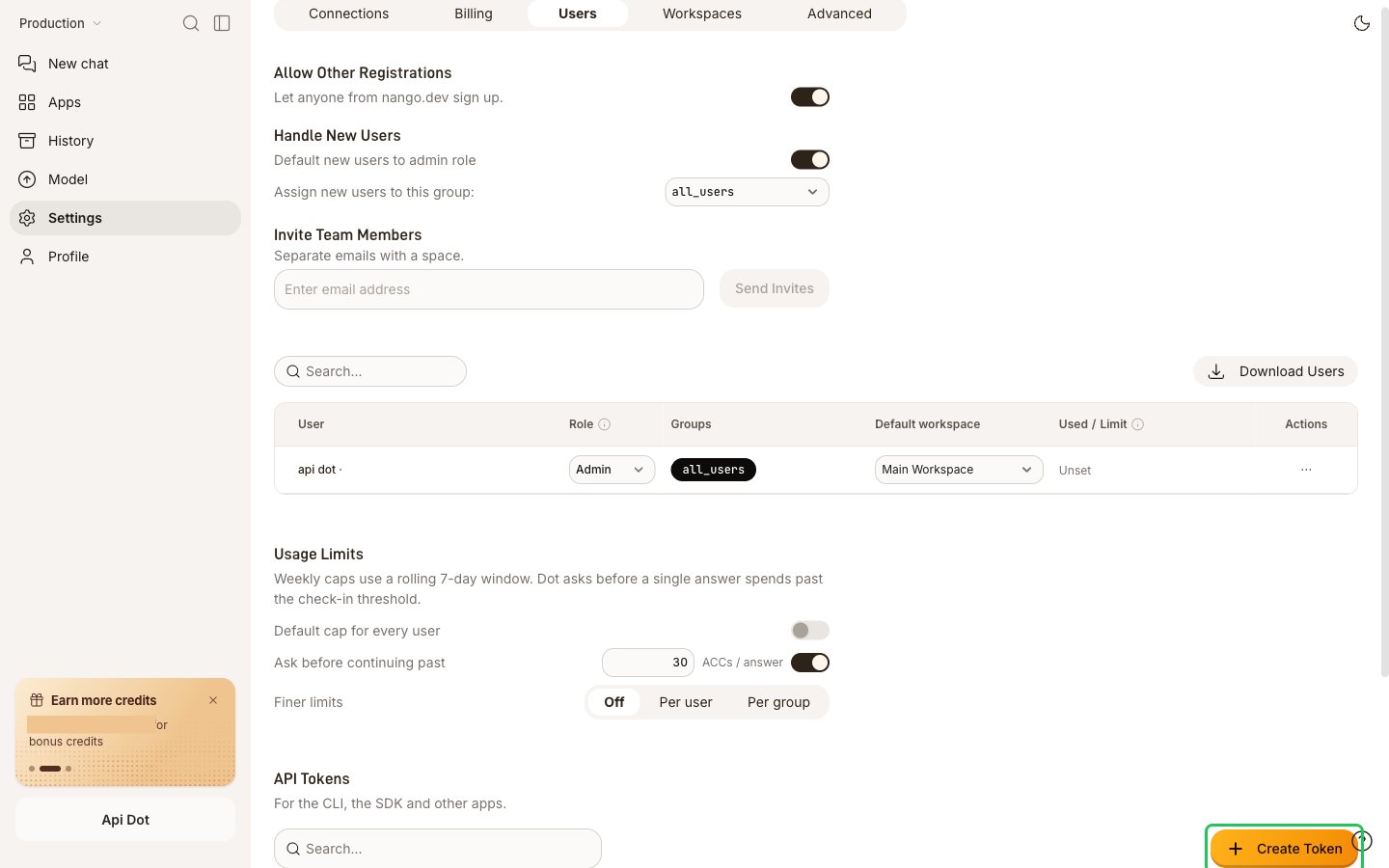
- Pick the user the token acts as, enter a Token Name, choose an Expiration and add an optional Description. Then click Create Token.
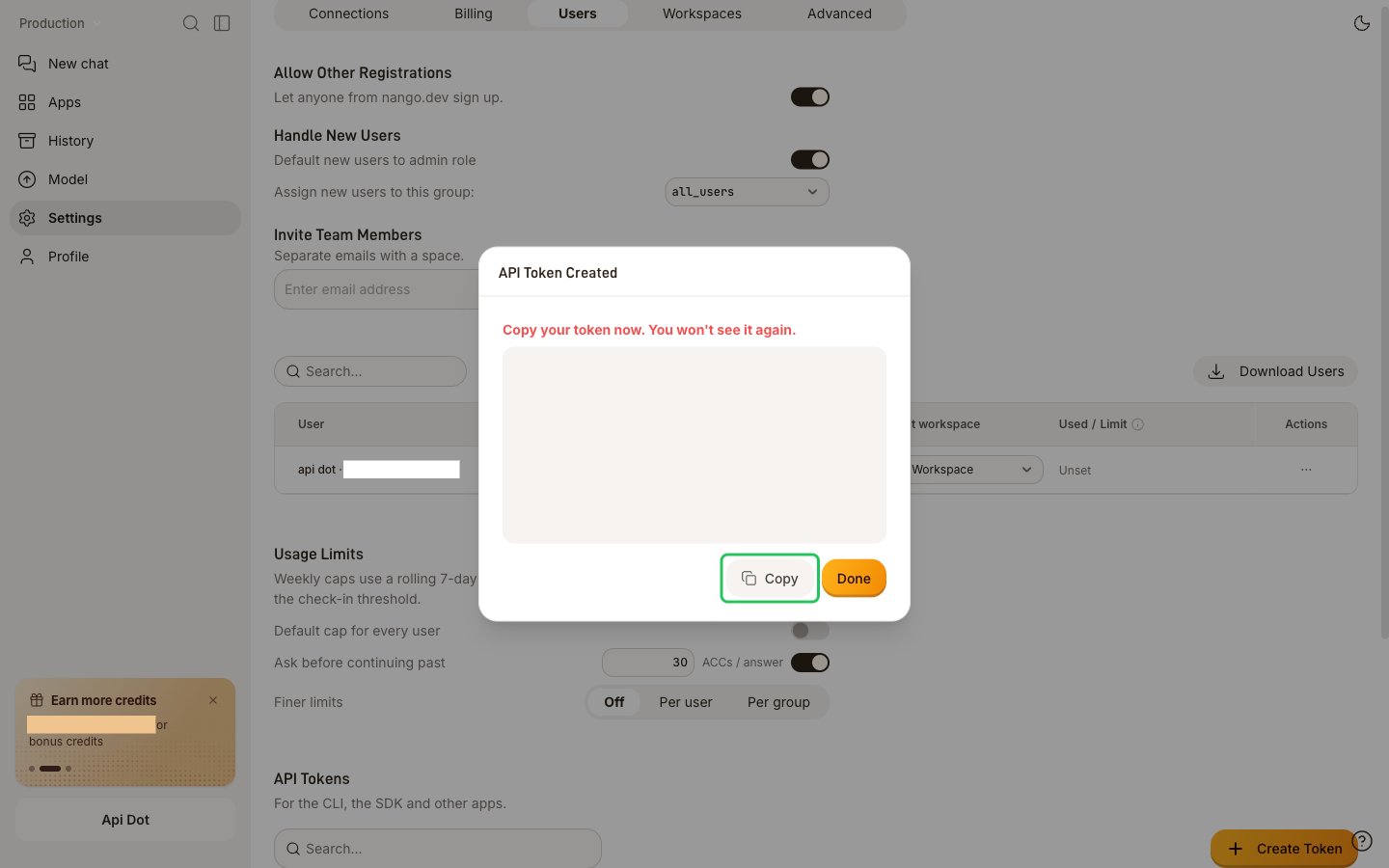
- Copy the token. It is only shown once.
Step 3: Enter your region and API token in the Connect UI
- Open the form where you need to authenticate with Dot.
- Select your Region from Step 1.
- Paste the token you copied in Step 2 into the API Token field.
- Submit the form. Nango checks the token with Dot and rejects it if it is invalid.