Overview
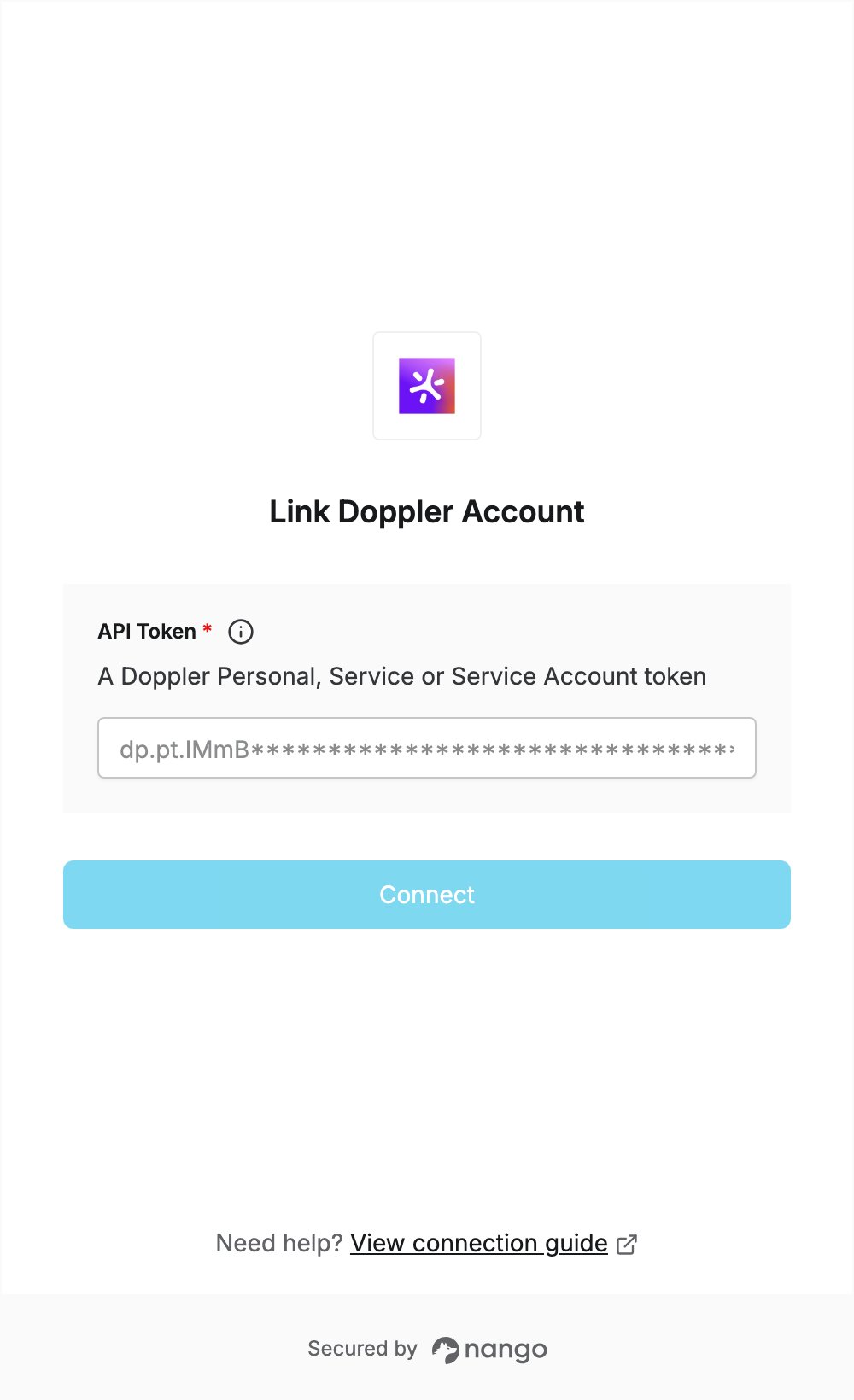
To authenticate with Doppler, you need:- API Token — a Doppler Personal, Service or Service Account token.
Prerequisites
- A Doppler account. API access is included on the free Developer plan. You can sign up here.
Step 1: Generate a Doppler token
Use a Personal Token to give the connection your own access to every project, or a Service Token to limit it to one config. Personal Token (starts withdp.pt.):
- Sign in to the Doppler dashboard.
- Click Tokens in the left sidebar, open the Personal tab, and click Create a personal token. Then click Create in the dialog.
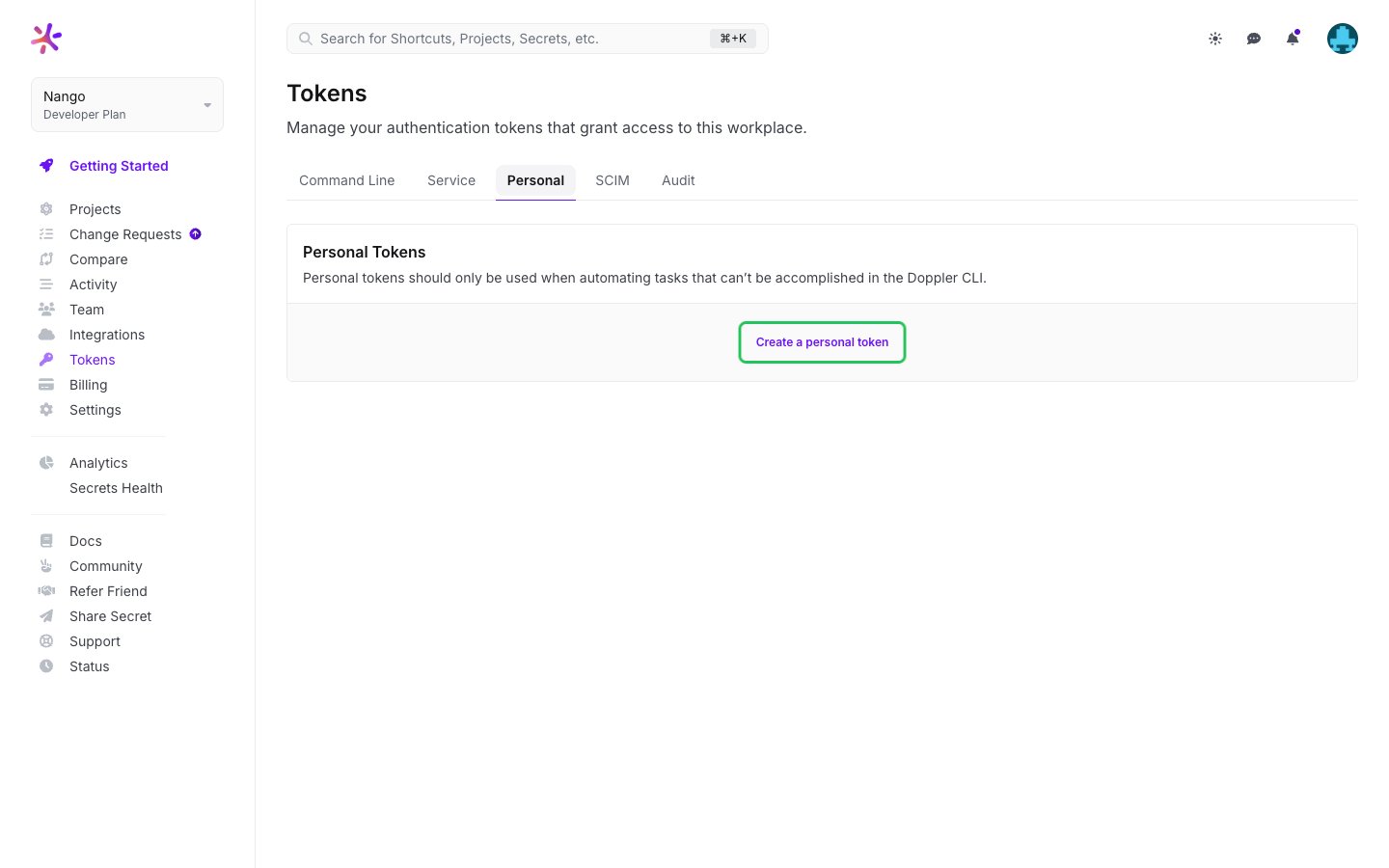
- Copy the new token with the copy button. It is only shown once.
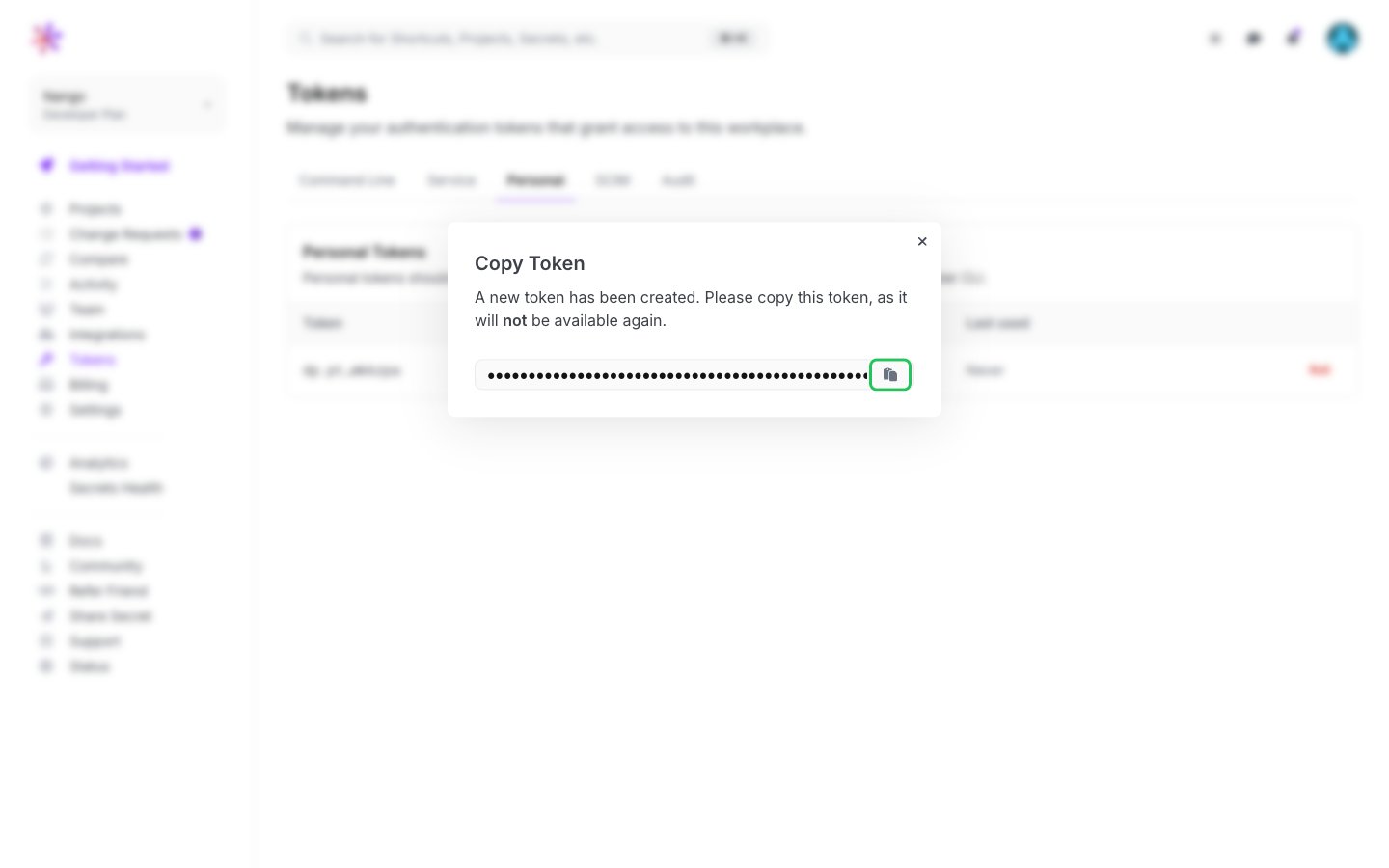
dp.st.):
- Open the project and select the config you want to connect.
- Go to the Access tab and generate a service token. Name it, and enable write access only if your integration needs it.
- Copy the token. It is only shown once.
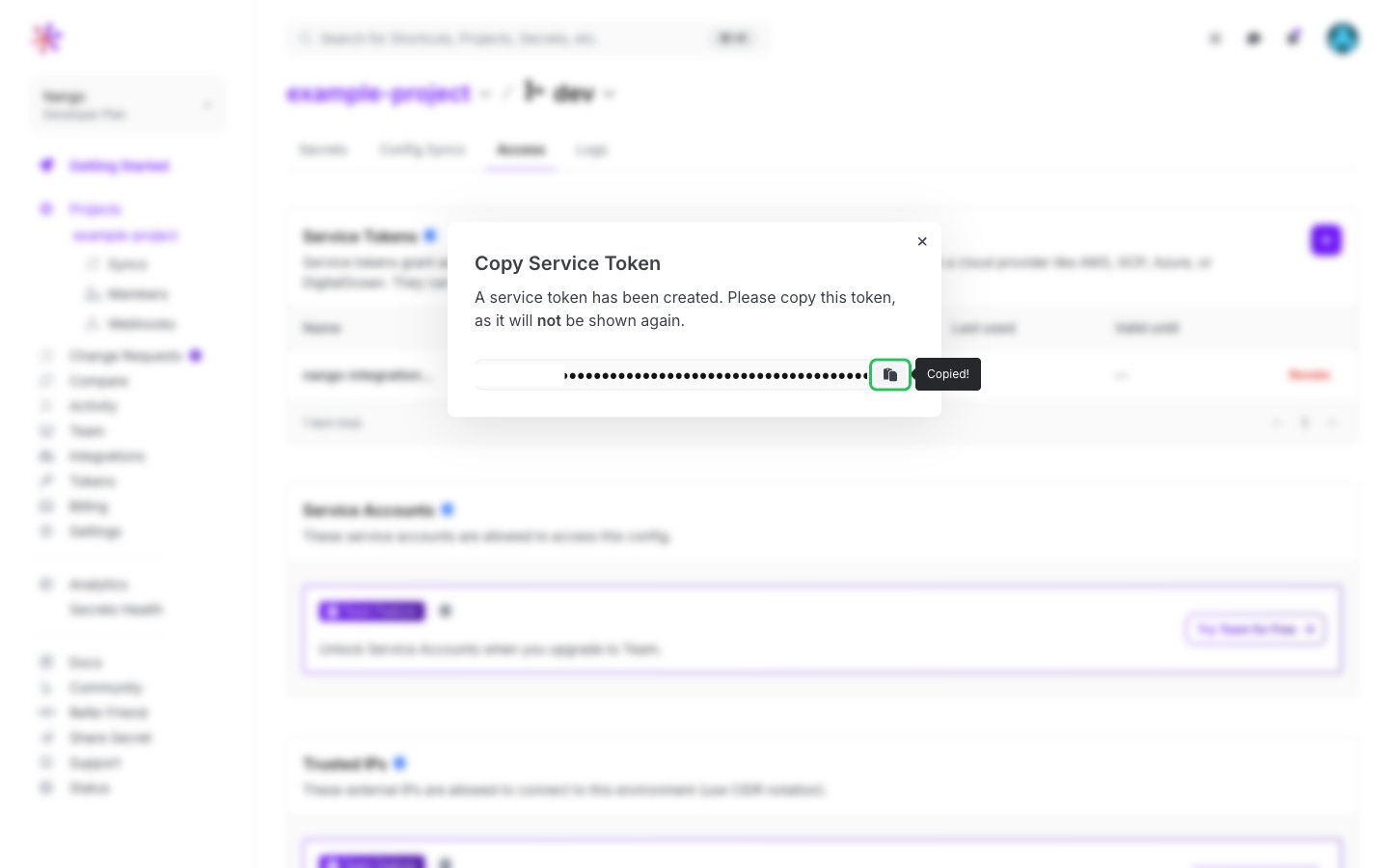
dp.sa., Team and Enterprise plans): go to Team -> Service Accounts, open the service account and click + next to Service Account API Tokens. See Service accounts.
Step 2: Enter your API token in the Connect UI
- Open the form where you need to authenticate with Doppler.
- Enter your API Token in the designated field.
- Submit the form, and you should be successfully authenticated.