

1
Create the app
Open Apps and Keys in your DocuSign developer account and click Add App and Integration Key. No developer account yet? Create one for free at go.docusign.com/o/sandbox.The Integration Key shown on the app page is your client ID.
2
Choose the integration type
Under Integration Type, pick the type you plan to launch with, such as Public integration if your app connects your customers’ DocuSign accounts. It only matters at go-live, and cannot be changed once the app is submitted.
3
Configure authentication
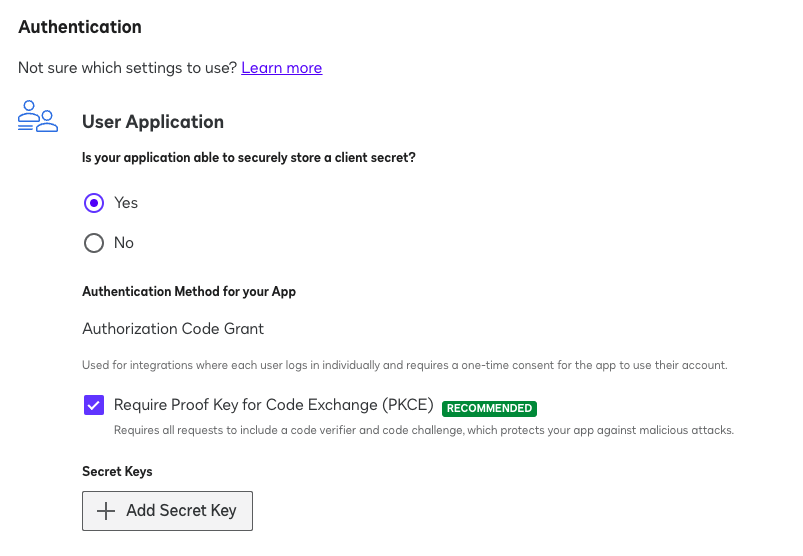
- Under User Application, answer Yes to “Is your application able to securely store a client secret?” and select Authorization Code Grant.
- Require Proof Key for Code Exchange (PKCE) is optional: Nango sends a PKCE challenge either way.
- Click Add Secret Key and copy it right away: DocuSign only shows it in full once. This is your client secret.
4
Add the callback URL
Under Additional settings > Redirect URIs, click Add URI and enter
https://api.nango.dev/oauth/callback. Then click Save.5
Add the credentials to Nango
In Nango, open your DocuSign (Sandbox) integration and enter the integration key as the client ID and the secret key as the client secret.The app works with any DocuSign developer account, so you can connect accounts other than your own while testing.
6
Next
Follow the Quickstart to connect your first account. When you’re ready for production, follow the DocuSign setup guide to take the same app live.