Overview
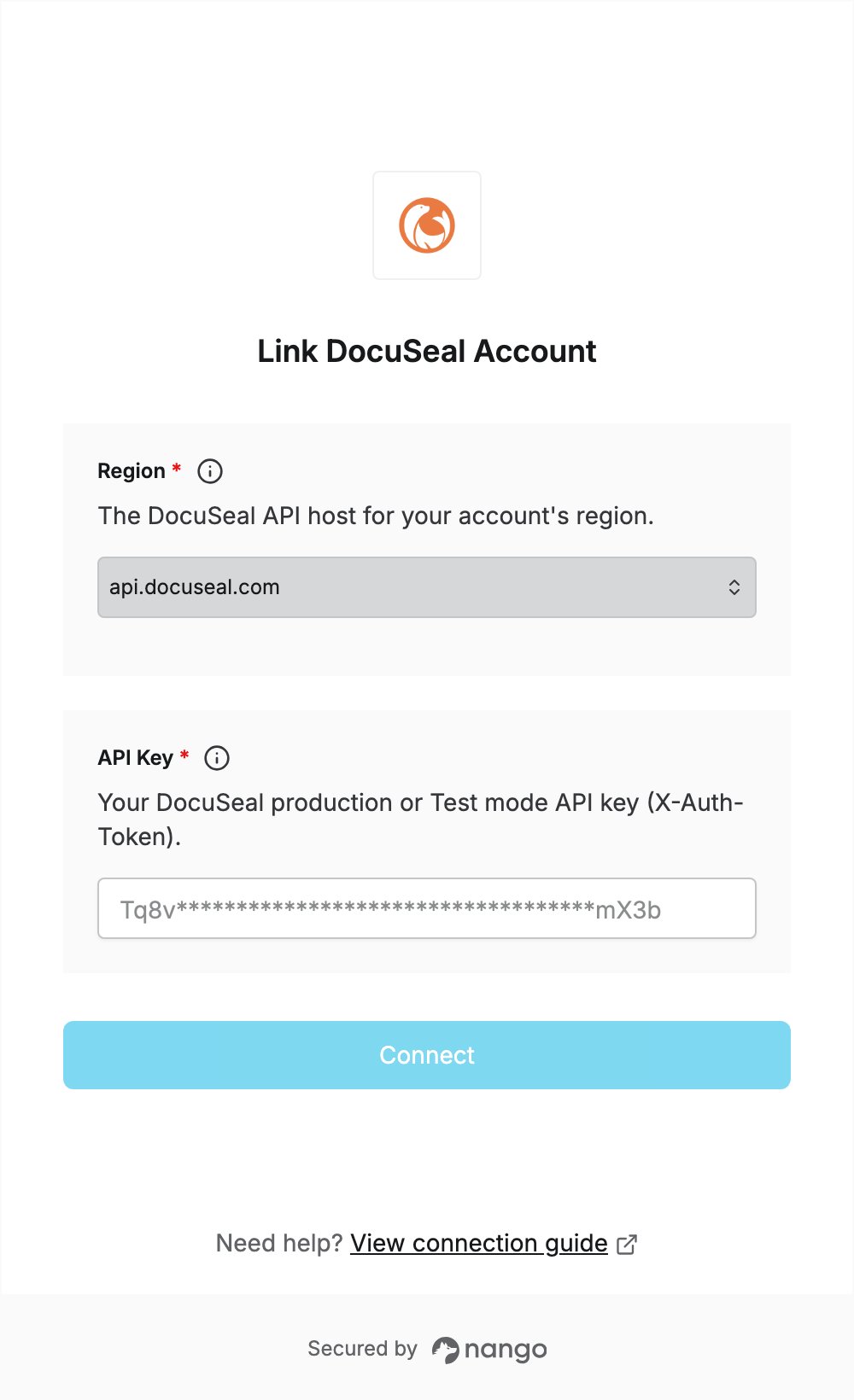
To authenticate with DocuSeal, you need:- Region — the DocuSeal server your account is on.
- API Key — your DocuSeal API key (X-Auth-Token).
Prerequisites
- A DocuSeal account. You can sign up for free.
- Every account includes a free Test mode (Developer Sandbox) with its own API key. Production API keys need at least one Pro seat. See DocuSeal pricing.
Step 1: Choose your region
Select the API host matching where your DocuSeal account is hosted:
If you sign in at
docuseal.com, select api.docuseal.com. If you sign in at docuseal.eu, select api.docuseal.eu. See Get started with Pro.
Step 2: Get your API key
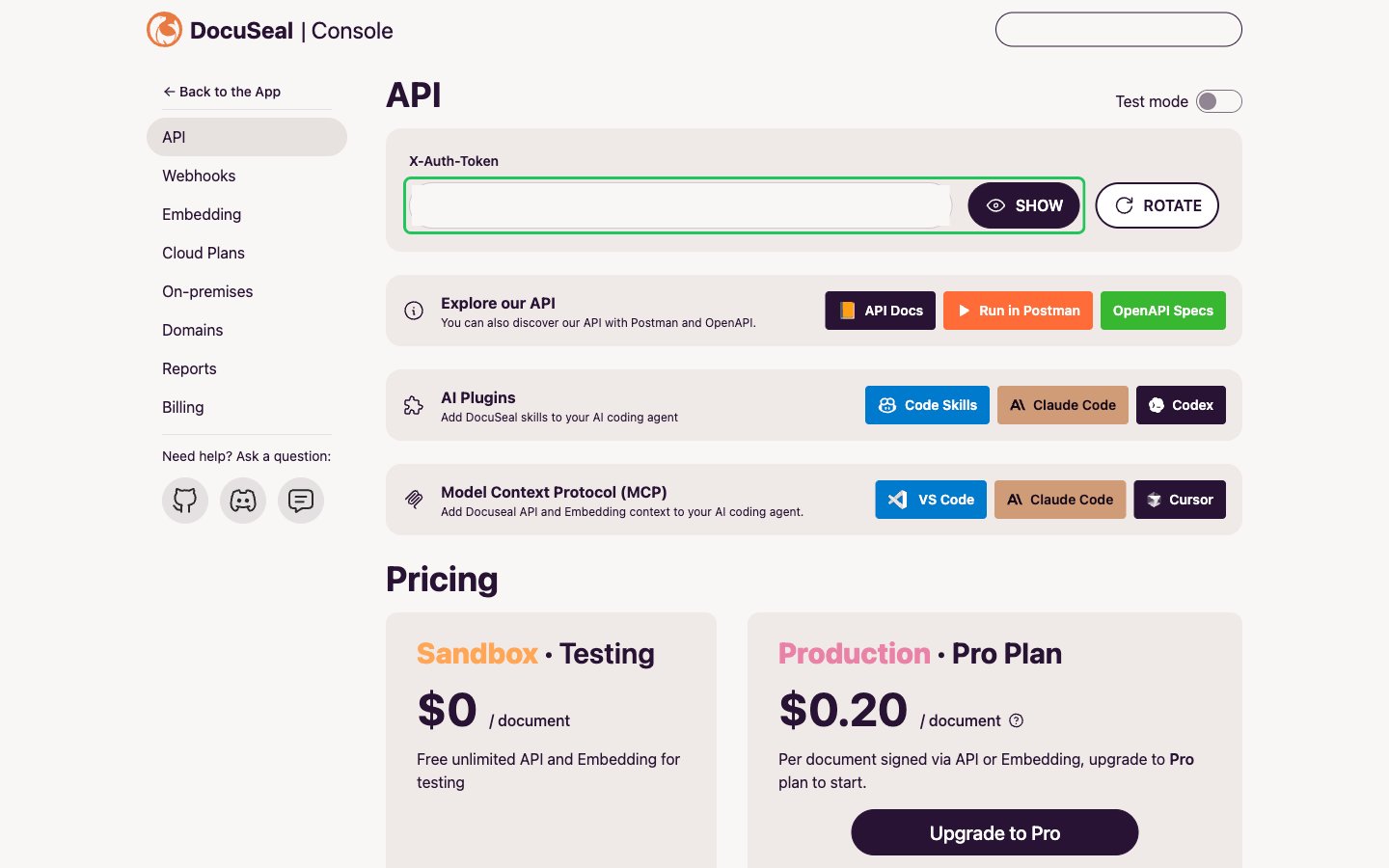
- Sign in to DocuSeal and open the Console API page: console.docuseal.com/api (Global) or console.docuseal.eu/api (EU).
- Select API in the left-hand menu, then click Show on the X-Auth-Token field.
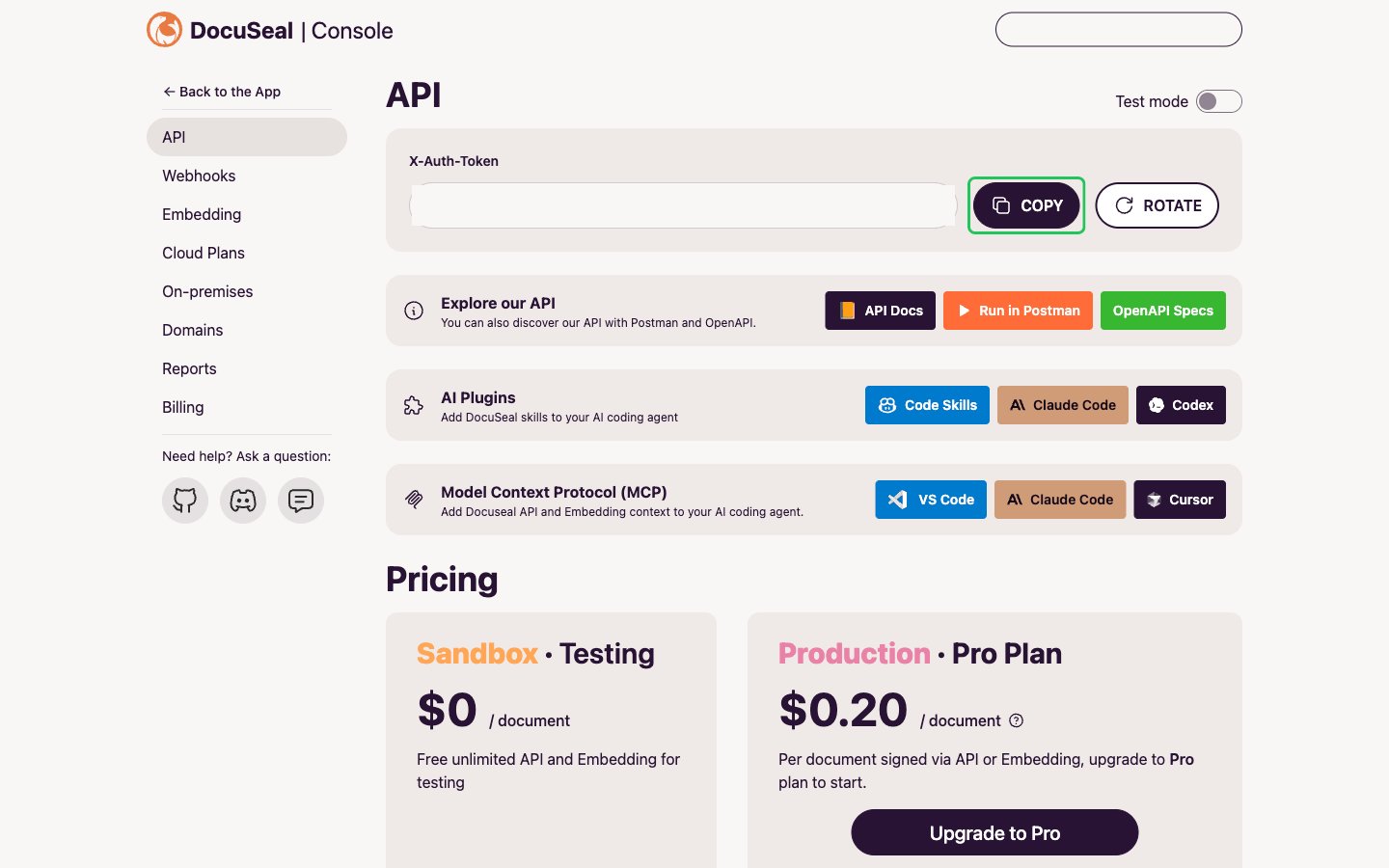
- Enter the verification code DocuSeal emails you, then click Copy to copy the key.
Step 3: Enter your credentials in the Connect UI
- Open the form where you need to authenticate with DocuSeal.
- Select your Region and enter your API Key in the designated fields.
- Submit the form, and you should be successfully authenticated.