Overview
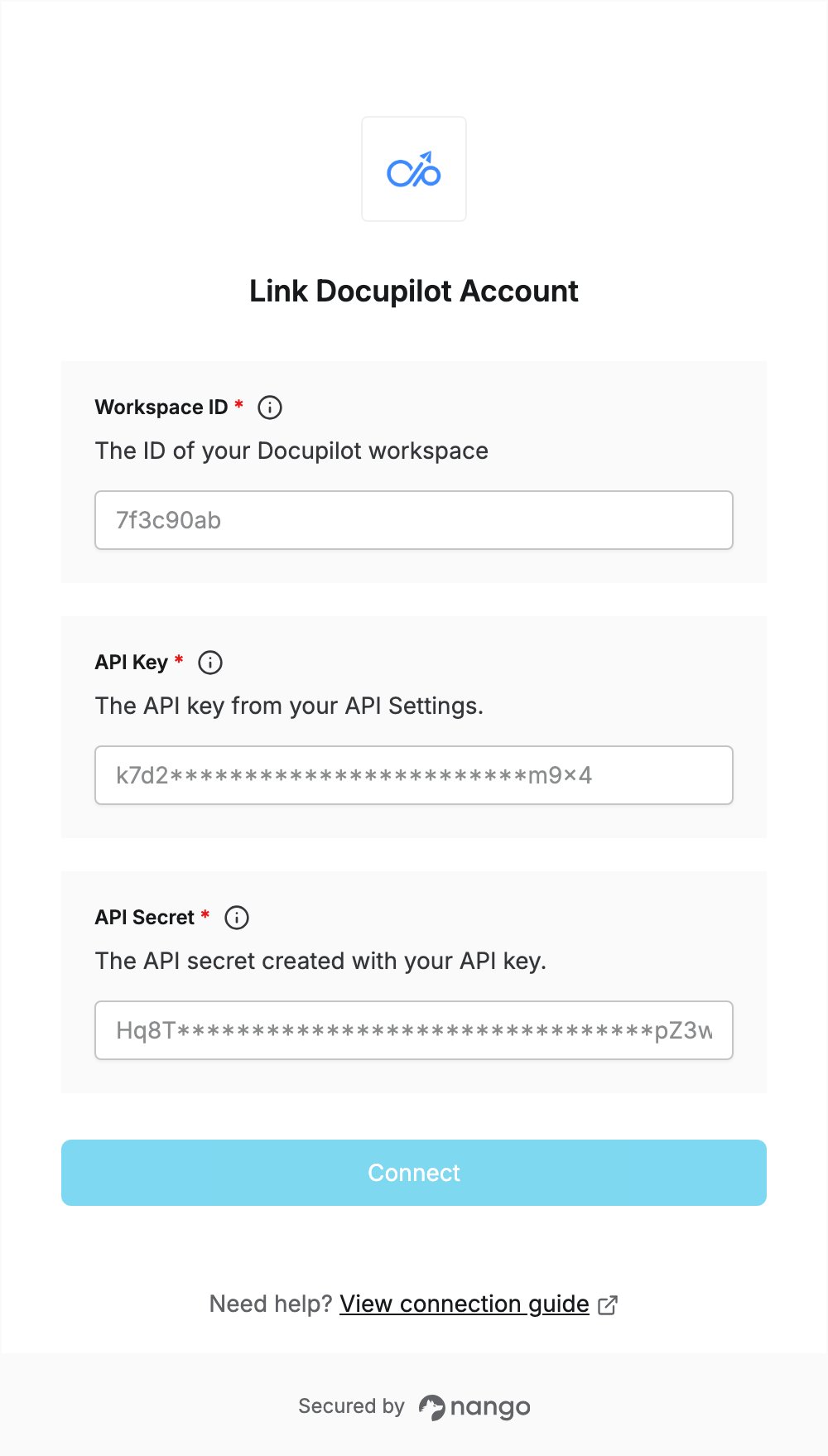
To authenticate with Docupilot, you need:- Workspace ID - the ID of the Docupilot workspace to connect.
- API Key - an API key you create in your Docupilot API Settings.
- API Secret - the secret Docupilot creates together with the API key.
Prerequisites
- A Docupilot account. Sign up if you don’t have one.
Step 1: Find your workspace ID
- Log in to Docupilot and open your workspace.
- Click the Settings icon in the left-side menu.
- On the Workspace details page, copy the Workspace ID (for example
7f3c90ab). It is also the part of the app URL after/workspace/.
Step 2: Create an API key
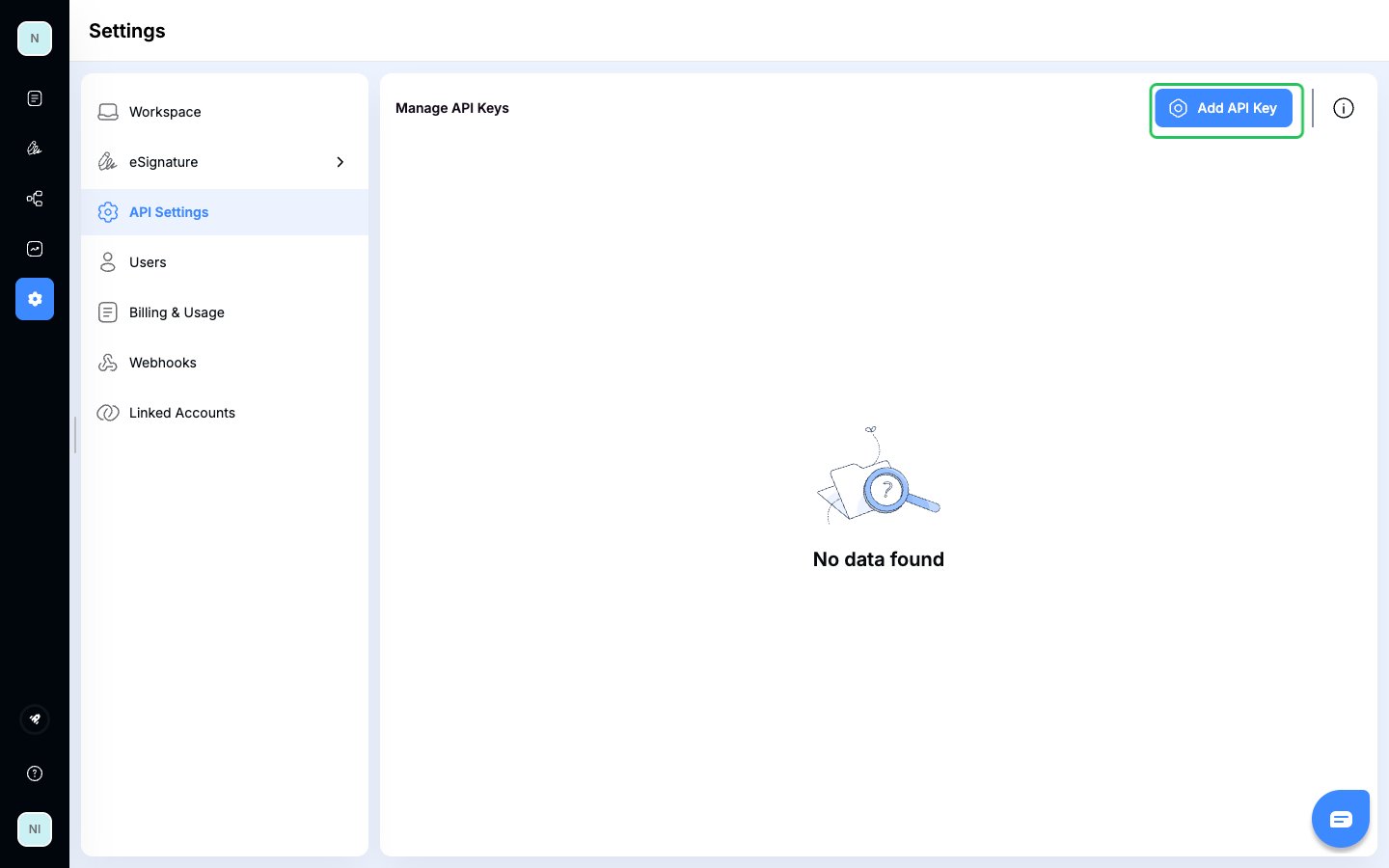
- In Settings, open API Settings and click Add API Key.
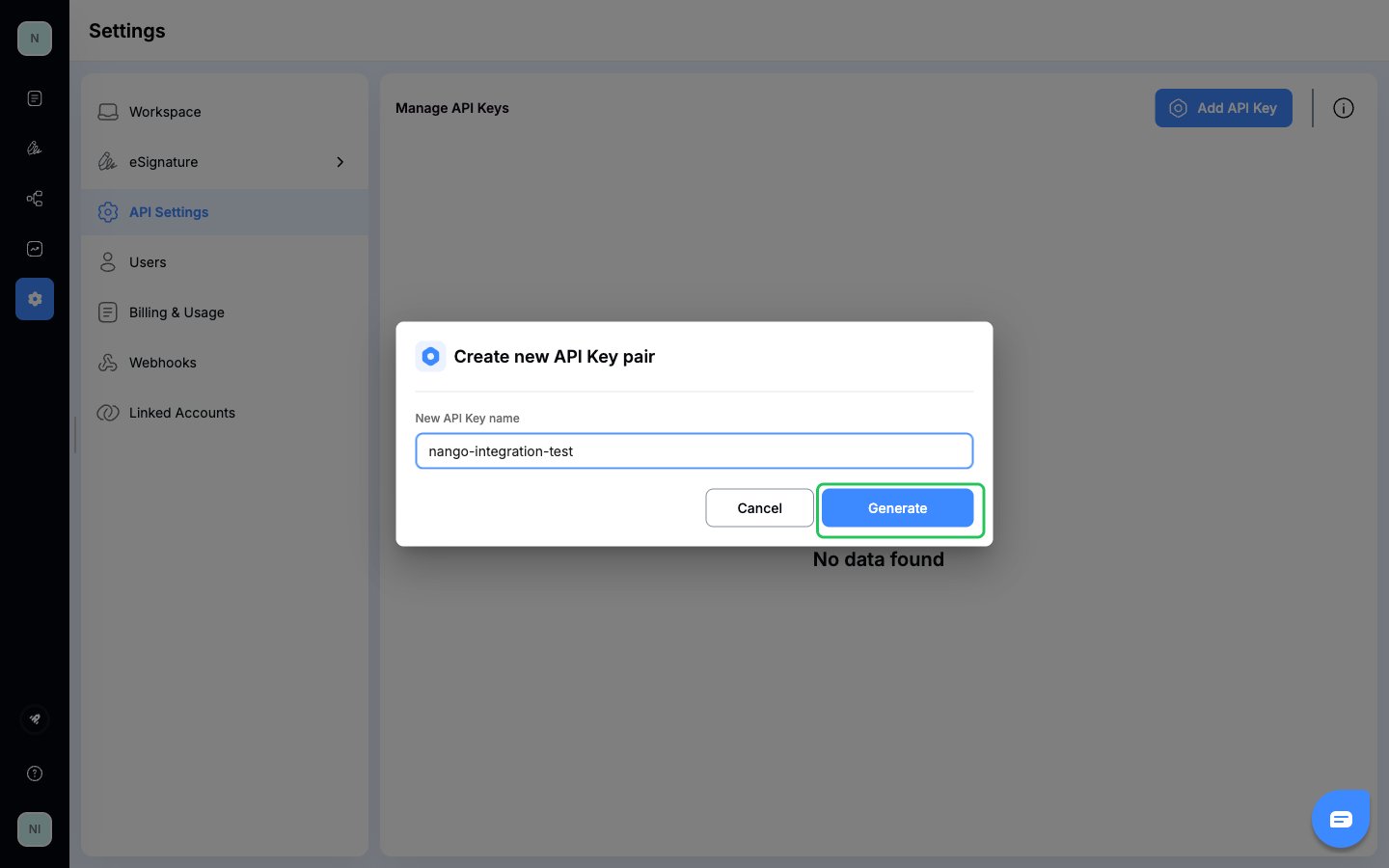
- In the Create new API Key pair dialog, enter a name for the key and click Generate.
Step 3: Copy your API key and secret
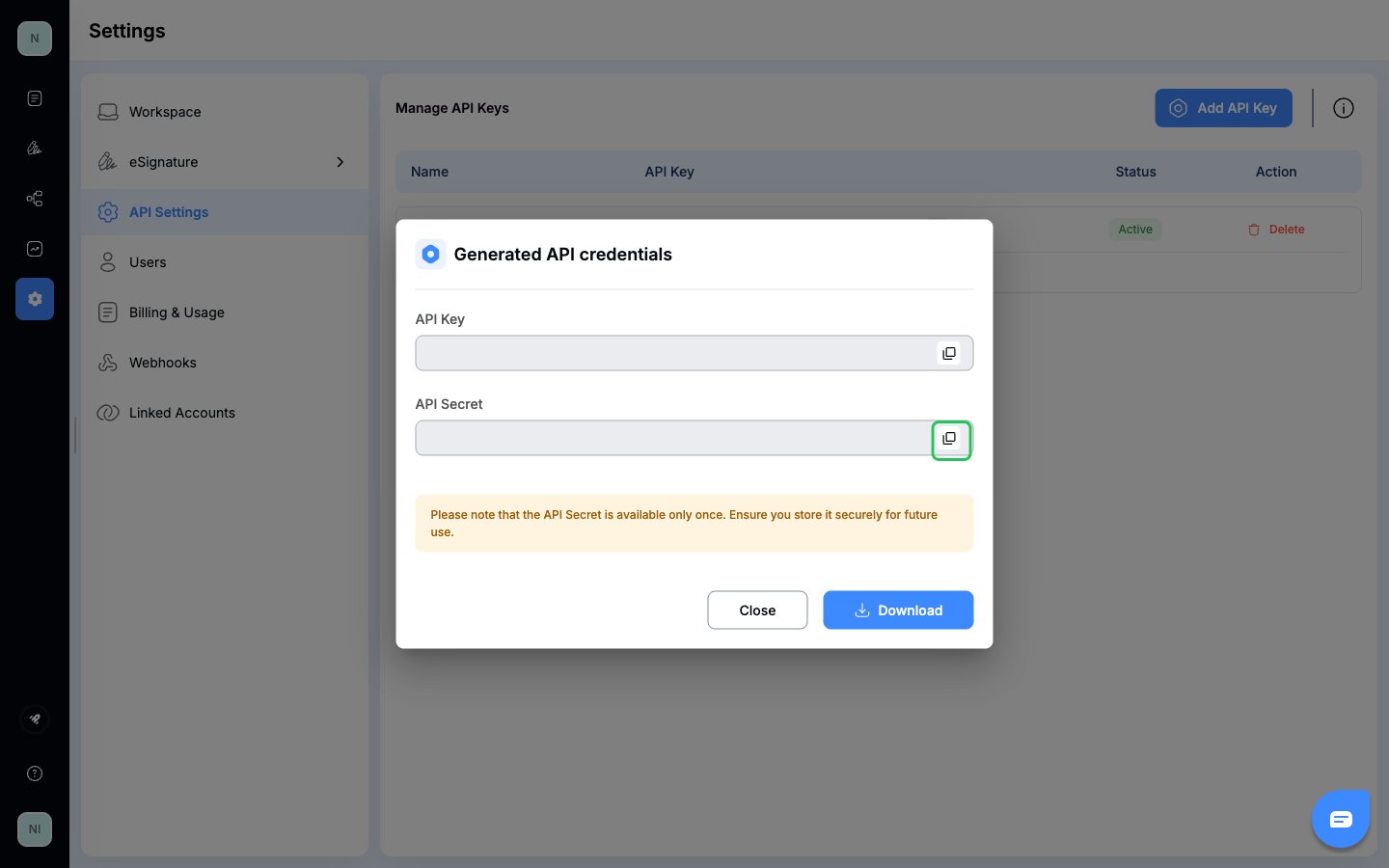
- The Generated API credentials dialog shows your API Key and API Secret. Copy both, or click Download to save them.
- Click Close.
Step 4: Enter your credentials in the Connect UI
- Open the form where you need to authenticate with Docupilot.
- Paste the Workspace ID from Step 1 into the Workspace ID field.
- Paste the API Key from Step 3 into the API Key field.
- Paste the API Secret from Step 3 into the API Secret field.
- Submit the form, and you should be successfully authenticated.