Overview
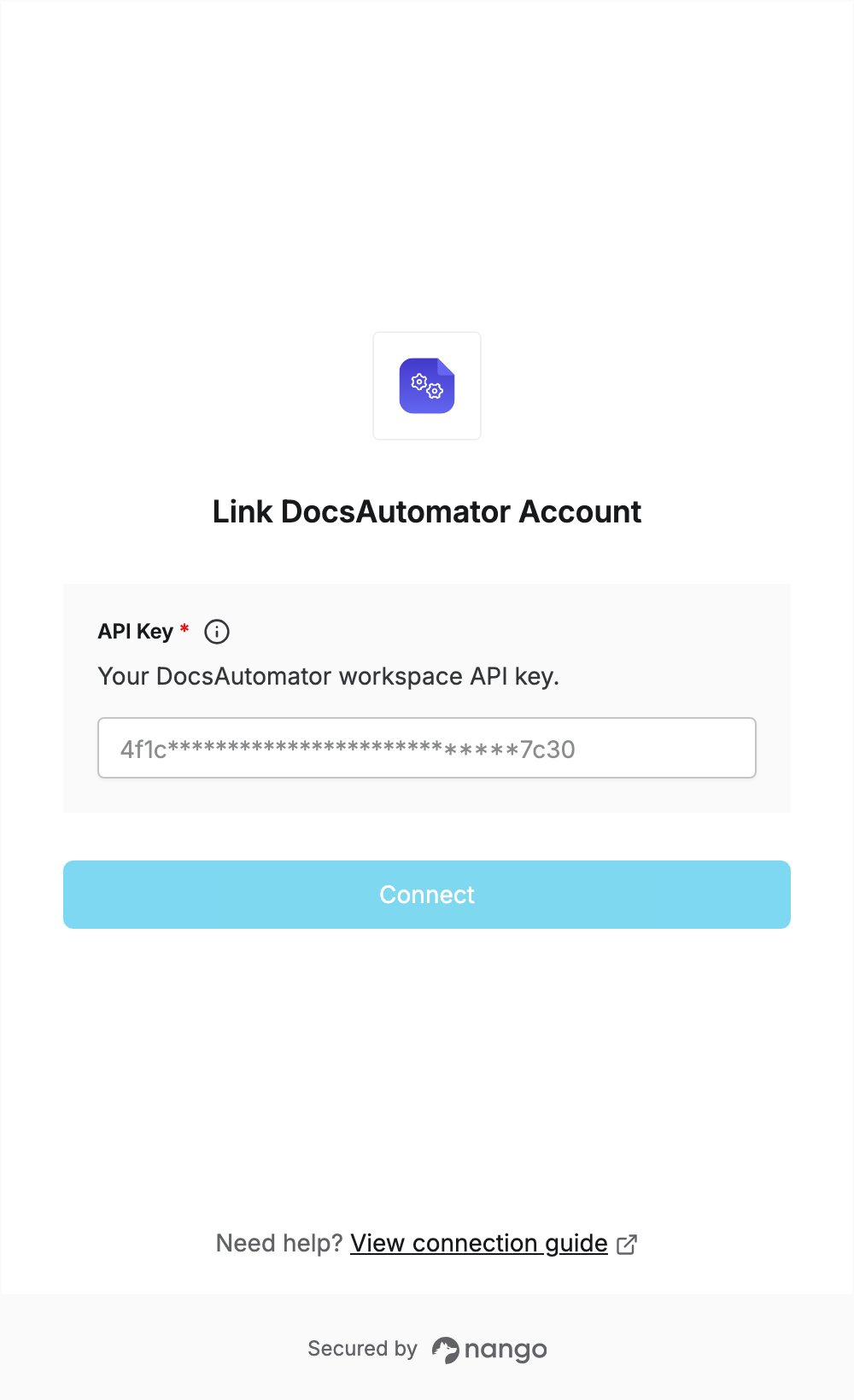
To authenticate with DocsAutomator, you need:- API Key — the API key of your DocsAutomator workspace.
Prerequisites
- A DocsAutomator account. You can sign up for free, with no credit card.
Step 1: Copy your API key
- Log in to DocsAutomator.
- In the left sidebar, click Settings.
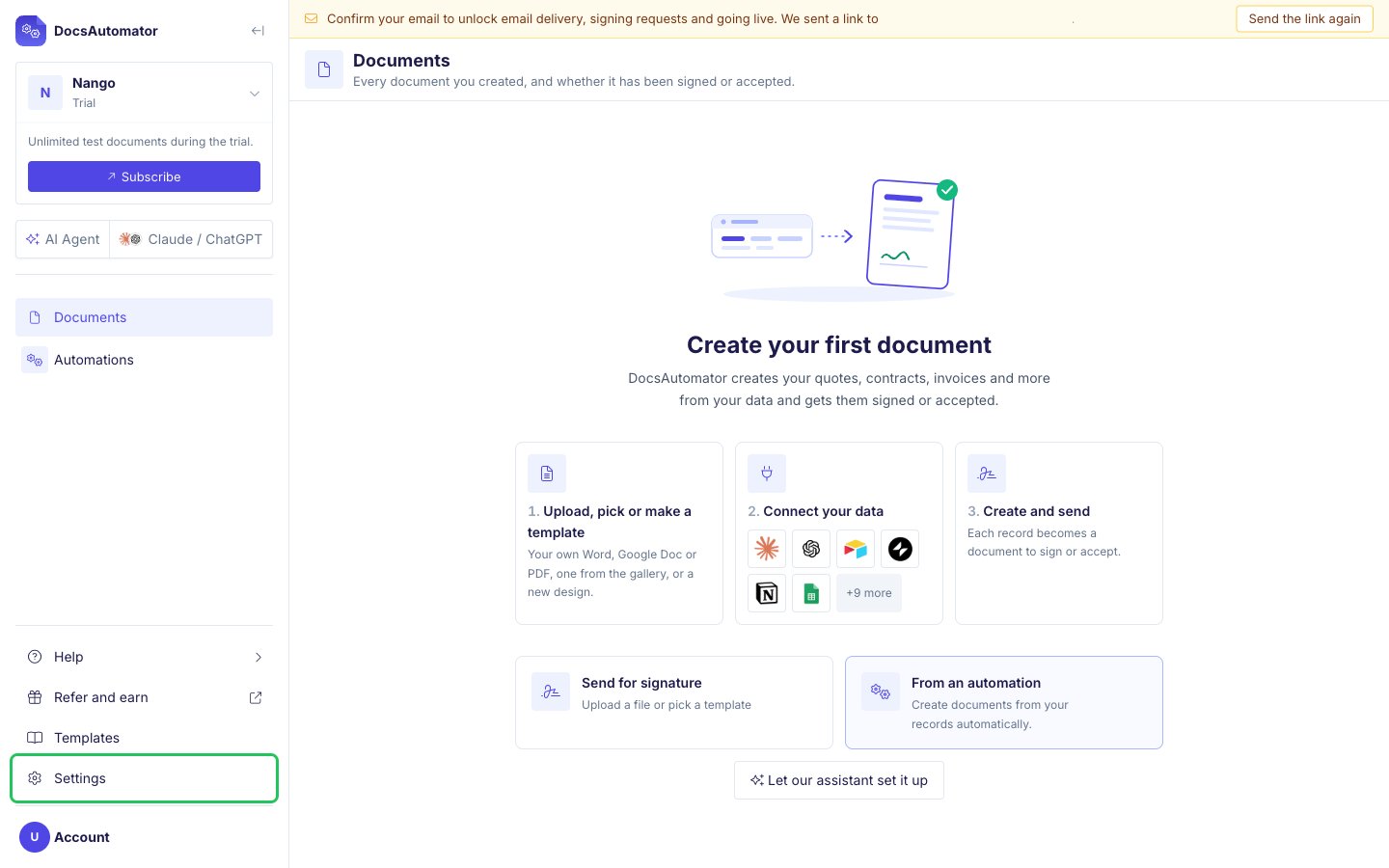
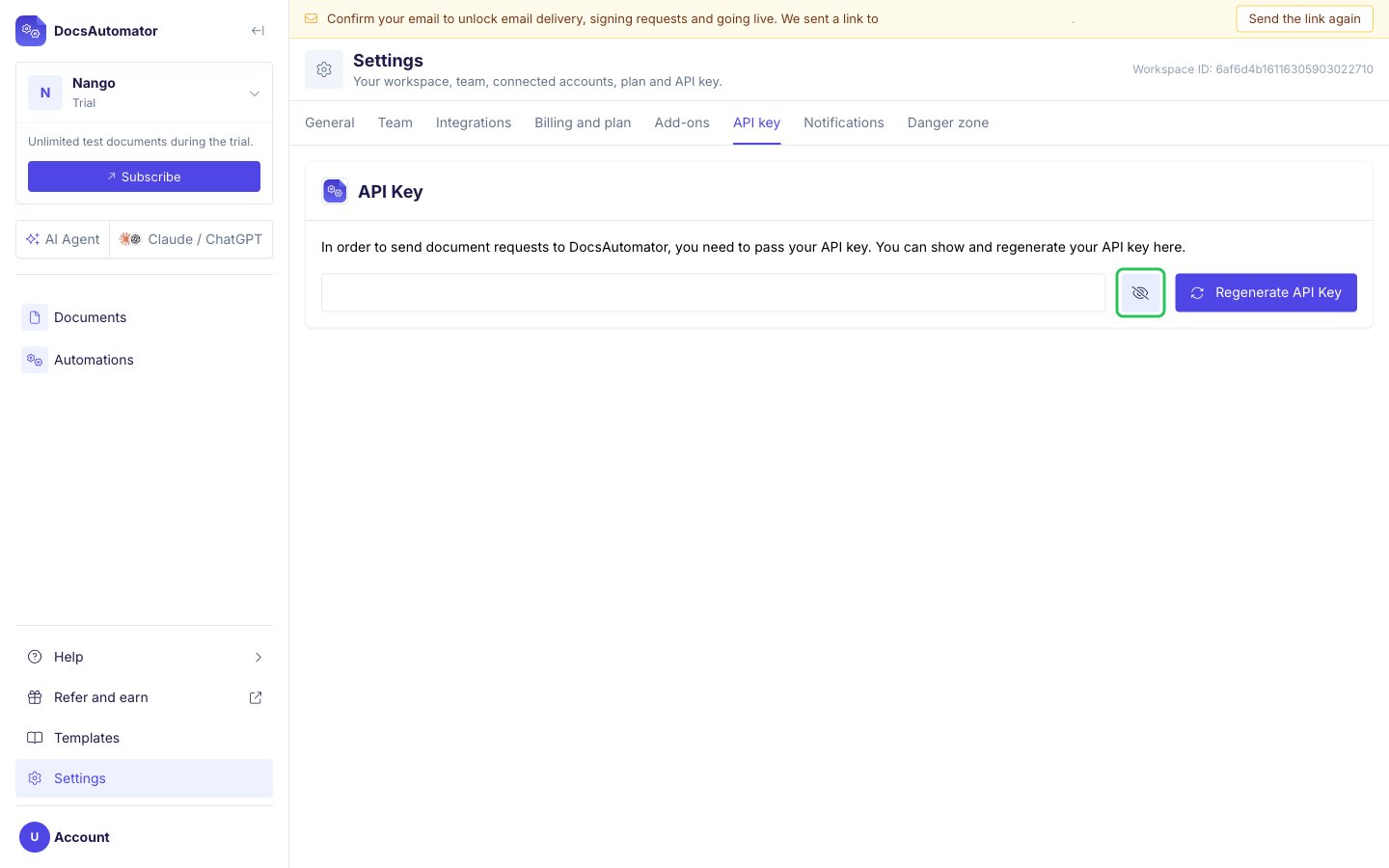
- Open the API key tab, or go to app.docsautomator.co/settings/workspace/api.
- Click the eye icon next to the masked field to show your API key, then copy it.
Step 2: Enter your API key in the Connect UI
- Open the form where you need to authenticate with DocsAutomator.
- Paste your API key in the API Key field.
- Submit the form, and you should be successfully authenticated.