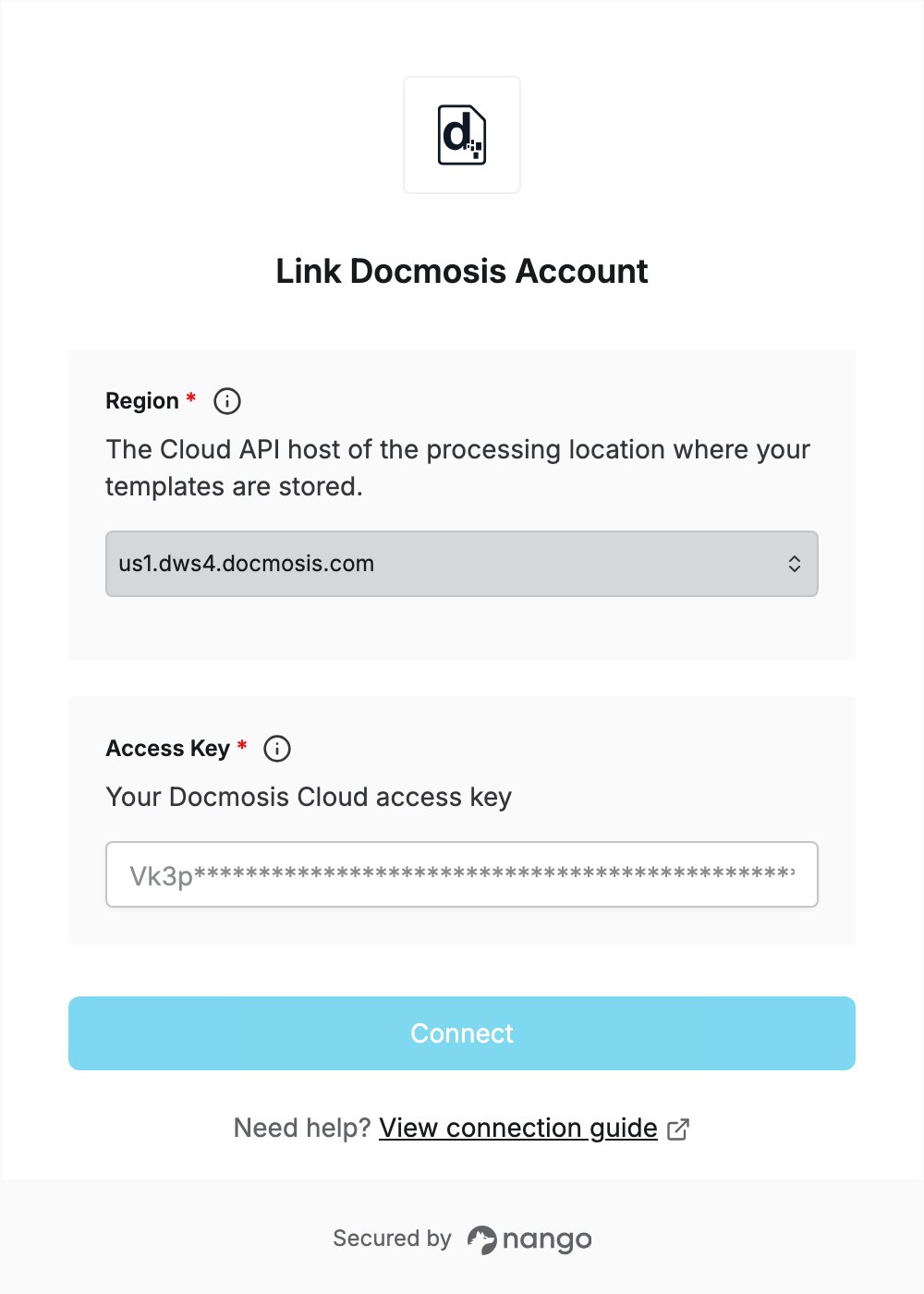
Overview
To authenticate with Docmosis, you need:- Region — the Docmosis Cloud processing location where your templates are stored.
- Access Key — an access key of your Docmosis Cloud environment.
Prerequisites
- A Docmosis Cloud account. If you don’t have one, start a free trial.
Step 1: Find your region
- Sign in to the Docmosis Cloud console.
- In the top bar and side panel, check that you are in the right account, environment (for example Trial Environment) and processing location (for example US1 (N. Virginia)). Access keys belong to one environment, and each processing location has its own templates.
- Click API in the side panel.
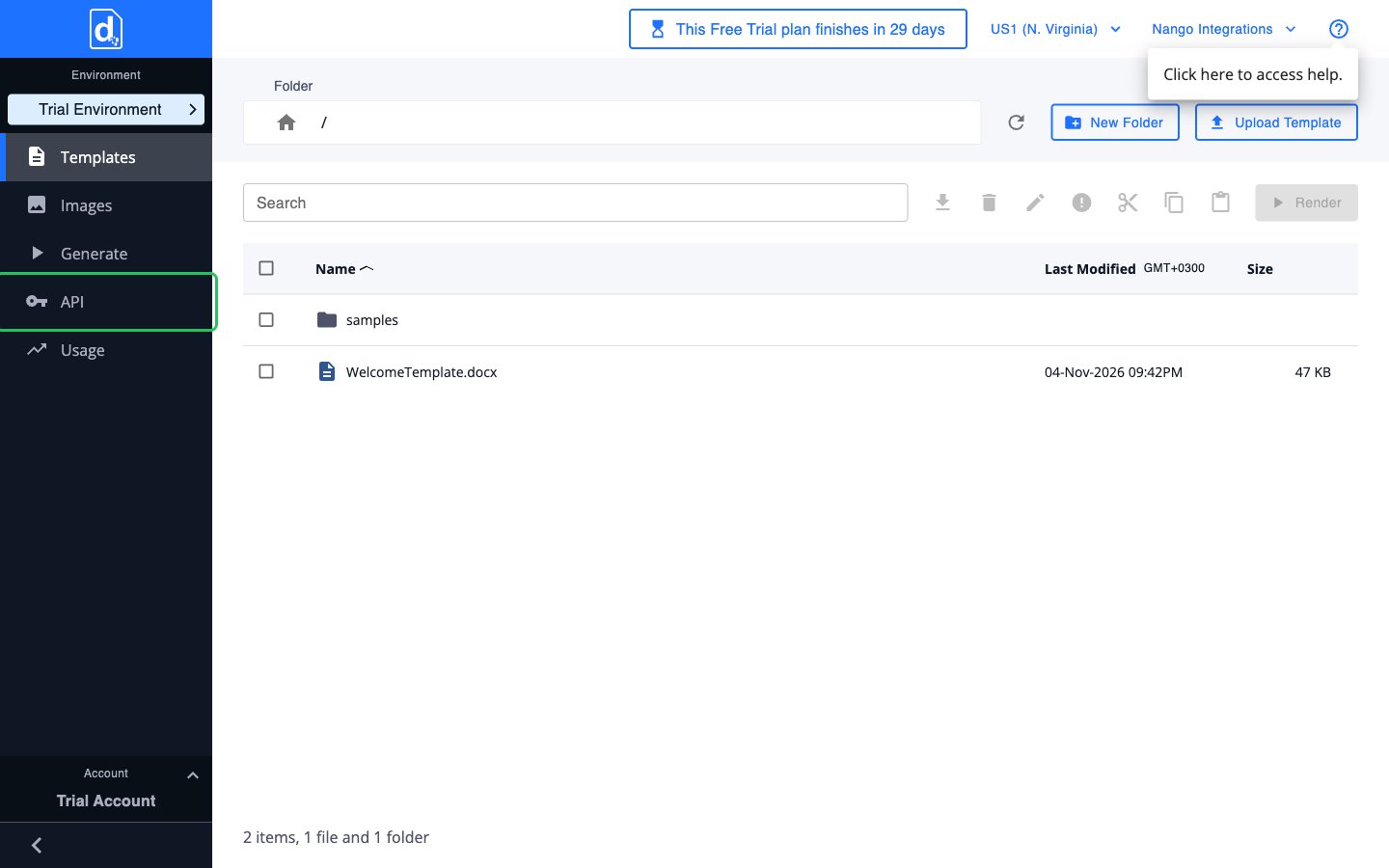
- The Base URLs tab lists the base URL of each processing location. Pick the region that matches your processing location:
Step 2: Copy your access key
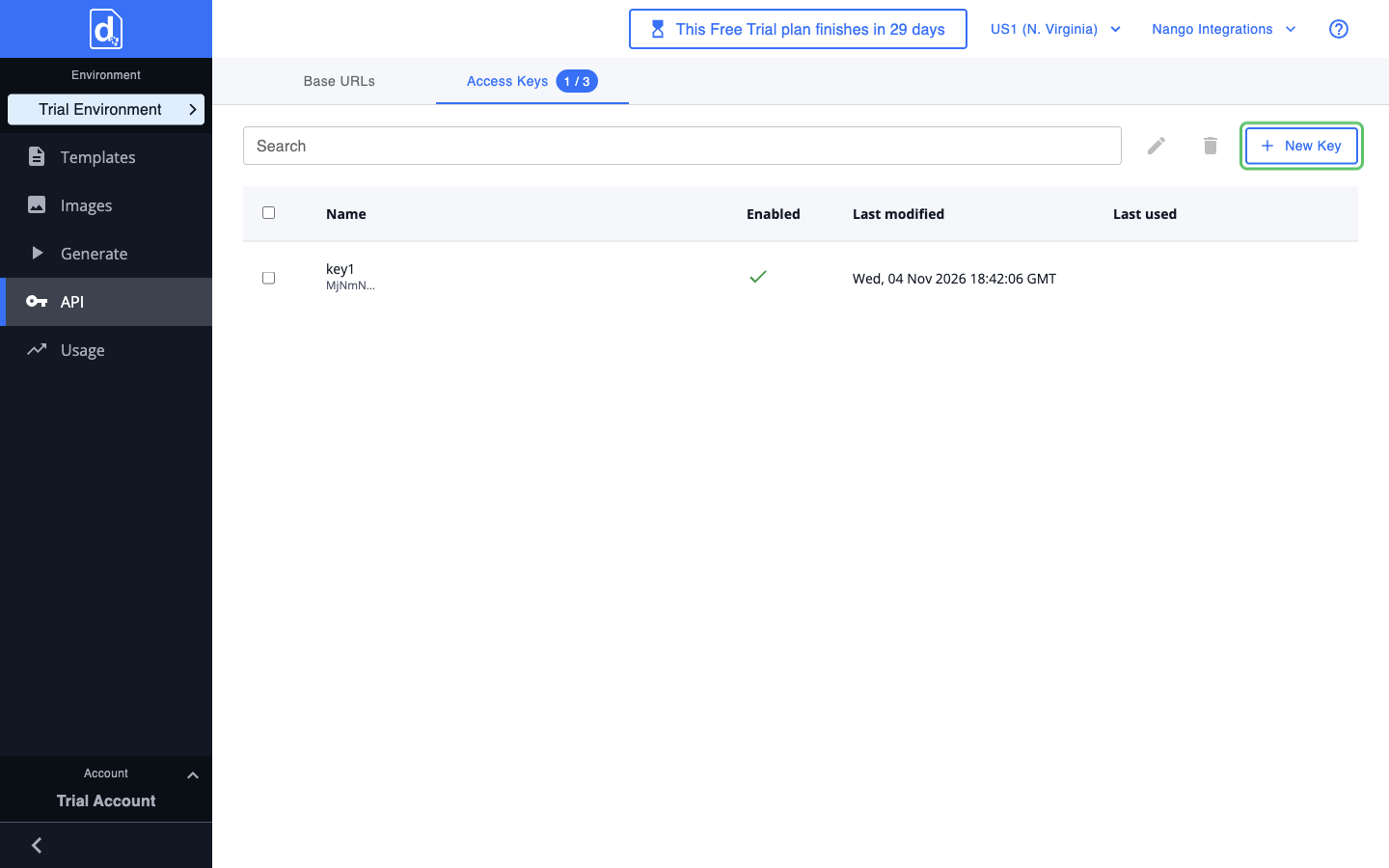
- On the API page, open the Access Keys tab. Each environment comes with a default key named
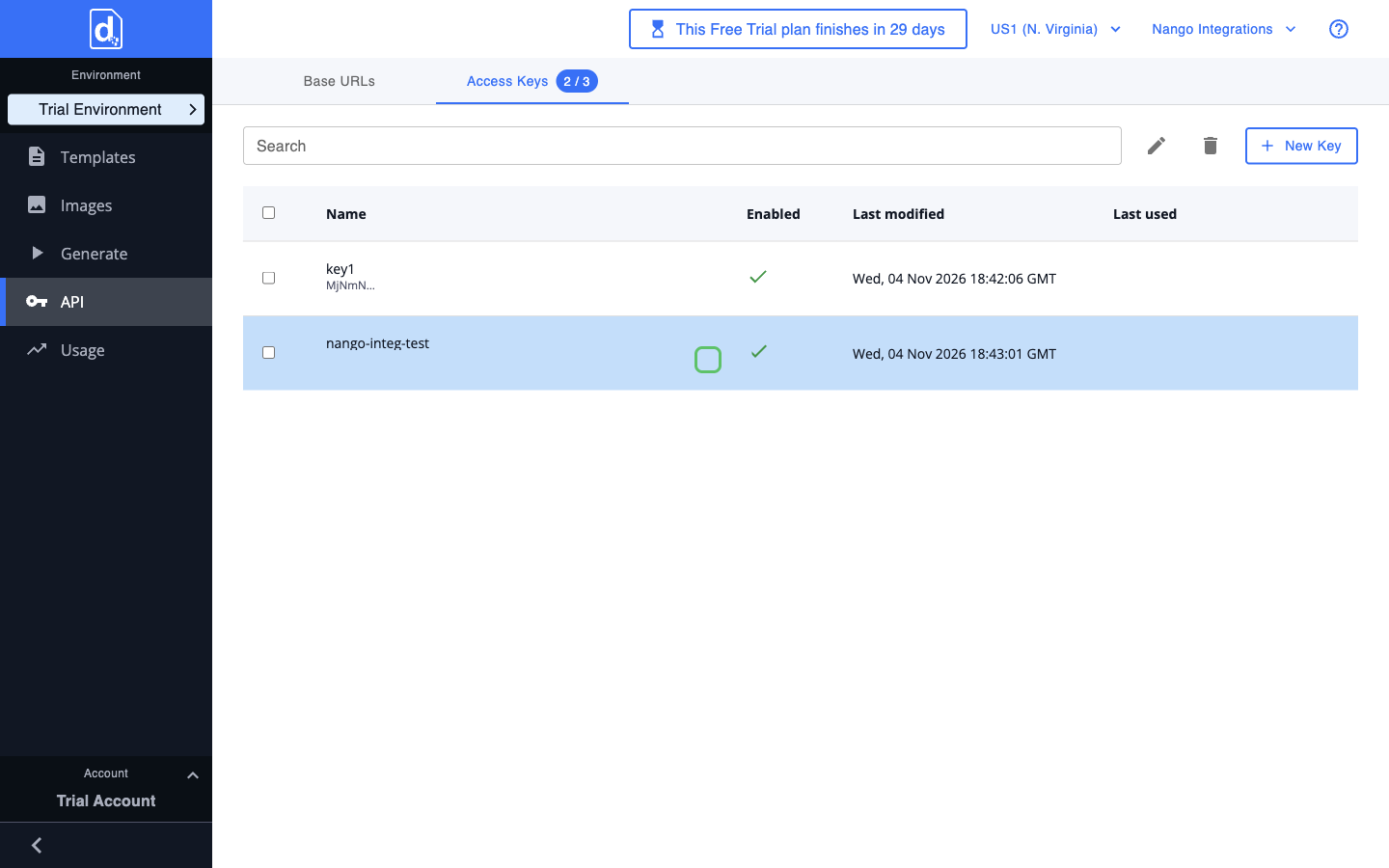
key1and can have up to 3 keys. - To use a new key, click New Key, enter a key name and click Apply. You can also use an existing key.
- Click the key’s name to reveal it, then click the Copy key to clipboard icon.
Step 3: Enter your region and access key in the Connect UI
- Open the form where you need to authenticate with Docmosis.
- Select your Region and enter your access key in the Access Key field.
- Submit the form, and you should be successfully authenticated.