Overview
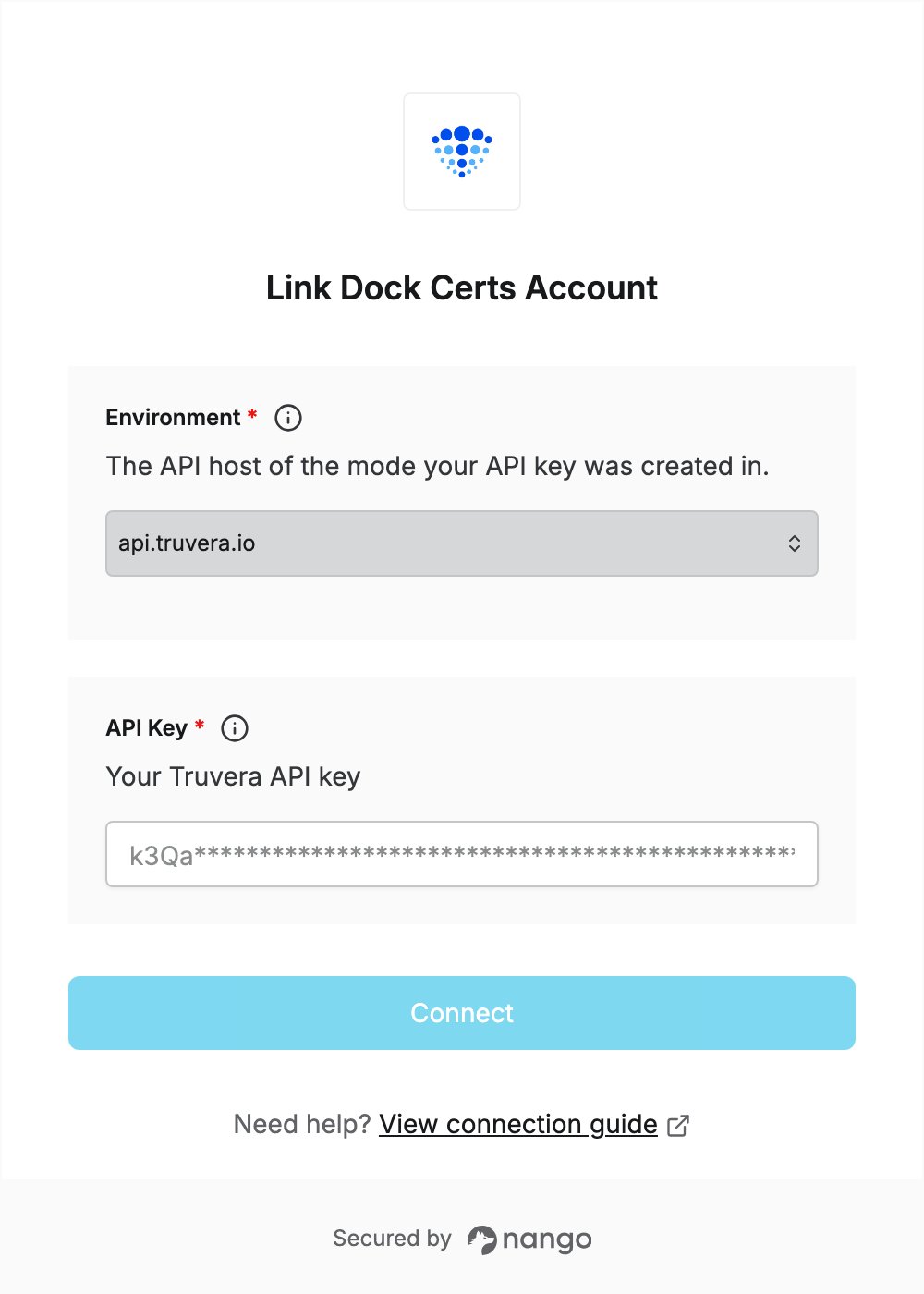
To authenticate with Dock Certs (now Truvera), you need:- Environment — the Truvera API host that matches the mode your API key was created in.
- API Key — a key from your Truvera Workspace.
Prerequisites
- A Truvera Workspace account. If you don’t have one, start a free trial.
Step 1: Find your environment
- Sign in to Truvera Workspace.
- Check the Test mode toggle at the top right, next to your avatar. Truvera has one API host per mode, and you use the host of the mode your API key was created in:
Trial accounts only have test mode, so they use
api-testnet.truvera.io.
Step 2: Create your API key
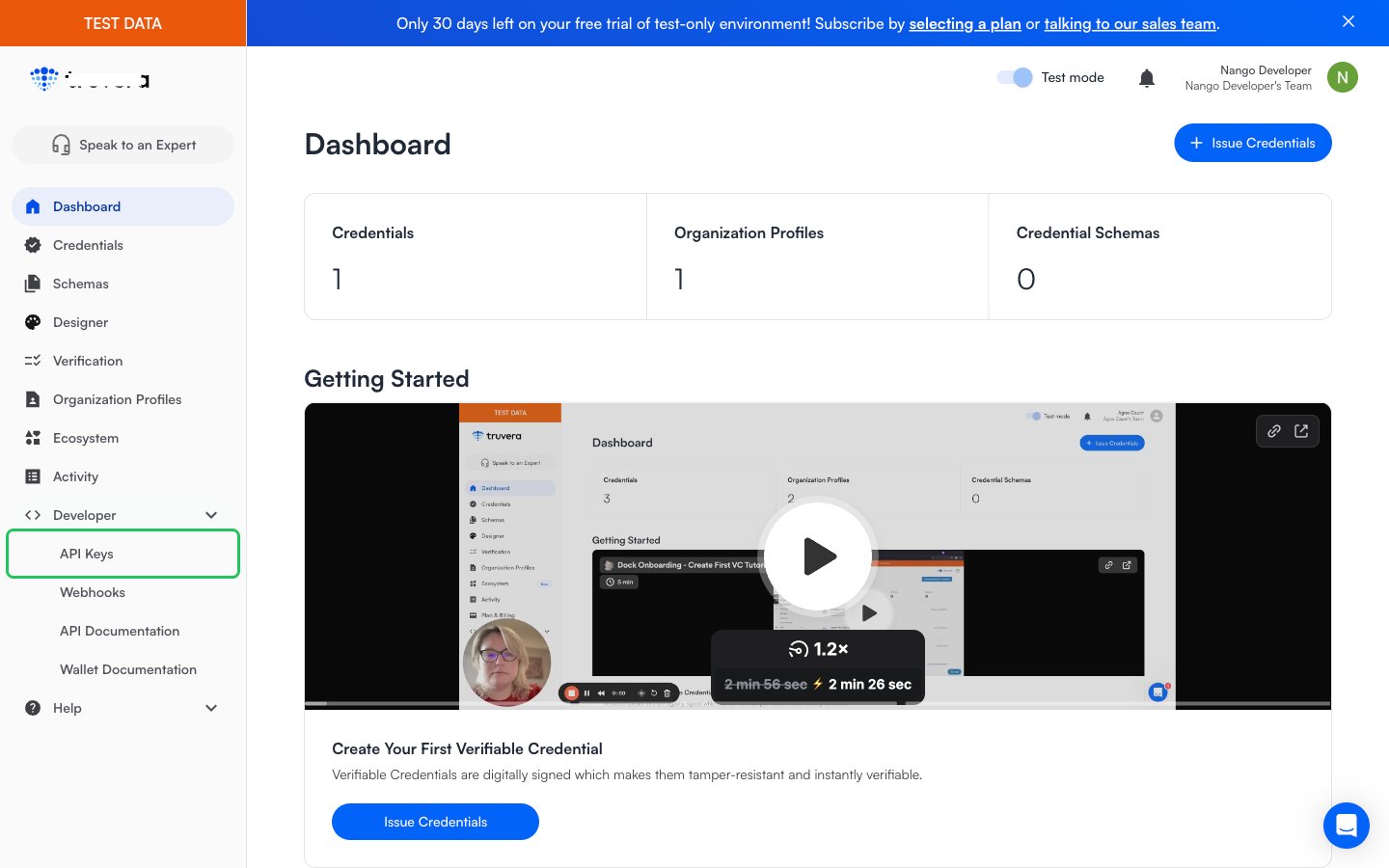
- In the left sidebar, open the Developer menu and click API Keys.
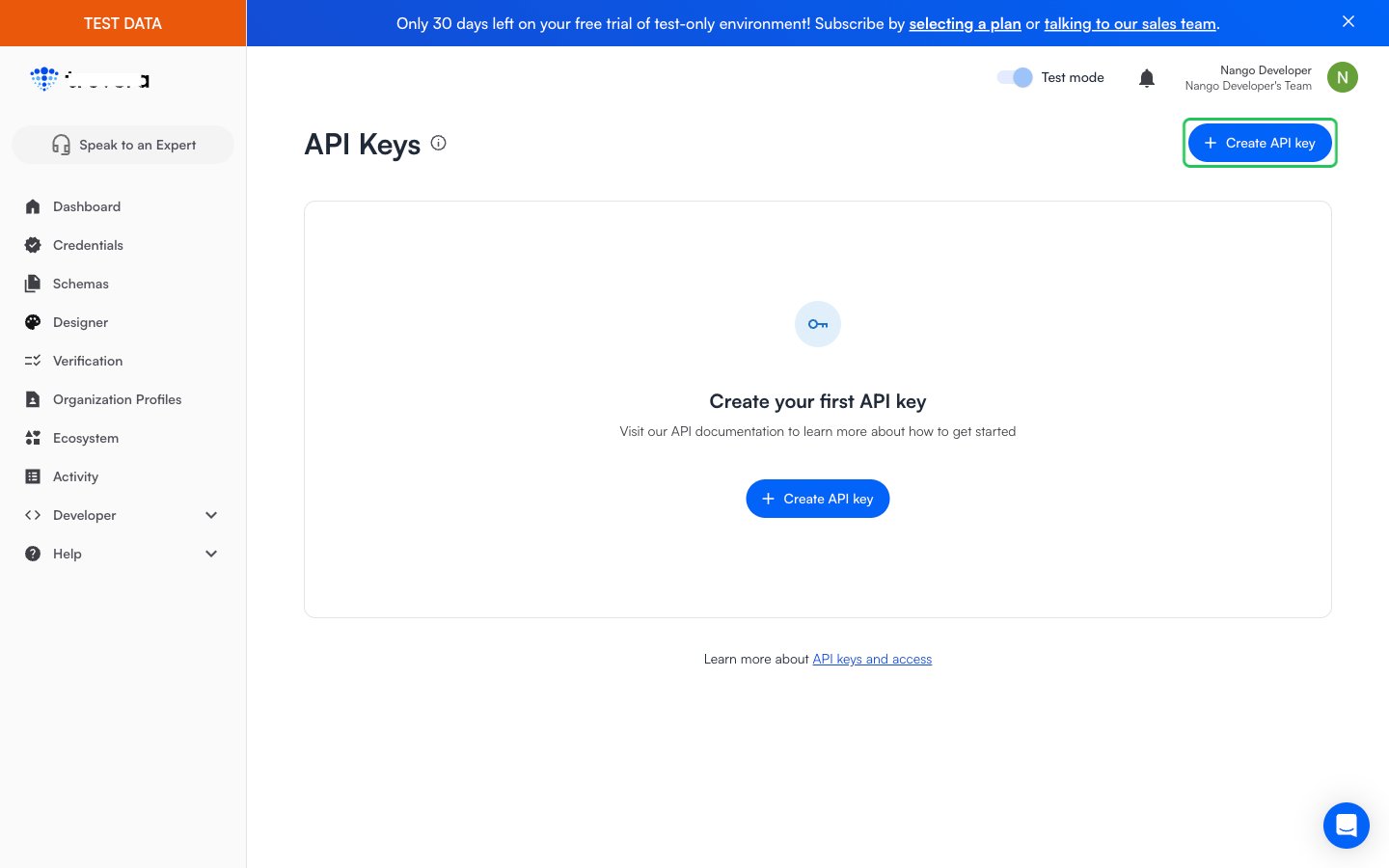
- Click Create API key.
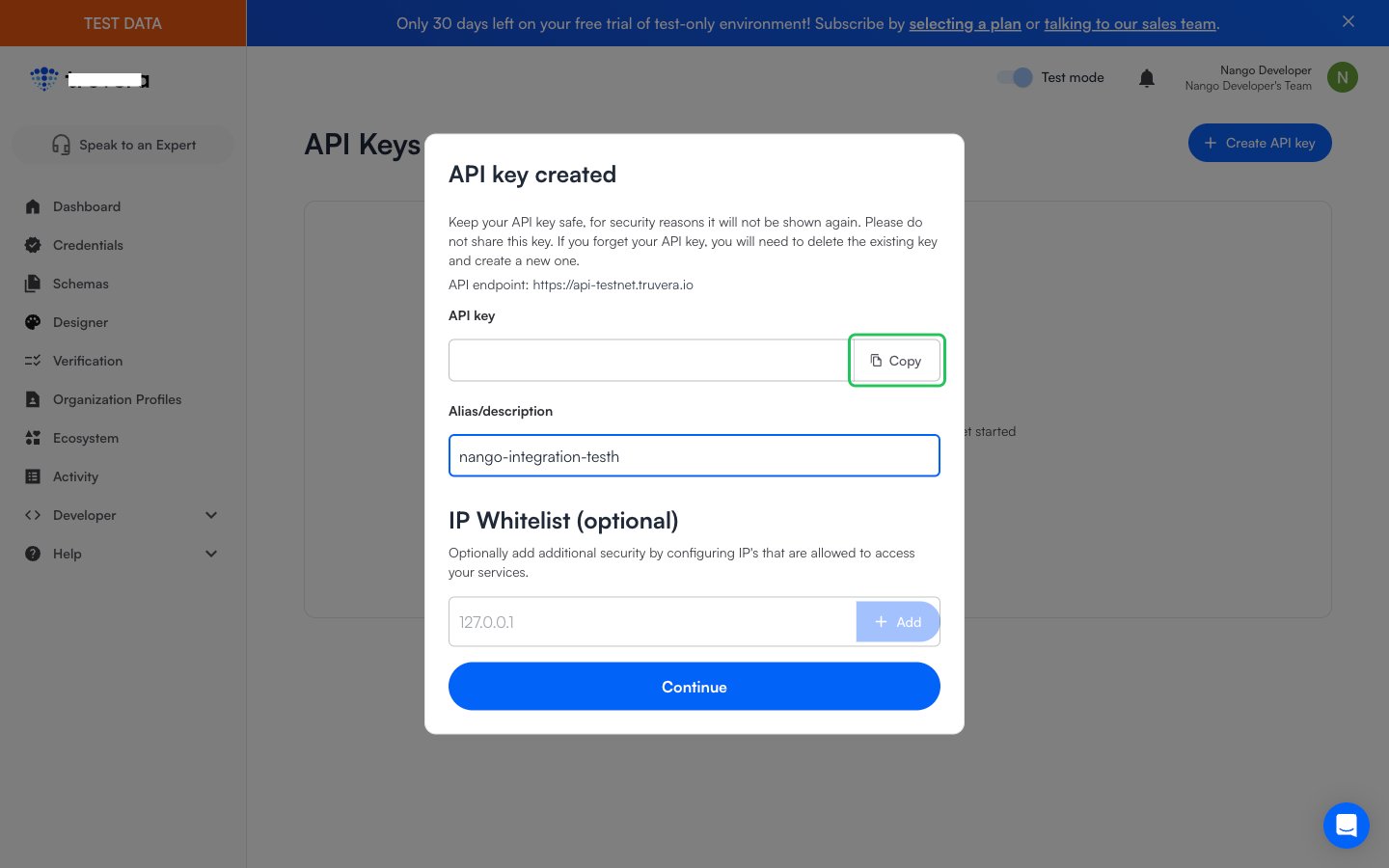
- In the API key created dialog, click Copy to copy the API key. It is shown only once. The dialog also shows the API endpoint of the key, which tells you which environment to select.
- Optionally enter an alias and whitelisted IPs, then click Continue.
Step 3: Enter your environment and API key in the Connect UI
- Open the form where you need to authenticate with Dock Certs.
- Select your Environment and enter your API key in the API Key field.
- Submit the form, and you should be successfully authenticated.