Overview
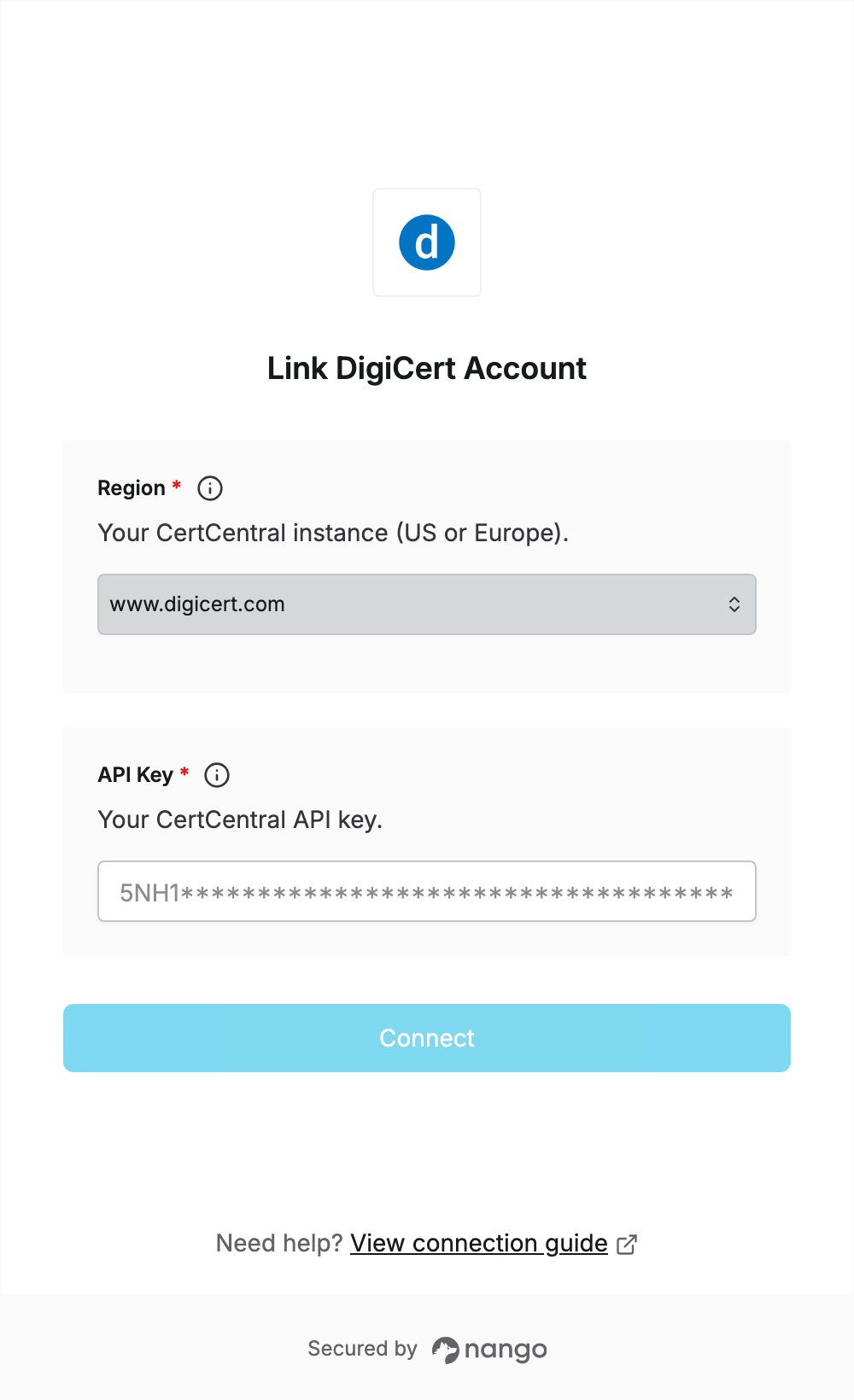
To authenticate with DigiCert, you need:- Region — the CertCentral instance your account is on.
- API Key — a CertCentral API key.
Prerequisites
- A DigiCert CertCentral account. API keys are generated and managed in your CertCentral account.
Step 1: Choose your region
Select the host of the CertCentral instance your account is on:
Most accounts use the US instance. If your account is on the Europe instance, your CertCentral console shows CertCentral Europe in the top left corner: select
certcentral.digicert.eu. See Services API.
Step 2: Generate an API key
- Sign in to CertCentral.
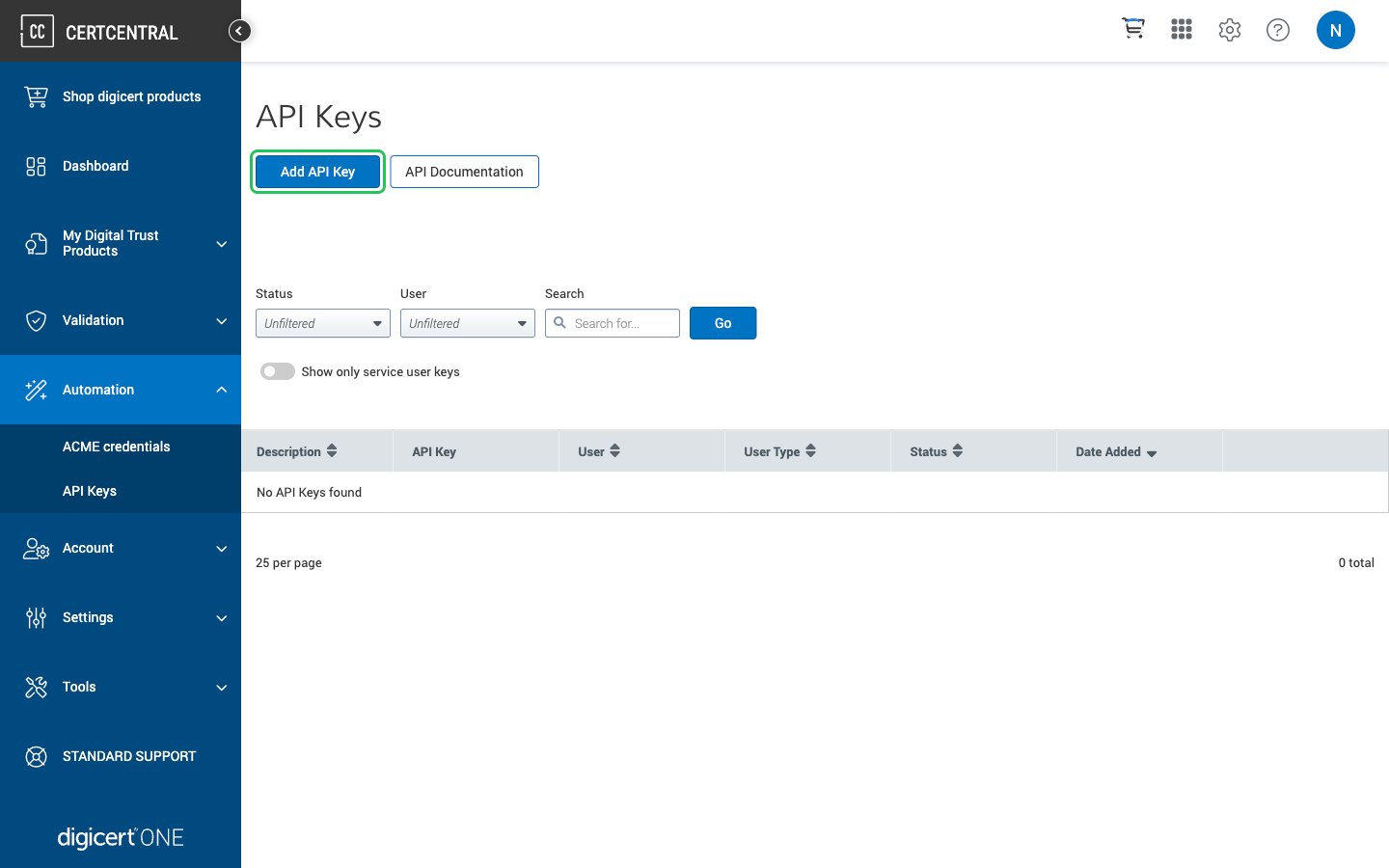
- In the left menu, go to Automation > API Keys, then click Add API Key.
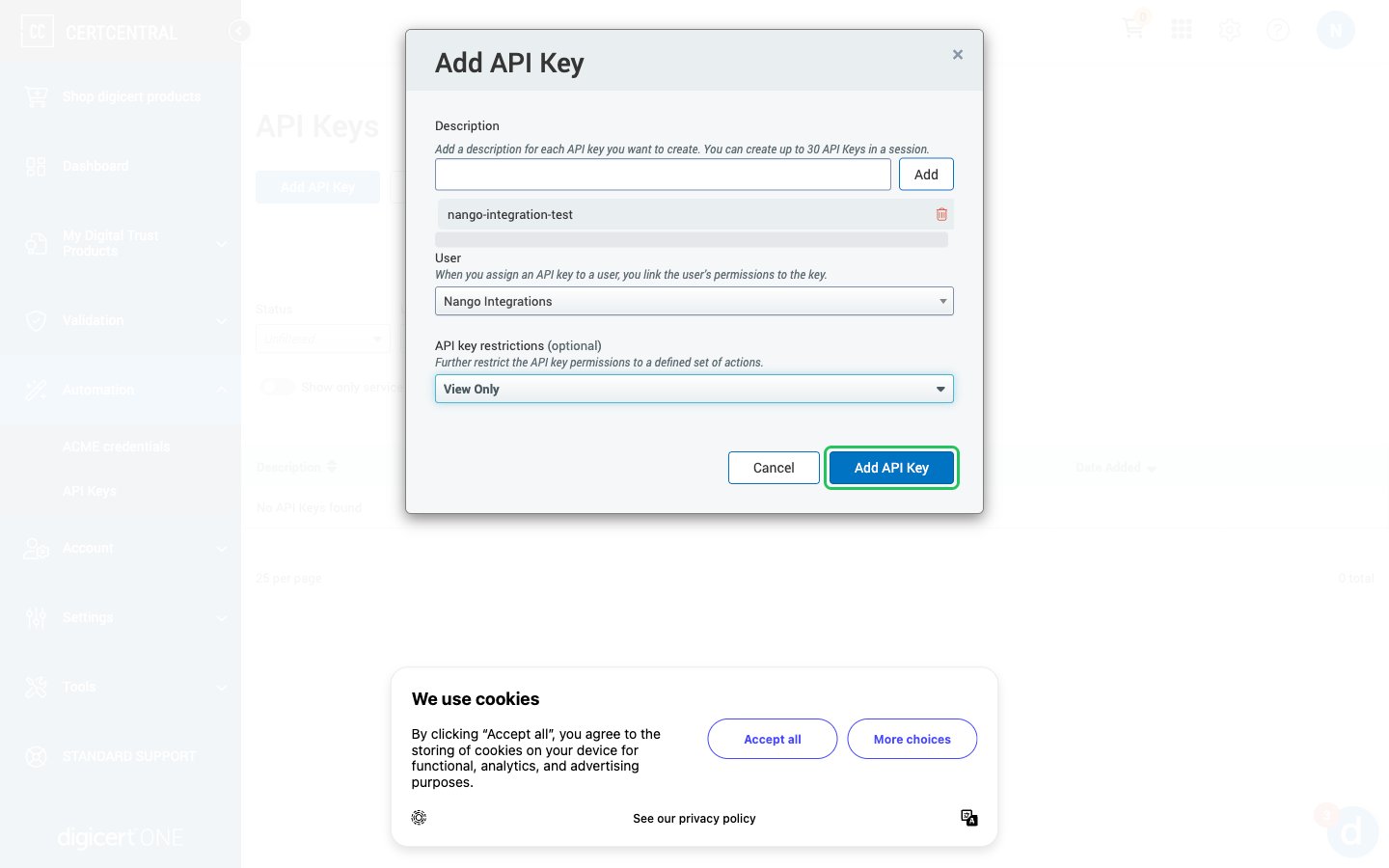
- Enter a Description and click Add.
- Under User, select the user to link the key to. The key gets that user’s permissions. Only administrators can create service users.
- Optionally, under API key restrictions, limit what the key can do, for example View Only. Then click Add API Key.
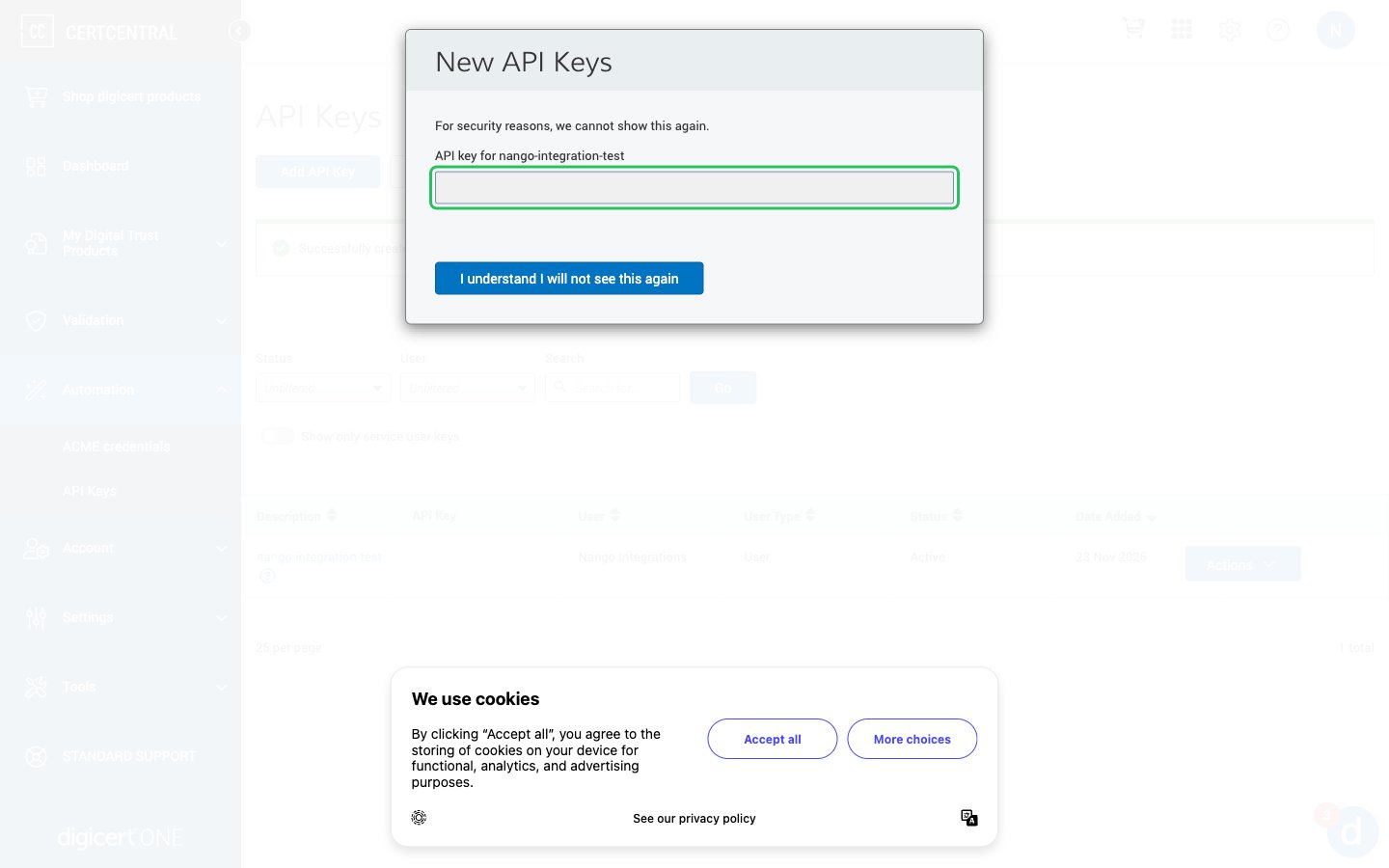
- Copy the key from the New API Keys window, then click I understand I will not see this again. DigiCert shows the key only once.
Step 3: Enter your credentials in the Connect UI
- Open the form where you need to authenticate with DigiCert.
- Select your Region and enter your API Key in the designated fields.
- Submit the form, and you should be successfully authenticated.