Overview
To authenticate with Dify, you need:- API Key — an app API key (to call one Dify app) or a knowledge base API key (to call your workspace’s knowledge bases).
Prerequisites
- A Dify Cloud account. The free Sandbox plan includes API access.
- For a knowledge base API key: the workspace owner or admin role. Only they can create, view, and delete knowledge base keys.
Step 1: Create an API key
An app API key works only for the app you create it in. A knowledge base API key works for all knowledge bases in your workspace, or only the ones you pick when you create it. App API key- Sign in to Dify Cloud and open your app in Studio.
- If the app has never been published, click Publish, then Publish again. The app’s API stays unavailable until the app is published.
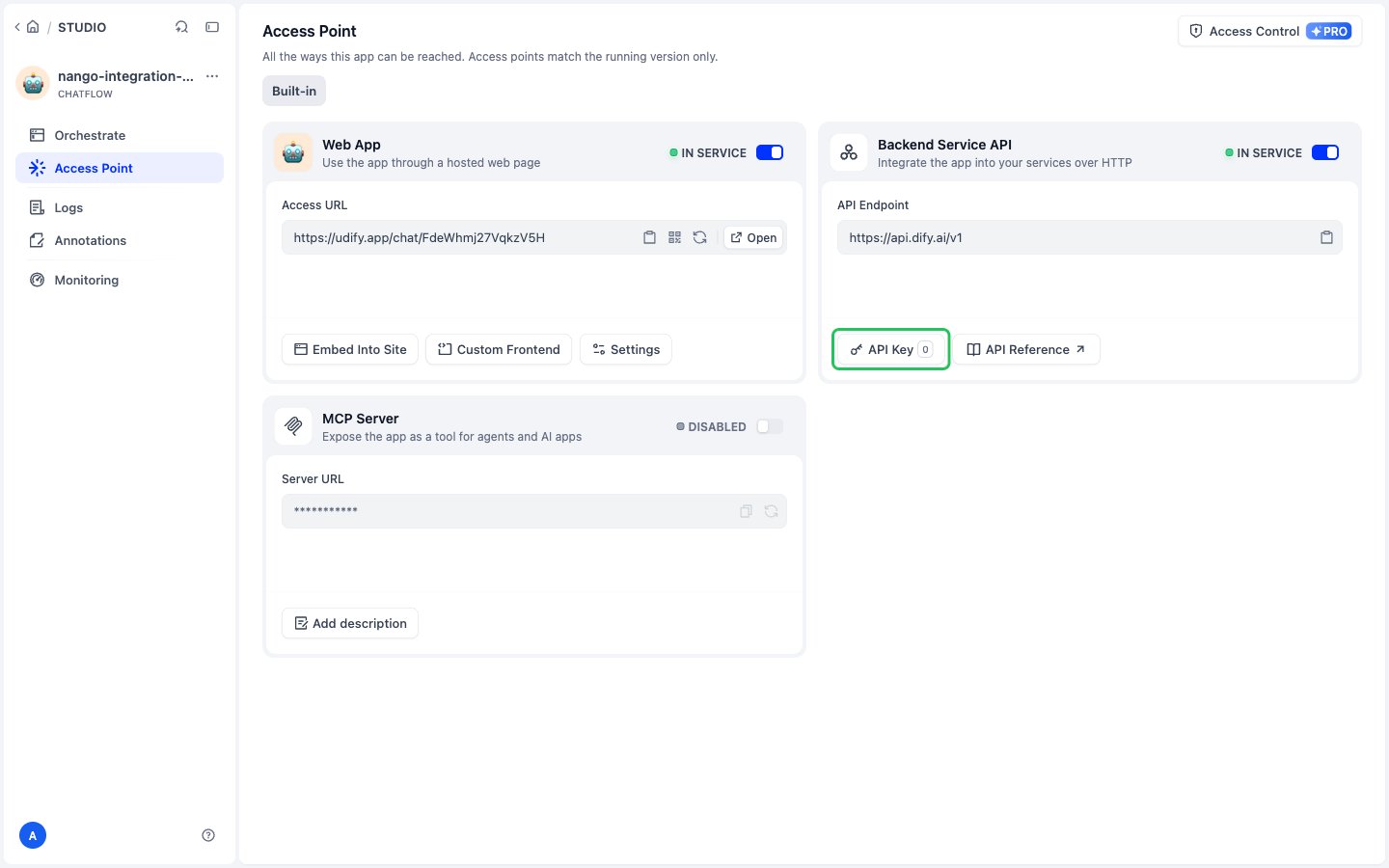
- In the app’s sidebar, click Access Point. Under Backend Service API, click API Key.
- Click Create new Secret key.
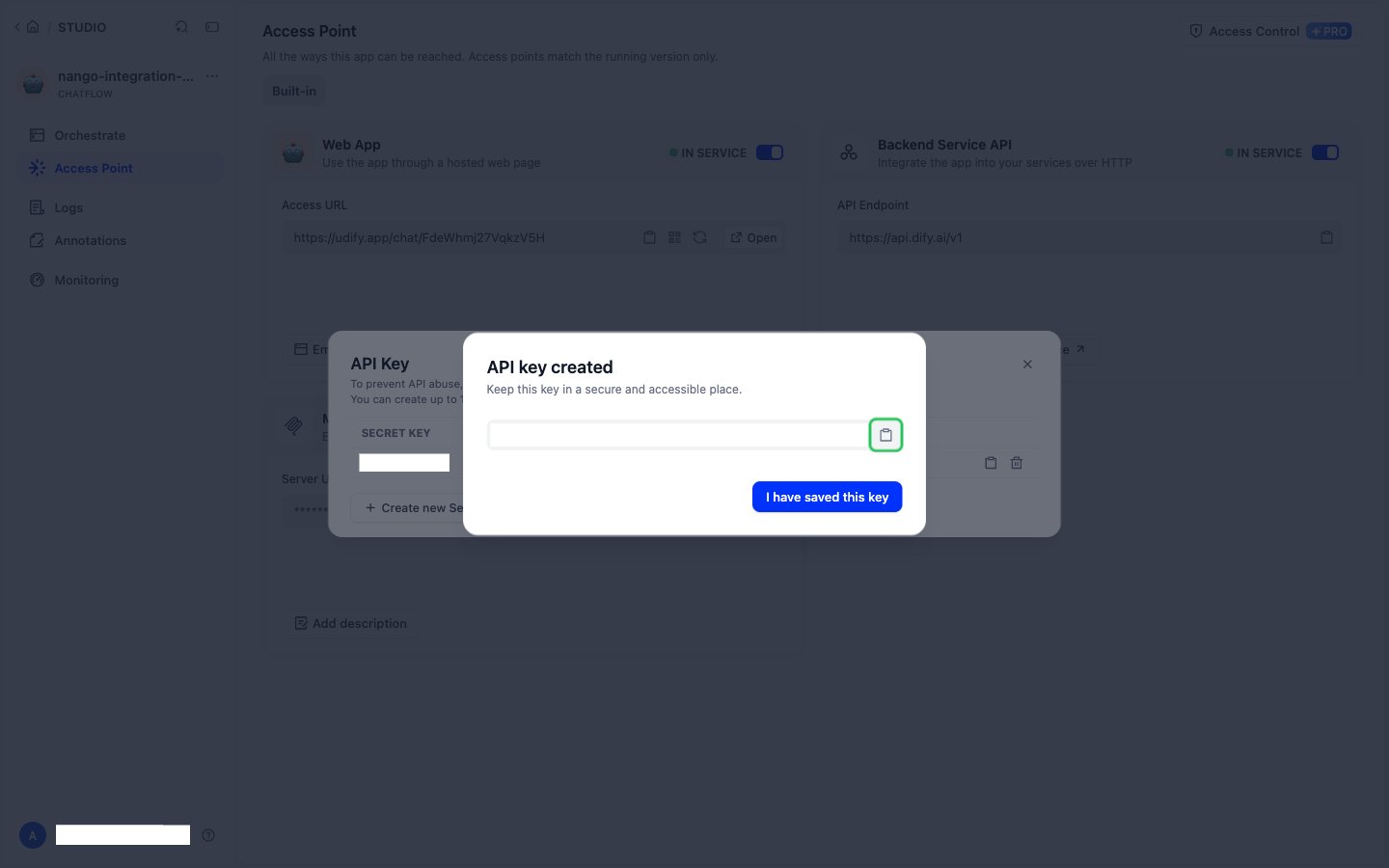
- Copy the key (it starts with
app-), then click I have saved this key. Dify shows the key only once.
- In the Dify sidebar, click Knowledge.
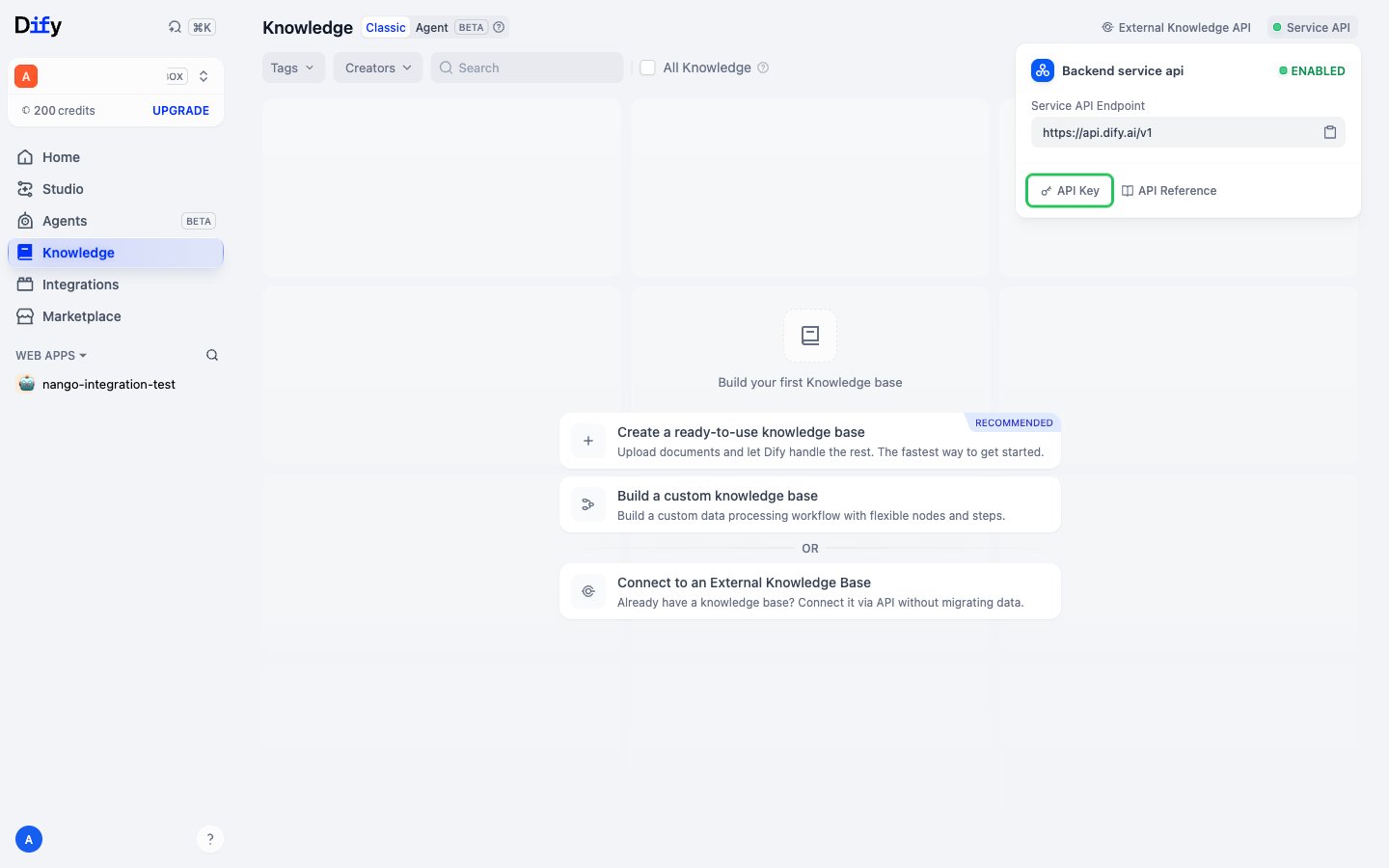
- Click Service API in the top-right corner, then API Key.
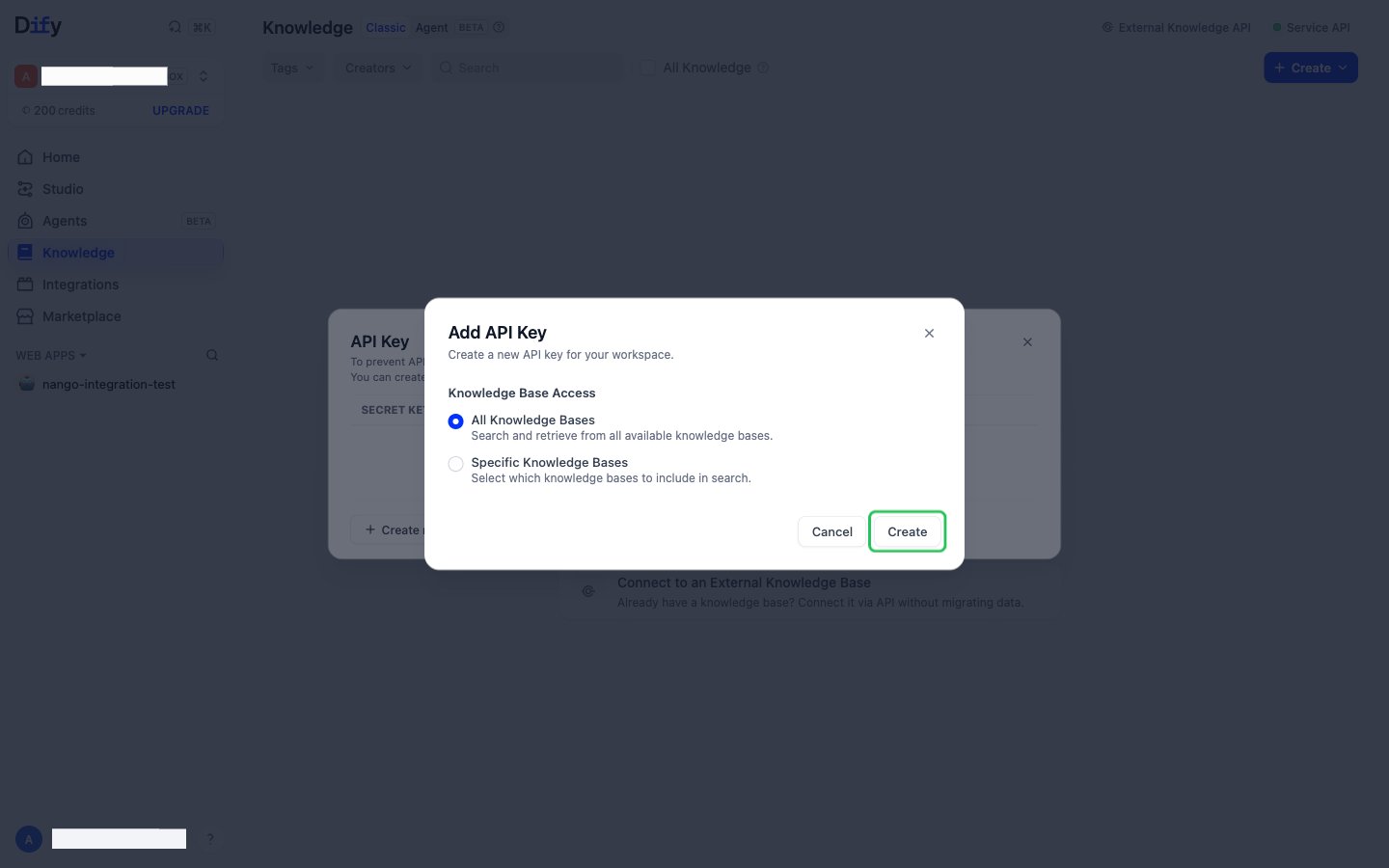
- Click Create new Secret key, choose All Knowledge Bases or Specific Knowledge Bases under Knowledge Base Access, then click Create.
- Copy the key (it starts with
dataset-), then click I have saved this key. Dify shows the key only once.
Step 2: Enter your API key in the Connect UI
- Open the form where you need to authenticate with Dify.
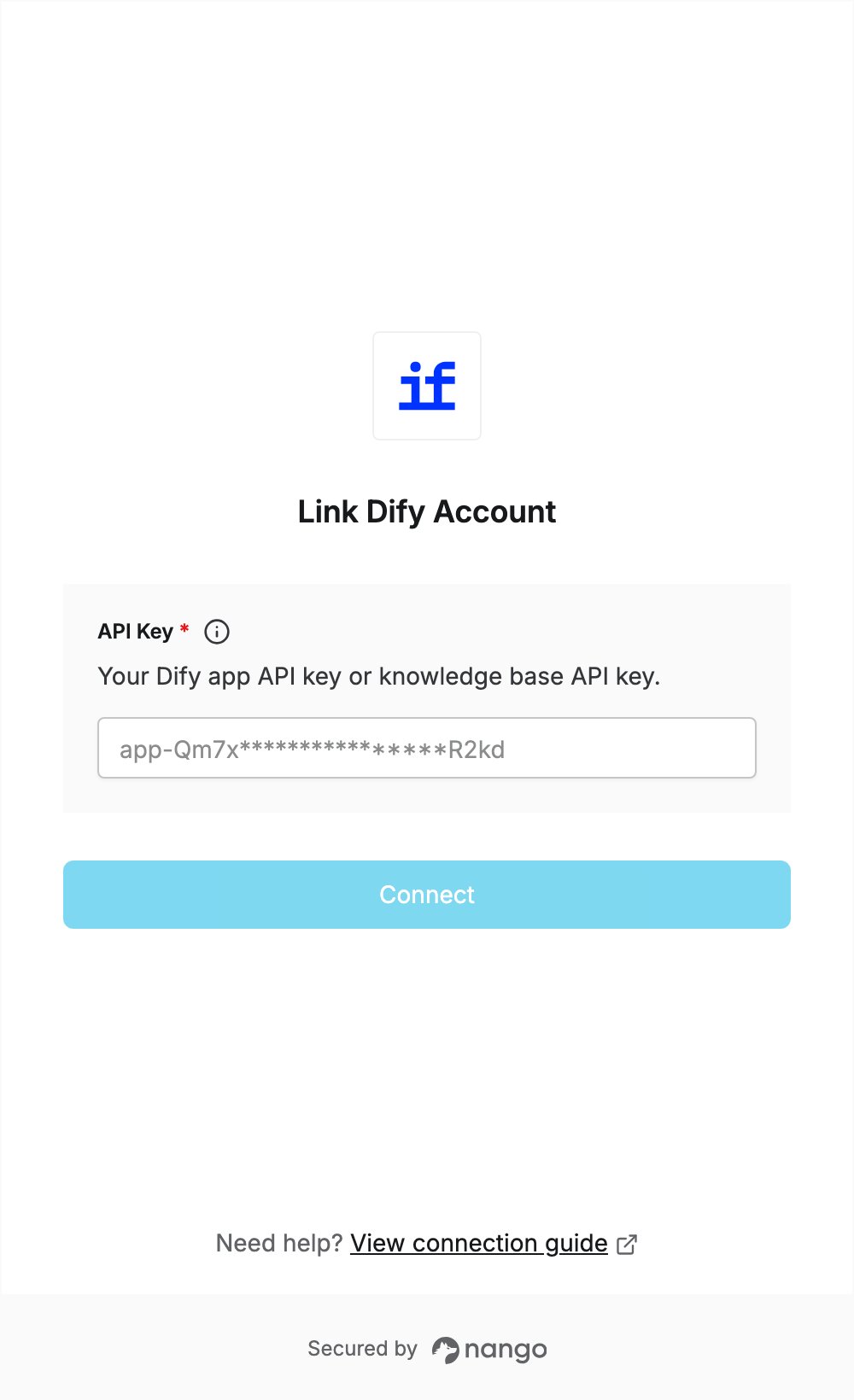
- Paste your app or knowledge base API key in the API Key field.
- Submit the form. The connection is saved without checking the key: if the key is wrong, the first API request returns an authentication error.