Overview
To authenticate with Data247, you need:- API Key — an API version 3 key from your Data247 account.
Prerequisites
- A Data247 account. Register if you don’t have one.
- Access to the main account user. Sub-account users cannot create their own API keys; the main account user creates them.
Step 1: Generate an API key
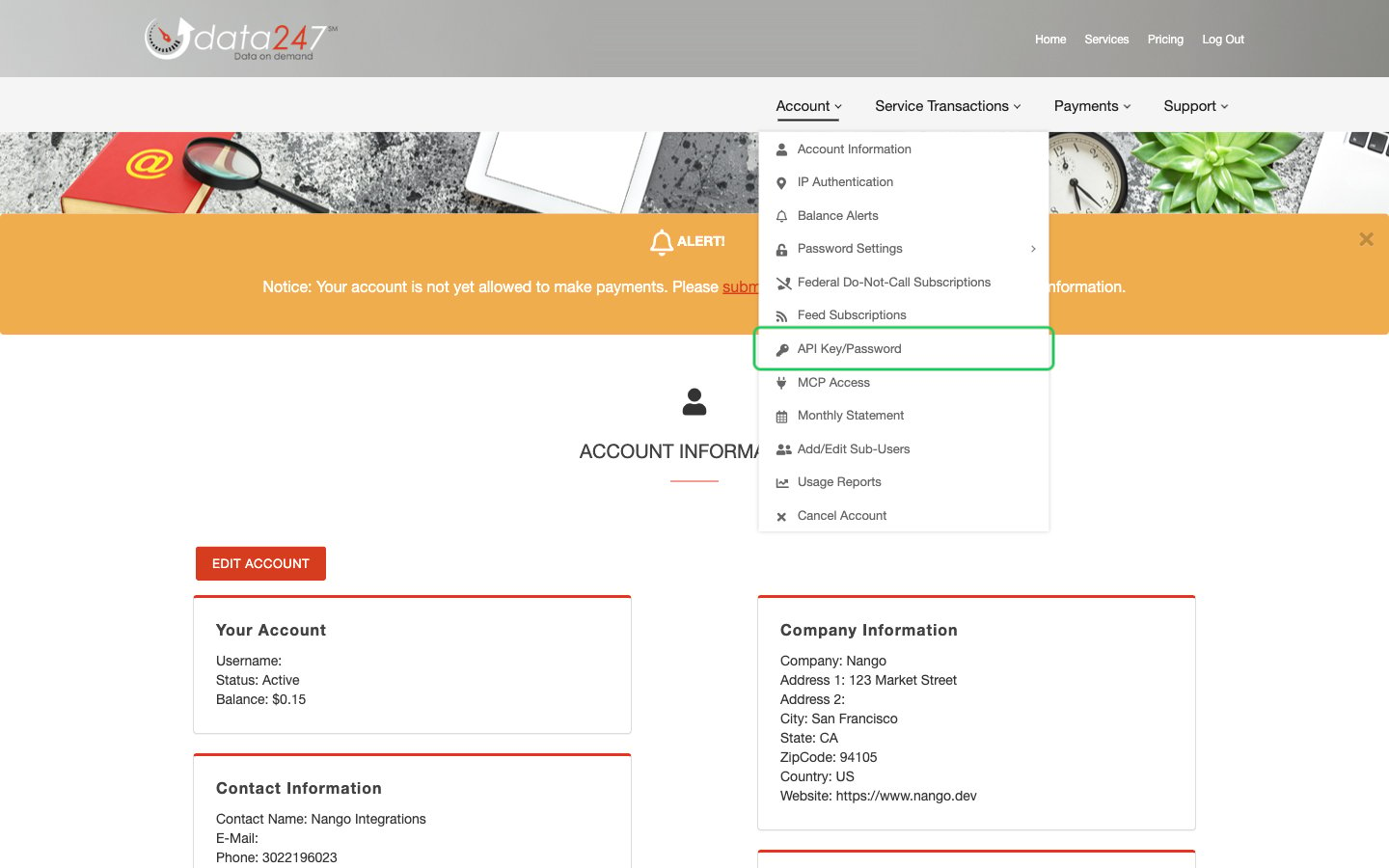
- Log in to your Data247 account, open the Account menu and click API Key/Password.
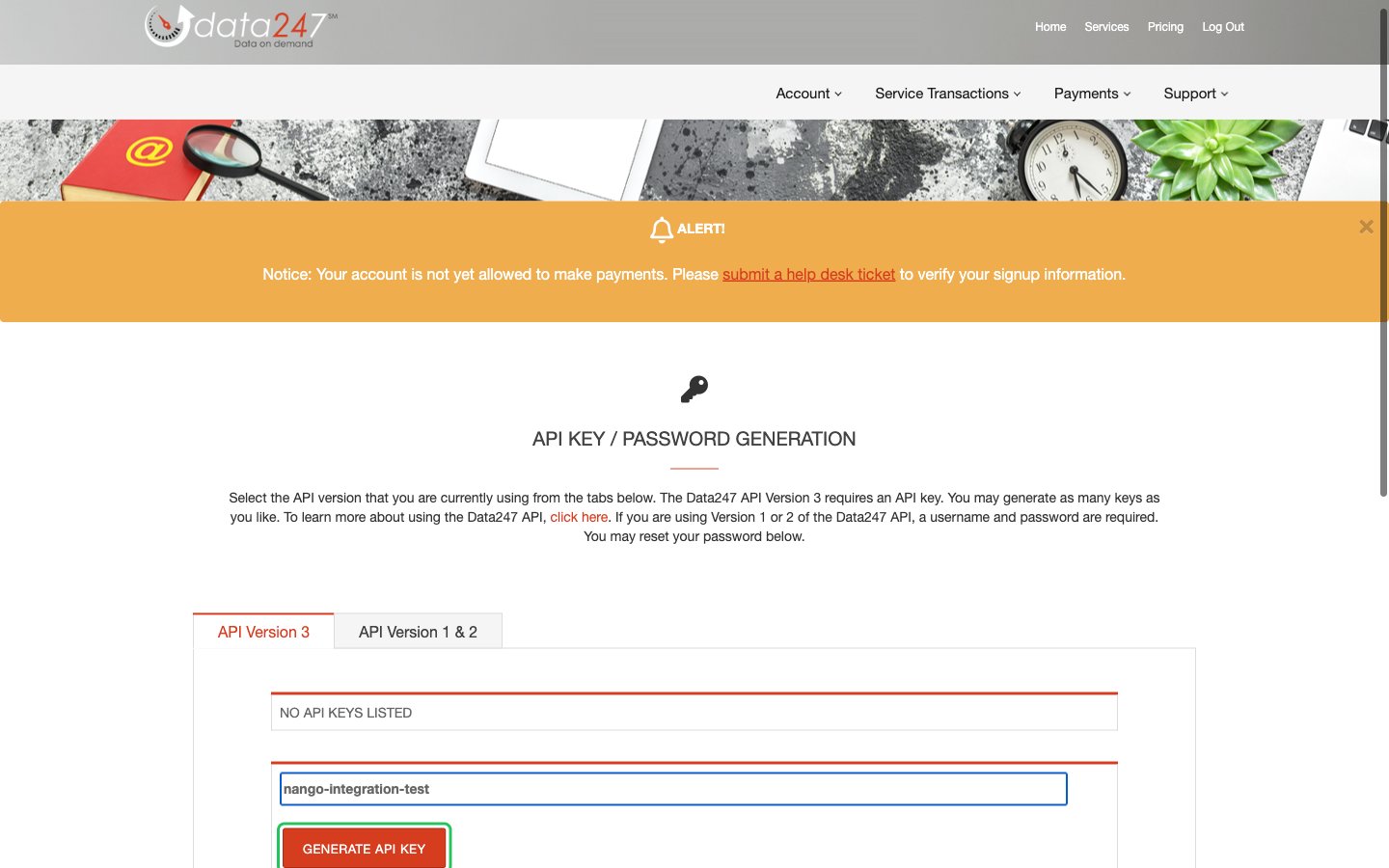
- Stay on the API Version 3 tab, optionally enter a key description, and click GENERATE API KEY. Nango uses API version 3; versions 1 and 2 use a username and password instead of a key.
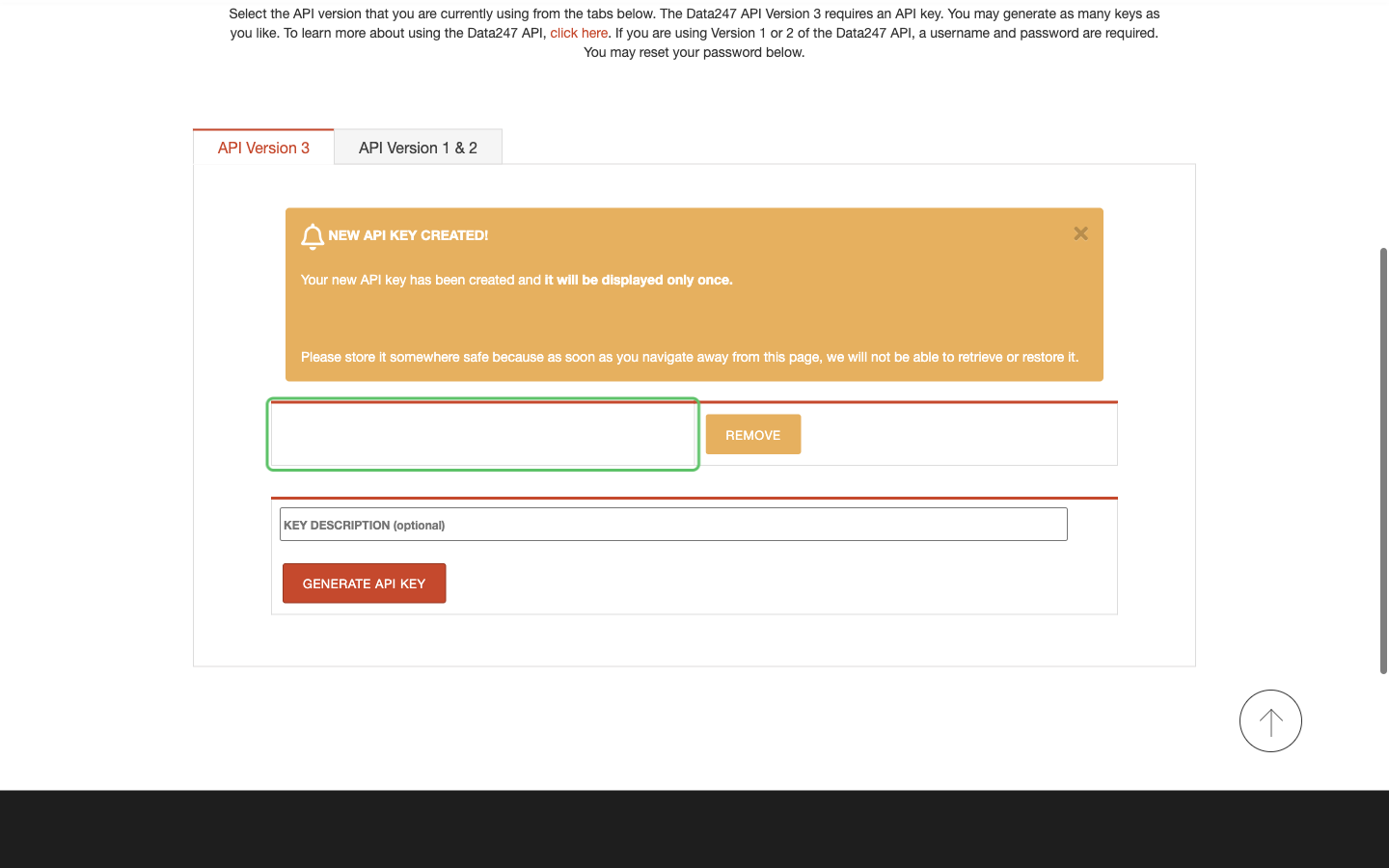
- Copy the new API key from the NEW API KEY CREATED! message right away. It is shown only once.
If IP authentication is turned on for your Data247 account, the API only accepts requests from the IP addresses you listed and rejects all others.
Step 2: Enter your API key in the Connect UI
- Open the form where you need to authenticate with Data247.
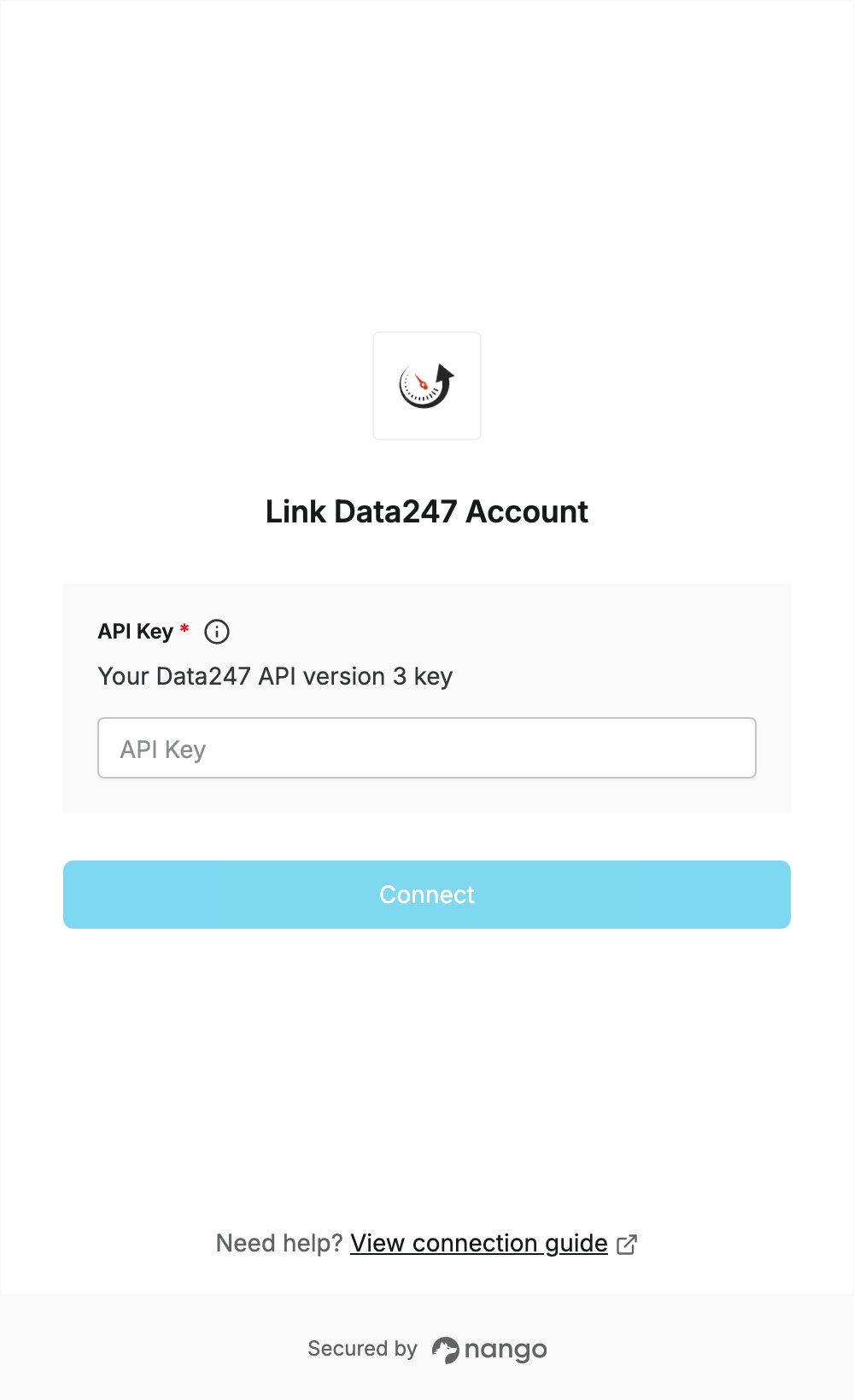
- Paste the key you copied in Step 1 into the API Key field.
- Submit the form, and you should be successfully authenticated.