Overview
To authenticate with ConvertAPI, you need:- Region — the ConvertAPI server location your requests go to.
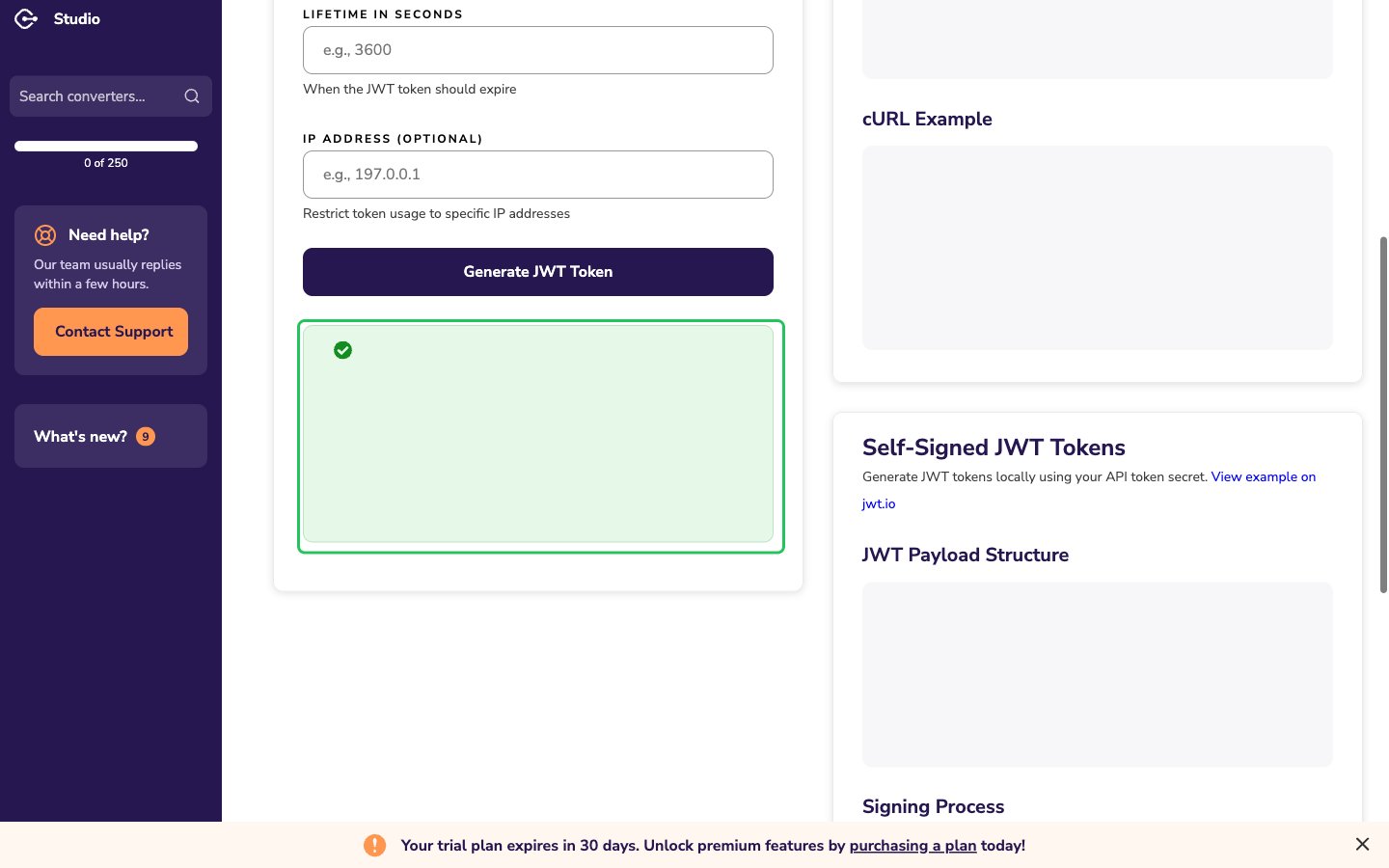
- API Token — a ConvertAPI API Token. A JWT token or the Master Token also works.
Prerequisites
- A ConvertAPI account. You can sign up for a free trial with 250 conversions and no credit card.
Step 1: Choose your region
ConvertAPI serves its API from these hosts:
Pick
v2.convertapi.com unless your files must be processed in a specific location. See ConvertAPI Server Locations and Regional Endpoints.
Step 2: Create an API token
- Sign in to the ConvertAPI dashboard.
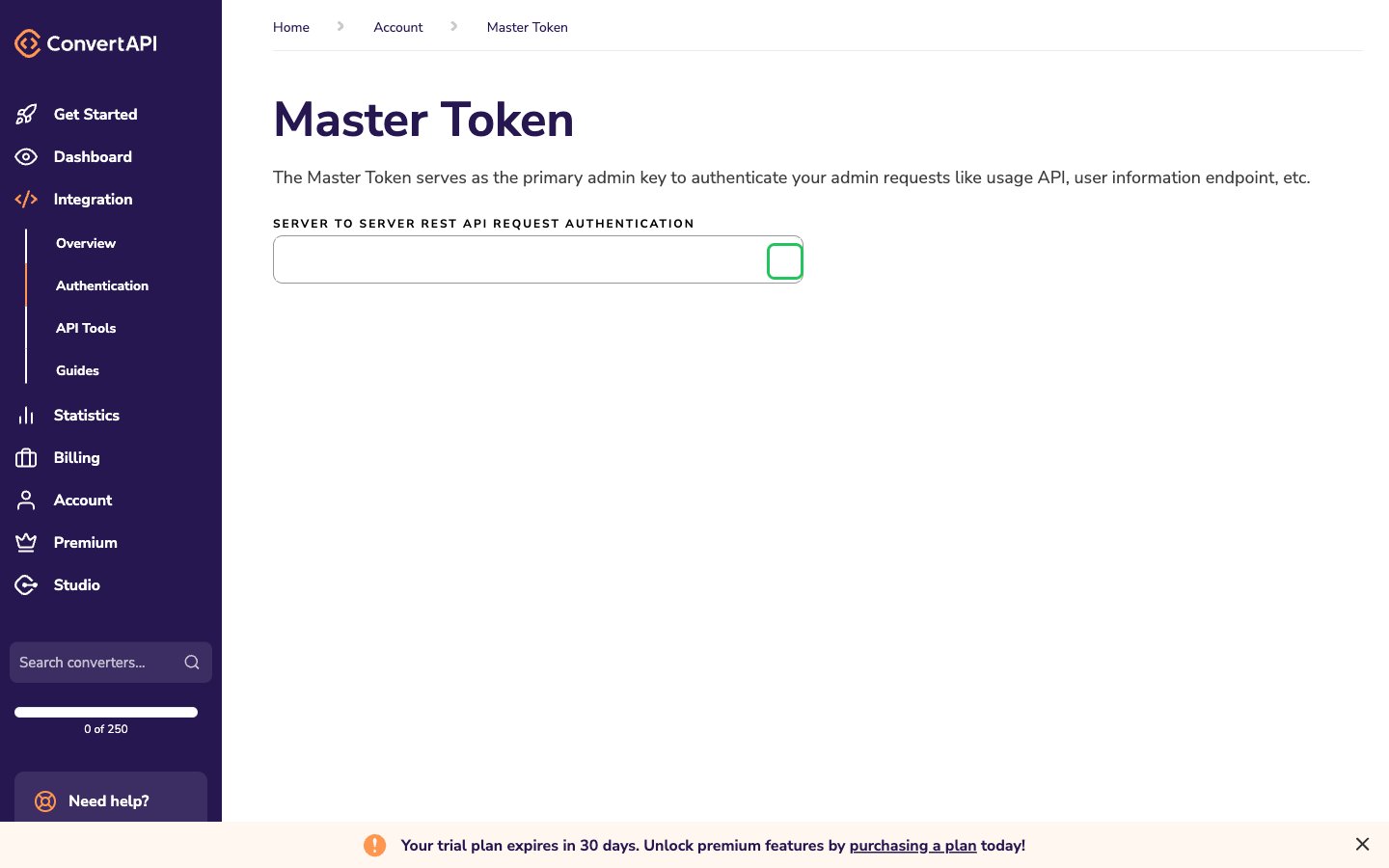
- In the left sidebar, open Integration → Authentication.
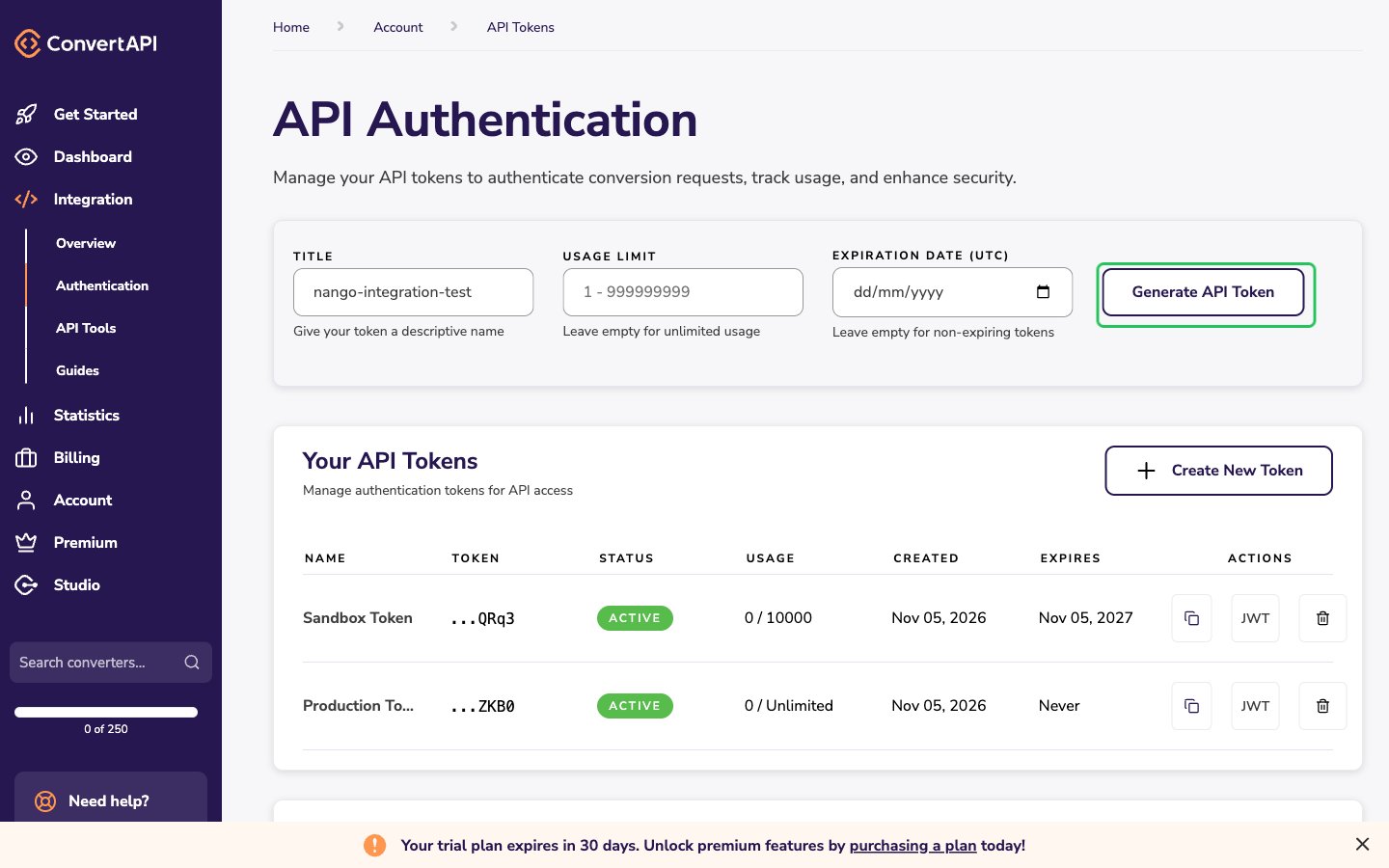
- Click Create New Token, enter a Title, and click Generate API Token. Leave Usage Limit and Expiration Date empty for an unlimited token that never expires.
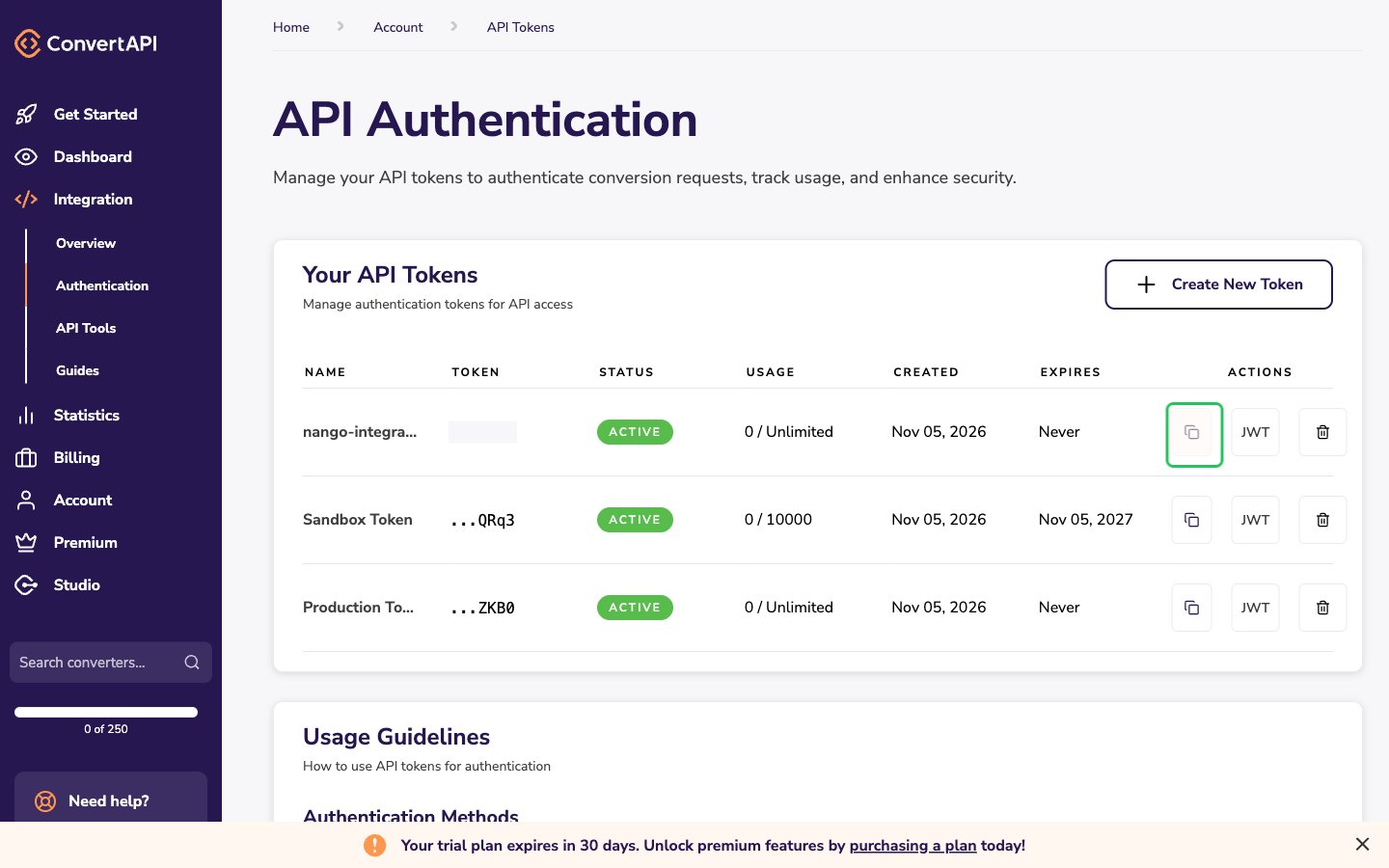
- Your new token appears in the Your API Tokens list. Click its copy icon to copy the API Token.
Step 3: Enter your credentials in the Connect UI
- Open the form where you need to authenticate with ConvertAPI.
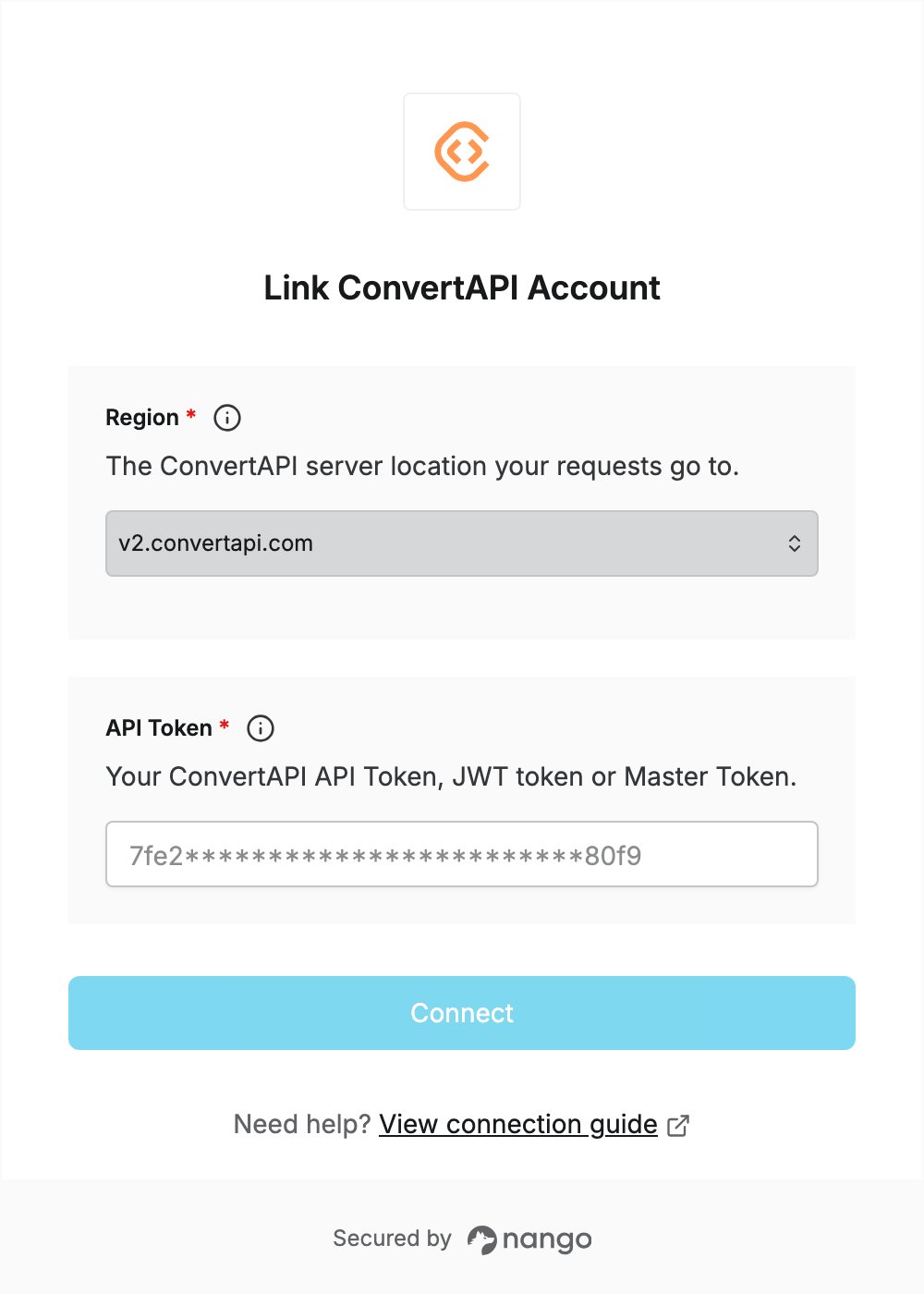
- Select your Region and enter your API Token in the designated fields.
- Submit the form, and you should be successfully authenticated.