Overview
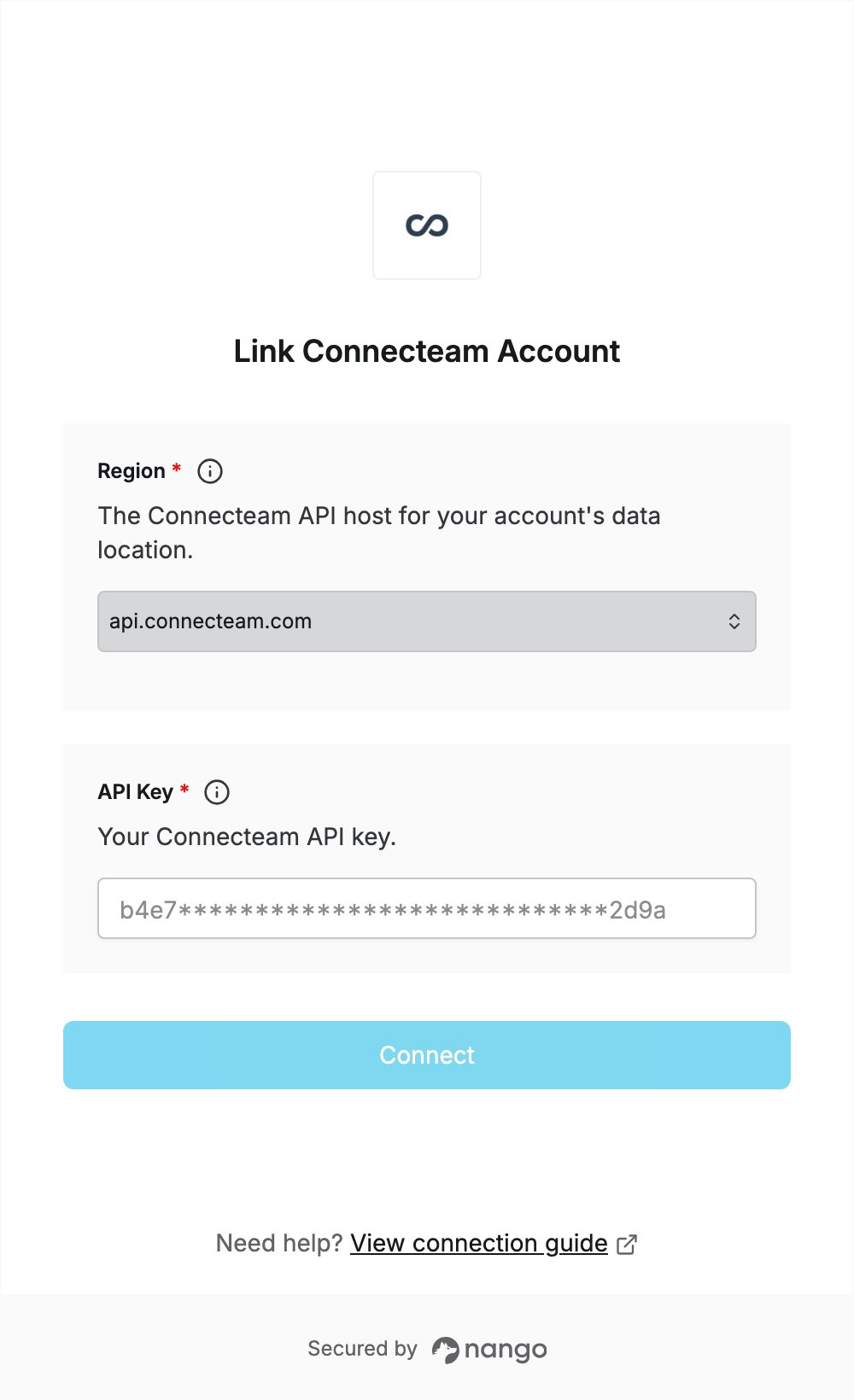
To authenticate with Connecteam, you need:- Region — the Connecteam API host for the data location of your account.
- API Key — a Connecteam API key.
Prerequisites
- A Connecteam account on the Expert plan or higher, with API access. See API access.
- You must be the account owner: only account owners can create and manage API keys.
Step 1: Find your region
Check the address of the Connecteam app you log in to and select the matching value:
See Australian clients for details.
Step 2: Create an API key
- Log in to Connecteam as the account owner.
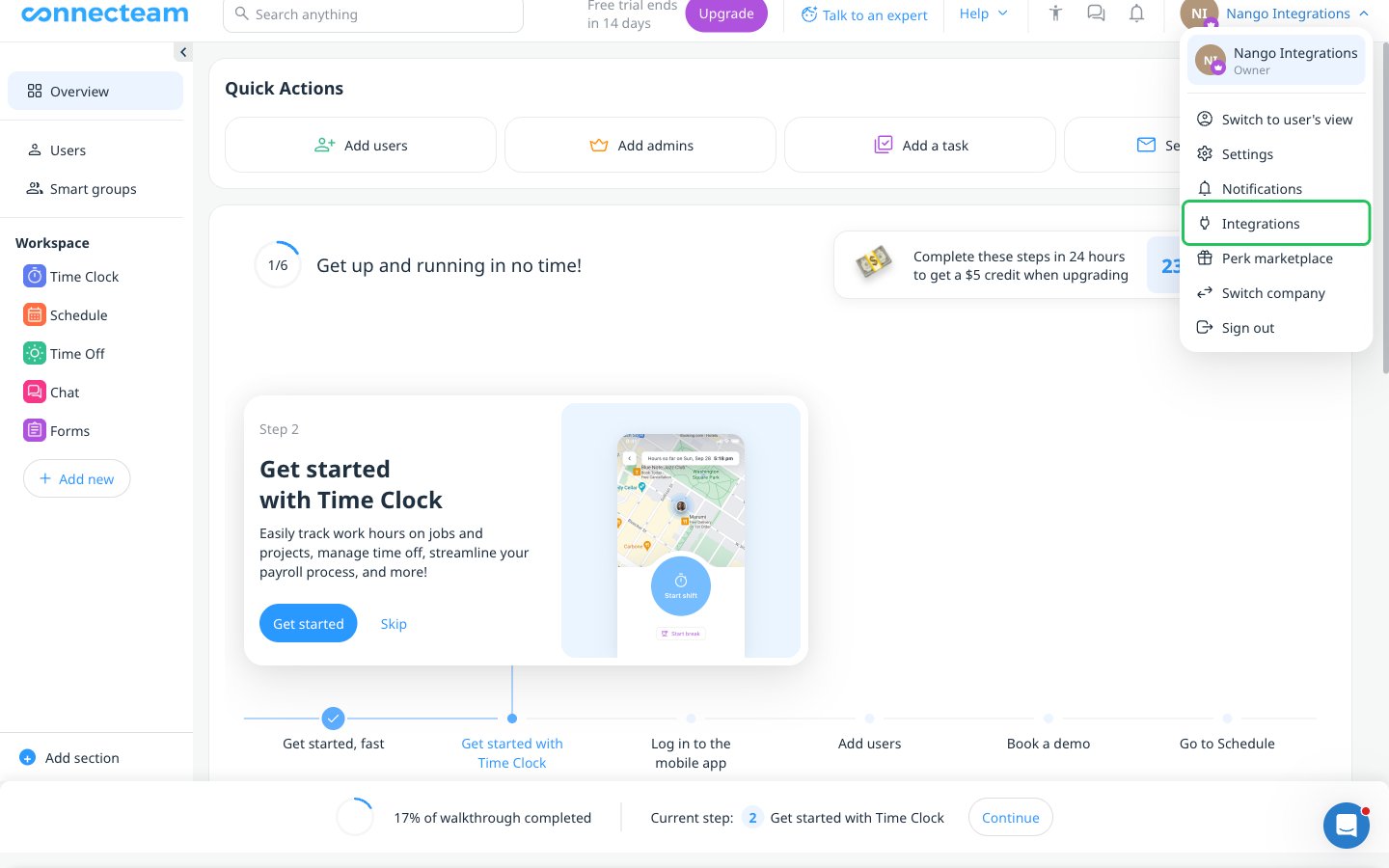
- Click your admin name in the top-right corner and select Integrations.
- In the Integration center, open the API keys tab and click Add API key.
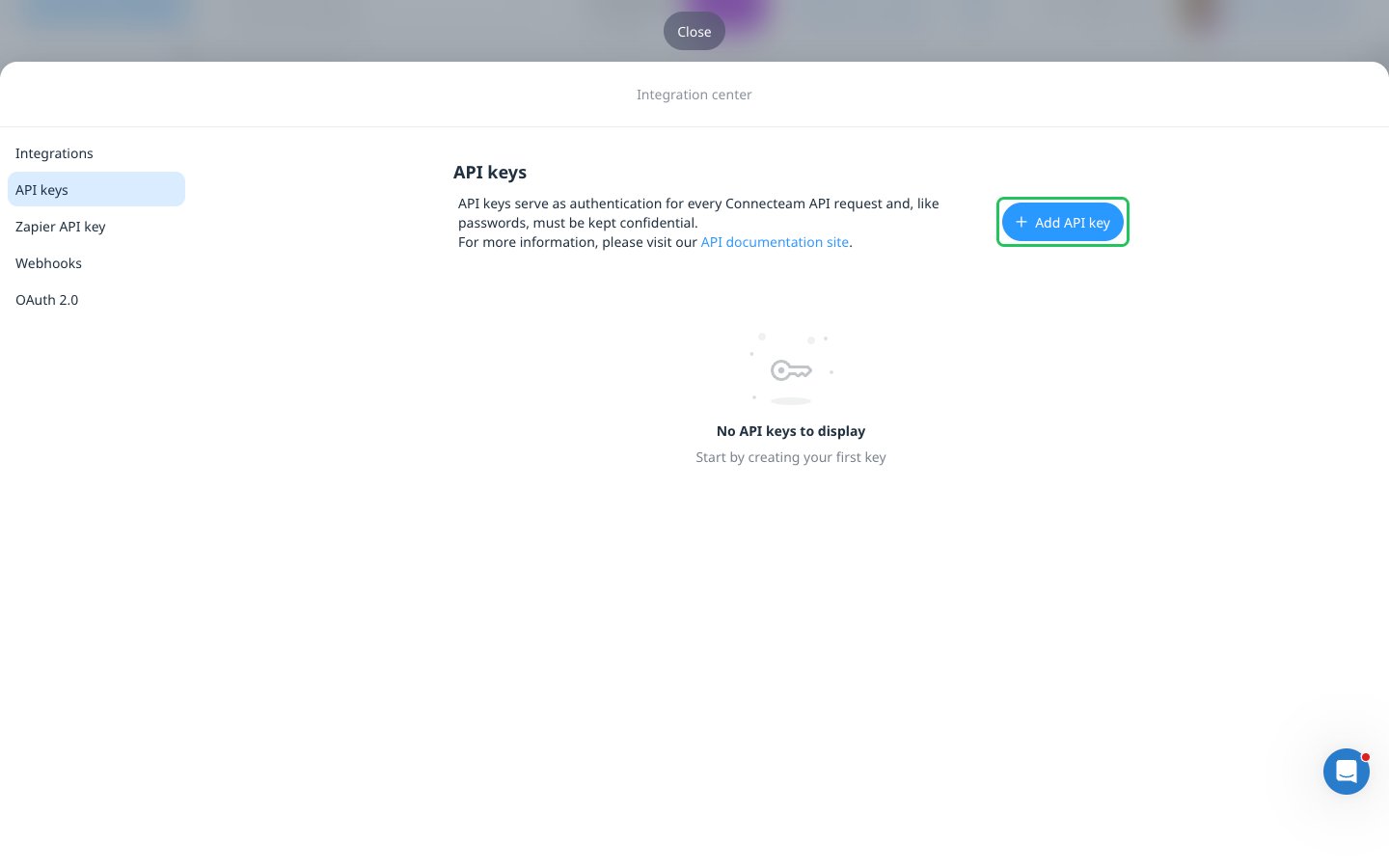
- Enter a Key name. The expiry date and time are optional.
- Click Create key.
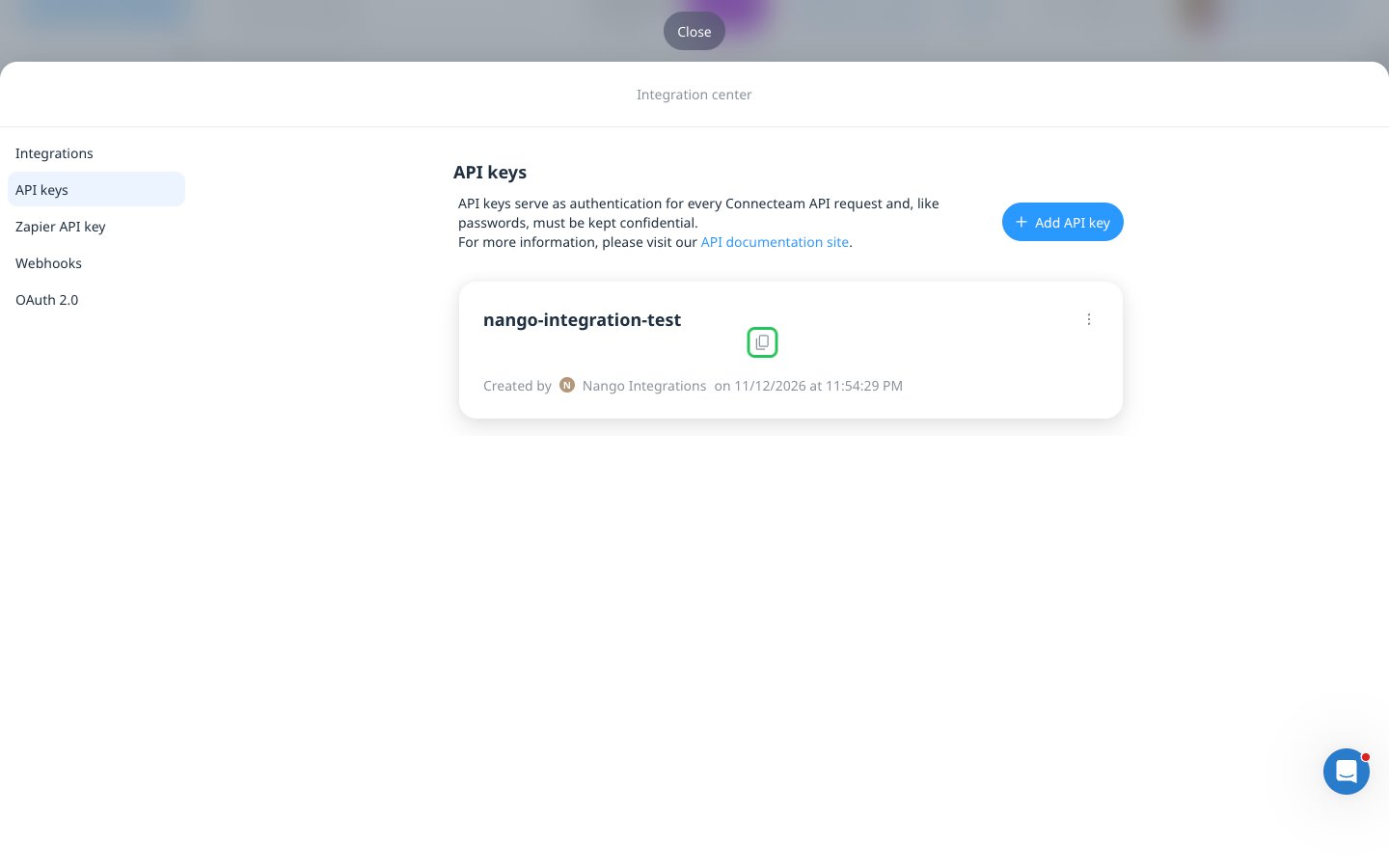
- Your new key appears in the list. Click the copy icon next to it to copy the API key.
Step 3: Enter your credentials in the Connect UI
- Open the form where you need to authenticate with Connecteam.
- Select your Region and enter your API Key in the designated fields.
- Submit the form, and you should be successfully authenticated.