Overview
To authenticate with Cohere, you need:- API Key — a trial or production API key from your Cohere dashboard.
Prerequisites
- A Cohere account. Every new account gets a free, rate-limited trial key: sign up.
Step 1: Create an API key
- Sign in to the Cohere dashboard. If you just signed up, confirm your email address first.
- In the sidebar under Platform, click API Keys.
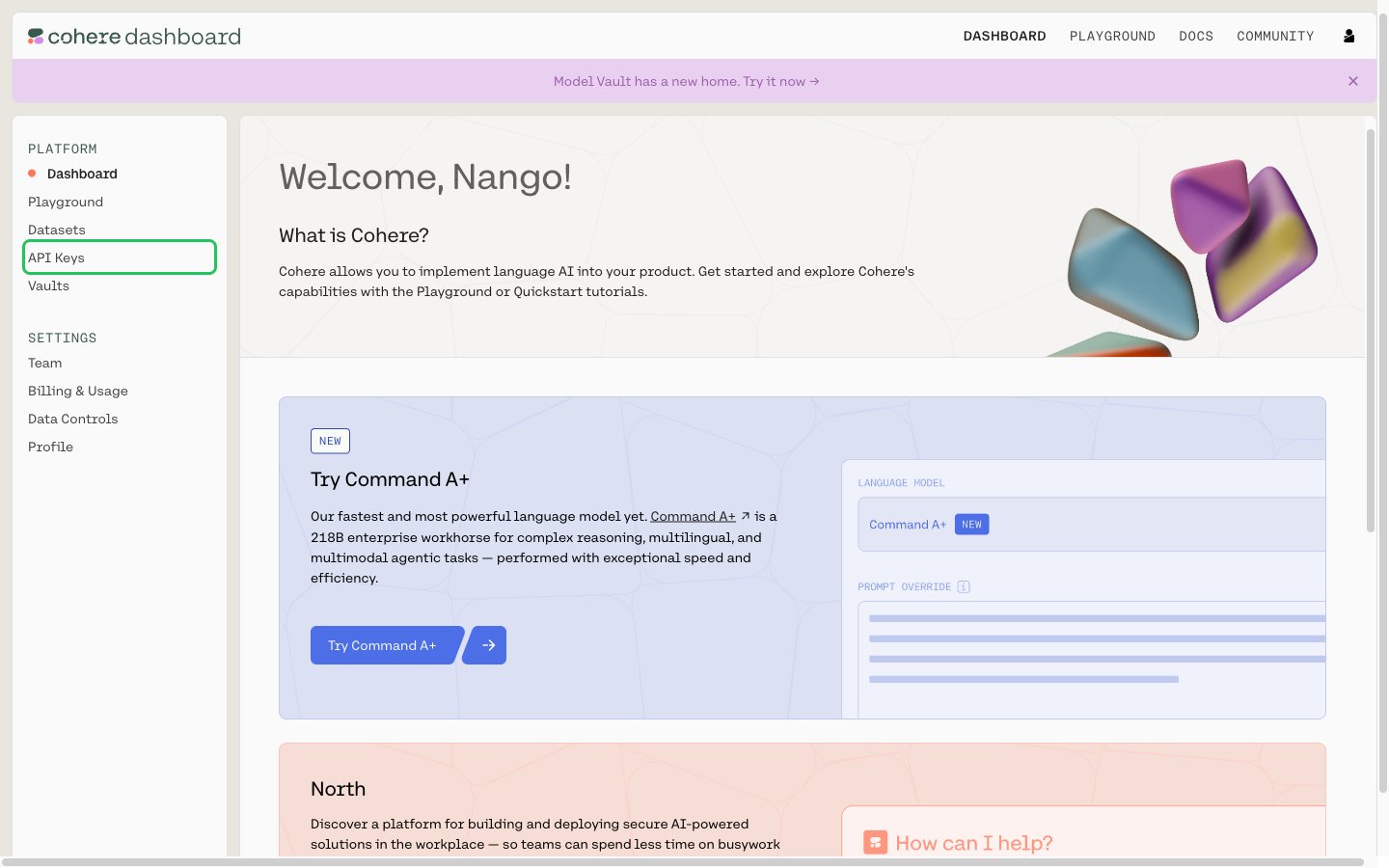
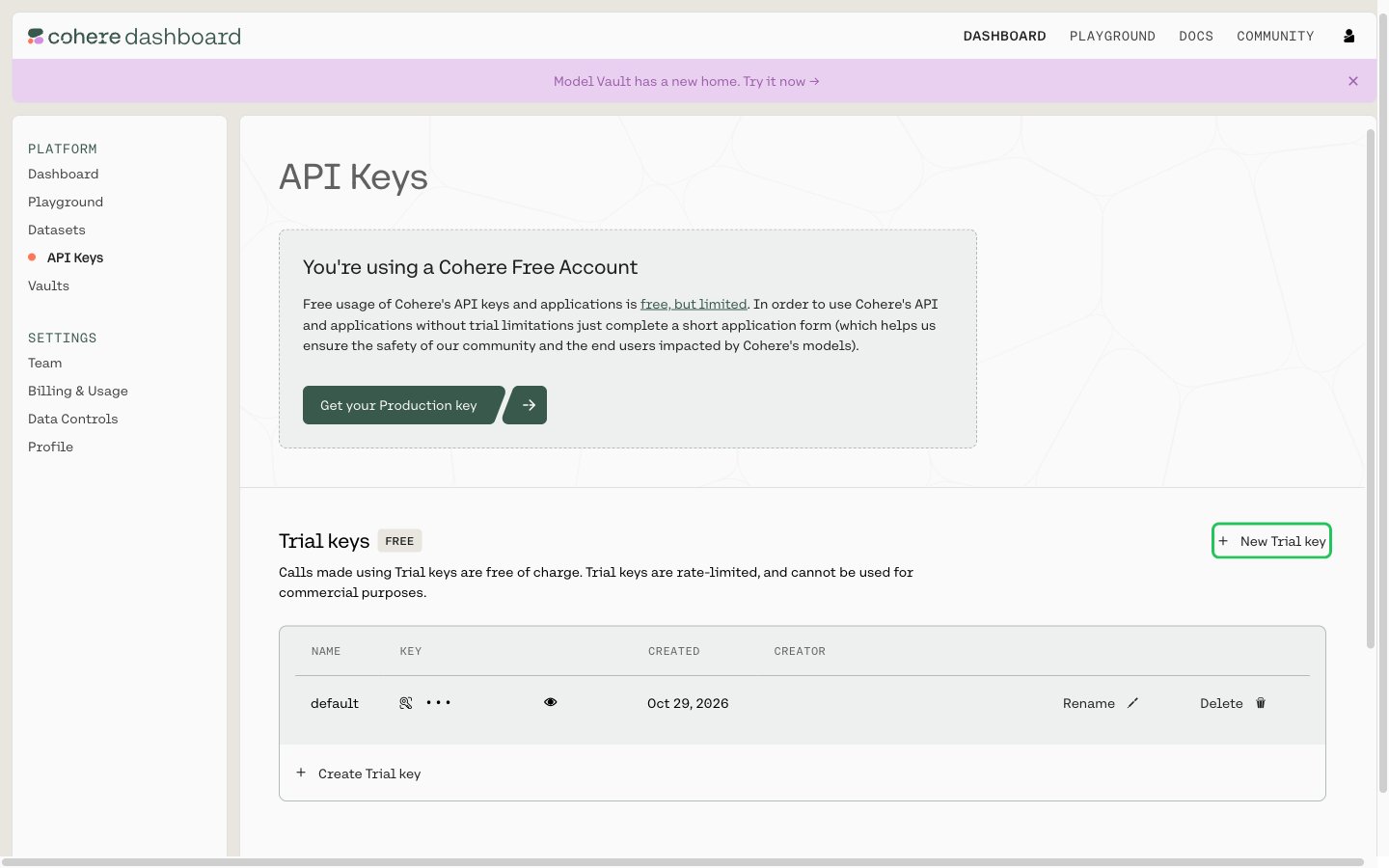
- Cohere creates a trial key named
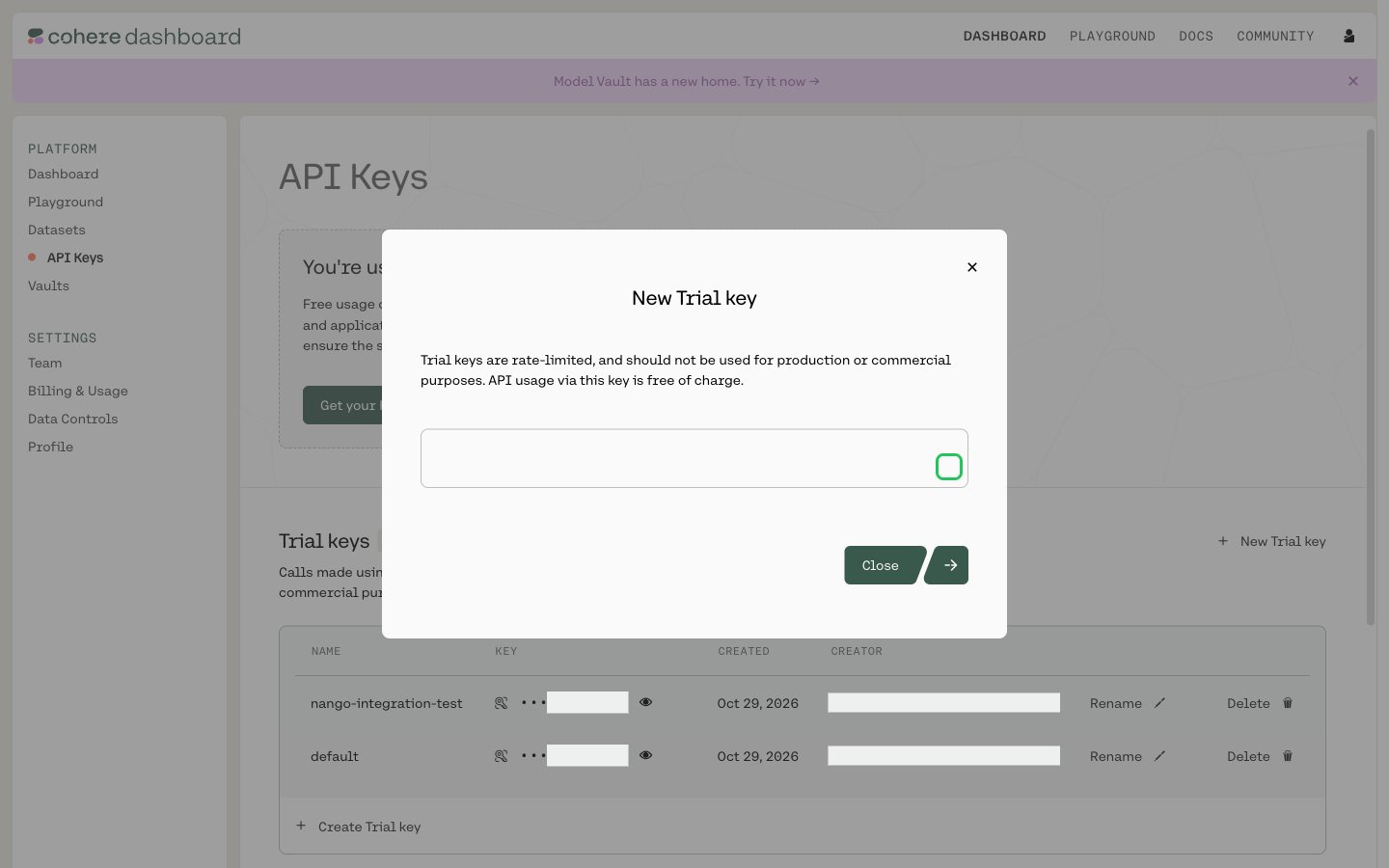
defaultwhen you sign up. To make a separate key, click New Trial key in the Trial keys section, enter a name, and click Generate Trial key.
- Copy the key with the copy button, then click Close.
Trial keys are free but rate limited, and Cohere does not permit them for production or commercial use. For a production key, an organization Owner clicks Get your Production key and completes the Go to Production application. See Going live.
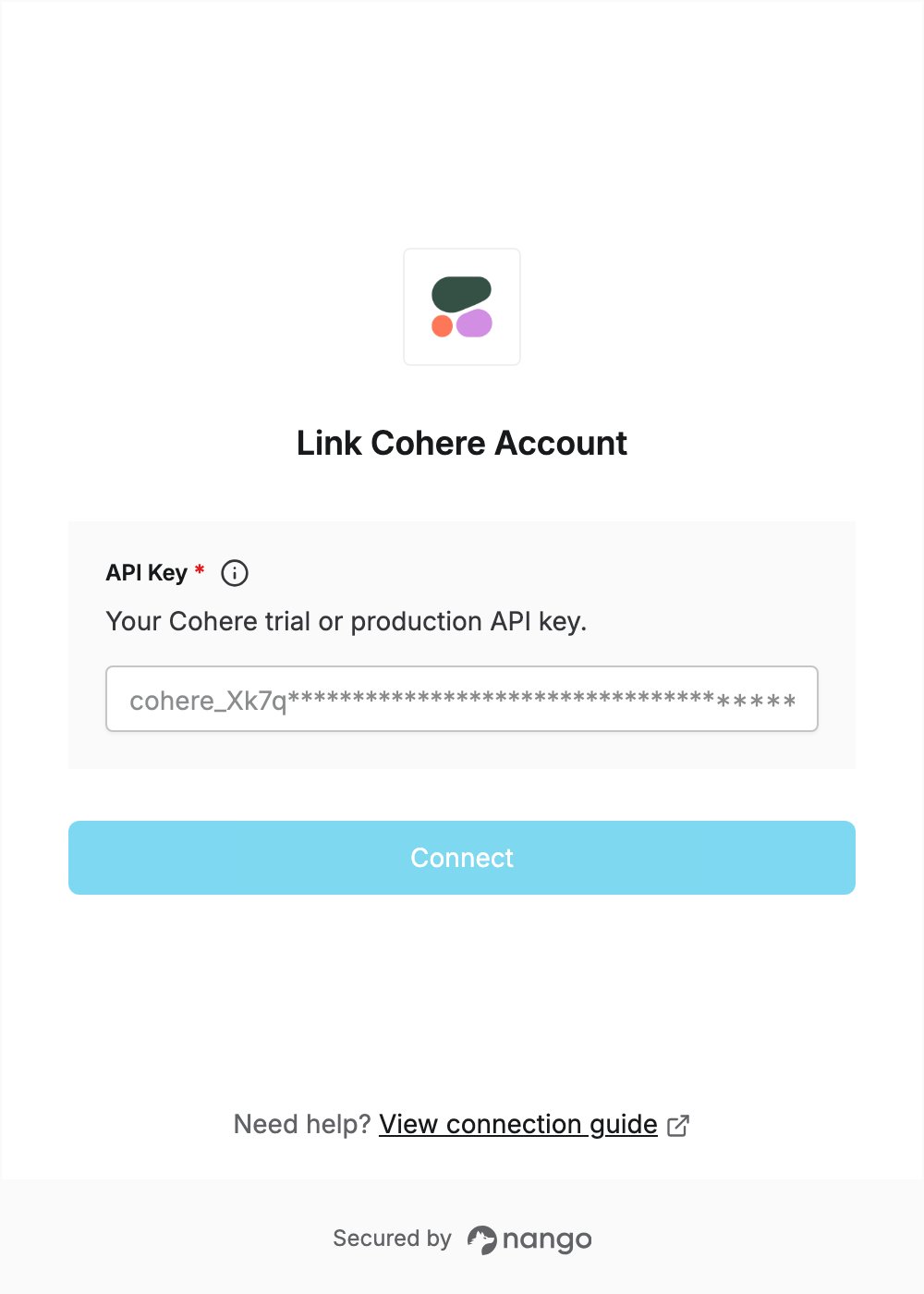
Step 2: Enter your API key in the Connect UI
- Open the form where you need to authenticate with Cohere.
- Enter your API Key in the designated field.
- Submit the form, and you should be successfully authenticated.