Overview
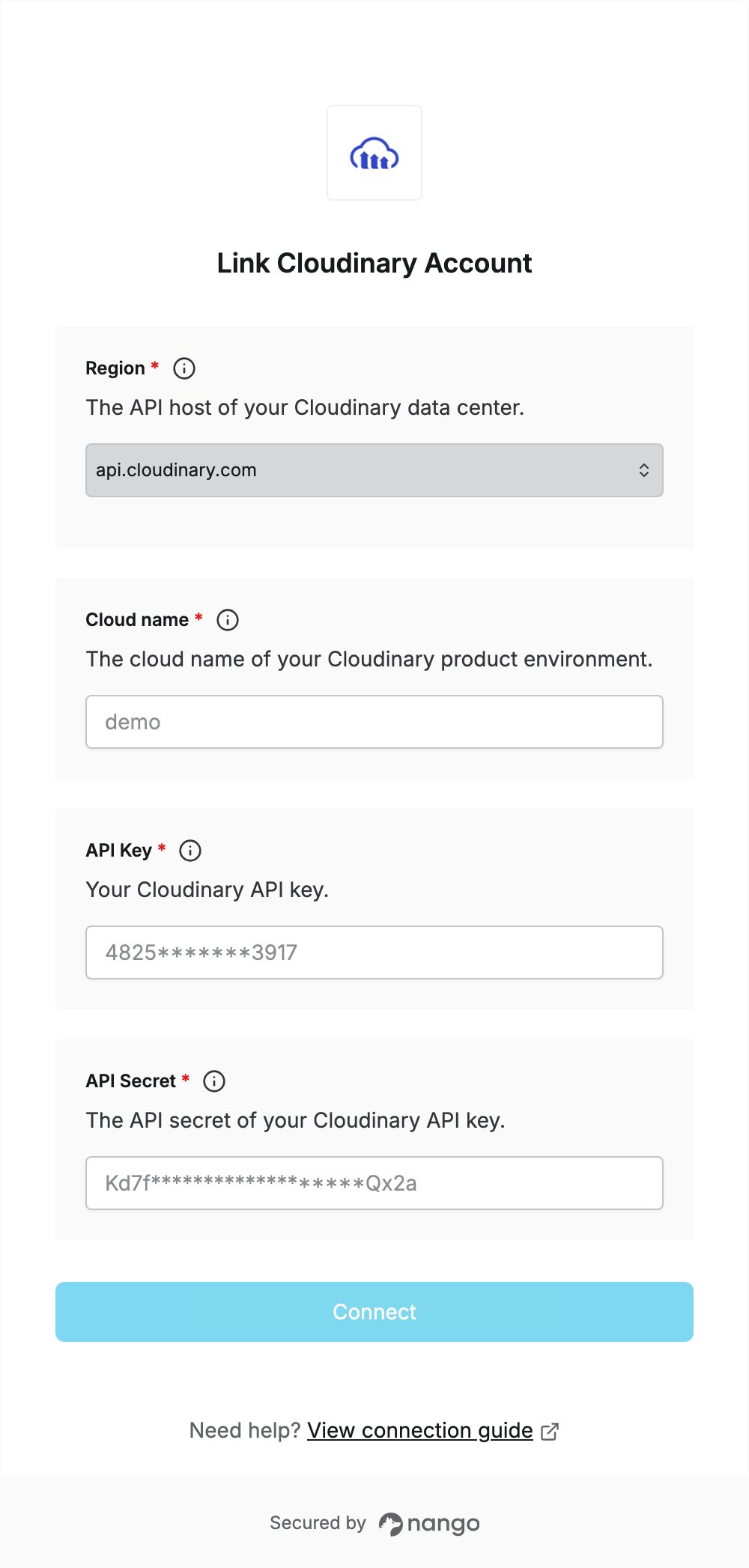
To authenticate with Cloudinary, you need:- Region — the API host of the data center your account uses.
- Cloud name — the name of your Cloudinary product environment.
- API Key — the API key of the product environment.
- API Secret — the secret that belongs to that API key.
Prerequisites
- A Cloudinary account. You can sign up for free.
Step 1: Find your region
Cloudinary serves the API from a separate host per data center. Select the host where your account was created:
The Europe and Asia Pacific data centers are only available on Enterprise plans and must be arranged when the account is created. If you did not arrange one, select
api.cloudinary.com. See Admin API overview for details.
Step 2: Find your cloud name and create an API key
- Sign in to the Cloudinary Console.
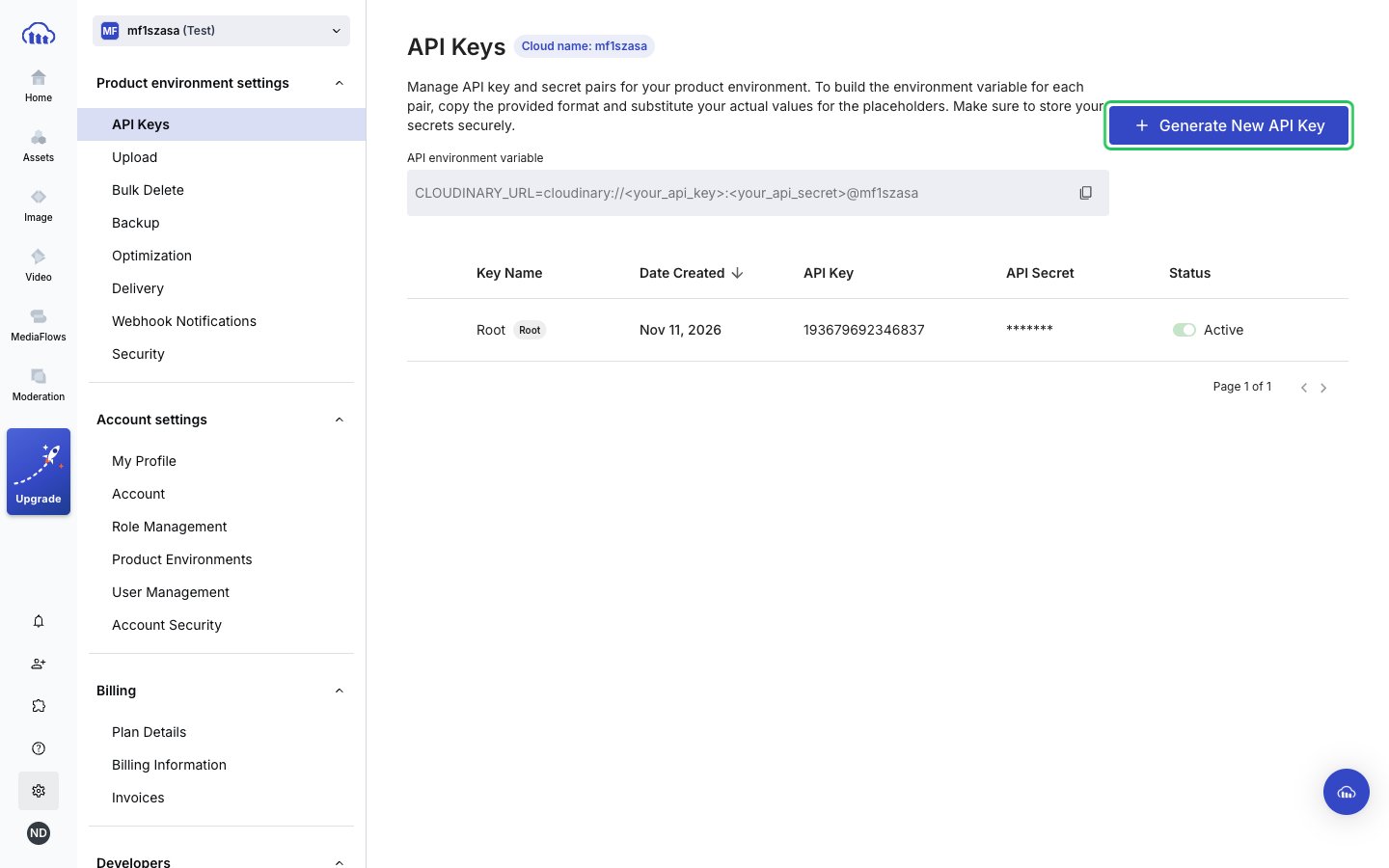
- Click the Settings (gear) icon in the left sidebar, then under Product environment settings select API Keys.
- Note your Cloud name, shown next to the API Keys title. Then click Generate New API Key.
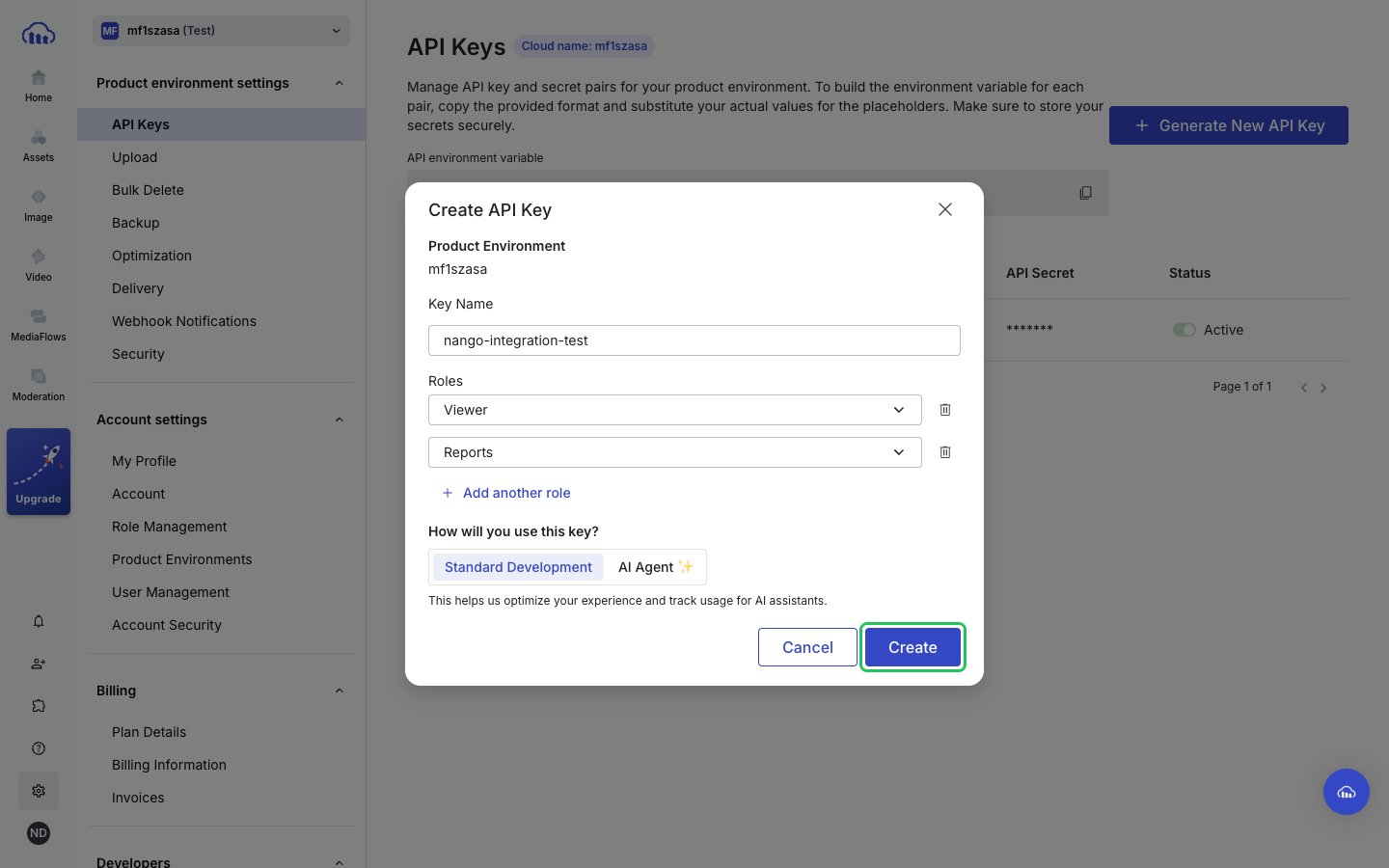
- Enter a Key Name and pick the roles the key needs (for example Viewer and Reports for read-only access), then click Create.
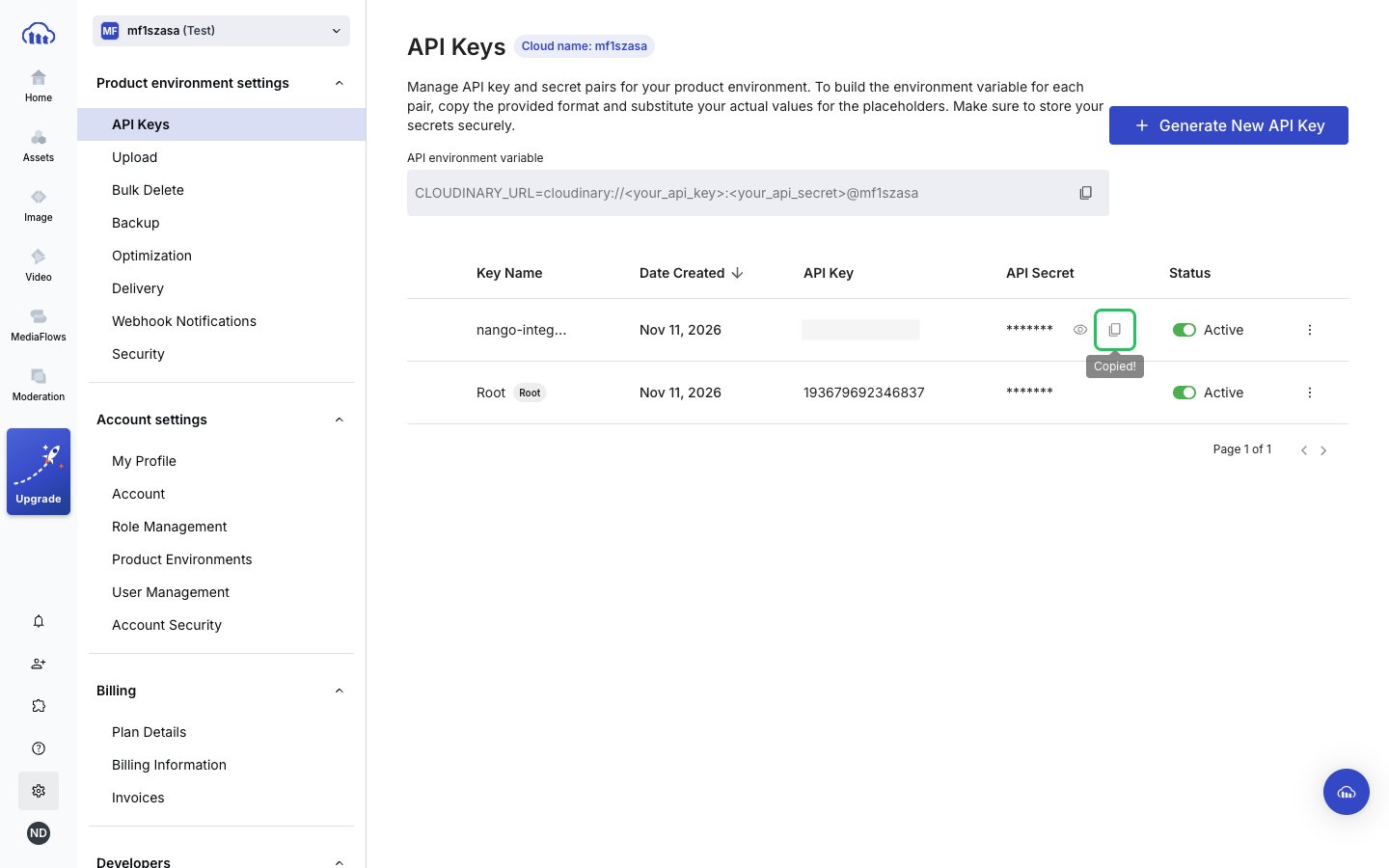
- In the new row of the table, copy the value in the API Key column, then click the copy icon in the API Secret column to copy the API Secret. You may be asked for a confirmation code sent to your email before you can see the secret.
Step 3: Enter your credentials in the Connect UI
- Open the form where you need to authenticate with Cloudinary.
- Select your Region and enter your Cloud name.
- Enter your API key in the API Key field and your API secret in the API Secret field.
- Submit the form, and you should be successfully authenticated.