Overview
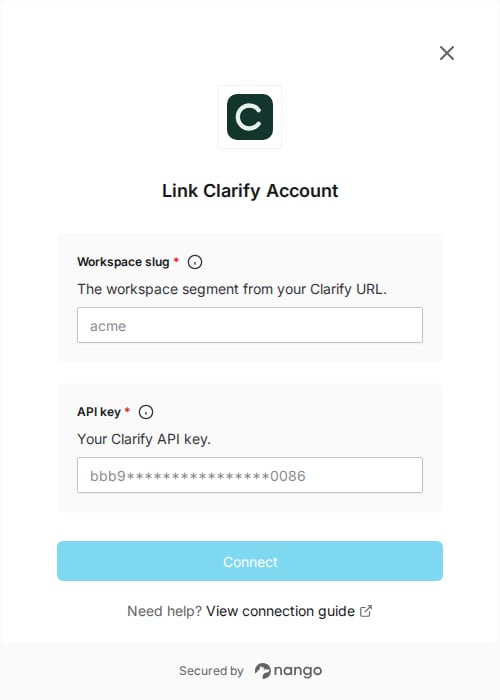
To authenticate with Clarify, you need:- Workspace slug — the short name for your workspace (not the full app URL).
- API key — a key from Clarify Settings, then API Keys. Keys are scoped to one workspace.
Prerequisites
- You can sign in to the Clarify workspace you want to connect.
Instructions
Step 1: Finding your workspace slug
- Sign in to Clarify.
- Open your workspace. The slug is the path segment after
/workspaces/in the browser URL.
https://app.clarify.ai/workspaces/acme/, the workspace slug is acme.
In the Nango Connect form, enter only the slug (acme). Do not paste the full URL, and do not include /workspaces/ or trailing slashes.
Clarify also documents this as the {slug} segment of https://api.clarify.ai/v1/workspaces/{slug}.
Step 2: Creating an API key
- In Clarify, open Settings → Workspace → API keys.
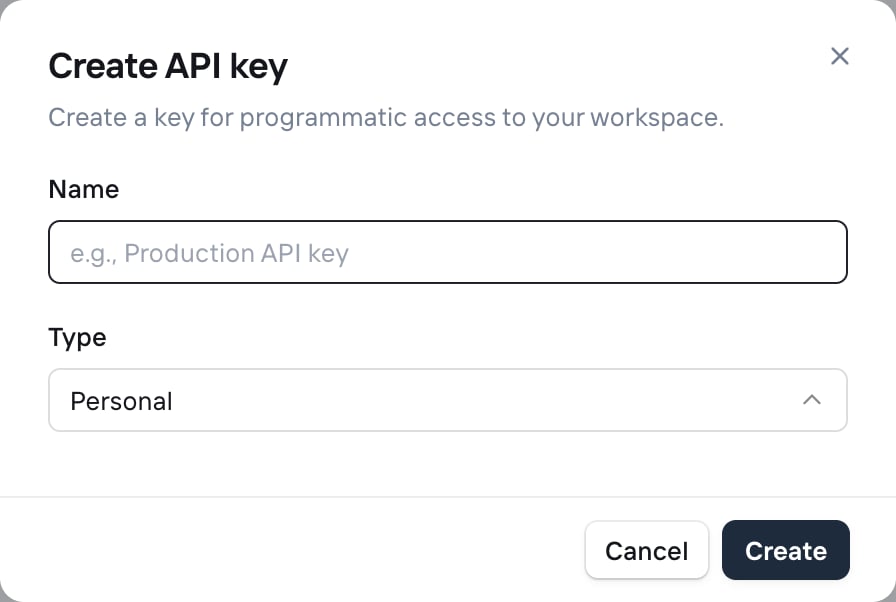
- Click Create API key.
- Enter a name, choose Personal or Workspace, and click Create.
- Copy the key immediately. Clarify shows it only once. Use a key from the same workspace as the slug in Step 1.
Step 3: Enter credentials in the Connect UI
- Open the Nango Connect form for Clarify (or Add test connection in the dashboard).
- Enter your workspace slug and API key.
- Submit the form, and you should be successfully authenticated.