Overview
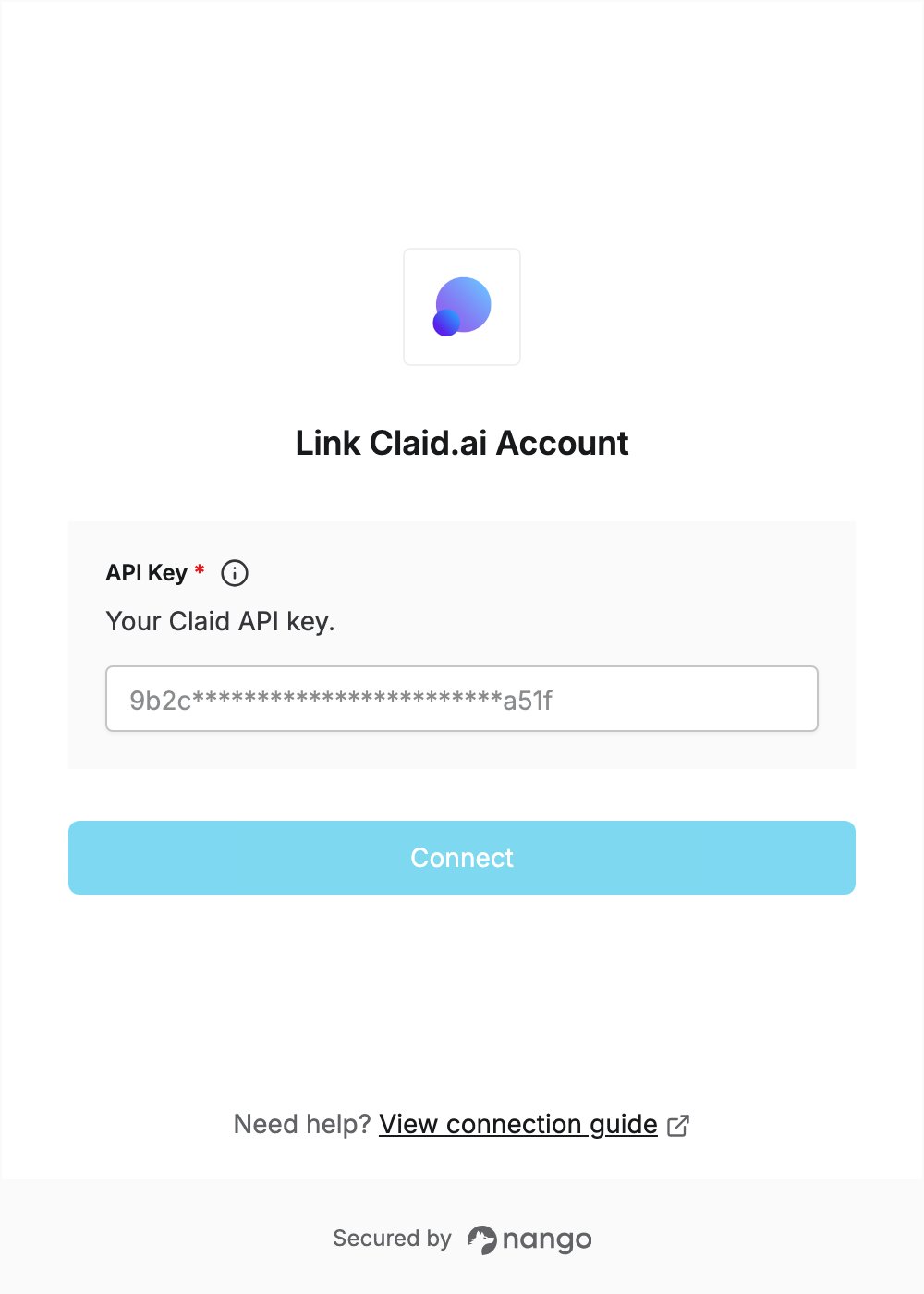
To authenticate with Claid.ai, you need:- API Key — an API key from your Claid account.
Prerequisites
- A Claid account. The free trial includes 50 API credits. If you don’t have an account, sign up.
Step 1: Create an API key
- Sign in to Claid.
- In the left sidebar, open Integrations -> API Keys, then click Create API key.
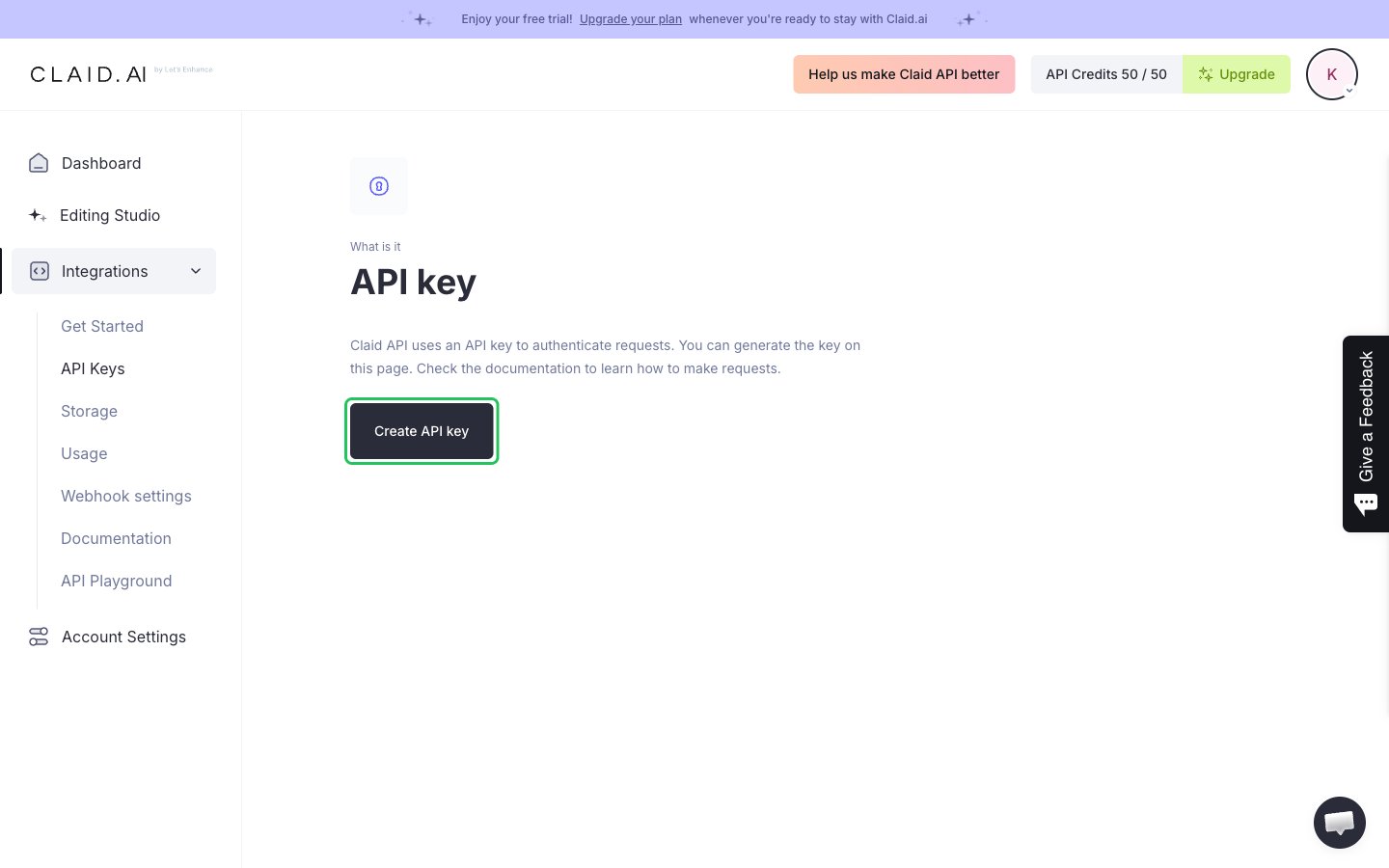
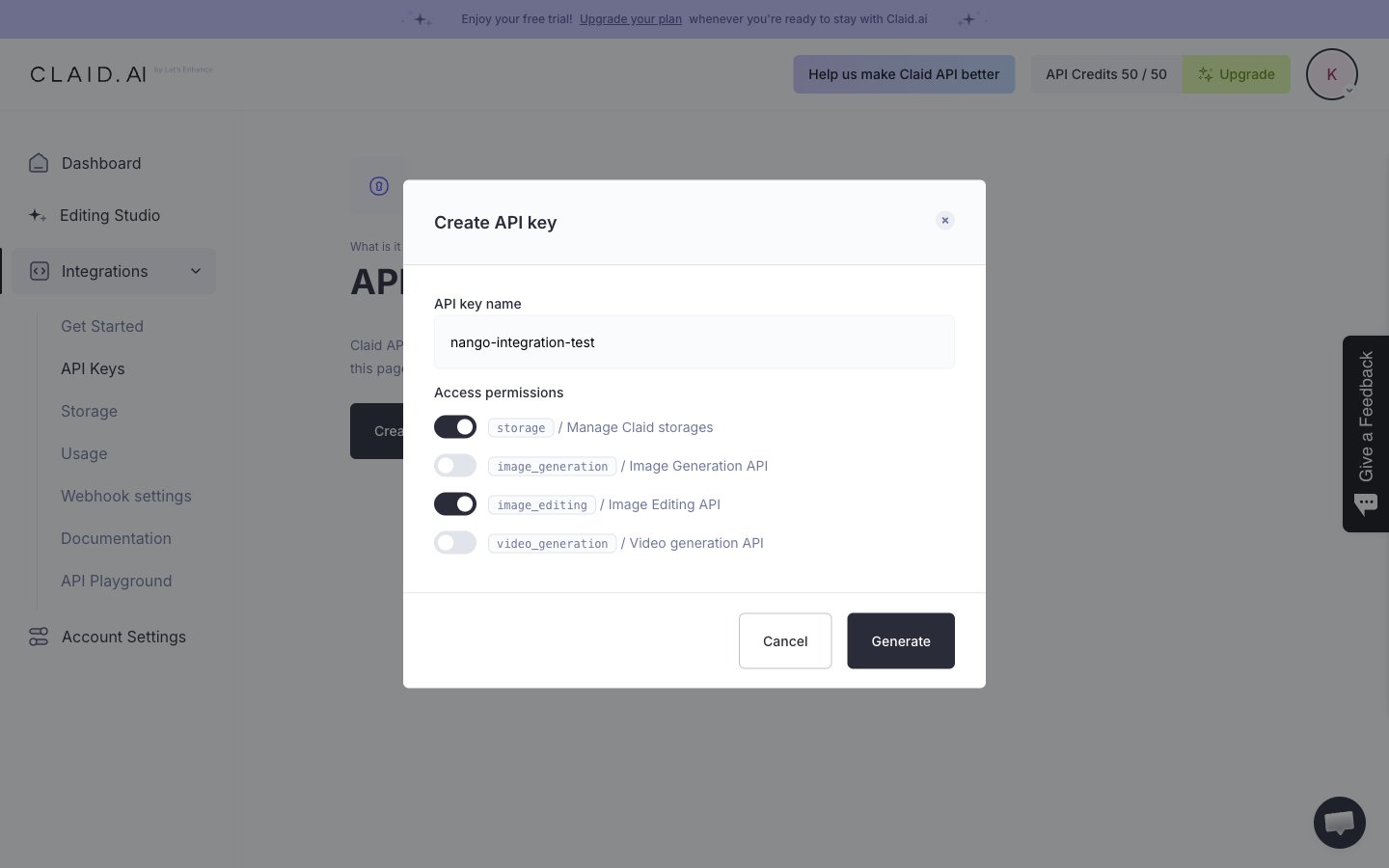
- Enter a name for the key, turn on the Access permissions your integration needs (for example
storageandimage_editing), then click Generate.
- In the Your new API key dialog, click Copy to copy the key, then click Close.
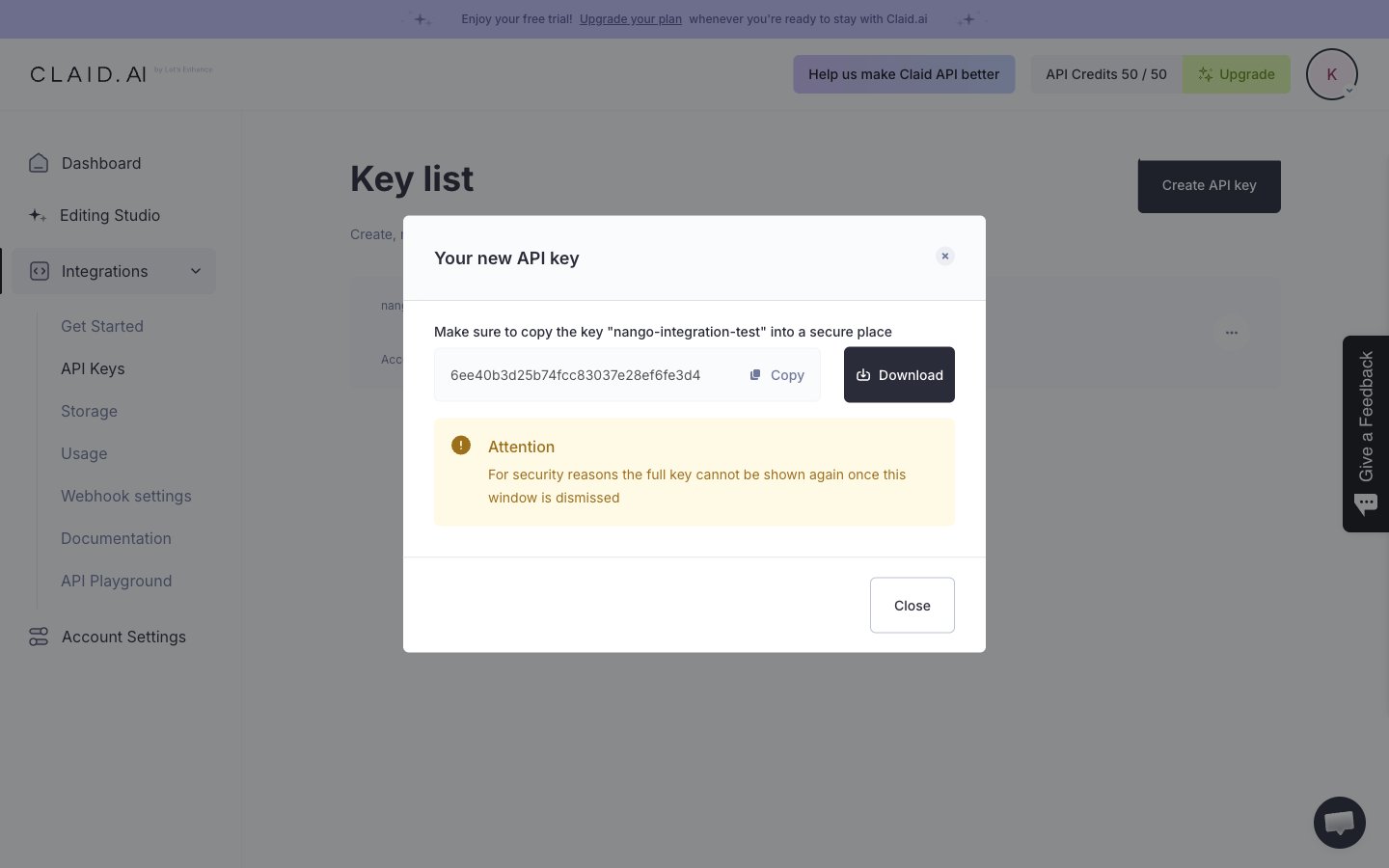
Claid shows the key only once, when you create it. Copy it before you close the dialog.
Step 2: Enter your API key in the Connect UI
- Open the form where you need to authenticate with Claid.ai.
- Paste your API key in the API Key field.
- Submit the form, and you should be successfully authenticated.