Overview
To authenticate with ChMeetings, you need:- API Key — your account’s API key from the API Integration card in your ChMeetings settings.
Prerequisites
- A ChMeetings account. If you don’t have one, sign up.
Step 1: Get your API key
- Log in to ChMeetings.
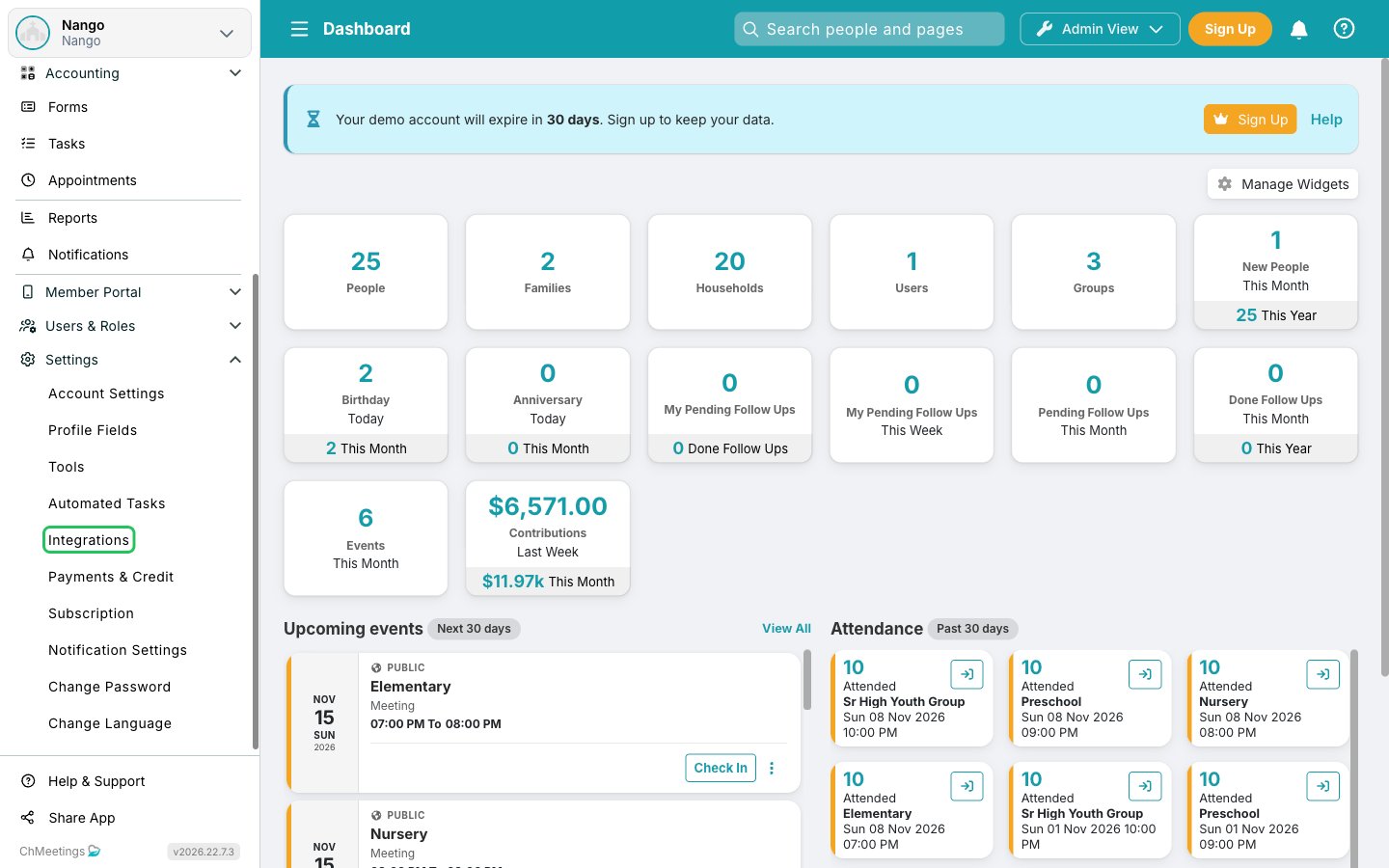
- In the left menu, expand Settings and click Integrations.
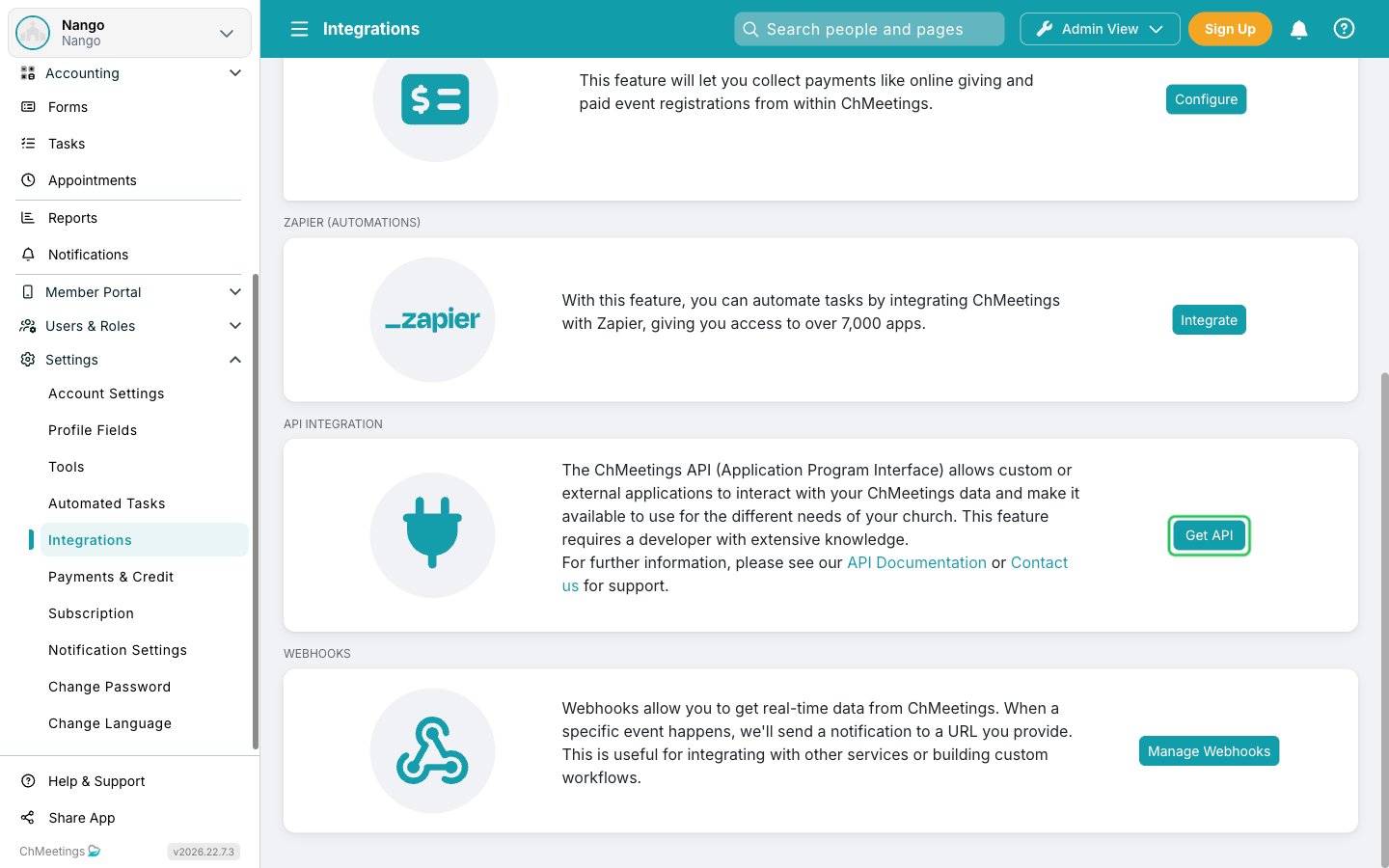
- In the API Integration card, click Get API.
- Your API key appears in the card. Copy it with the copy icon next to the API Key field.
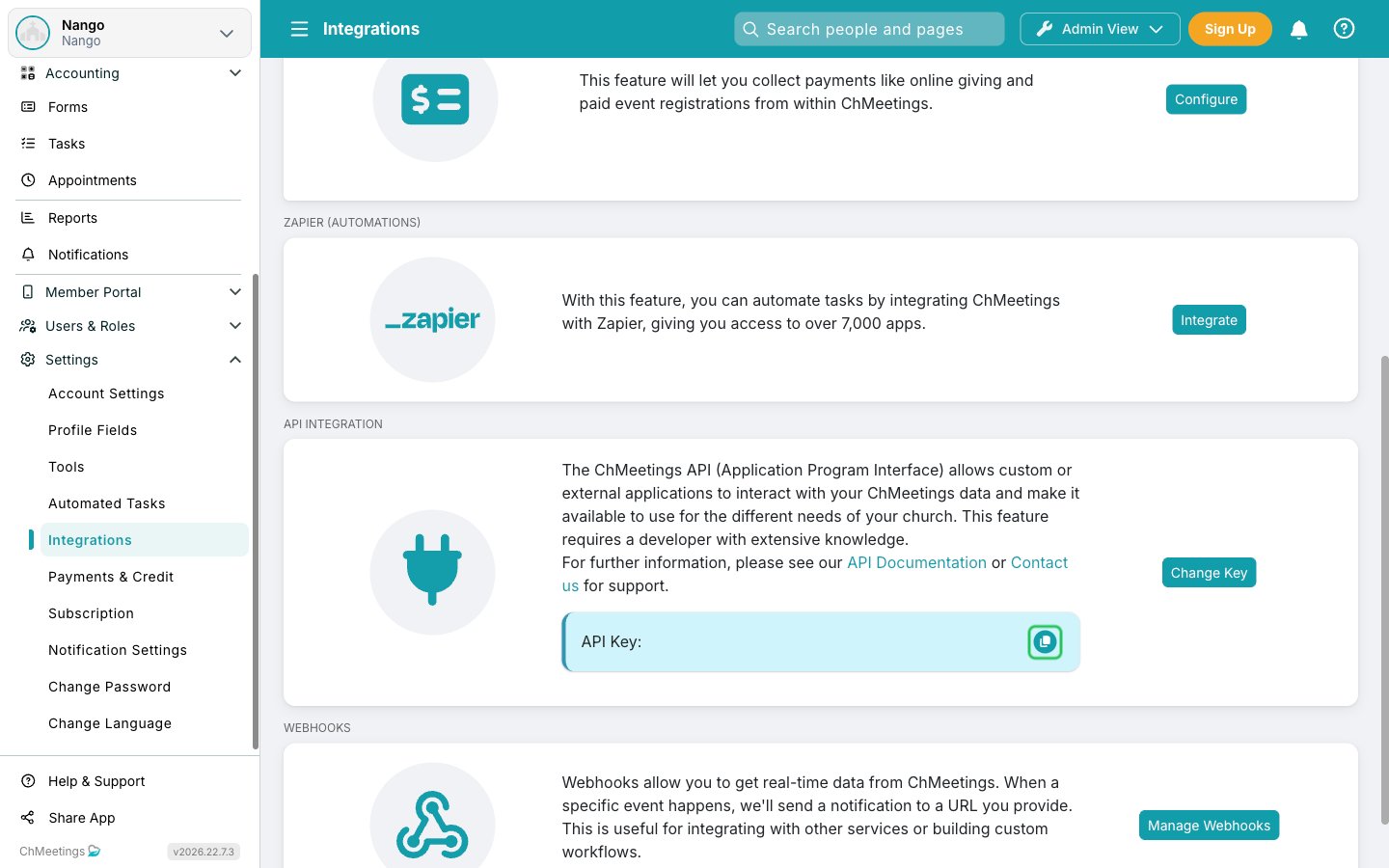
Clicking Change Key replaces your API key and disables every app that uses the current one.
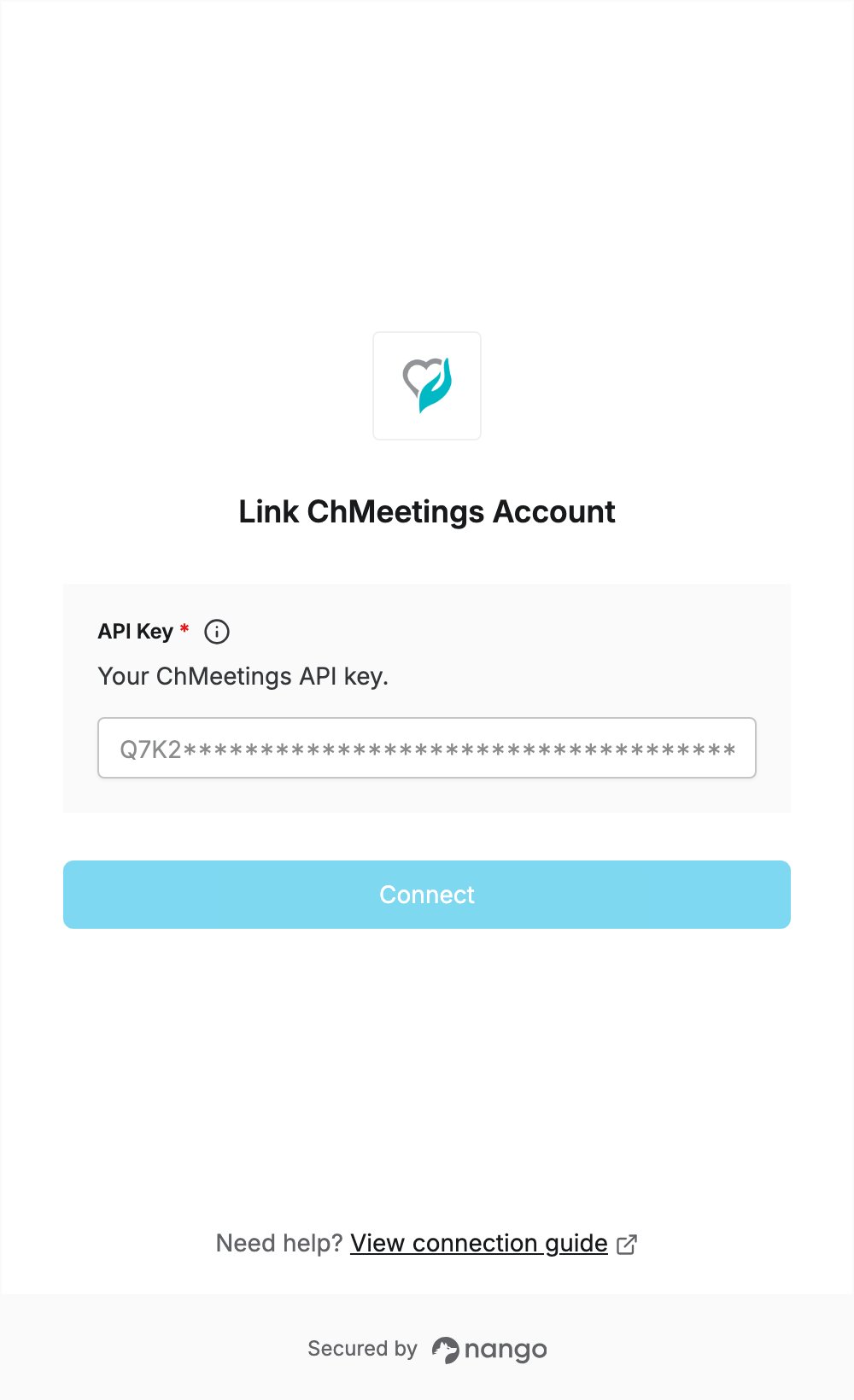
Step 2: Enter your API key in the Connect UI
- Open the form where you need to authenticate with ChMeetings.
- Enter your API key in the API Key field.
- Submit the form, and you should be successfully authenticated.