Overview
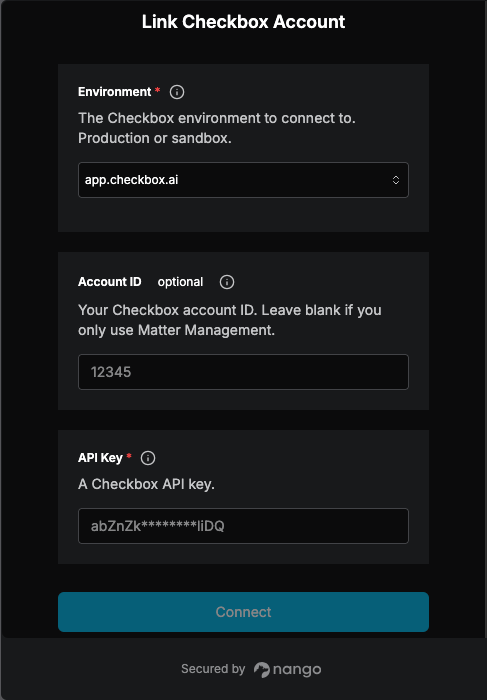
To authenticate with Checkbox AI, you will need:- Environment – The Checkbox AI environment your account lives in: production or sandbox.
- Partner API Key – A key that grants Nango permission to interact with Checkbox AI’s Matter Management API on your behalf.
- Account ID (optional) – Your account ID for Checkbox AI’s Create Assessment API.
- Create Assessment Base URL (optional) – The base URL of your Checkbox AI environment for the Create Assessment API.
Prerequisites
- An active Checkbox account with admin access, so you can create Partner API keys.
Instructions
Step 1: Choose your environment
Checkbox serves production and sandbox accounts from different addresses. Pick the one that matches the address you use to log in:
API keys only work in the environment where they were created, so create your key in the same environment in Step 2.
Step 2: Create an API key
- Log in to your Checkbox account as an admin, at app.checkbox.ai for production or sandbox.checkbox-app.com for sandbox.
- Go to Account Settings > API Keys.
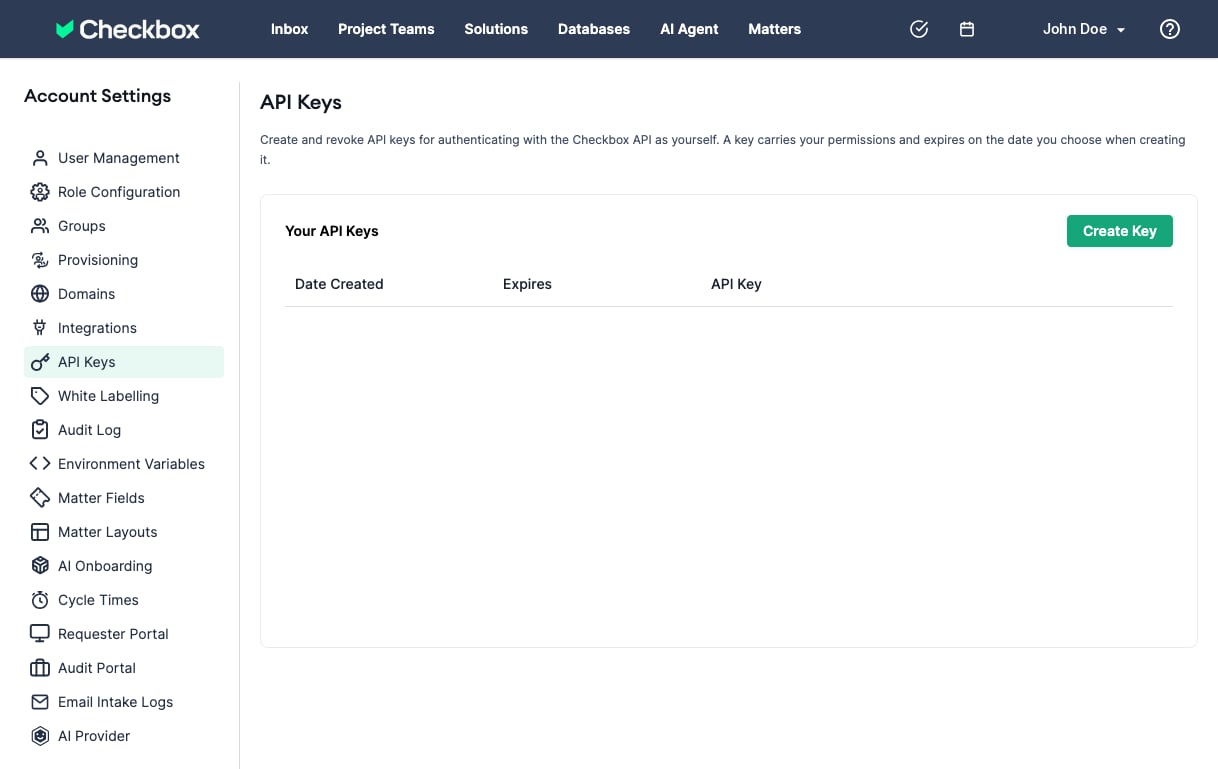
- Create a new API key.
- Copy the key and store it somewhere safe. Treat it like a password: anyone with the key can read and update matters in your Checkbox account.
Step 3: Find your Create Assessment account ID
Skip this step if you only need matter management. Account ID A number, for example12345.
- Log in to your Checkbox account.
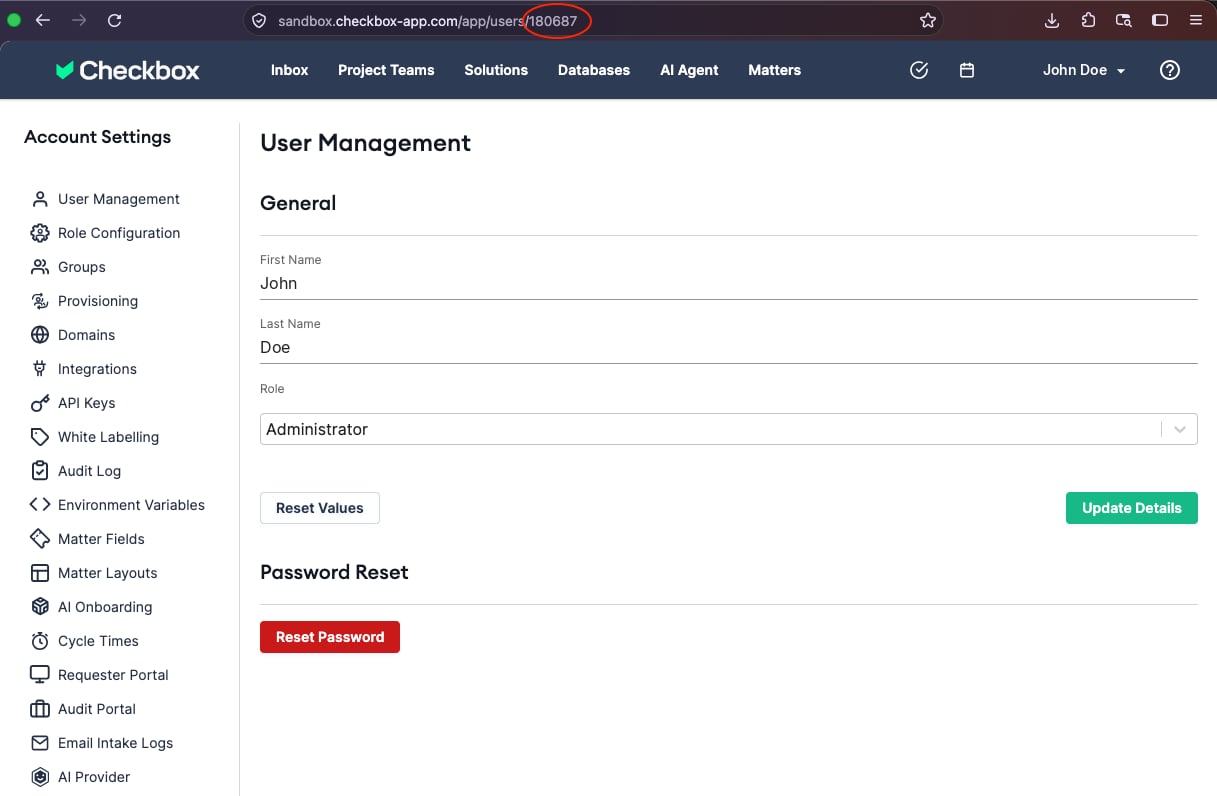
- Go to Account Settings > User Management
- Find your user and click on your name.
- Copy your user account ID in the browser’s address bar:
Step 4: Enter credentials in the Connect UI
- Open the form where you need to authenticate with Checkbox.
- Select your Environment.
- Enter your API Key in the API Key field.
- If you completed Step 3, enter your Account ID.
- Submit the form to complete authentication.