Overview
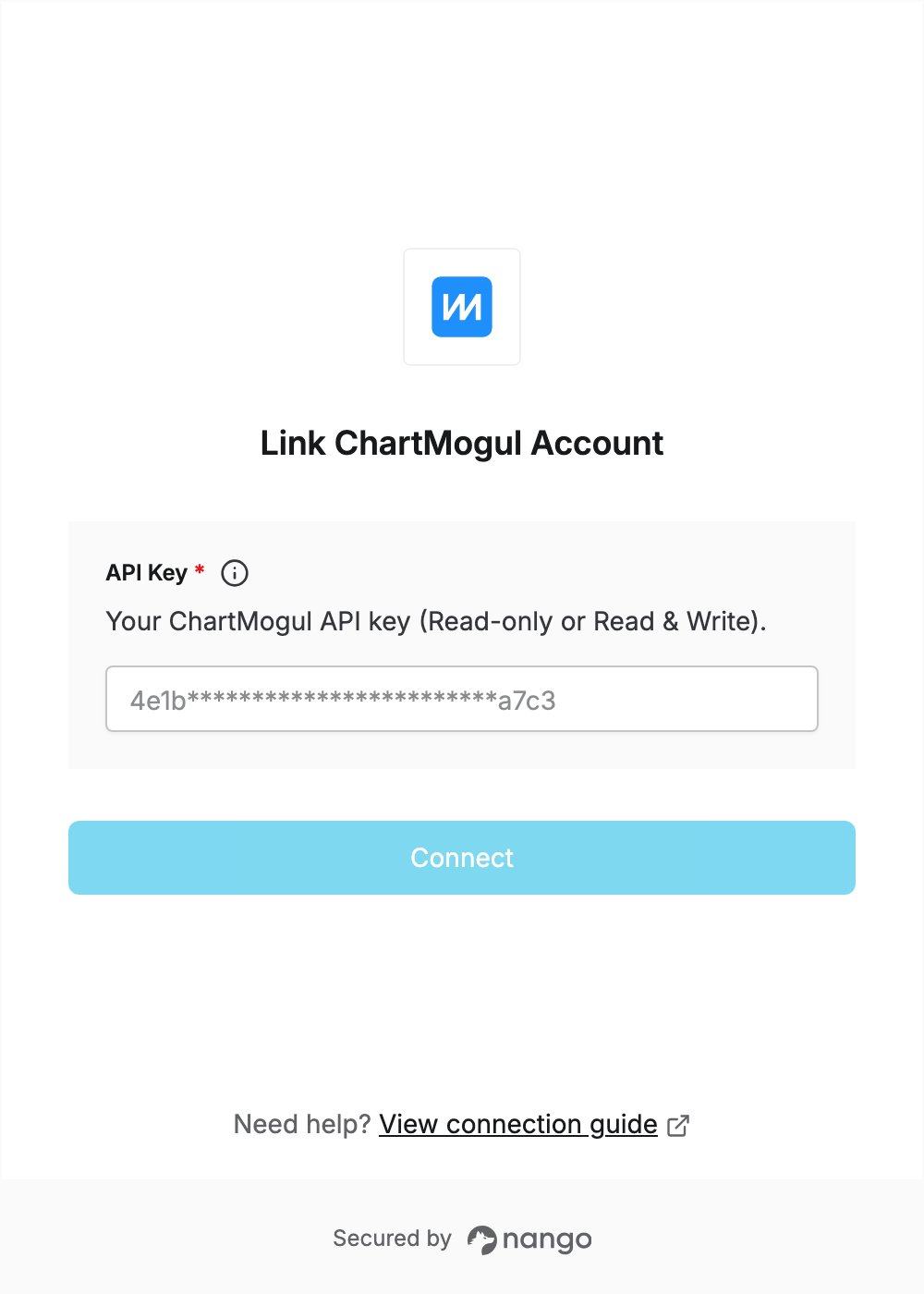
To authenticate with ChartMogul, you need:- API Key — a ChartMogul API key, either Read-only or Read & Write.
Prerequisites
- A ChartMogul account. If you don’t have one, sign up: you can start a 14-day trial without a credit card. Free-plan accounts with more than $10k MRR cannot access the API and must upgrade.
Step 1: Create an API key
- Sign in to ChartMogul.
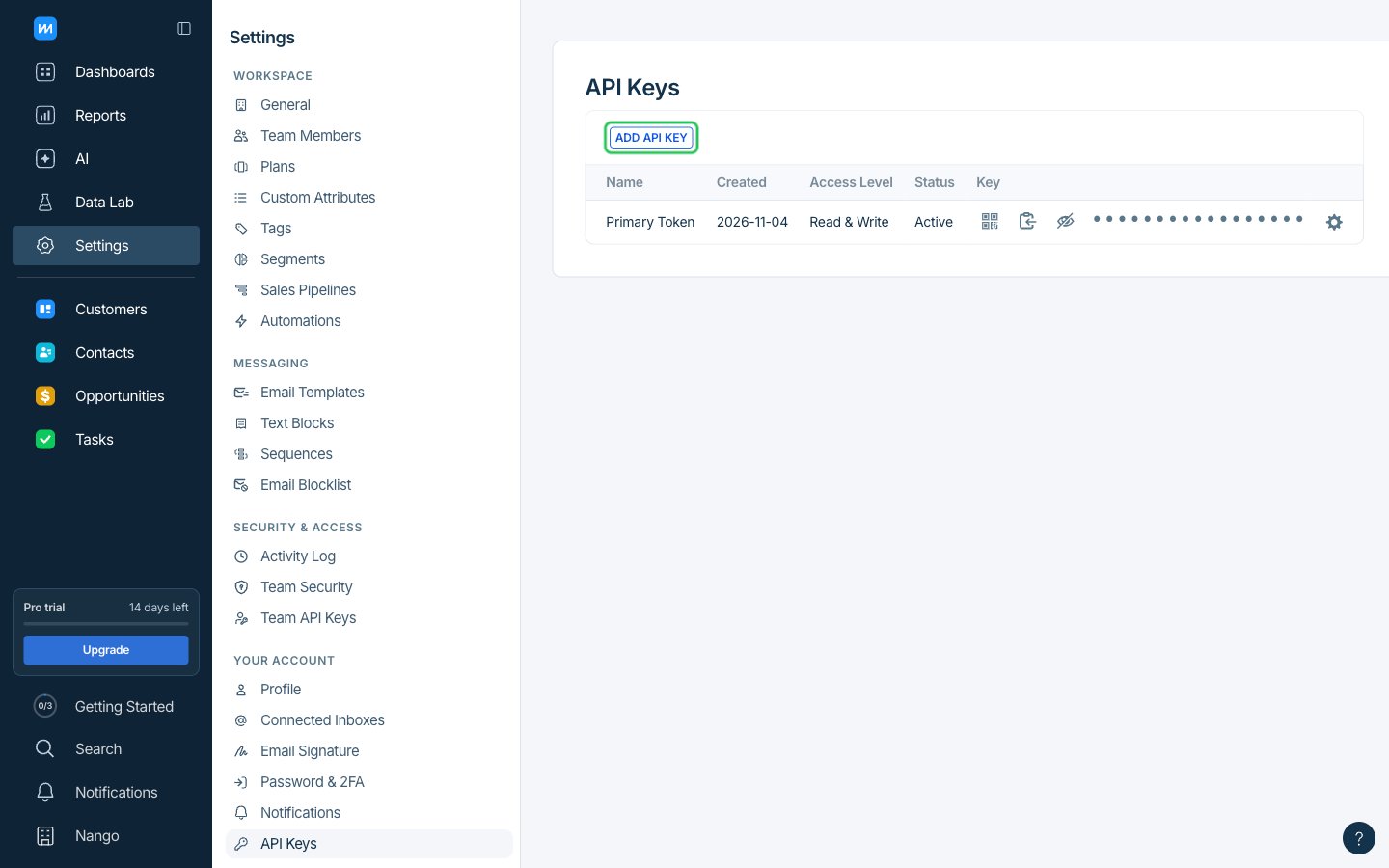
- Open Settings and, under Your Account, click API Keys. Then click Add API Key.
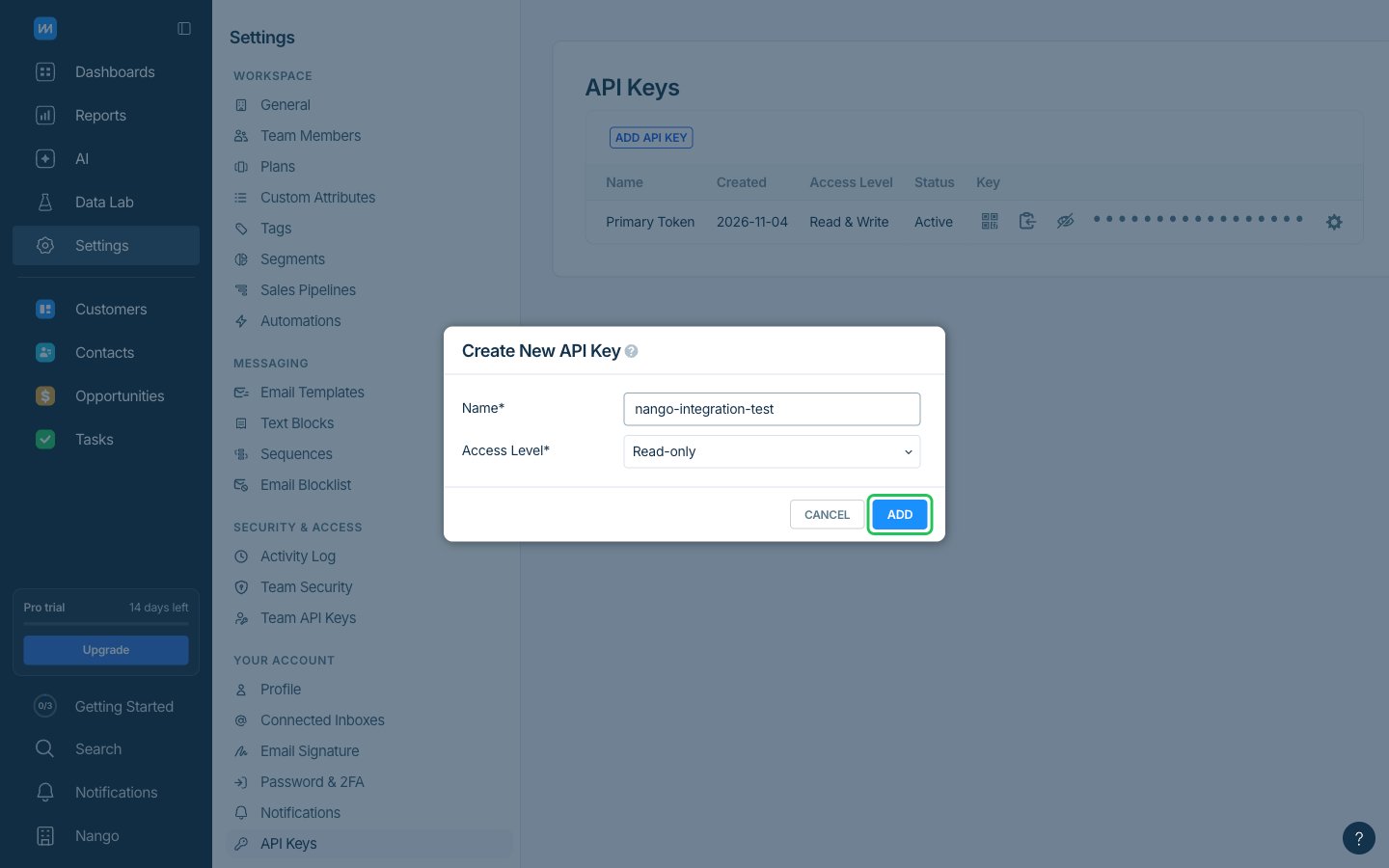
- Enter a unique Name for the key and choose the Access Level: Read-only is enough to read data, Read & Write is needed to create, update or delete data. Only Staff, Admin and Owner users can choose the access level.
- Click Add.
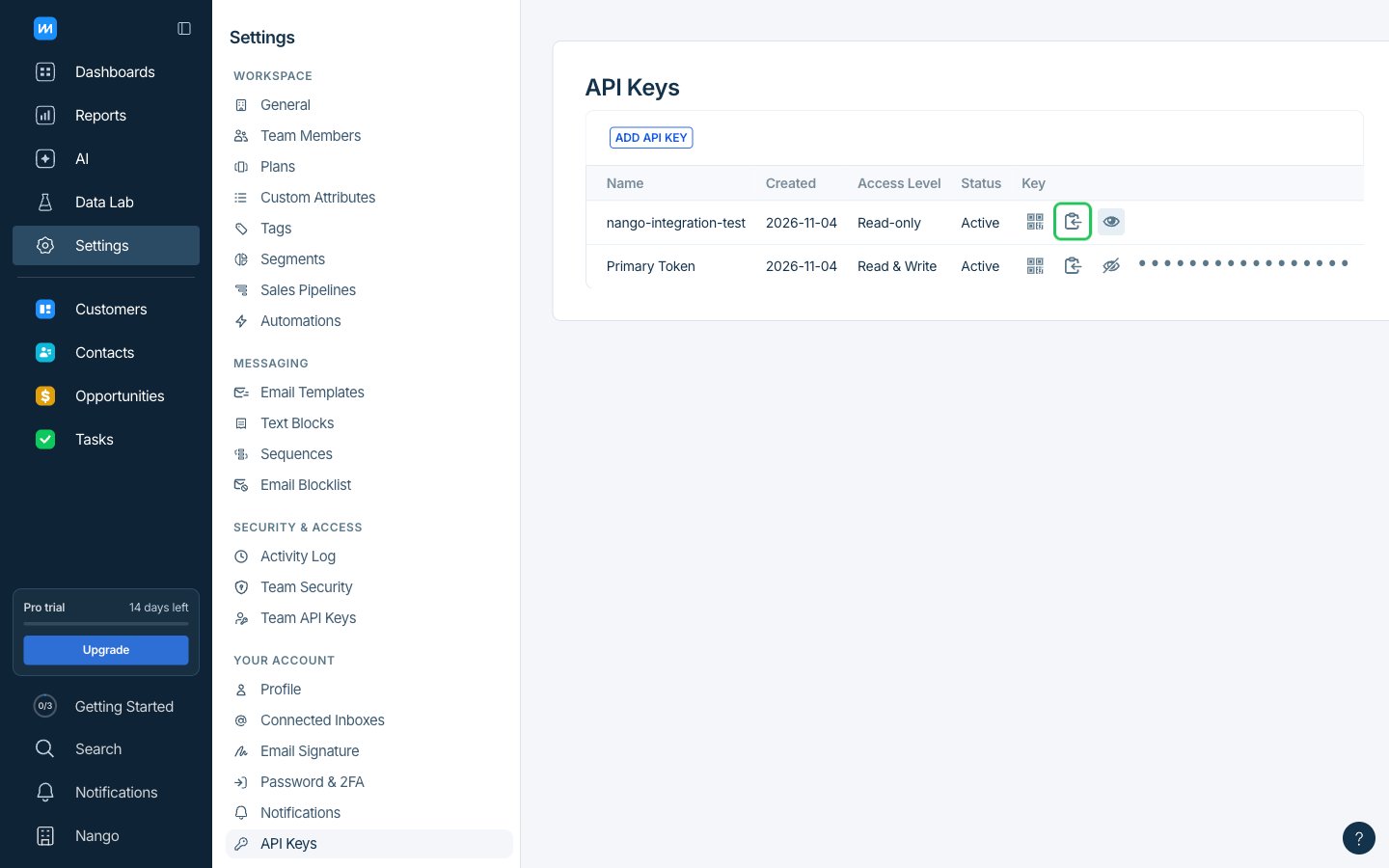
- In the new key’s row, click the Reveal icon to show the key, then the Copy icon to copy it.
Step 2: Enter your API key in the Connect UI
- Open the form where you need to authenticate with ChartMogul.
- Enter your API key in the API Key field. ChartMogul needs no password, so the form does not ask for one.
- Submit the form, and you should be successfully authenticated.