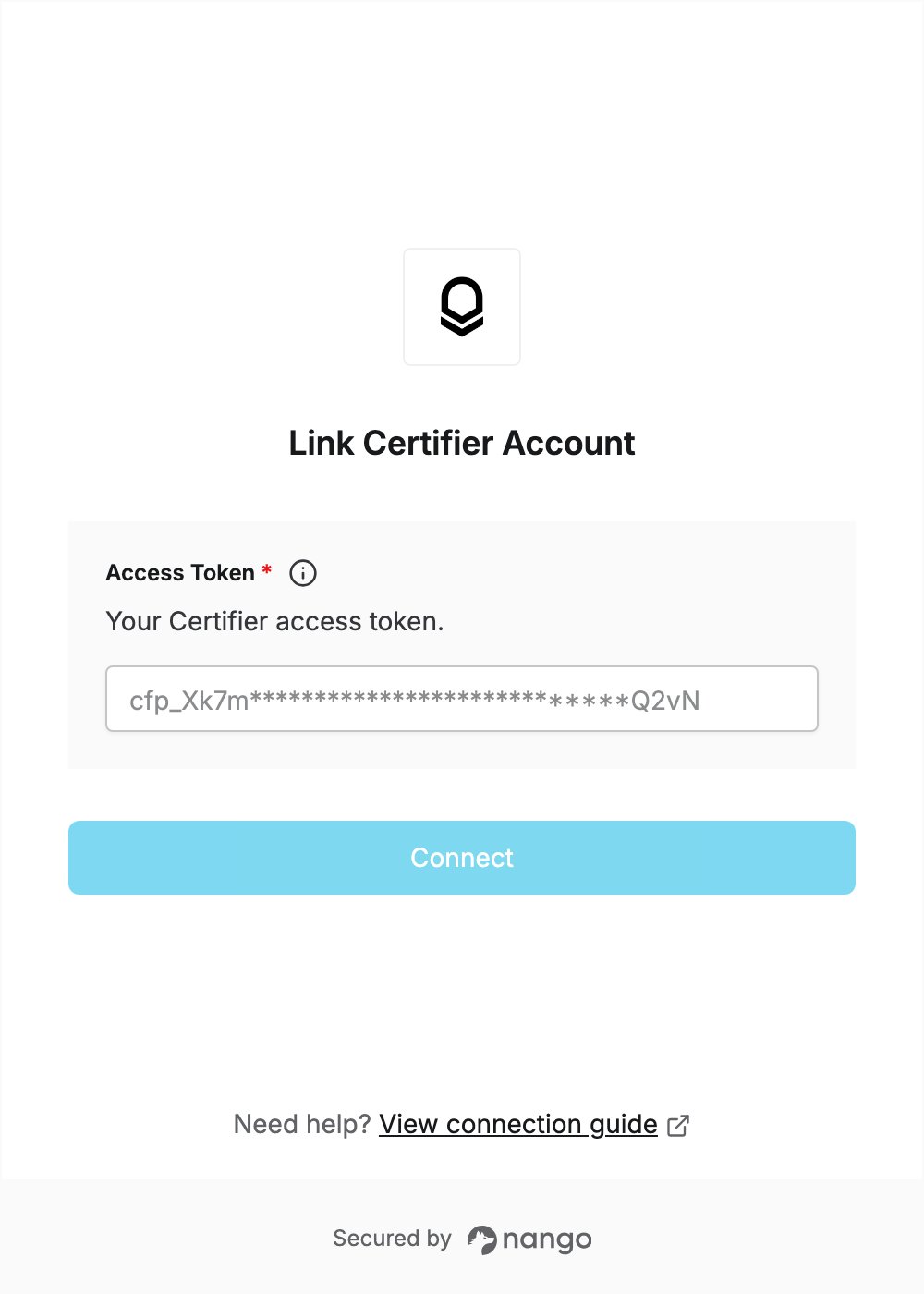
Overview
To authenticate with Certifier, you need:- Access Token — a Certifier access token for your workspace.
Prerequisites
- A Certifier account. The API is included in the free Starter plan; see Certifier pricing to sign up.
Step 1: Generate an access token
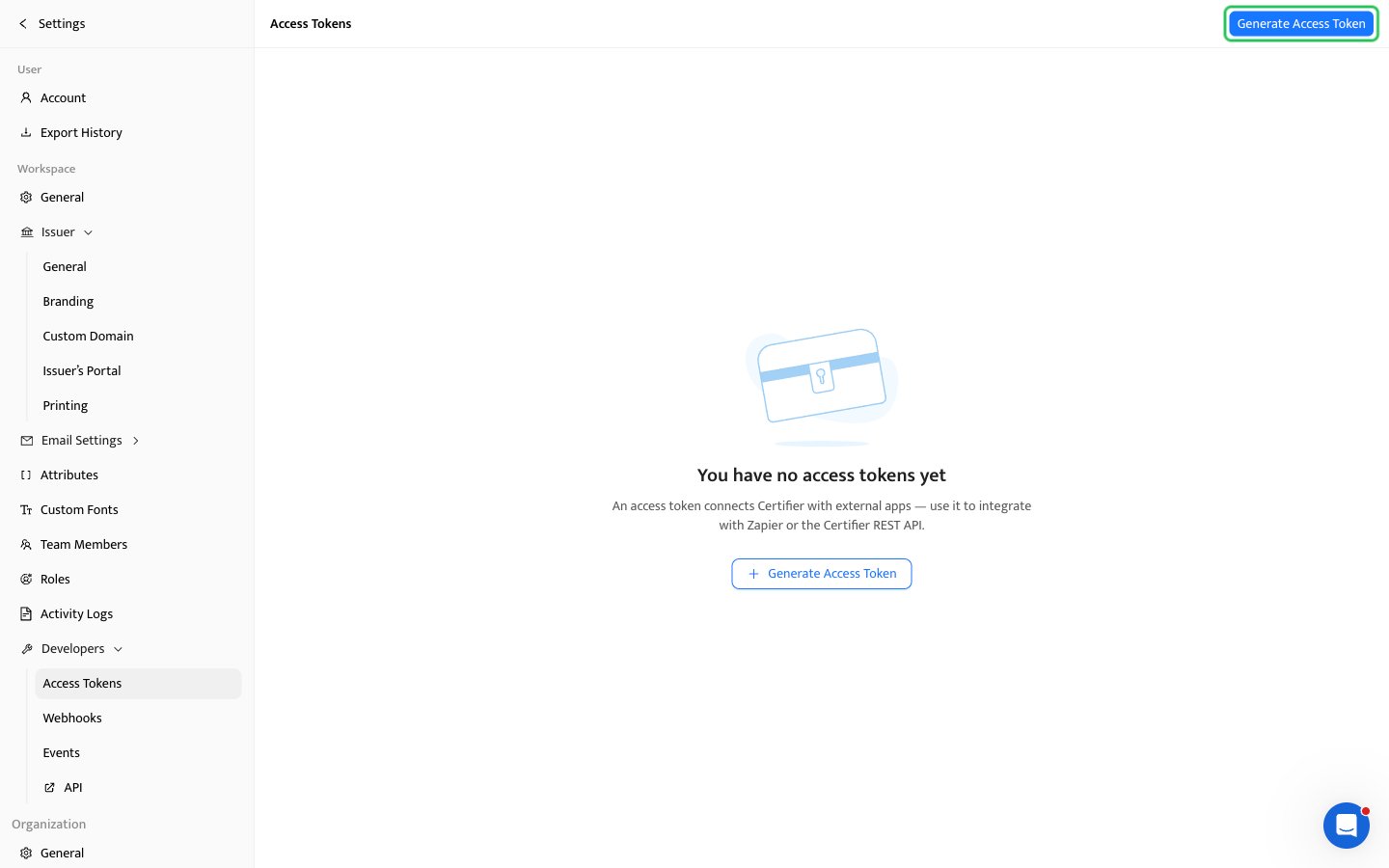
- Log in to the Certifier dashboard and go to Settings -> Developers -> Access Tokens (Access Tokens page).
- Click Generate Access Token.
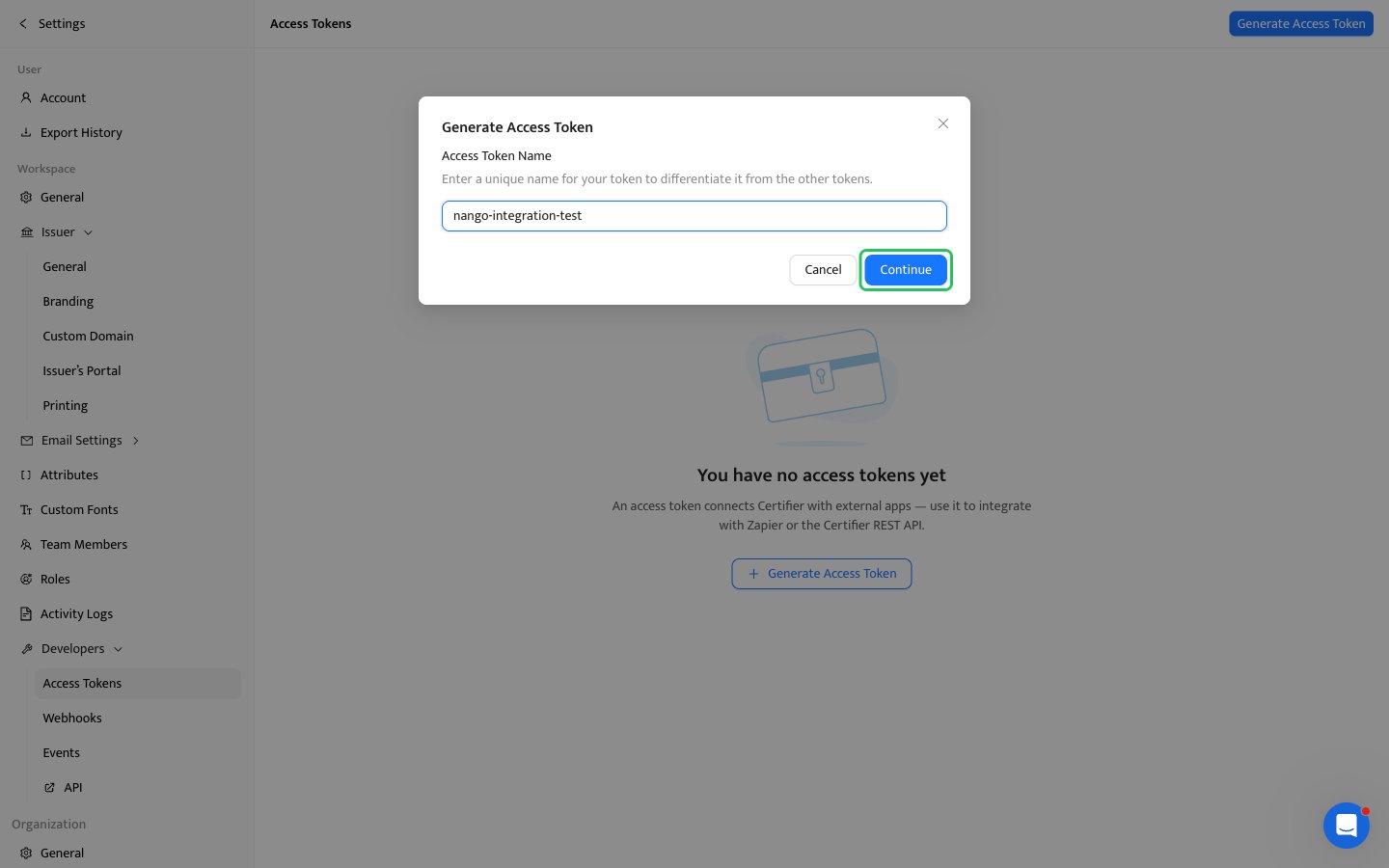
- Enter a descriptive name in the Access Token Name field, then click Continue.
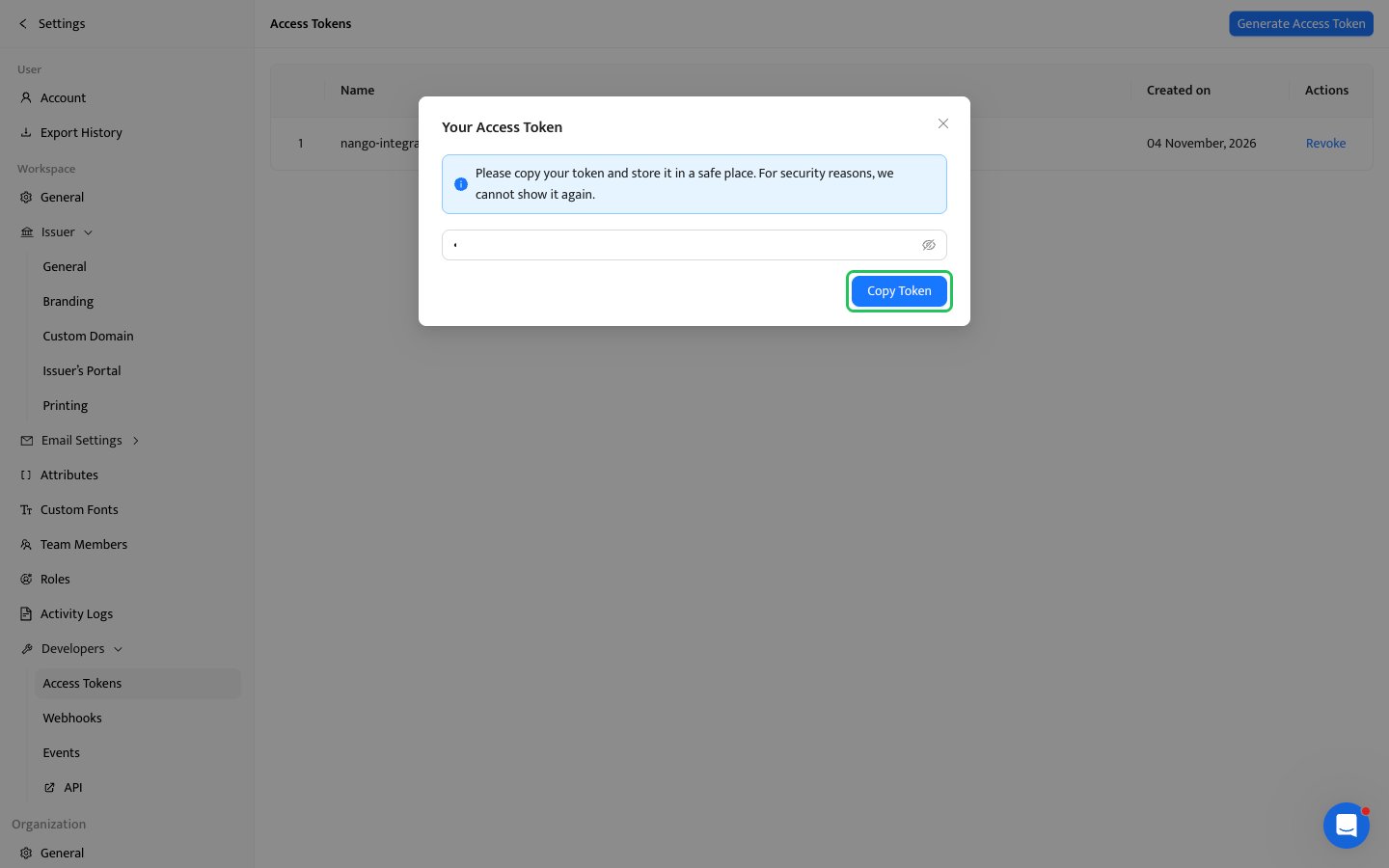
- In the Your Access Token dialog, click Copy Token and store the token somewhere safe. Certifier will not show it again.
Step 2: Enter your access token in the Connect UI
- Open the form where you need to authenticate with Certifier.
- Enter your Access Token in the designated field.
- Click Connect.