Overview
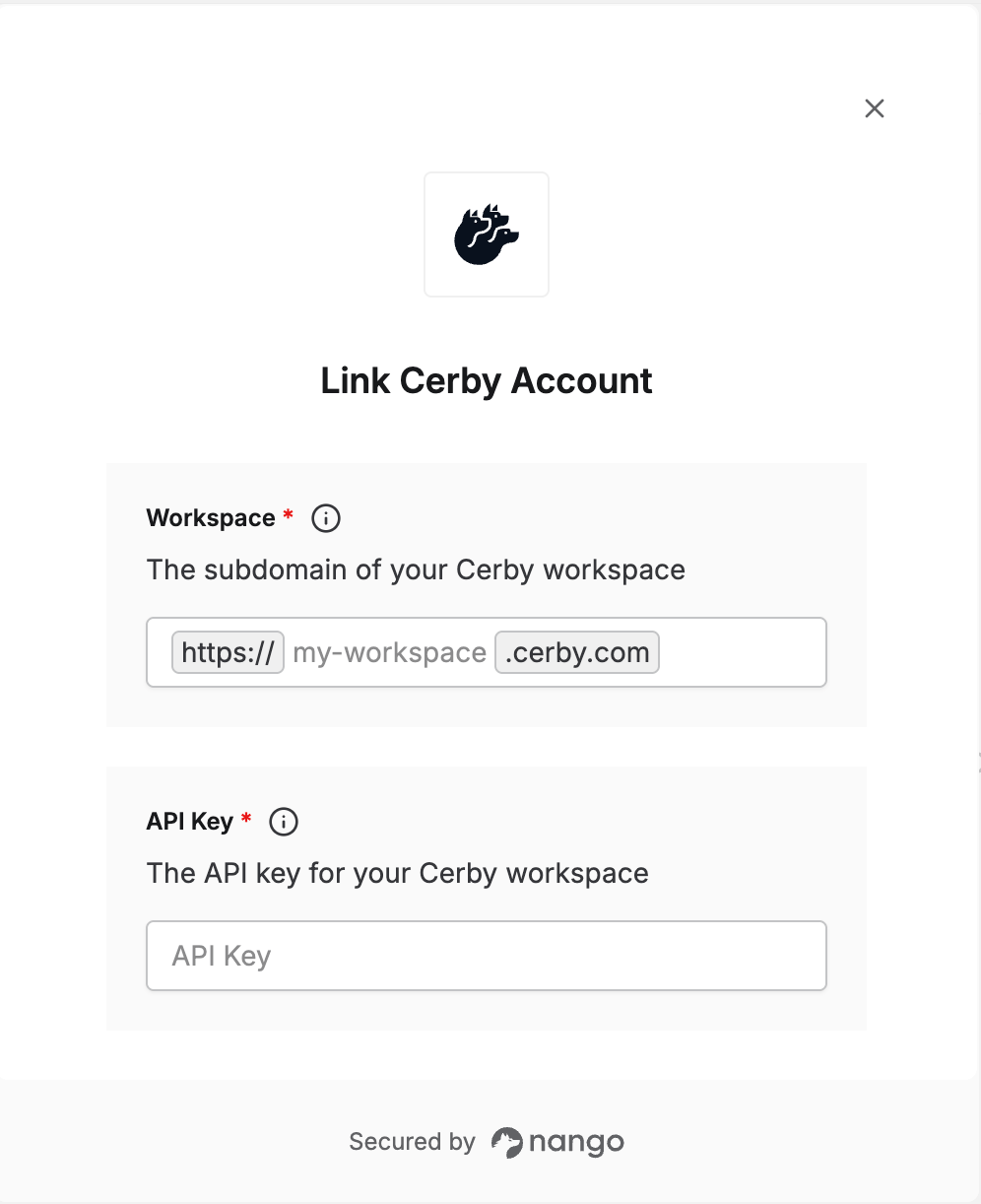
To authenticate with Cerby, you need:- Workspace - The subdomain of your Cerby workspace.
- API Key - A key that grants scoped access to the Cerby API, enabling authorized applications to interact with Cerby resources and services.
Prerequisites
- A Cerby workspace where you’re a Workspace Owner, Super Admin, or Admin — only these roles can generate API keys, and only from the Cerby web app.
Instructions
Step 1: Finding your workspace subdomain
Your workspace subdomain is the first part of your workspace’s URL. If you log in to Cerby athttps://my-workspace.cerby.com, your workspace subdomain is my-workspace.
Step 2: Generating your API key
- Log in to your Cerby workspace and select Settings from the left navigation.
- Select the API keys tab, then click Generate API key.
- Enter a name for the key and select an expiration time (1 hour, 12 hours, 1 day, 5 days, 1 year, or a custom duration).
- Select the scopes required for the endpoints you plan to use — for example, Read accounts, Read secrets, or Write integrations.
- Copy the generated key. Cerby only displays it once in plain text — if you navigate away before copying it, you’ll need to generate a new one. Alternatively, click Save in Cerby to store it directly in one of your vaults.
The scopes you select determine the endpoints and data the key can access, based on Cerby’s role-based access control (RBAC) system. A request against an endpoint outside the key’s scopes returns a 401, even if the key itself is valid or unexpired.
Step 3: Enter credentials in the Connect UI
Once you have your Workspace subdomain and API Key:- Open the form where you need to authenticate with Cerby.
- Enter your Workspace and API Key in the fields provided.
- Submit the form, and you should be successfully authenticated.