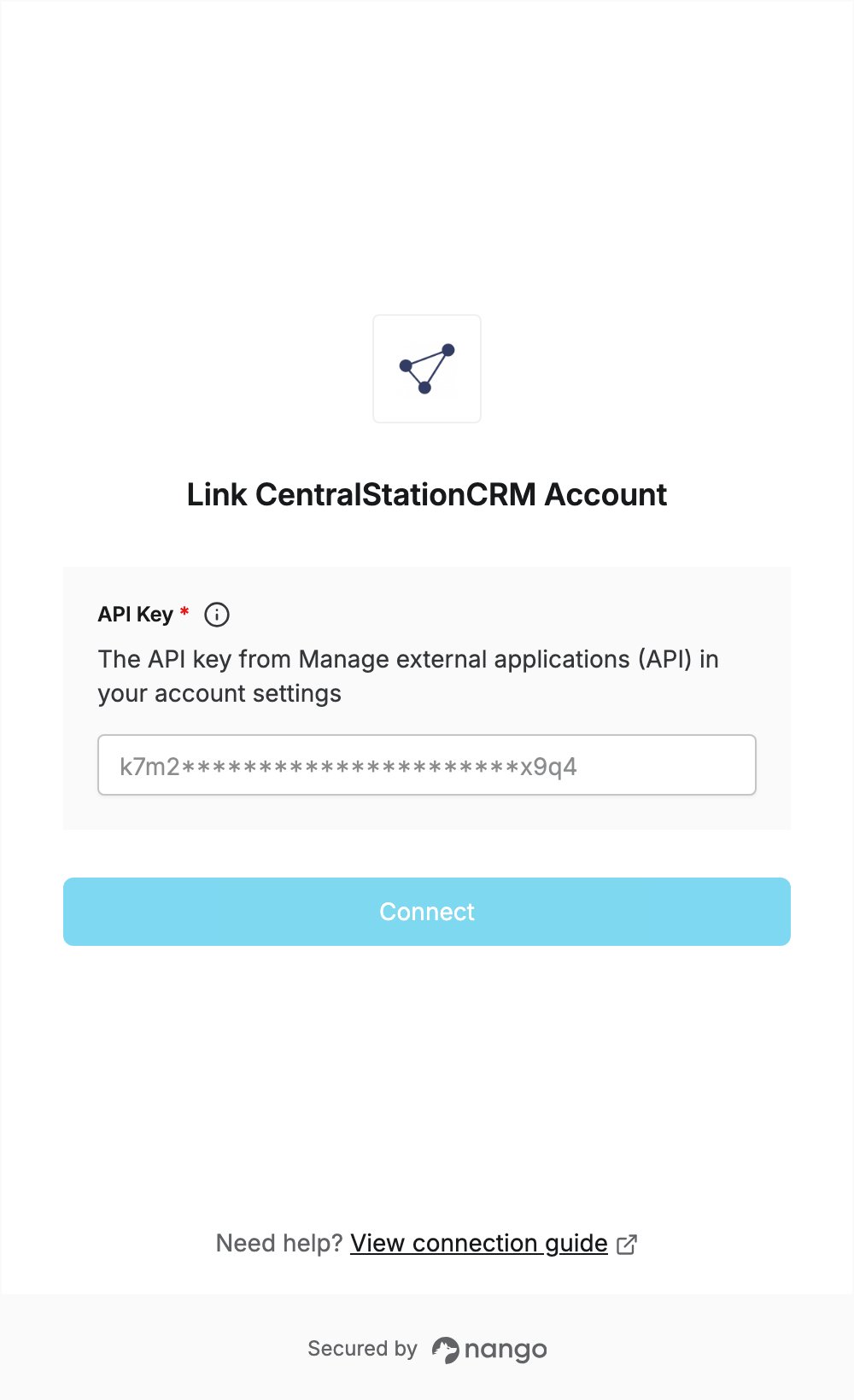
Overview
To authenticate with CentralStationCRM, you need:- API Key — a CentralStationCRM API key.
Prerequisites
- A CentralStationCRM account. Sign up for free.
- You must be the owner of the account to create API keys.
Step 1: Open the API settings
- Sign in to CentralStationCRM.
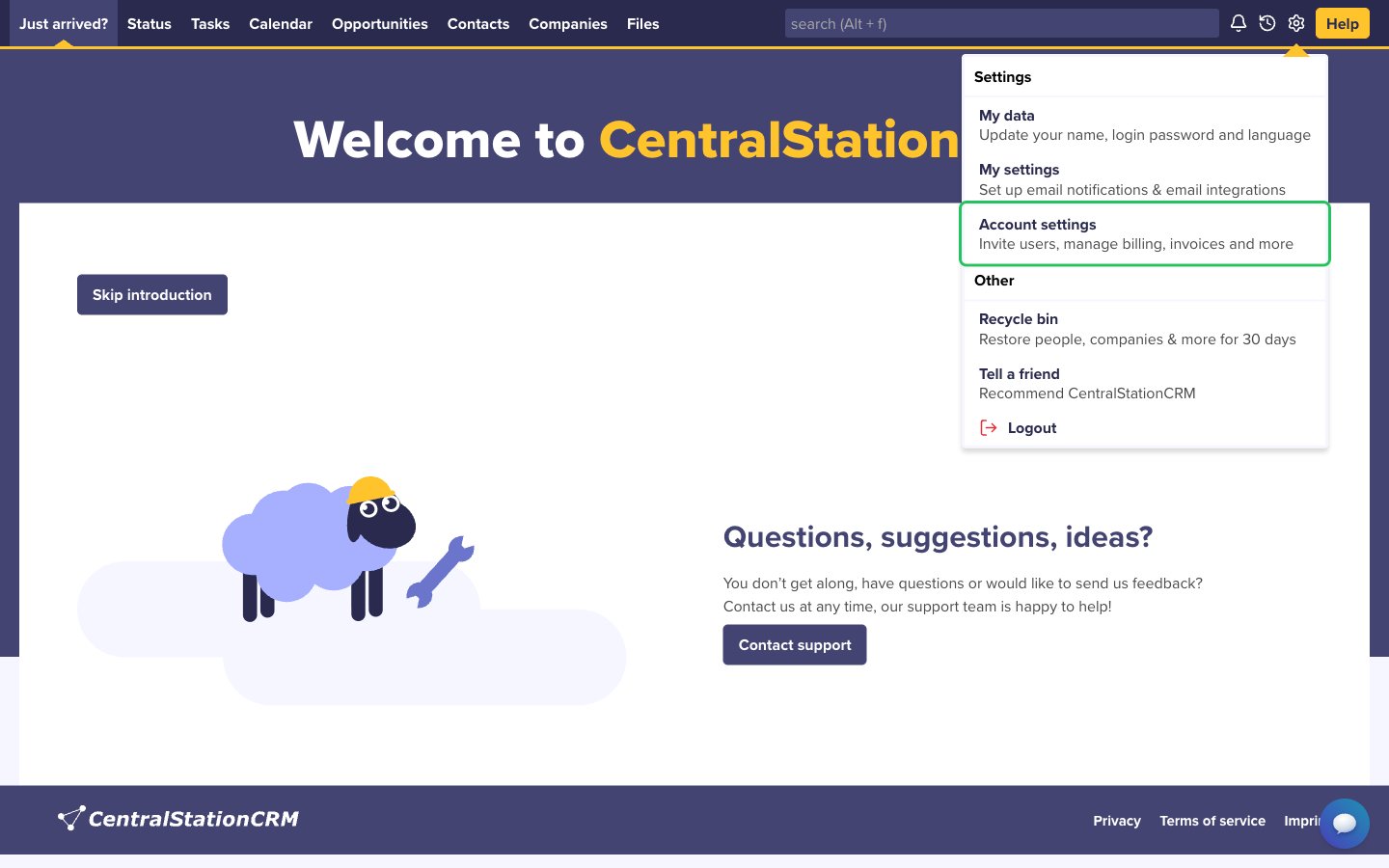
- Click the gear icon in the upper right corner, then choose Account settings.
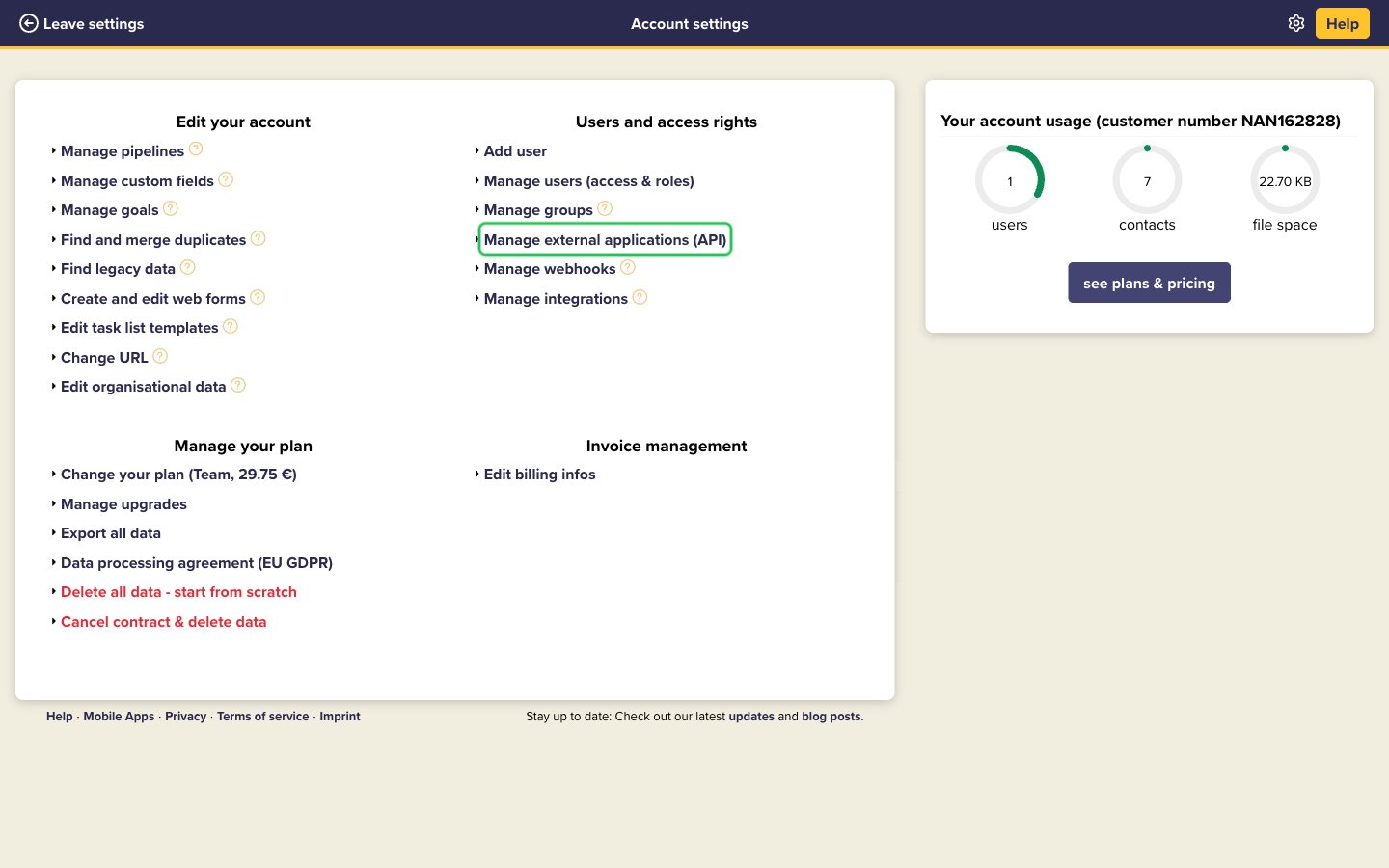
- Under Users and access rights, click Manage external applications (API).
Step 2: Create an API key
- Click Create a new API token in the top right.
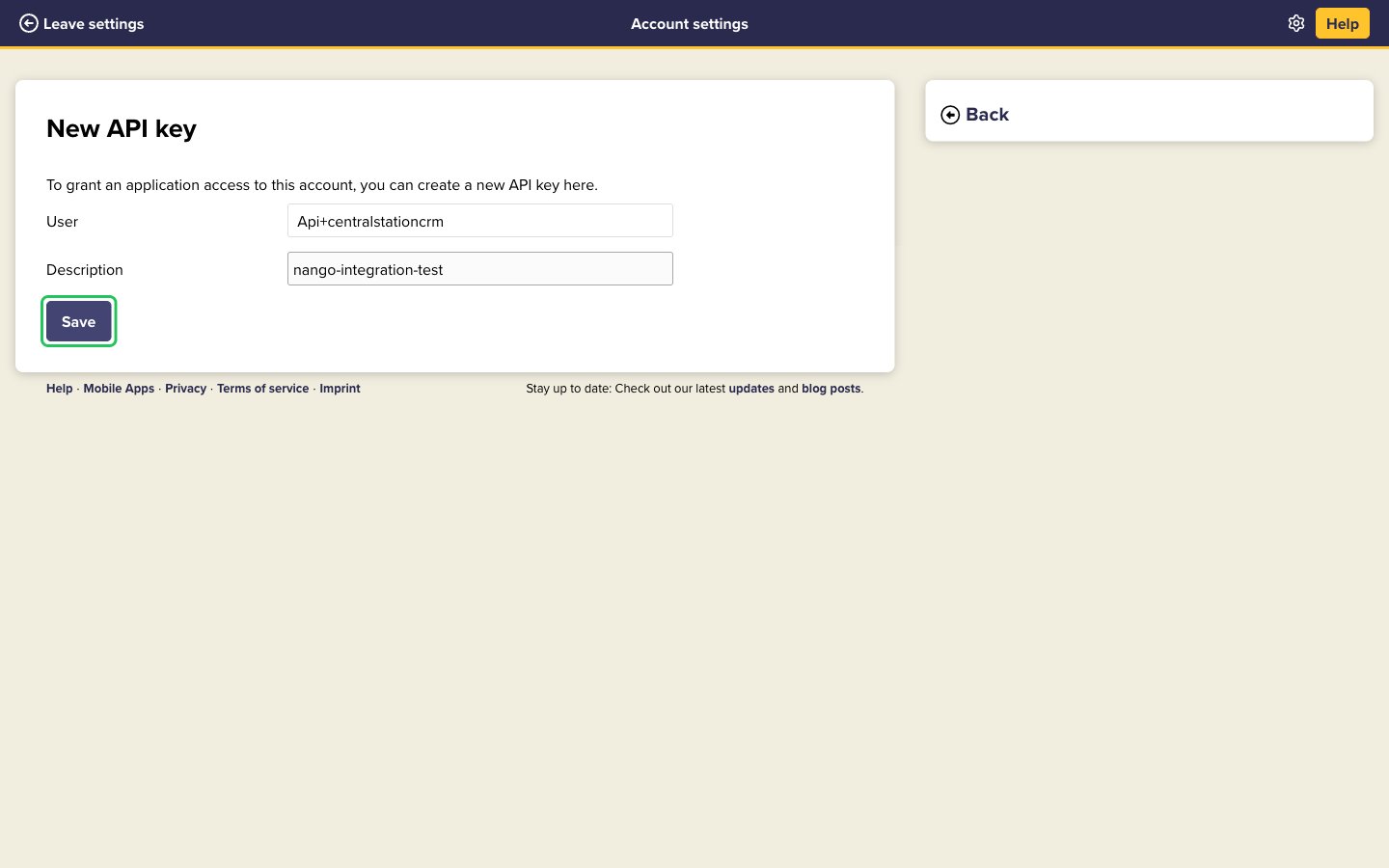
- Choose the user the key acts as, enter a description (for example,
nango) and click Save.
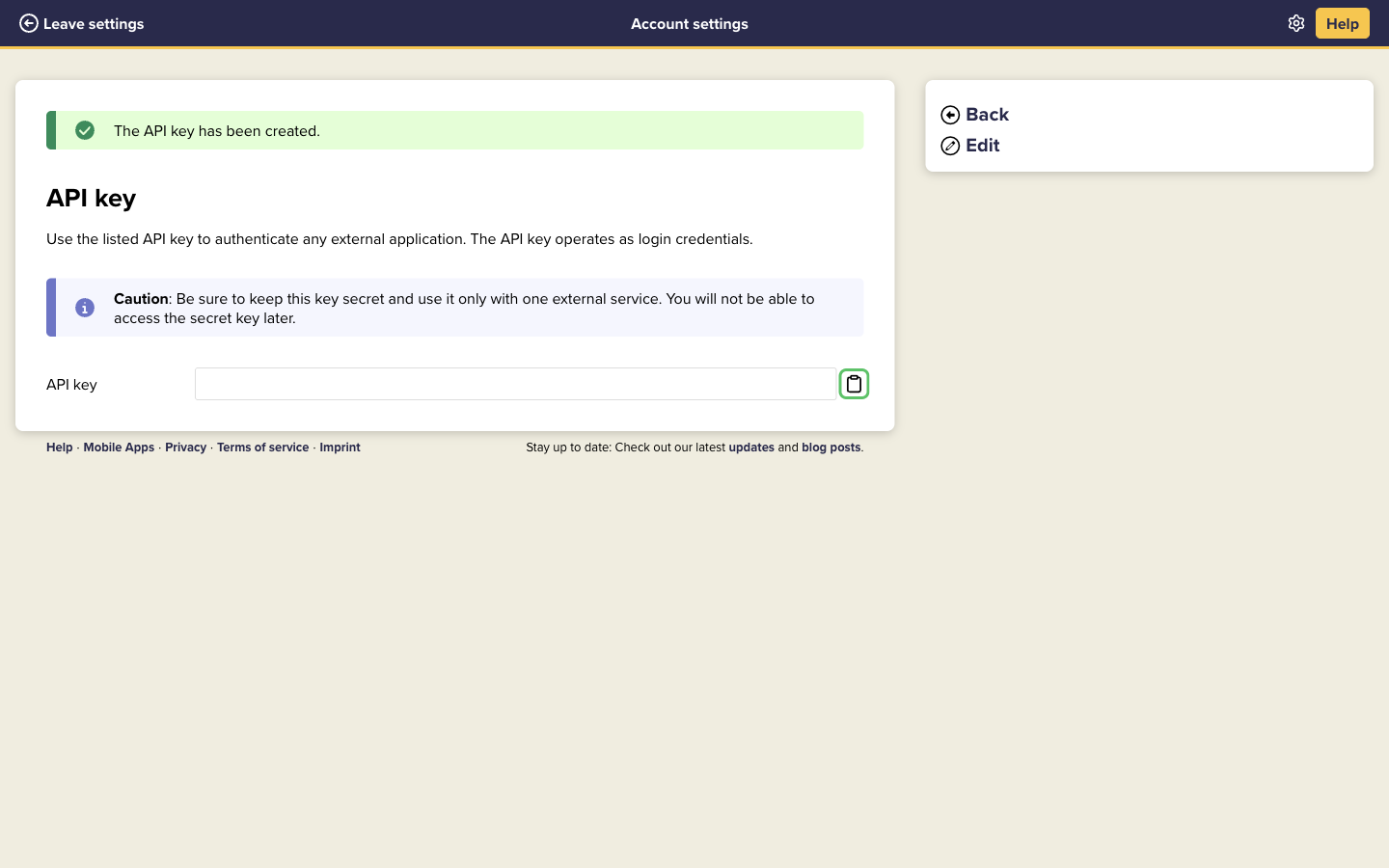
- Copy the API key with the copy to clipboard button. It is shown only once.
Step 3: Enter your API key in the Connect UI
- Open the form where you need to authenticate with CentralStationCRM.
- In API Key, paste the API key from Step 2.
- Submit the form. Nango checks the API key with CentralStationCRM before saving the connection.