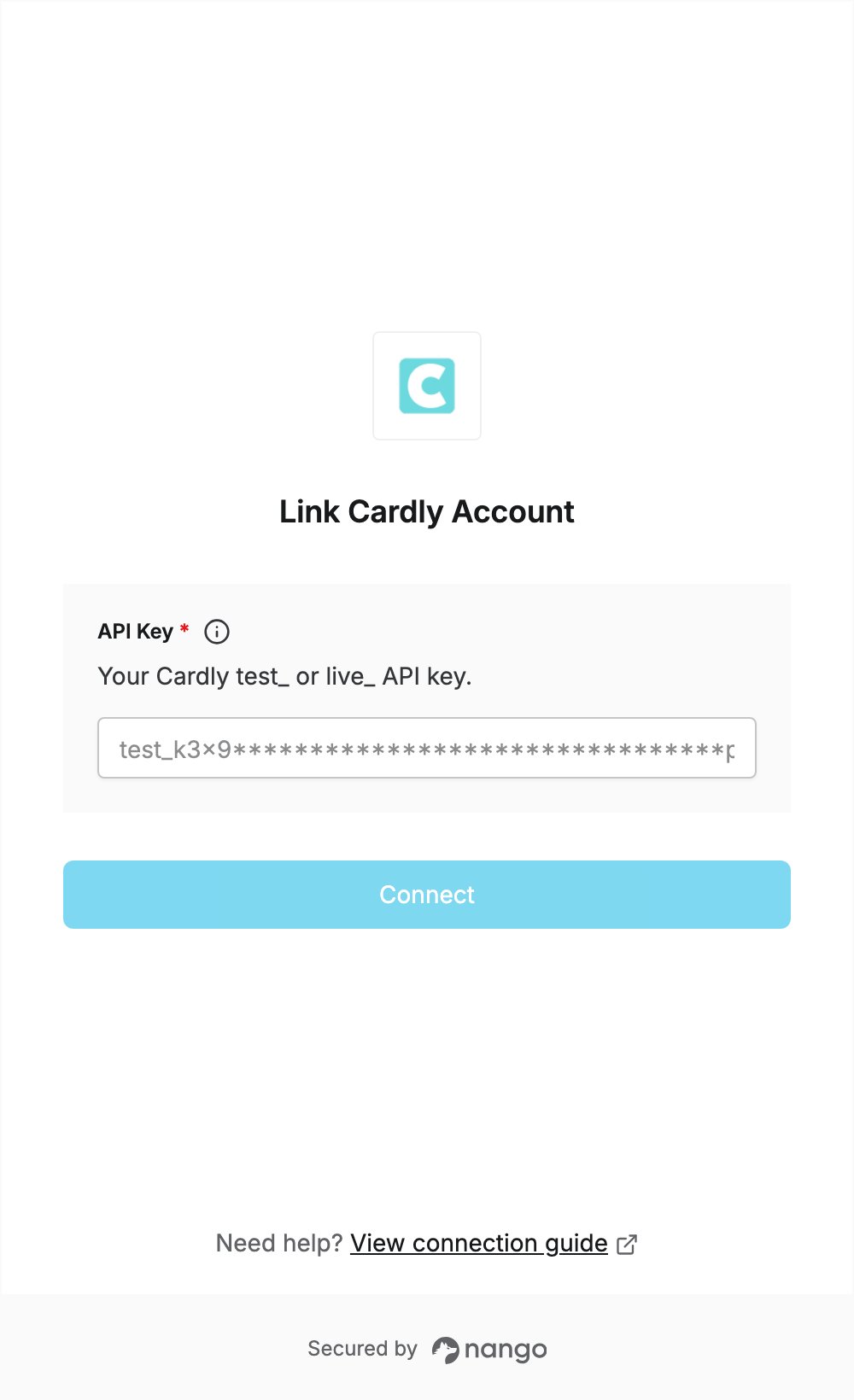
Overview
To authenticate with Cardly, you need:- API Key — a test (
test_) or live (live_) API key from your Cardly business portal.
Prerequisites
- A Cardly business account. If you don’t have one, sign up and confirm your email address. Standard business accounts have no mandatory paid subscription.
Step 1: Create an API key
- Log in to your Cardly business portal.
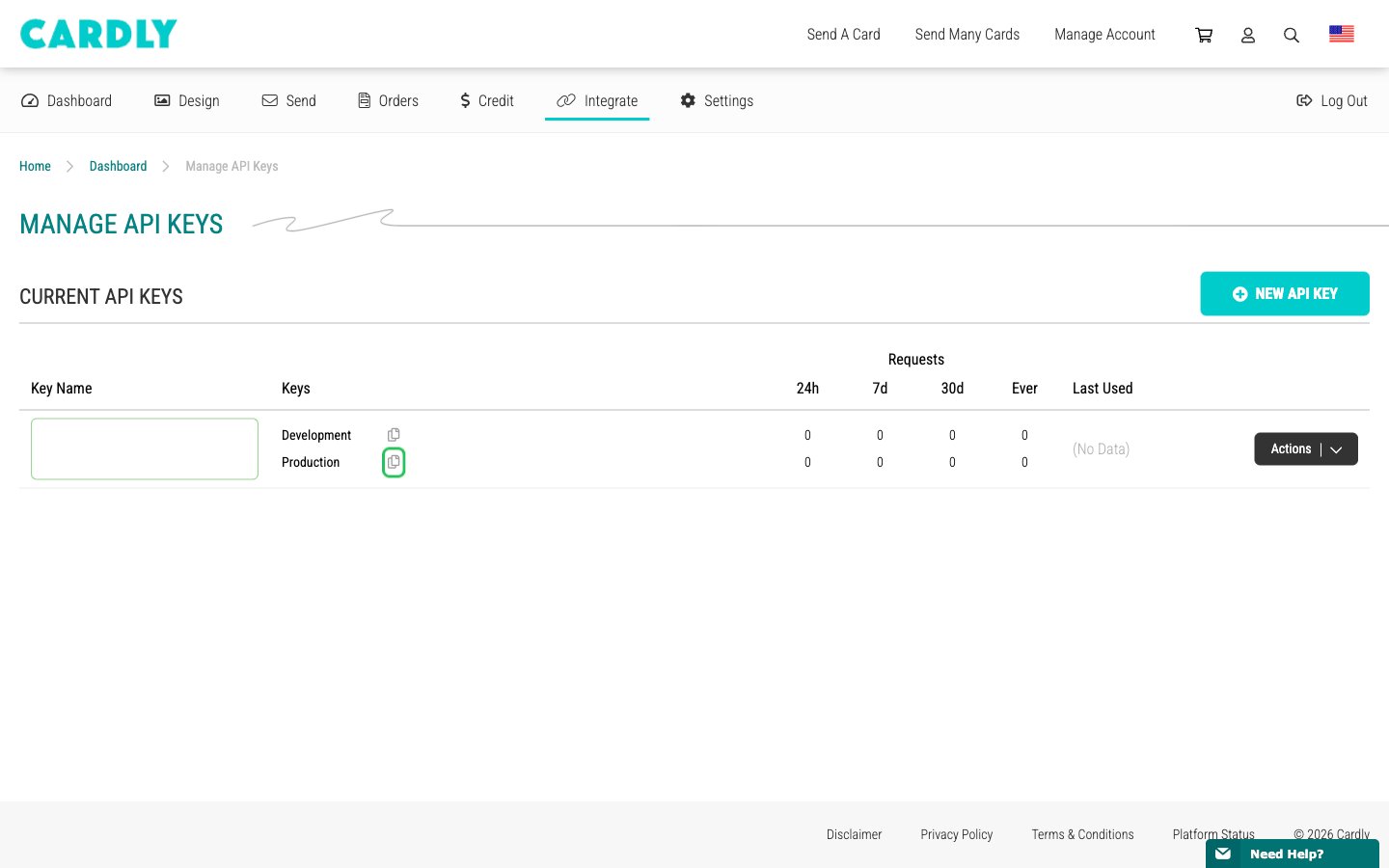
- In the menu bar, open Integrate and click API Keys.
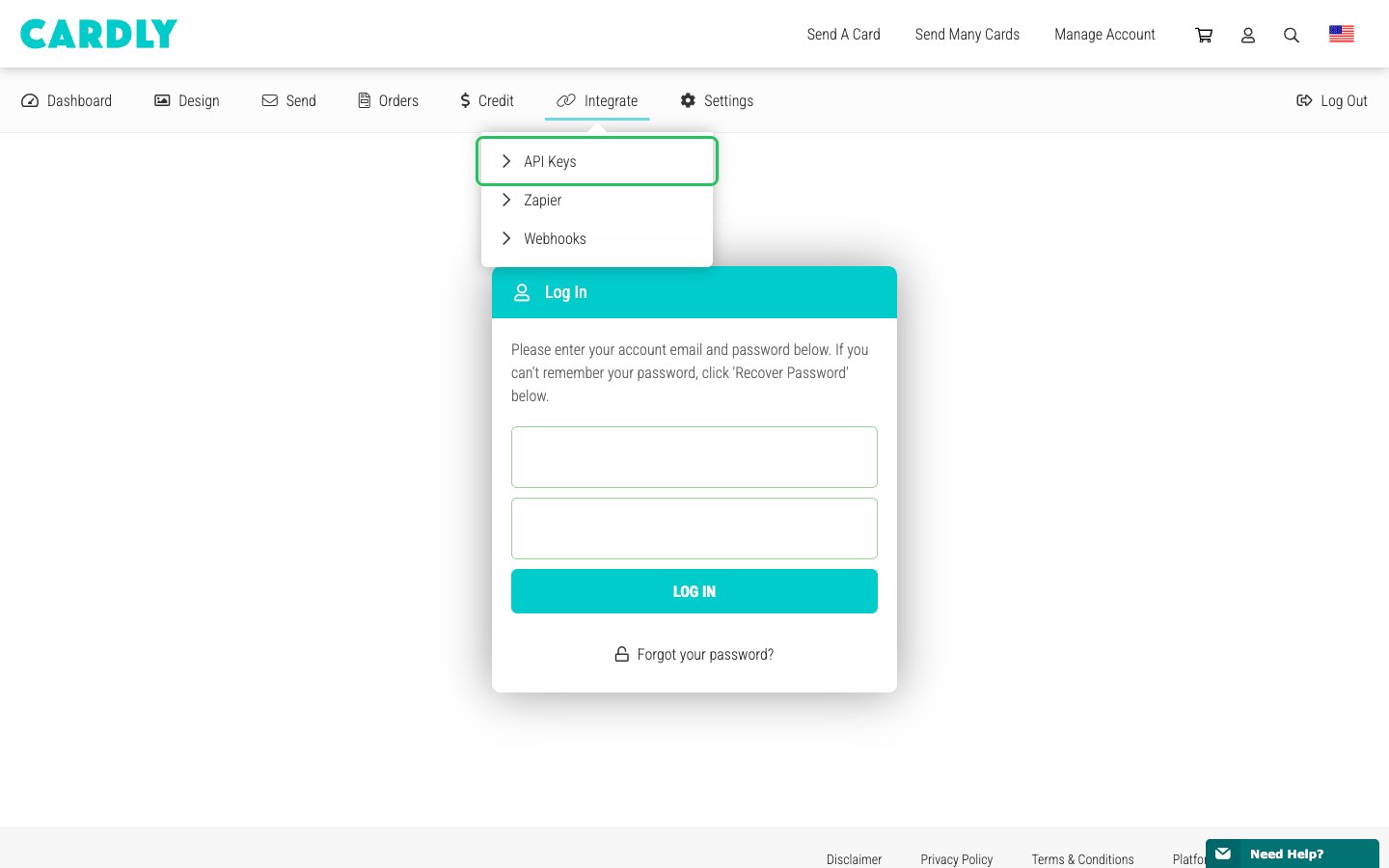
- On Manage API Keys, click New API Key.
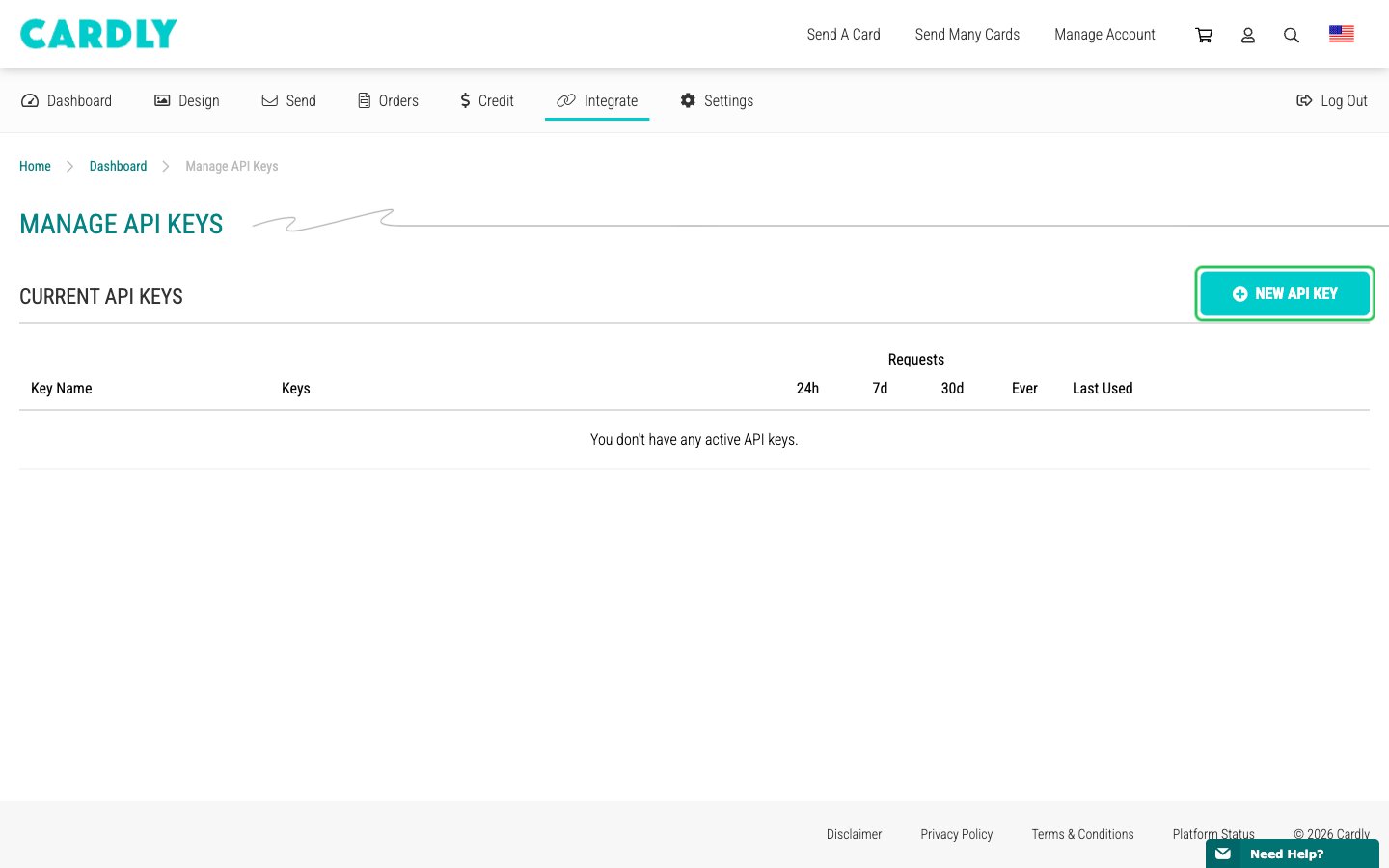
- A new key row appears with two keys:
- Development: the test key, prefixed with
test_. It can do everything a live key can but never performs mutations, so it never places real orders. - Production: the live key, prefixed with
live_. It has no restrictions and places real orders.
- Development: the test key, prefixed with
- To use the test key, click the copy icon next to Development.
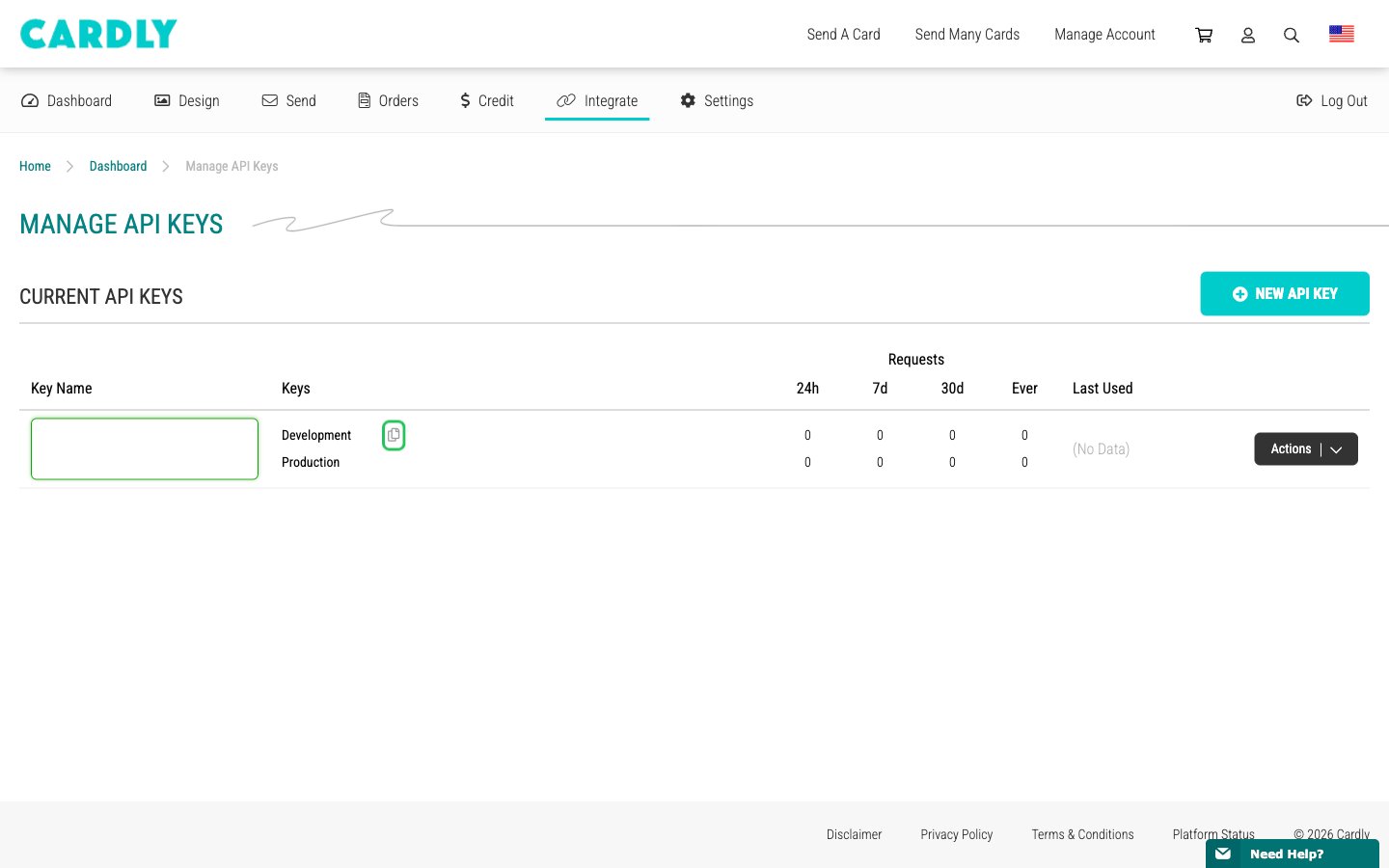
- To use the live key, open Actions > Reveal on the key row, then click the copy icon next to Production.
Step 2: Enter your API key in the Connect UI
- Open the form where you need to authenticate with Cardly.
- Enter your test or live key in the API Key field.
- Submit the form, and you should be successfully authenticated.