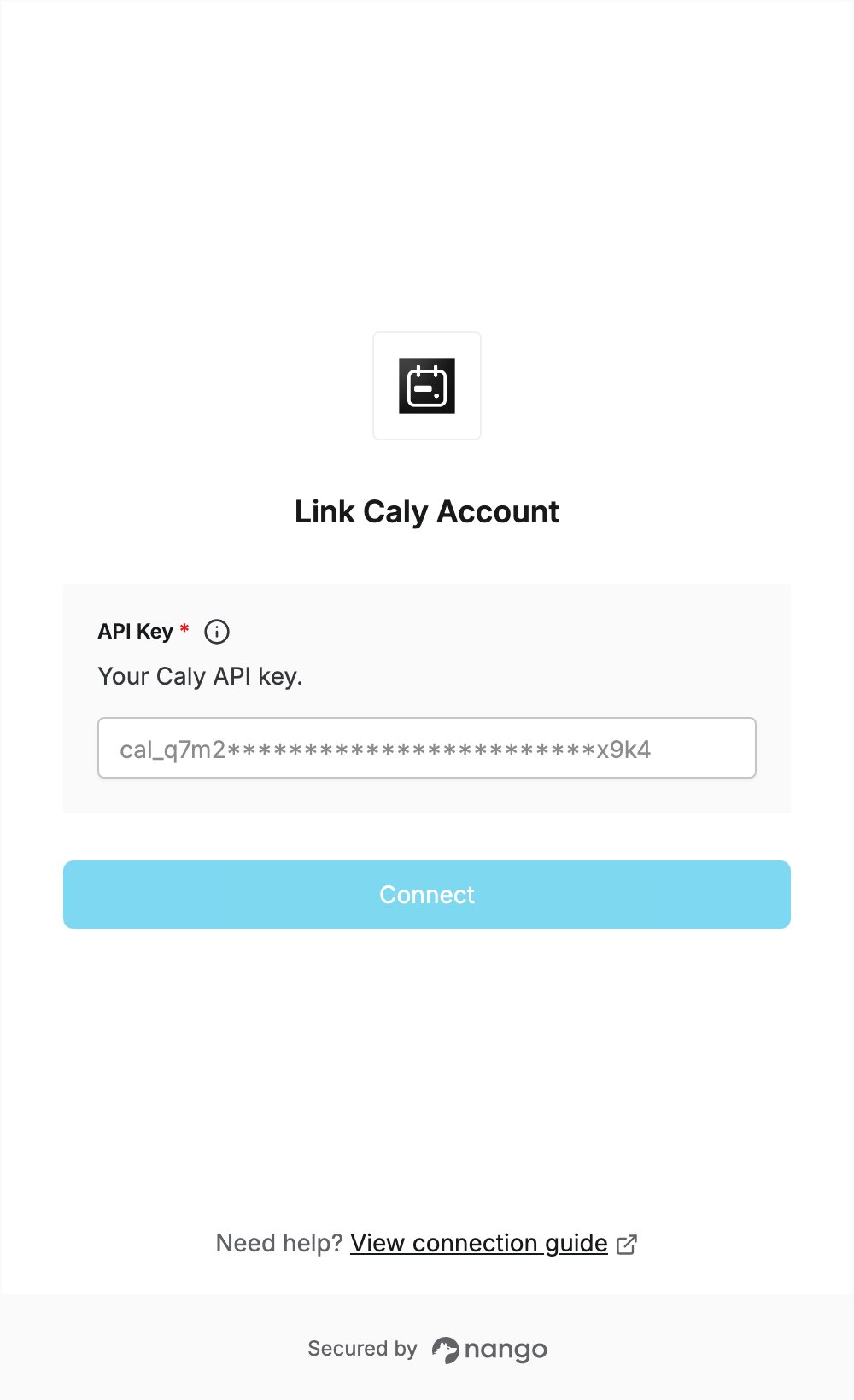
Overview
To authenticate with Caly, you need:- API Key — a Caly API key.
Prerequisites
- A Caly account. You can sign up for the Free plan without a card.
Step 1: Create an API key
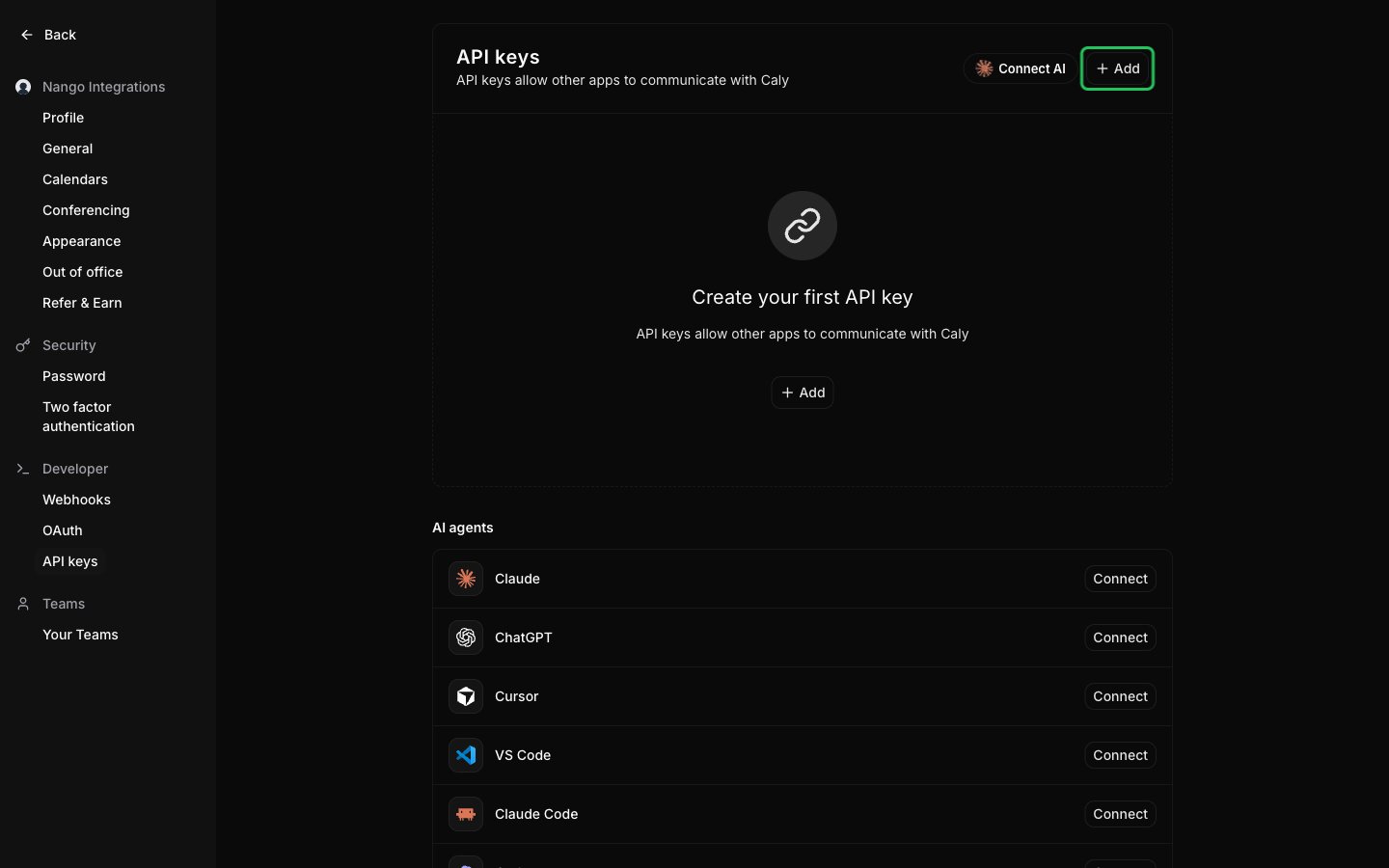
- Sign in to Caly and open Settings → Developer → API keys.
- Click Add.
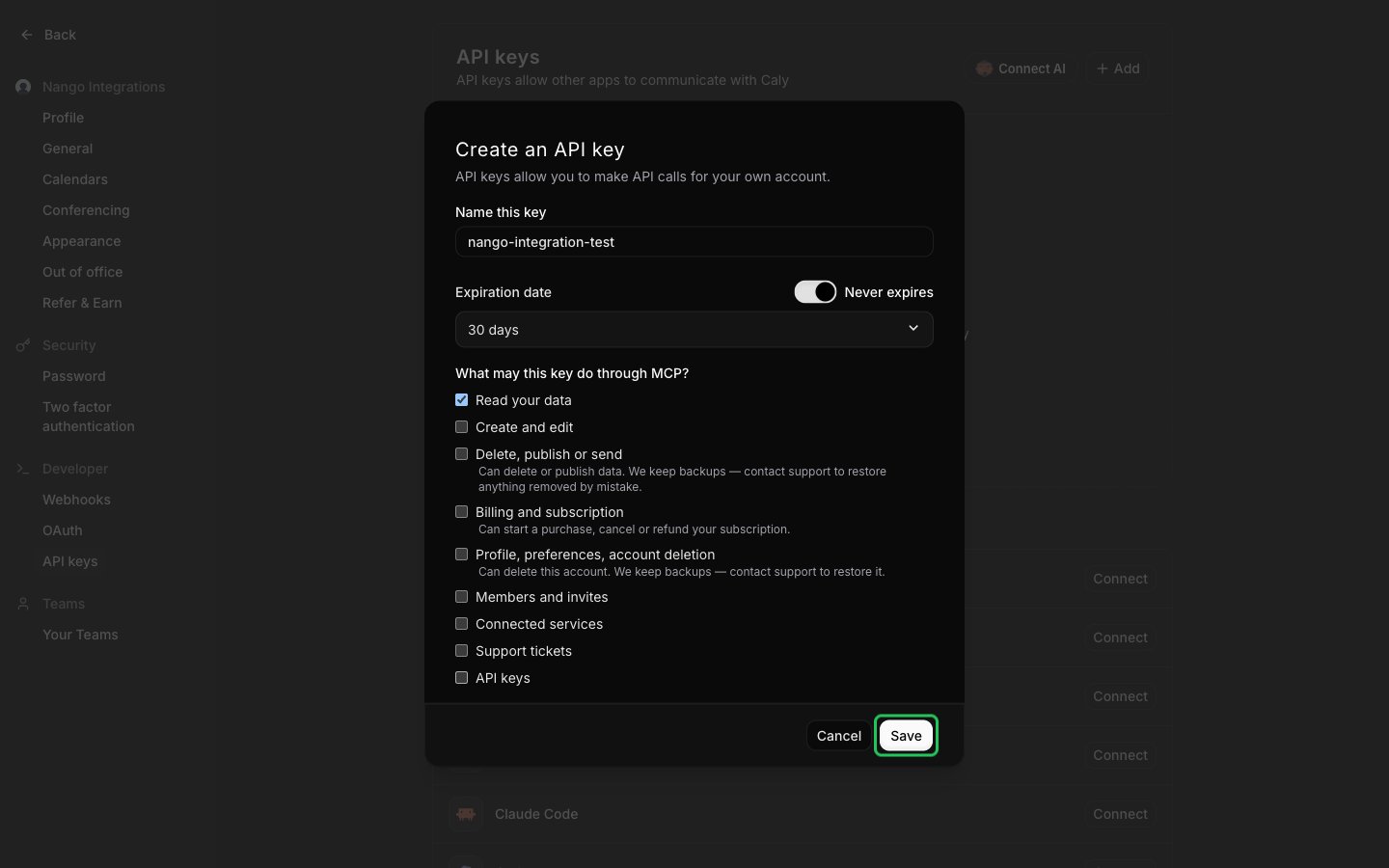
- Enter a name for the key, choose an expiration (or Never expires), and under What may this key do through MCP? keep only the permissions your integration needs, for example Read your data. Click Save.
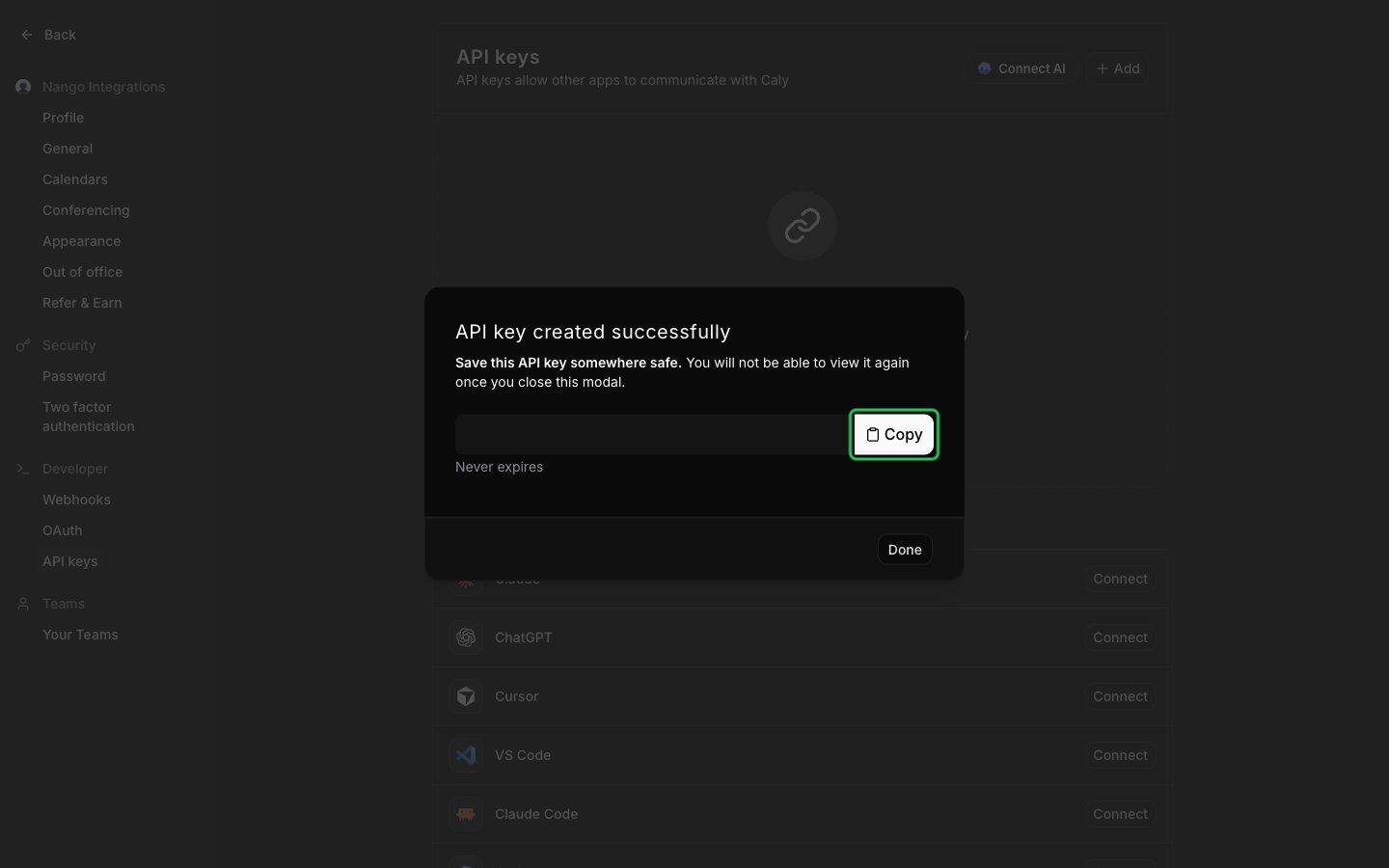
- Click Copy to copy the API key, then click Done. The key starts with
cal_, and Caly shows it only once.
Step 2: Enter your API key in the Connect UI
- Open the form where you need to authenticate with Caly.
- Enter your API Key from Step 1.
- Submit the form. Nango checks the key with Caly, and you are connected.