Overview
To authenticate with Buildkite, you need:- API Access Token — a token that lets Nango call the Buildkite REST API on your behalf.
Prerequisites
- A Buildkite account that is a member of the organization you want to connect.
Step 1: Create an API access token
- Log in to Buildkite.
- Click your profile icon in the top-right corner, select Personal Settings, then select API Access Tokens.
- Click New API Access Token and enter a description.
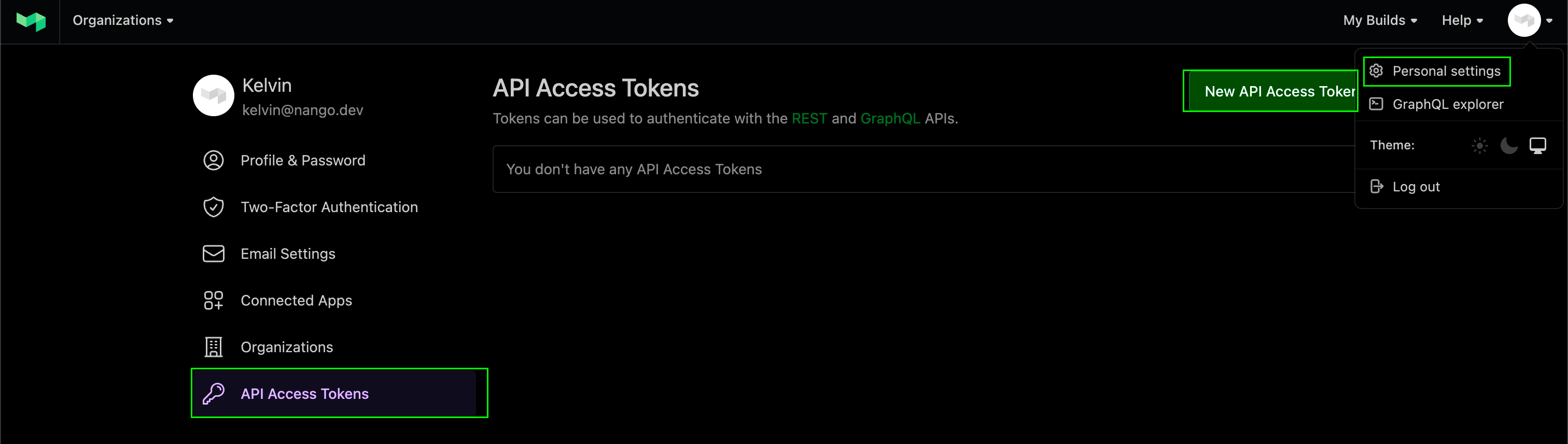
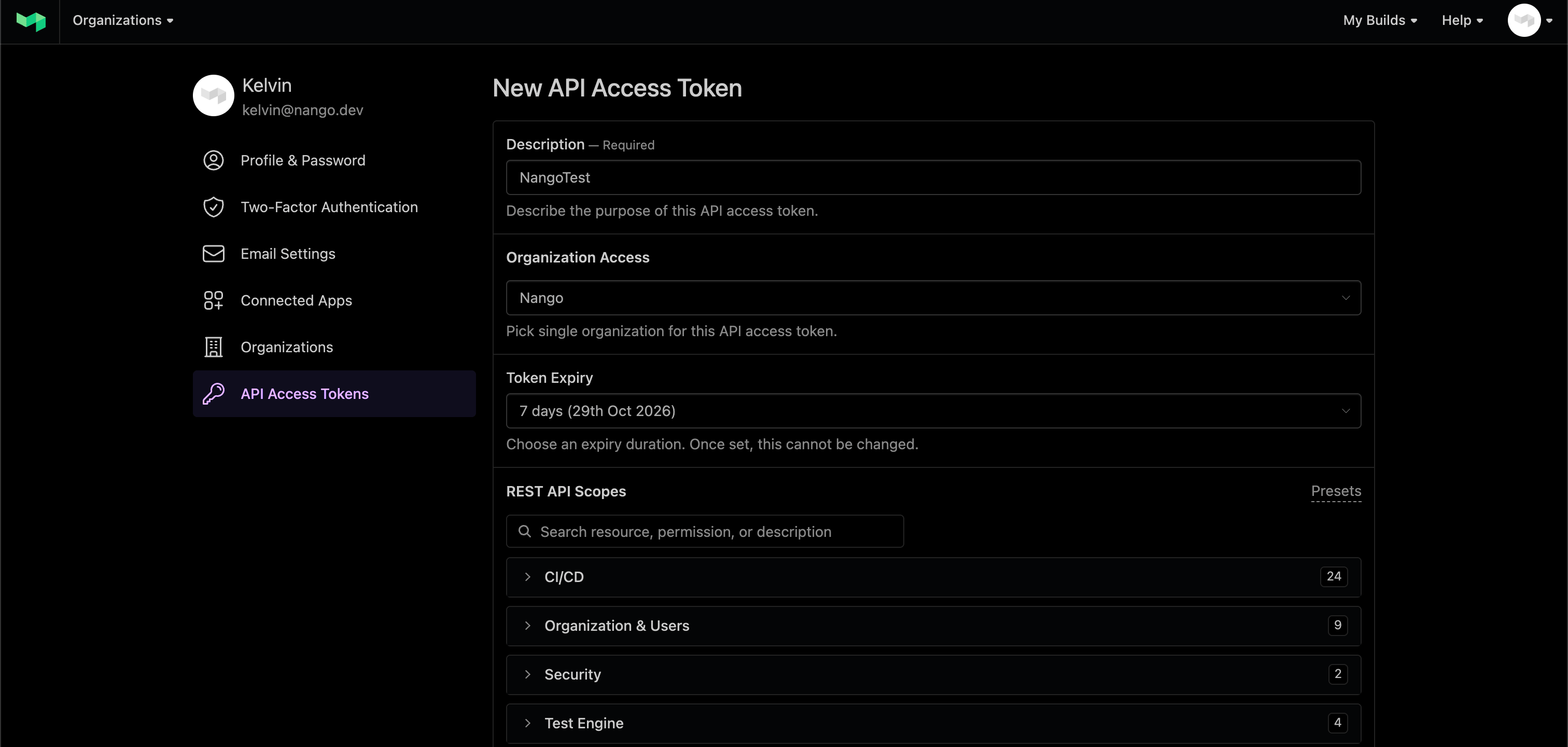
- Under Organization Access, select the organization you want to connect.
-
Select the REST API scopes your integration needs, such as
read_organizations,read_pipelines, andread_builds. -
Under GraphQL API Access, choose whether the token can call the Buildkite GraphQL API:
- Disabled — the token can’t call the GraphQL API.
- Read-only — allows GraphQL queries but rejects mutations.
- Full access — allows GraphQL queries and mutations.
- Optionally, restrict where the token can be used from by entering IP ranges in CIDR notation under Allowed IP Addresses. If you do, add Nango’s public IP addresses so Nango can reach the Buildkite API.
- Under Token Expiry, select Never so the token doesn’t expire. Tokens expire after seven days by default, and an expired token breaks the connection.
- Click Create New API Access Token and copy the token. It starts with
bkua_.
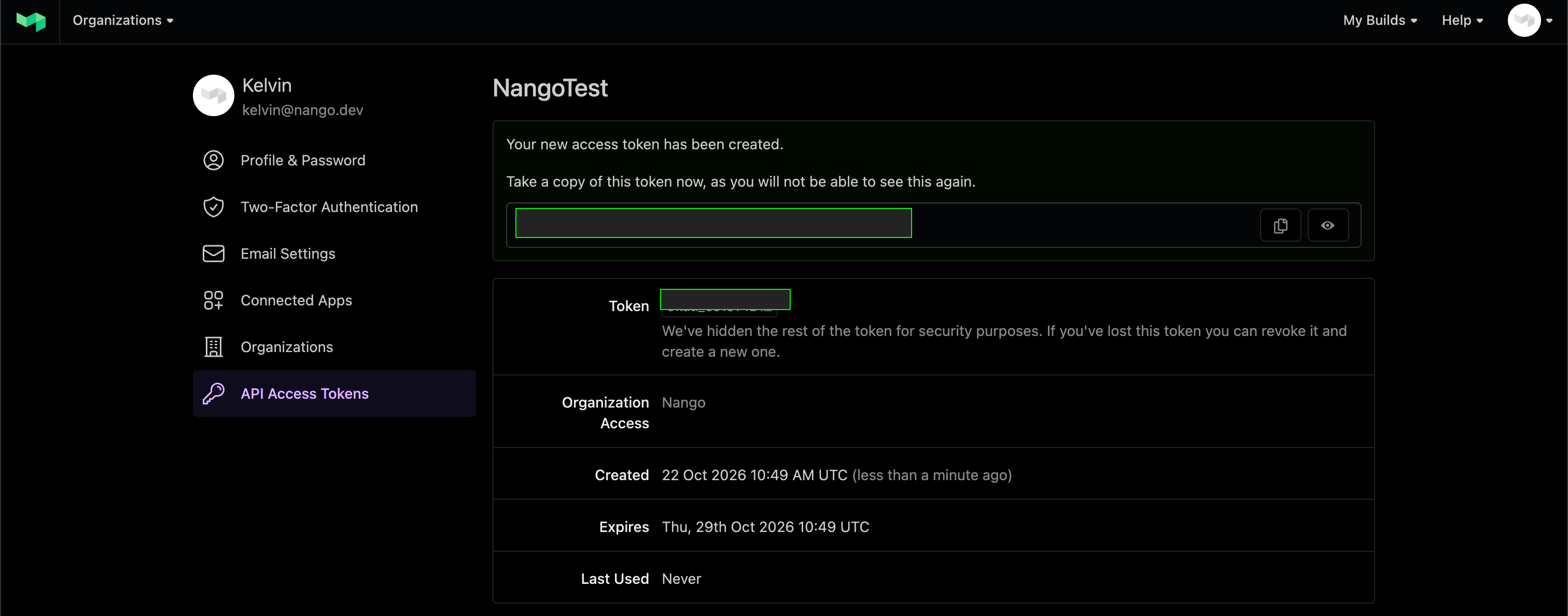
Buildkite only shows the token once. Save it somewhere secure before leaving the page. If you set an expiry, you’ll need to create a new token and reconnect
when it expires.
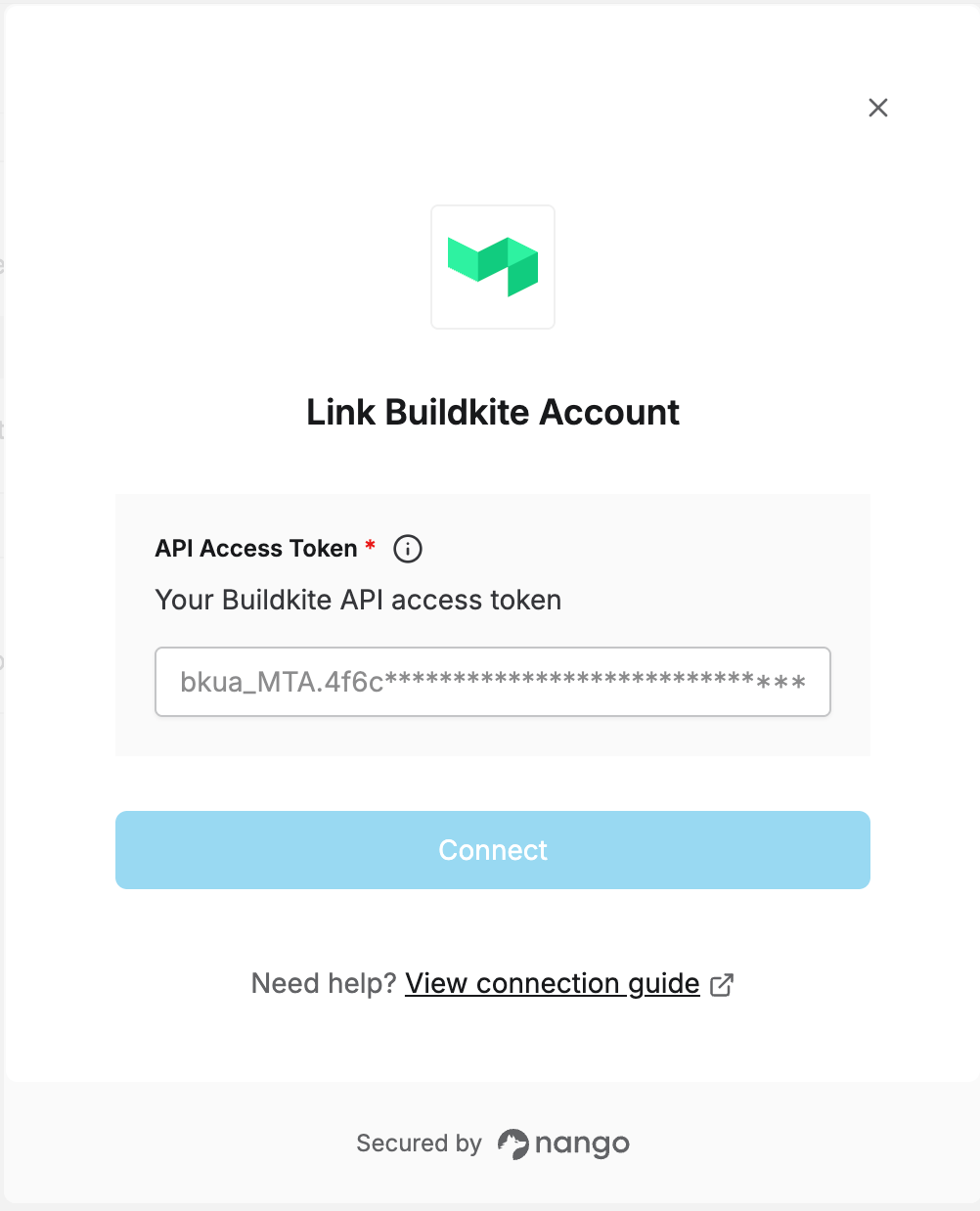
Step 2: Enter your token in the Connect UI
- Open the form where you need to authenticate with Buildkite.
- Enter your API Access Token in the designated field.
- Submit the form, and you should be successfully authenticated.