Overview
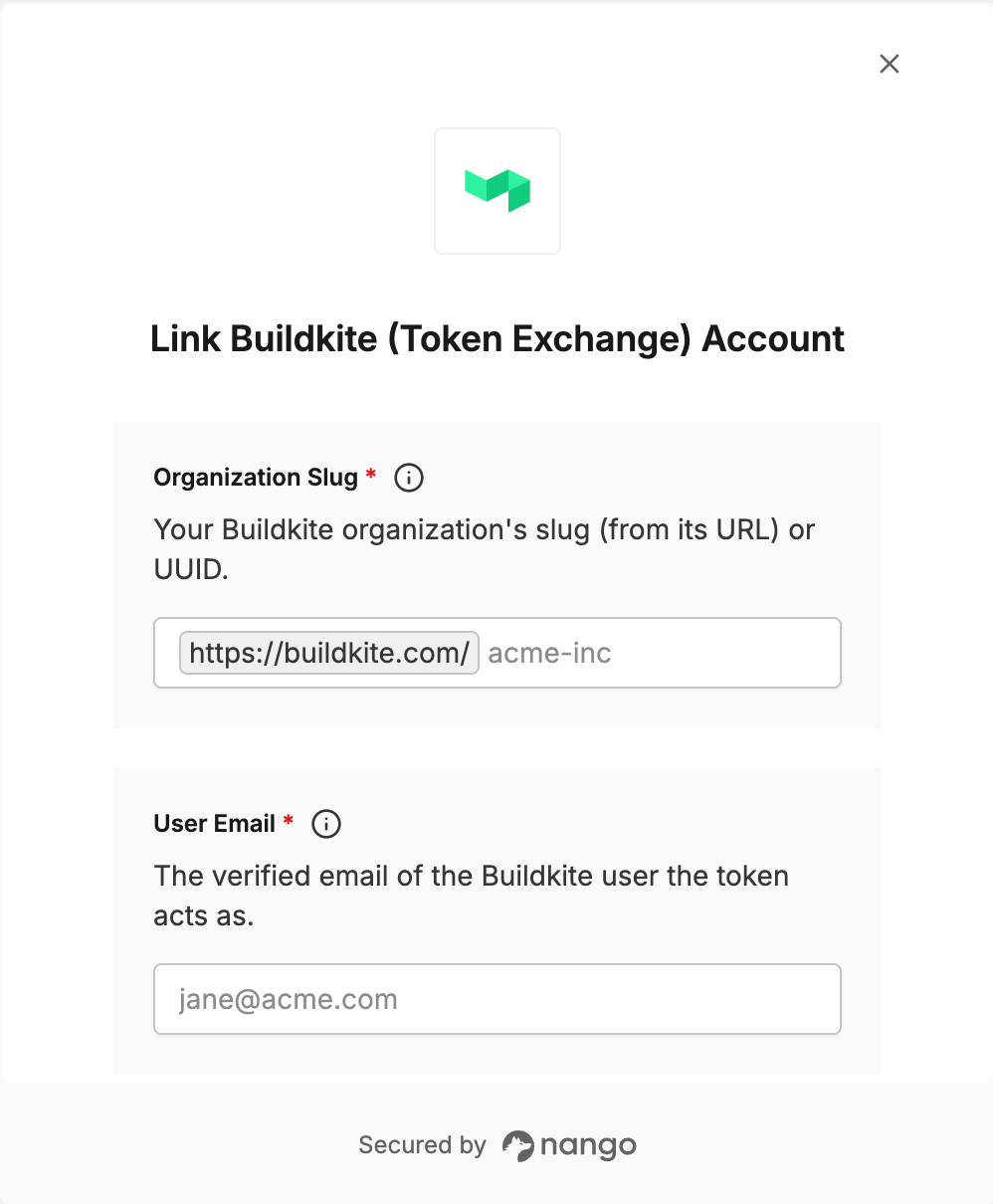
To connect with Buildkite using token exchange, you need:- Organization Slug — the Buildkite organization the token is for.
- User Email — the email of the Buildkite user the token acts as.
Prerequisites
- A Buildkite organization on the Enterprise plan, with a Token Exchange App set up in Nango. See the setup guide.
Step 1: Find your organization slug
- Log in to Buildkite.
- Look at the URL in your browser’s address bar. It follows the pattern
buildkite.com/acme-inc. Your organization slug is the part afterbuildkite.com/, such asacme-inc.
Use the slug from the URL, not the organization’s display name. You can also enter the organization’s UUID, which stays the same if the organization is renamed.
Step 2: Choose the user
Pick the Buildkite user the token should act as, such as a dedicated service account. The user must:- be an active member of the organization from step 1.
- have a verified email address on their Buildkite account.
Step 3: Enter your details in the Connect UI
- Open the form where you need to authenticate with Buildkite (Token Exchange).
- Enter your Organization Slug and the user’s User Email.
- Click Connect.