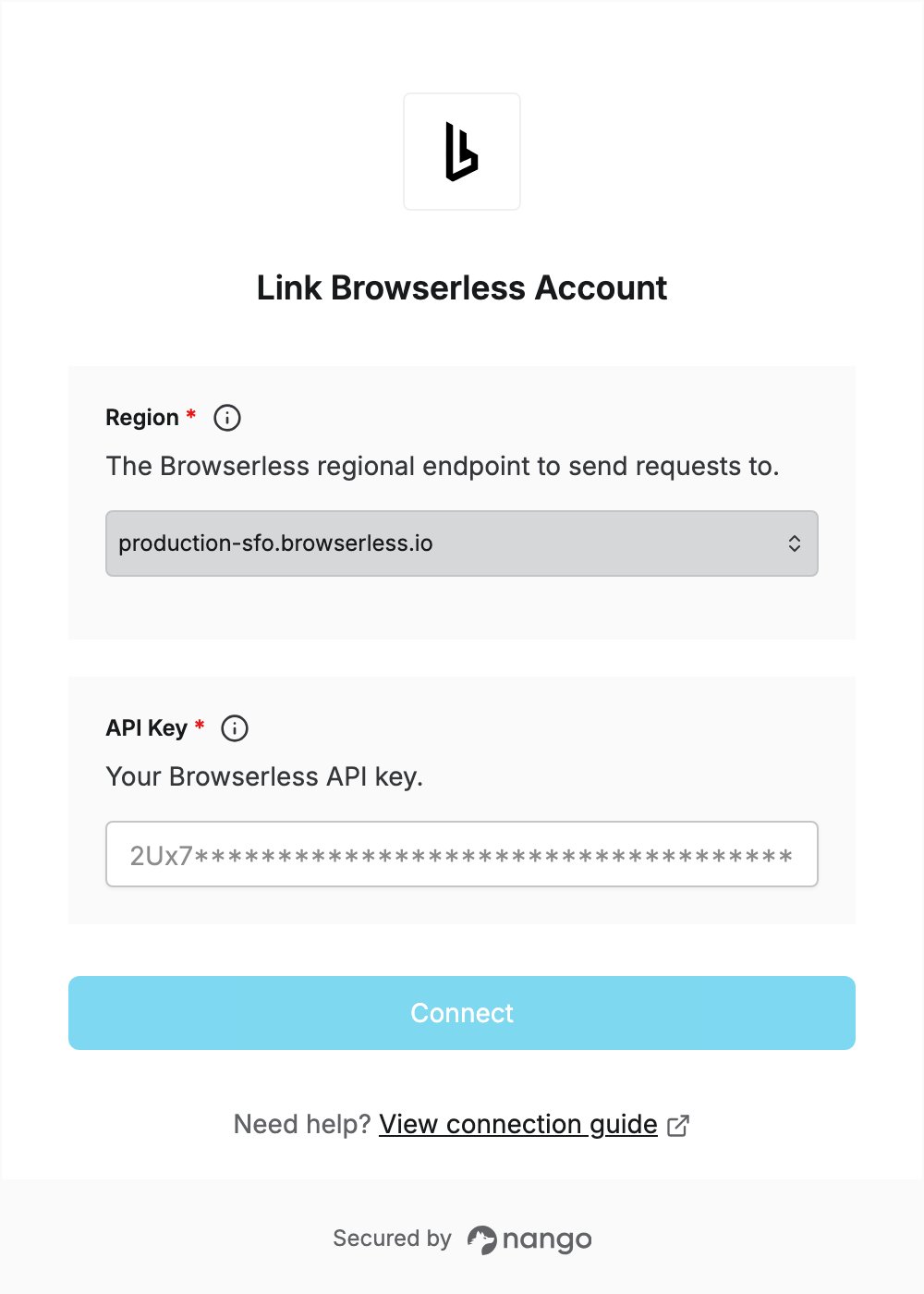
Overview
To authenticate with Browserless, you need:- Region — the Browserless regional endpoint to send requests to.
- API Key — a Browserless API key.
Prerequisites
- A Browserless account. You can sign up for free at browserless.io.
Step 1: Choose your region
Your account has no assigned region: any region works with any account. Pick the one closest to you or to the sites you automate:
See Connection URL patterns for details.
Step 2: Create an API key
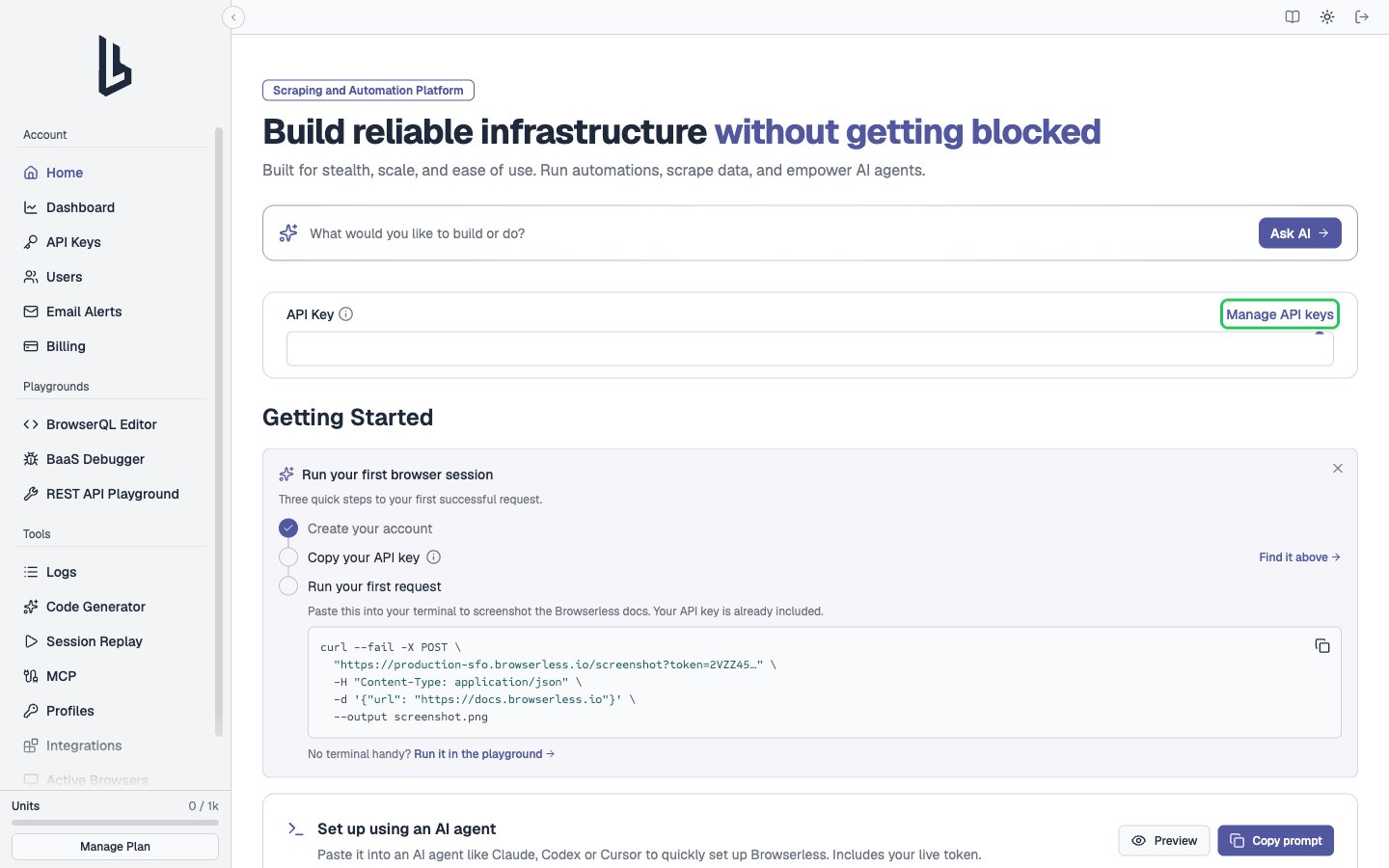
- Log in to your Browserless account. On the account home page, find the API Key section and click Manage API keys (or open API Keys in the sidebar).
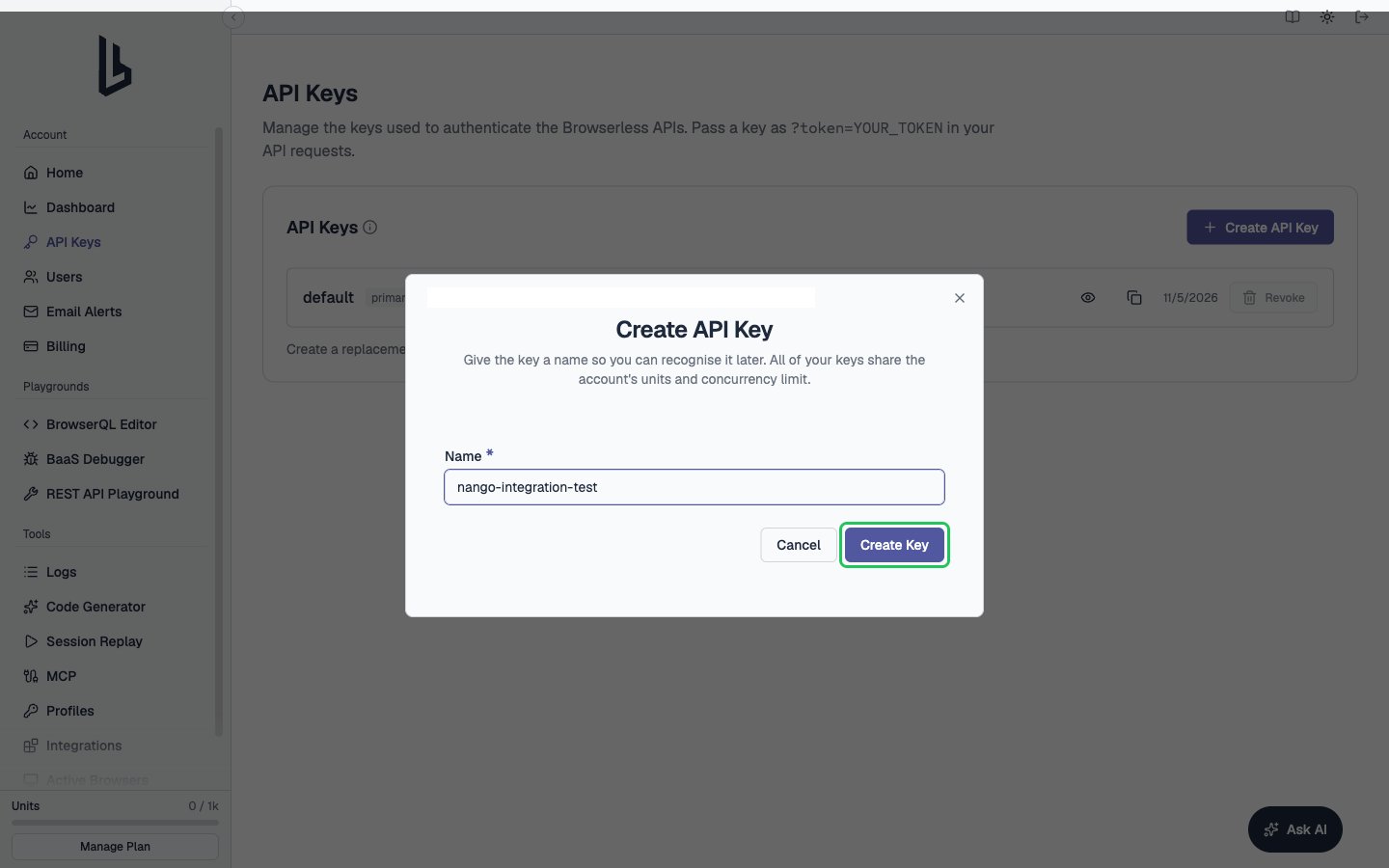
- Click Create API Key, enter a name for the key, and click Create Key.
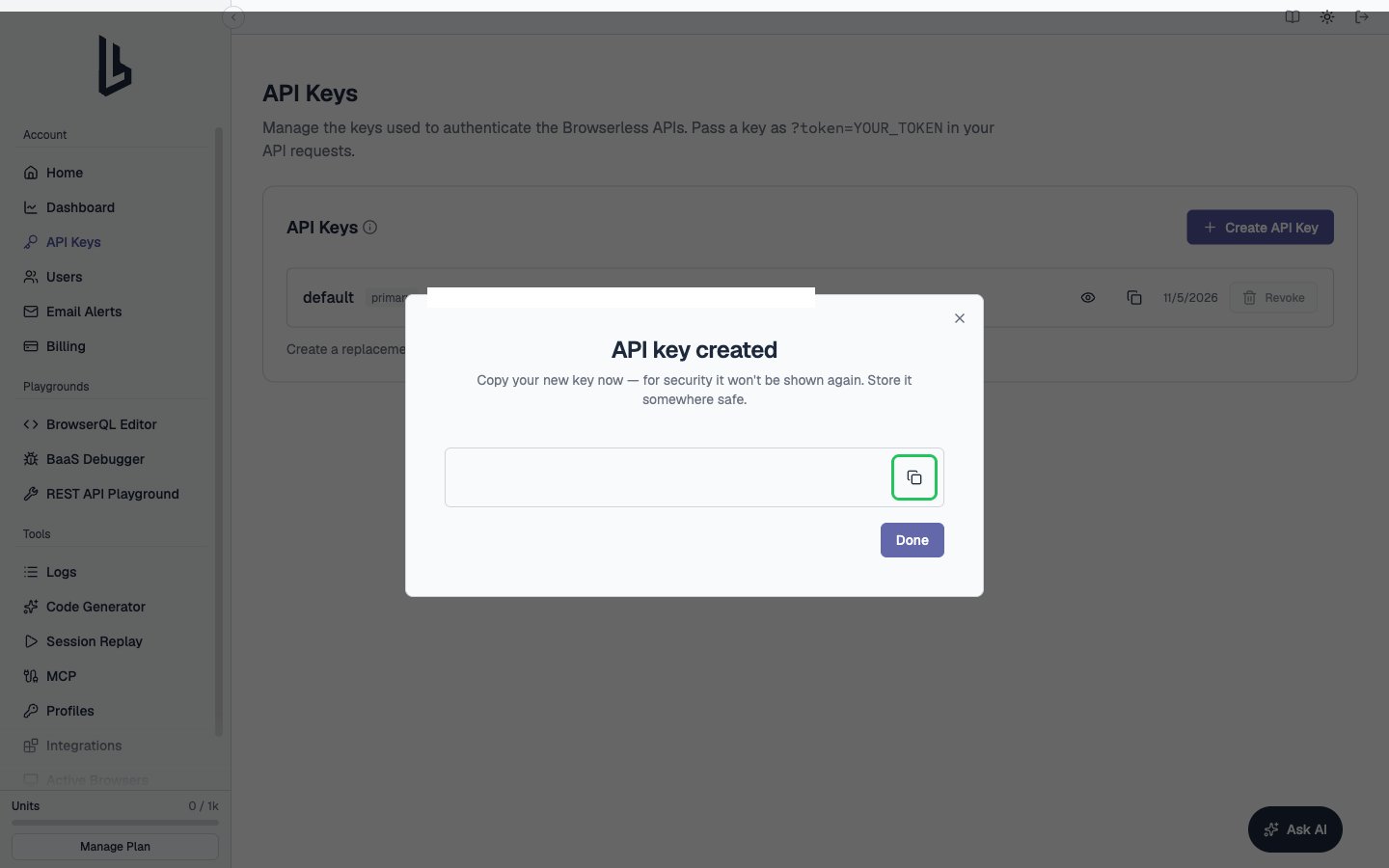
- In the API key created dialog, copy the key right away. It is shown only once.
Step 3: Enter your credentials in the Connect UI
- Open the form where you need to authenticate with Browserless.
- Select your Region and enter your API Key in the designated fields.
- Submit the form, and you should be successfully authenticated.