Overview
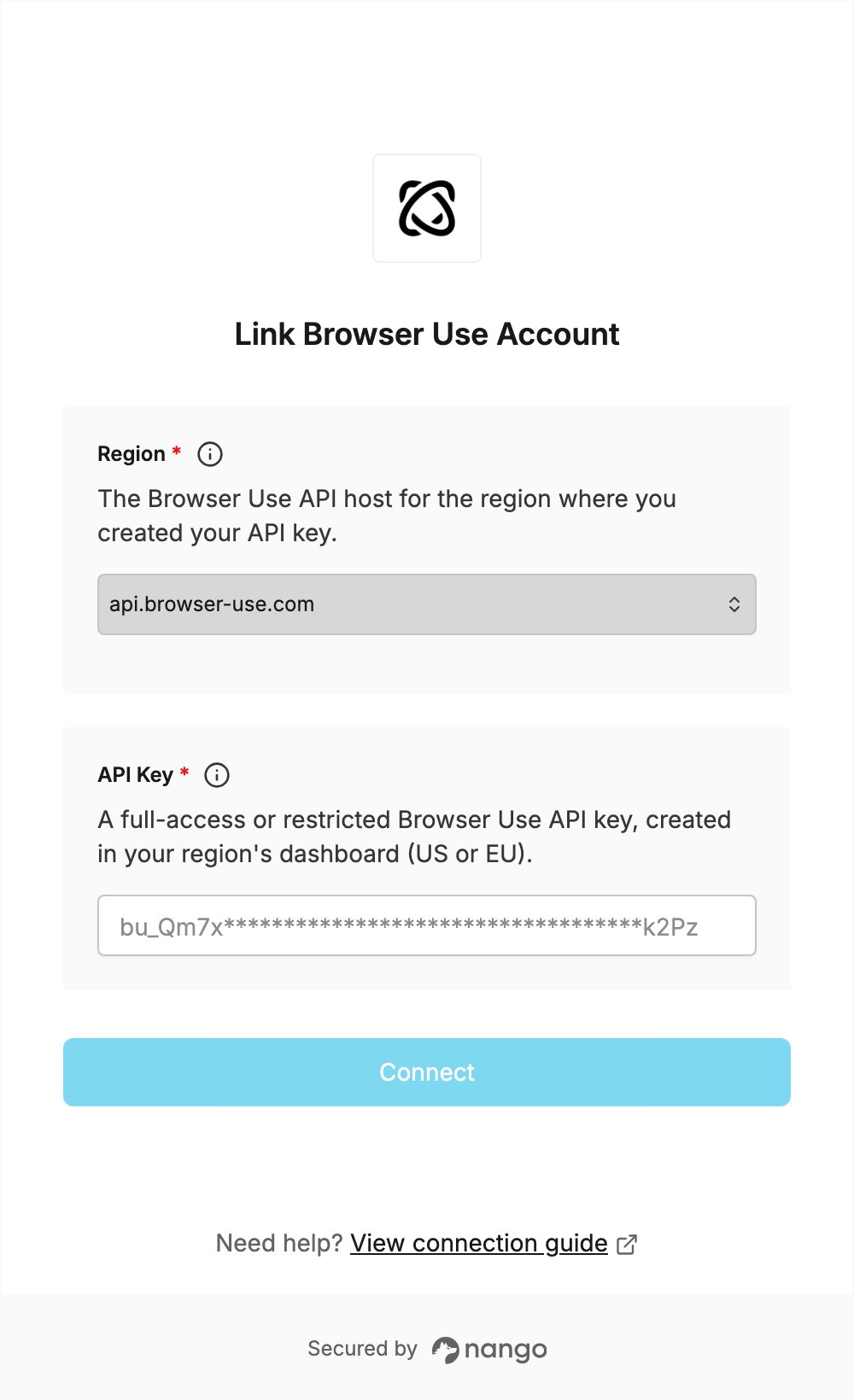
To authenticate with Browser Use, you need:- Region — the Browser Use API host for the dashboard where you created your API key.
- API Key — a Browser Use API key.
Prerequisites
- A Browser Use account. You can sign up at cloud.browser-use.com.
Step 1: Choose your region
Browser Use has a US and an EU deployment, each with its own dashboard and API host. Select the value that matches the dashboard you create your API key in:
US API keys do not authenticate EU API requests, so an EU connection needs a key created in the EU dashboard. See EU deployment for details.
Step 2: Create an API key
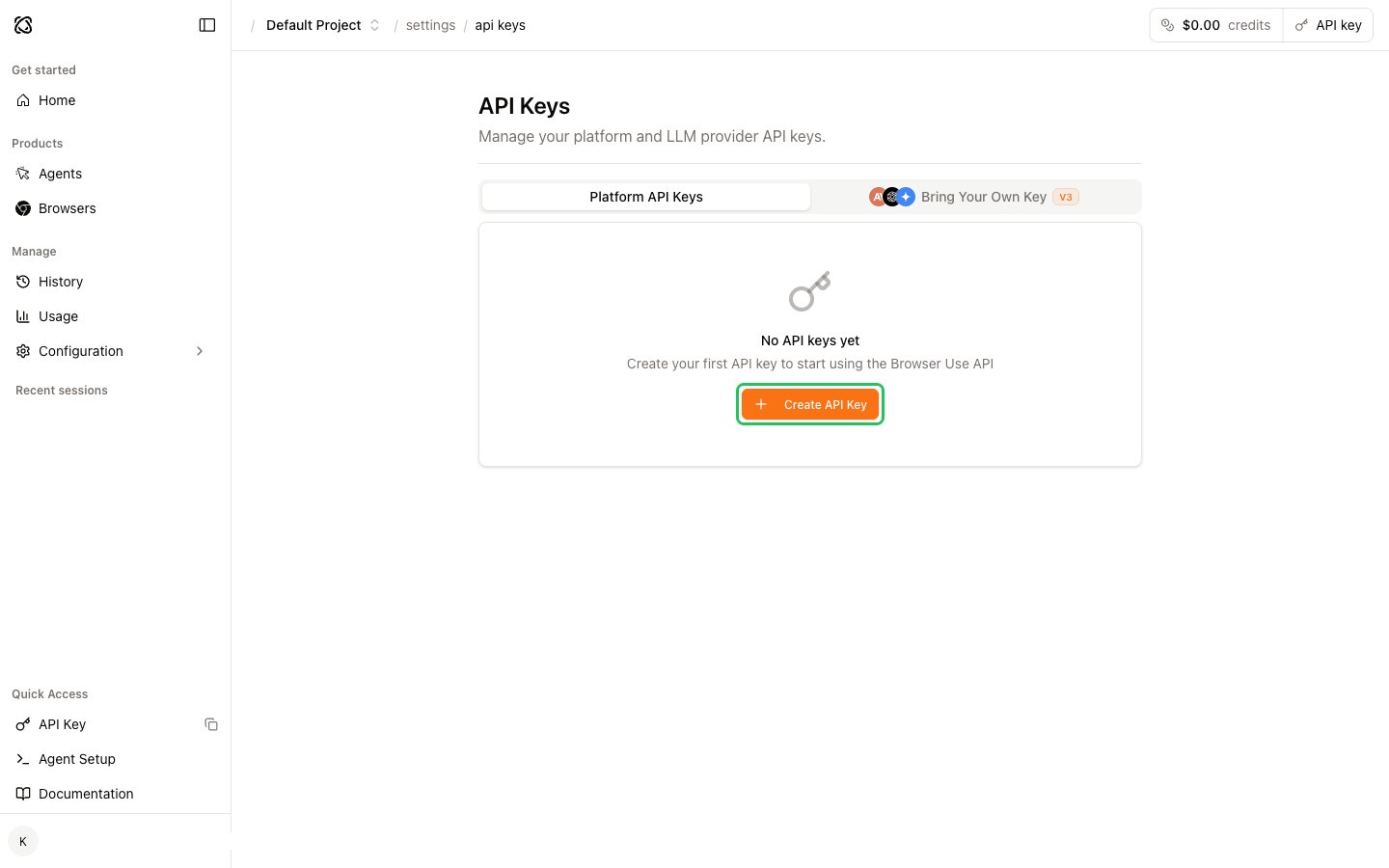
- Sign in to the Browser Use dashboard for your region and open Settings → API keys. For the EU, use the API Keys section of the EU dashboard at cloud.eu.browser-use.com.
- On the Platform API Keys tab, click Create API Key.
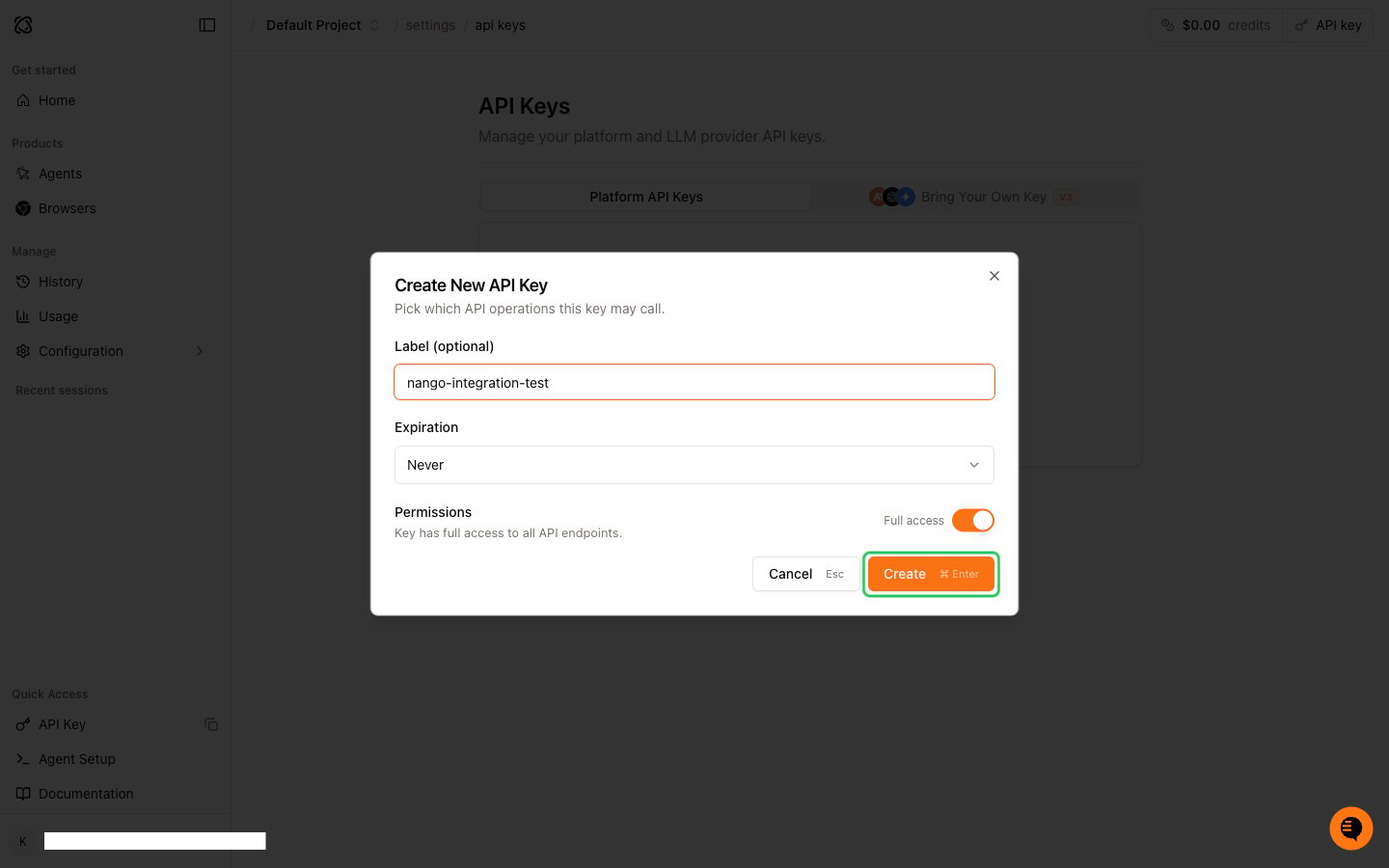
- Enter a label and choose an expiration. Leave Full access on, or turn it off to pick a Read or Write permission per resource. Then click Create.
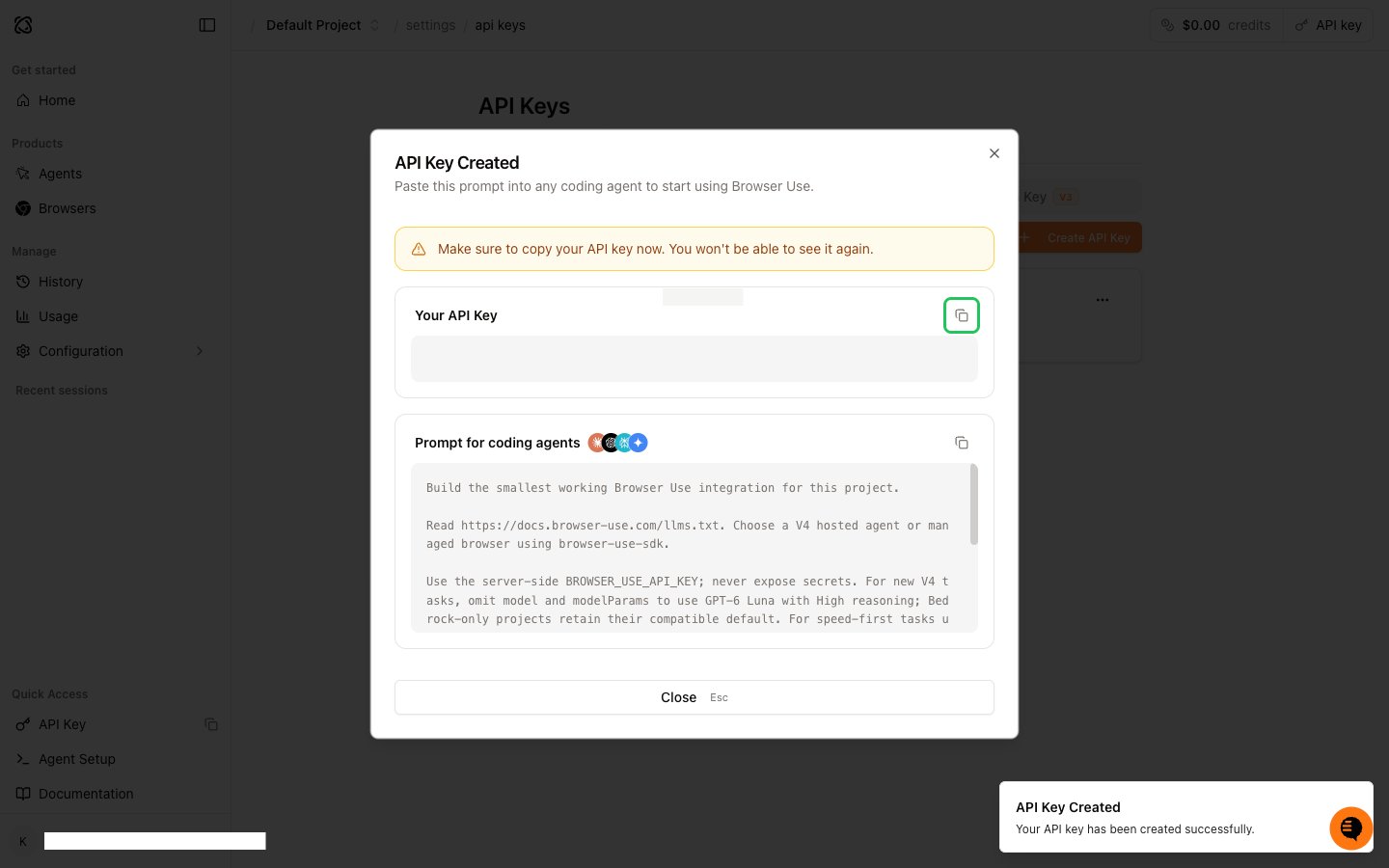
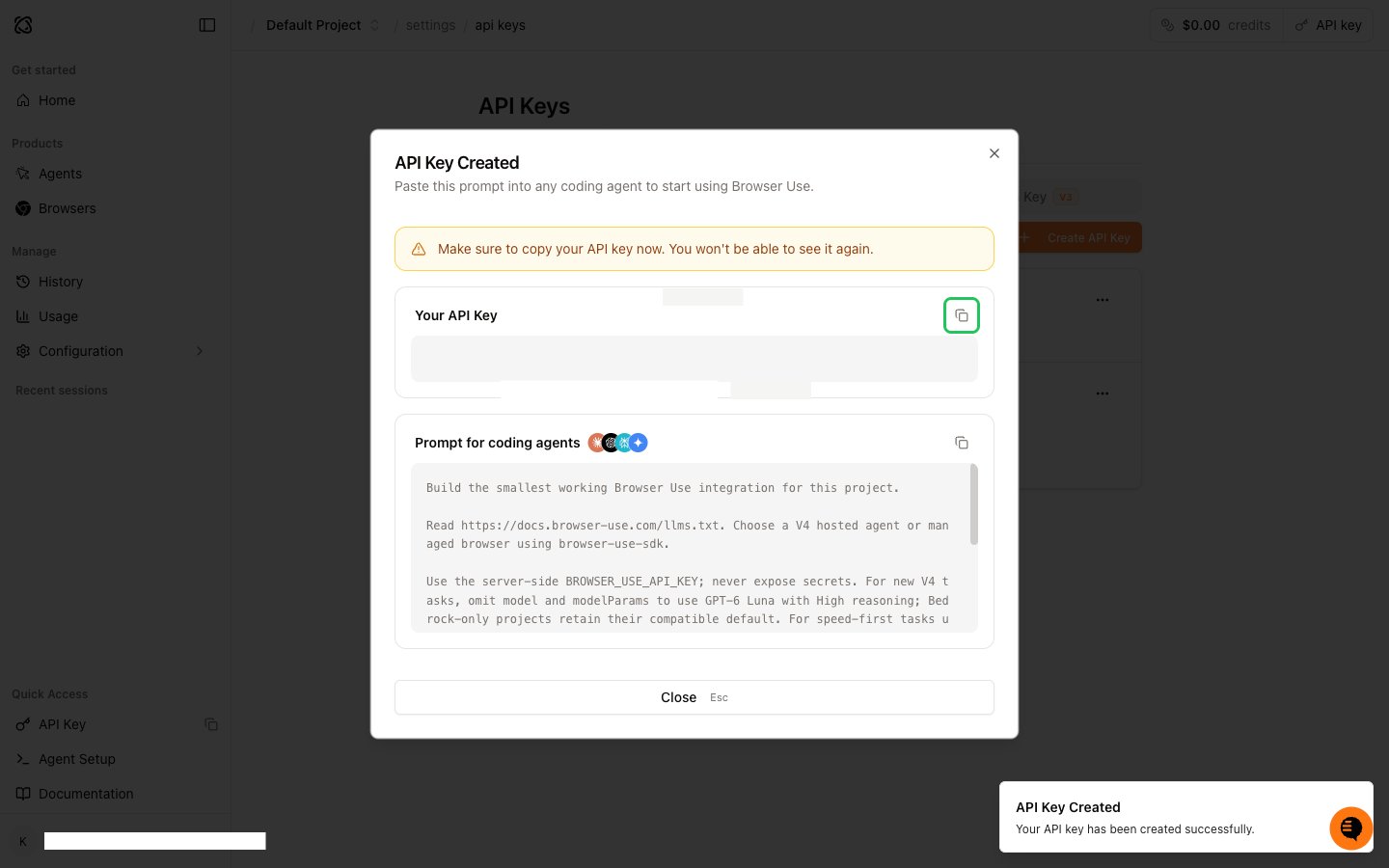
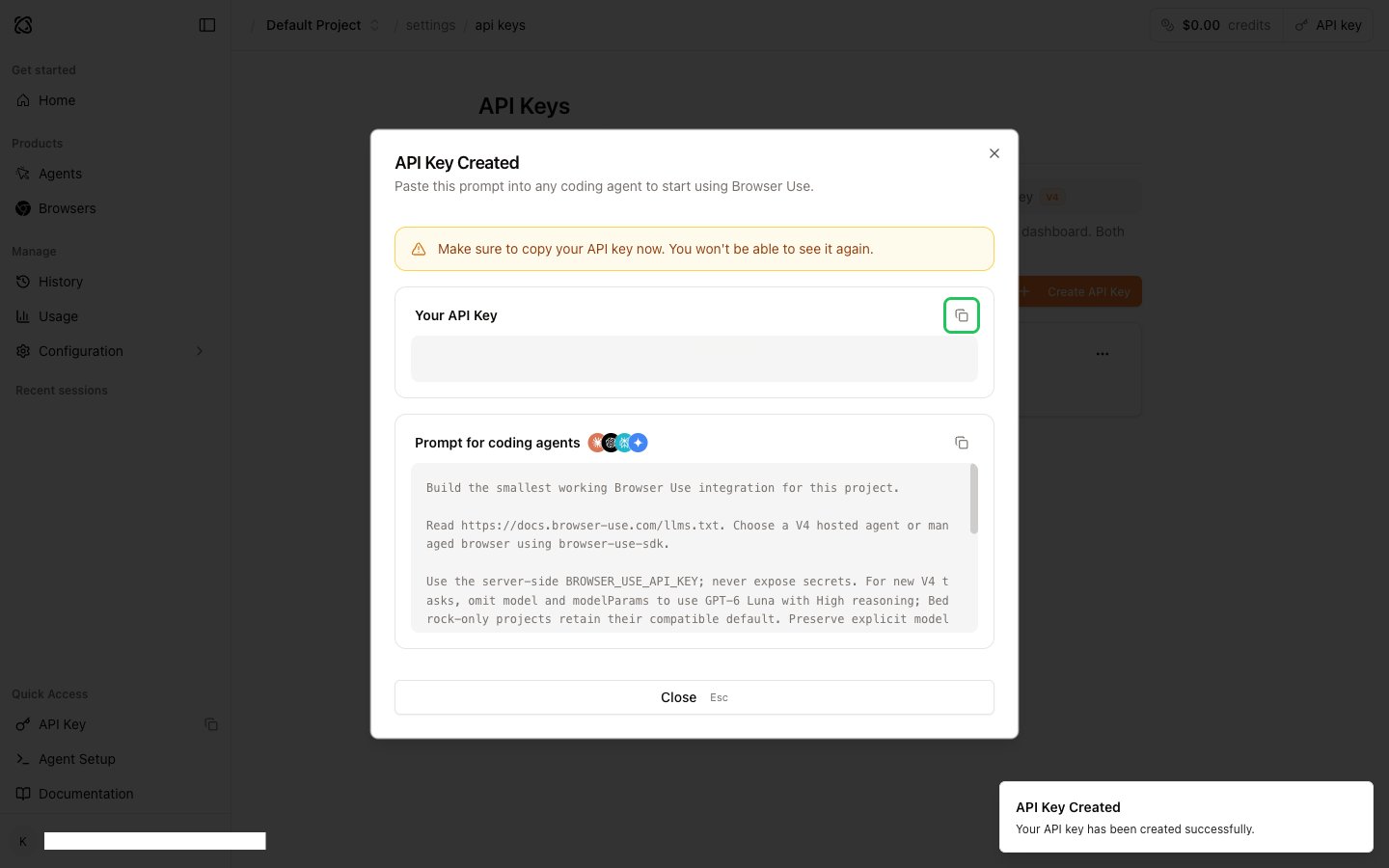
- In the API Key Created dialog, copy the key. It starts with
bu_.
Step 3: Enter your credentials in the Connect UI
- Open the form where you need to authenticate with Browser Use.
- Select your Region and enter your API Key in the designated fields.
- Submit the form, and you should be successfully authenticated.