Overview
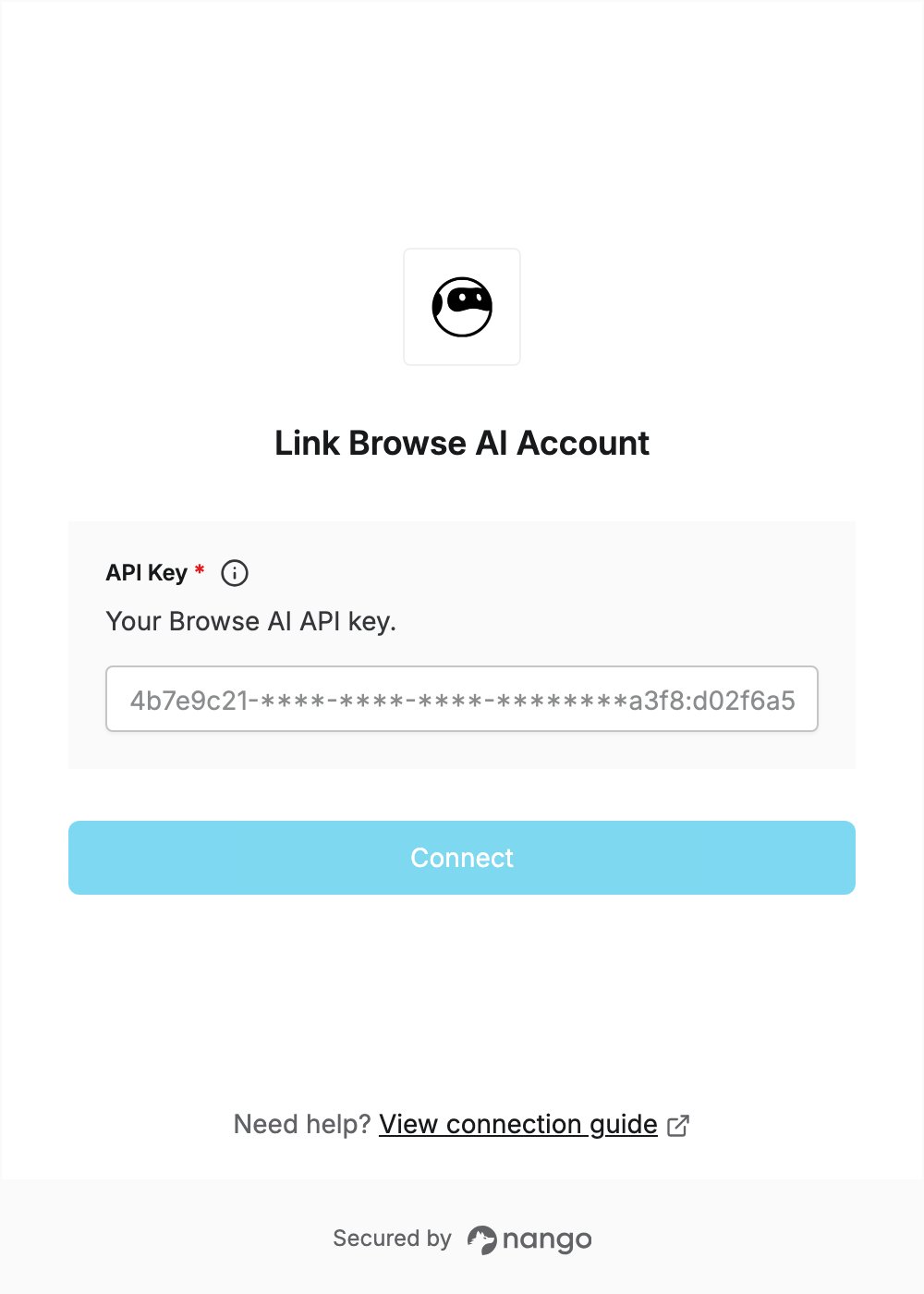
To authenticate with Browse AI, you need:- API Key — a Browse AI API key.
Prerequisites
- A Browse AI account. You can sign up for free; the API is available on all plans.
Step 1: Create an API key
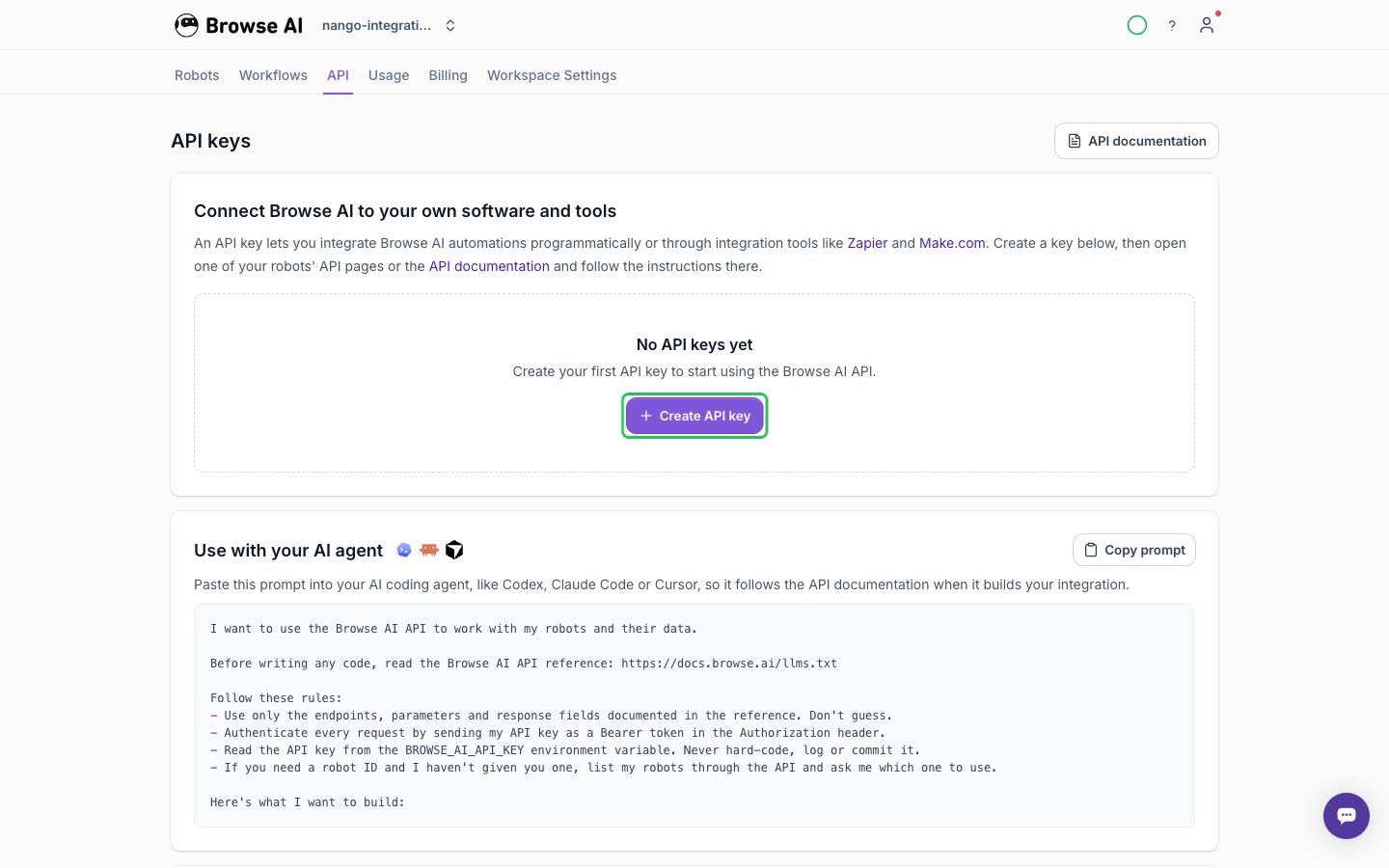
- Log in to the Browse AI dashboard and open the API tab (API keys page).
- Click Create API key.
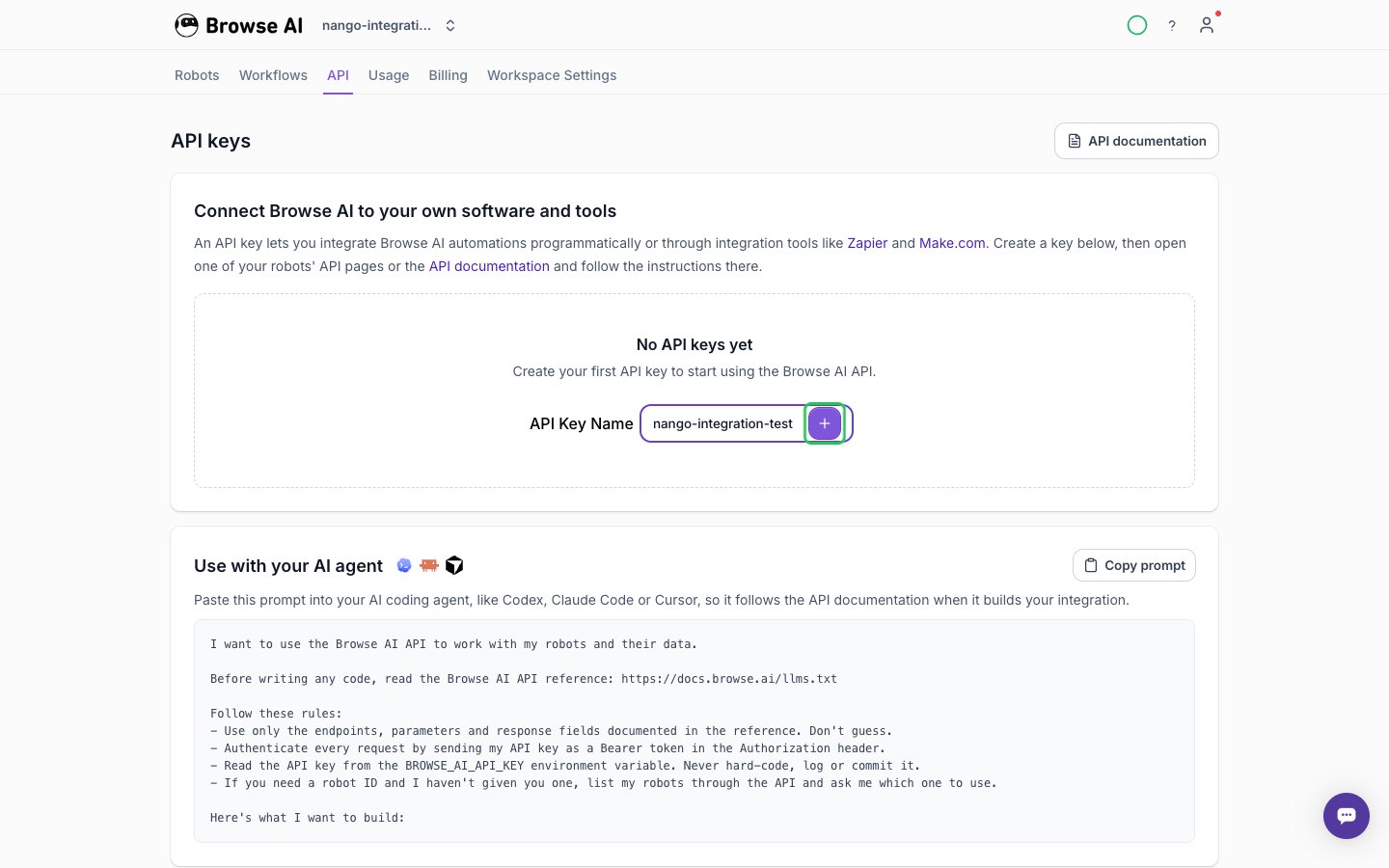
- Enter a descriptive name in the API Key Name field, then click the confirm button next to it.
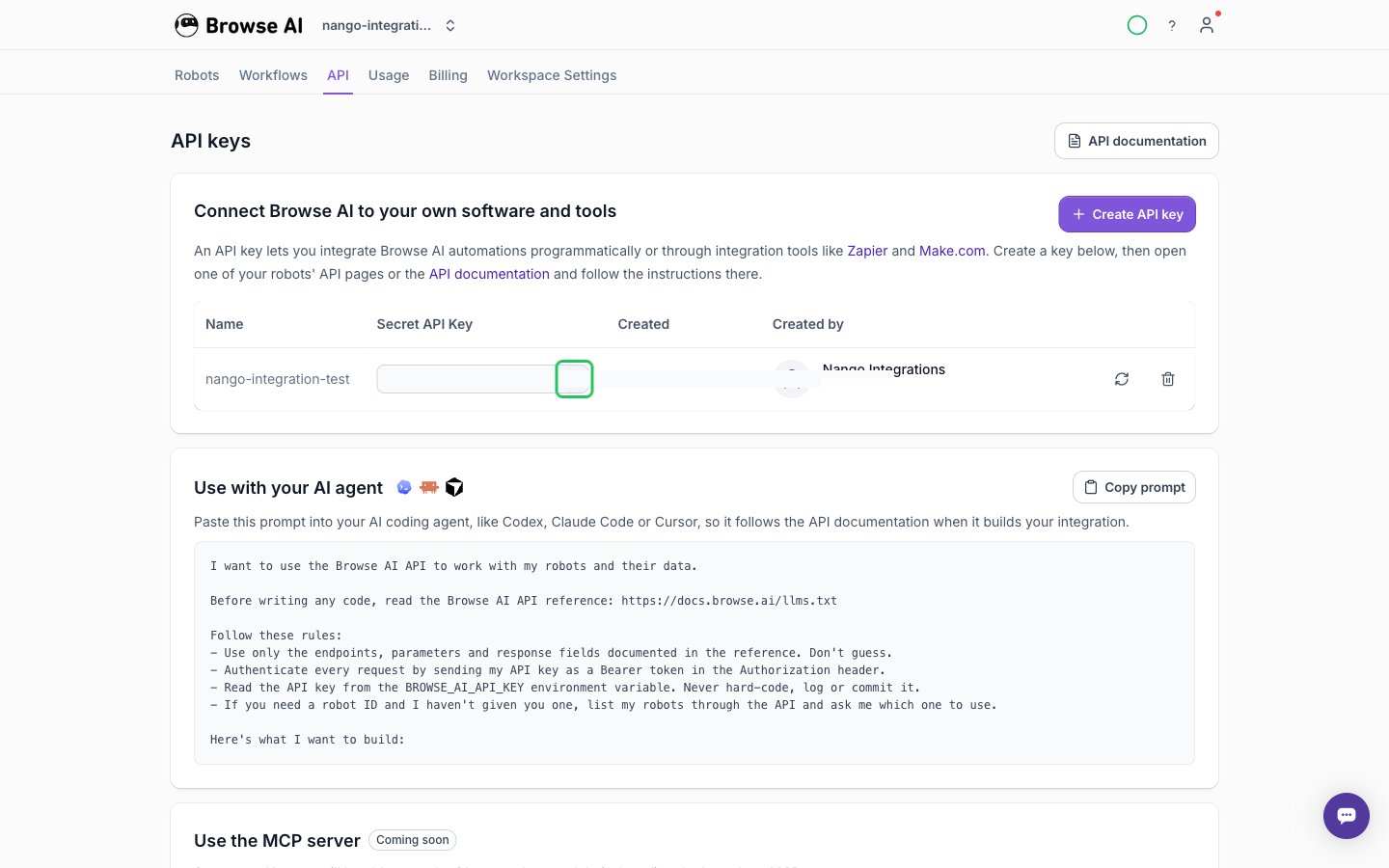
- The new key appears in the API keys table. Click the copy button in the Secret API Key column to copy the full key, then store it somewhere safe.
Step 2: Enter your API key in the Connect UI
- Open the form where you need to authenticate with Browse AI.
- Enter your API Key in the designated field.
- Click Connect.