Overview
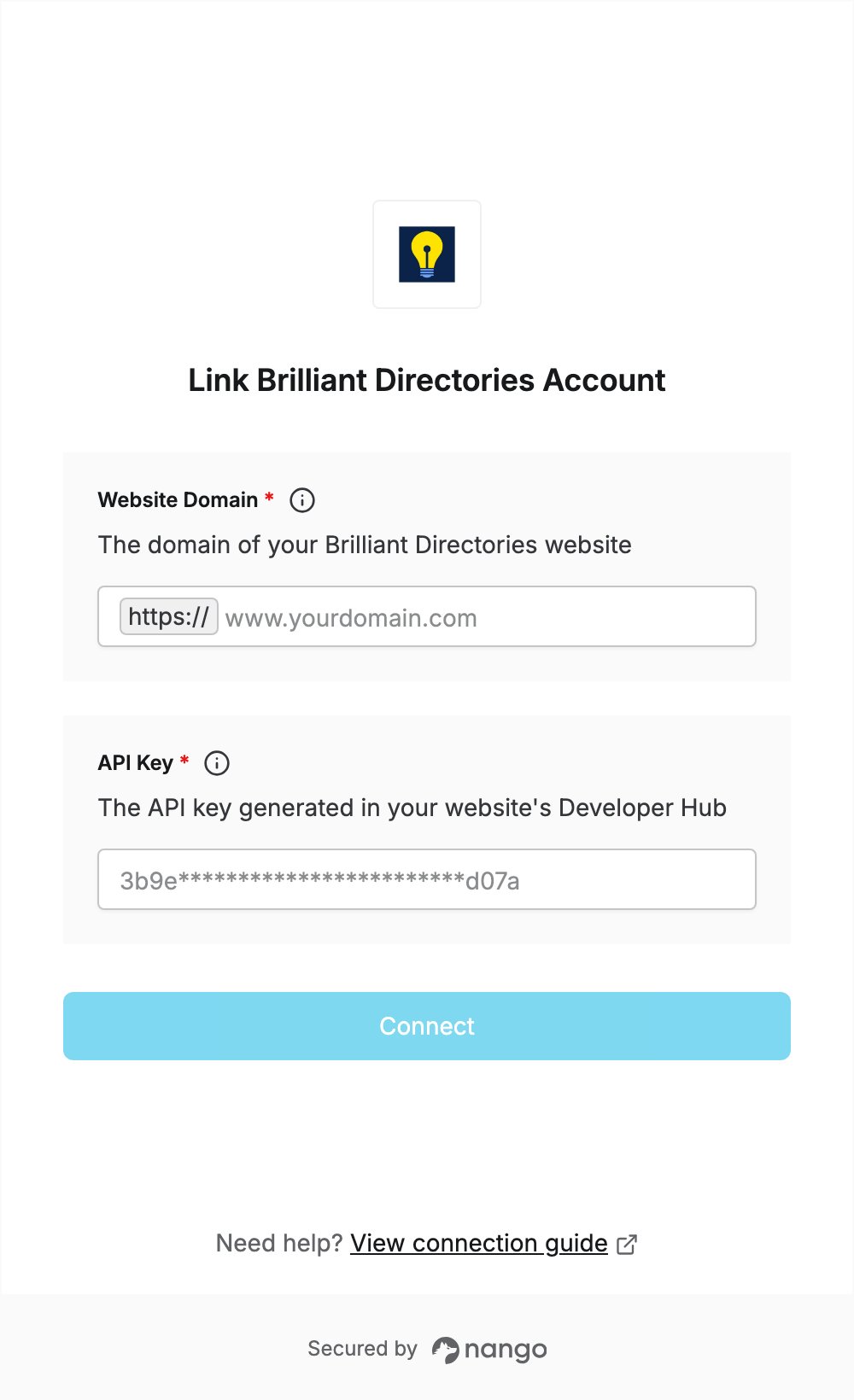
To authenticate with Brilliant Directories, you need:- Website Domain — the domain of your Brilliant Directories website.
- API Key — a key generated in your website’s Admin Panel.
Prerequisites
- Access to your Brilliant Directories website’s Admin Panel.
Step 1: Find your website domain
Your website domain is the address of your Brilliant Directories website, for examplewww.yourdomain.com. Include www. if your site uses it, and leave out https:// and any trailing slash.
If you have not connected your own domain yet, use the address shown on your website’s card on the Admin Panel Dashboard (for example launch12345.directoryup.com).
Step 2: Generate an API key
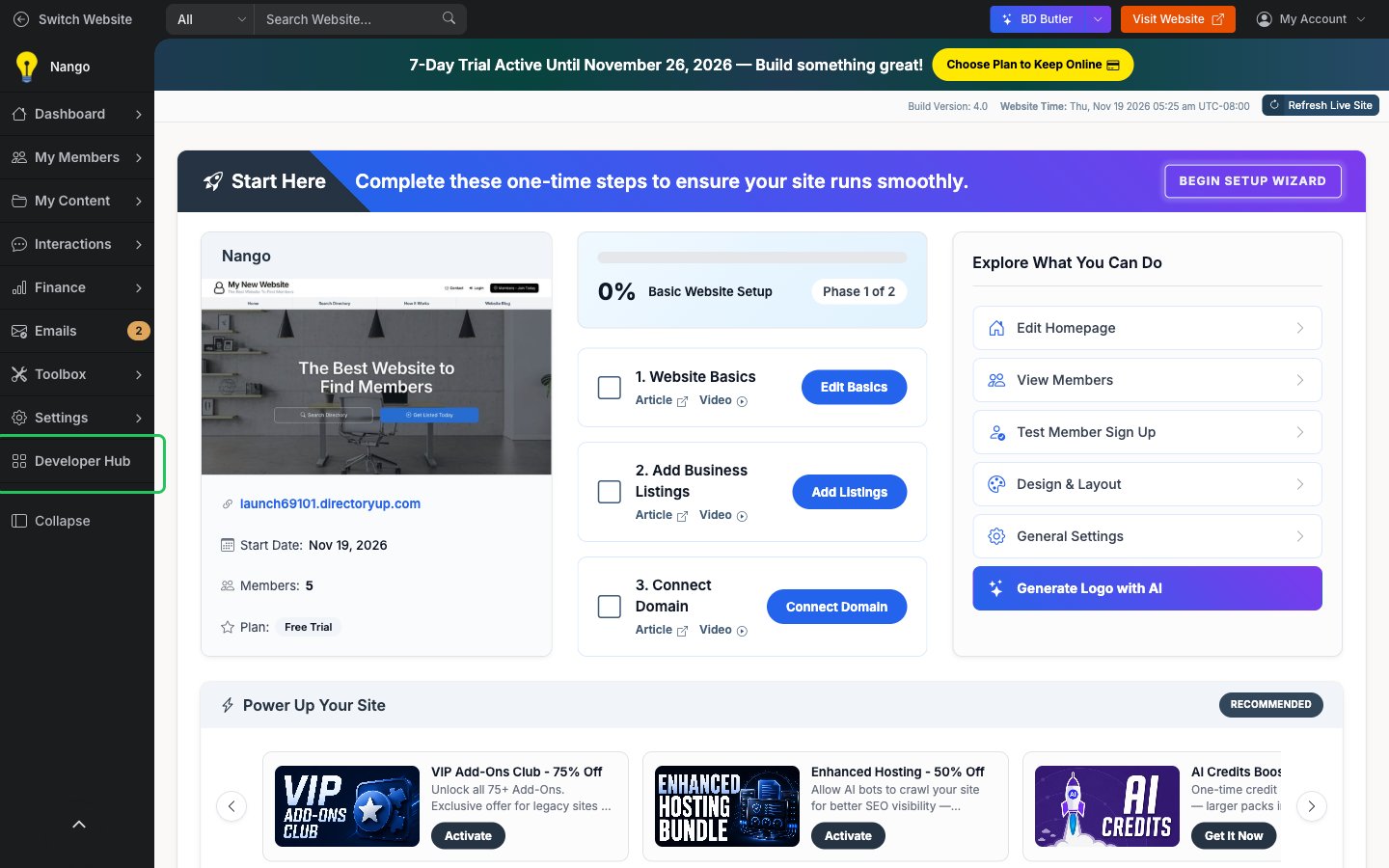
- Log in to your website’s Admin Panel and click Developer Hub in the left menu.
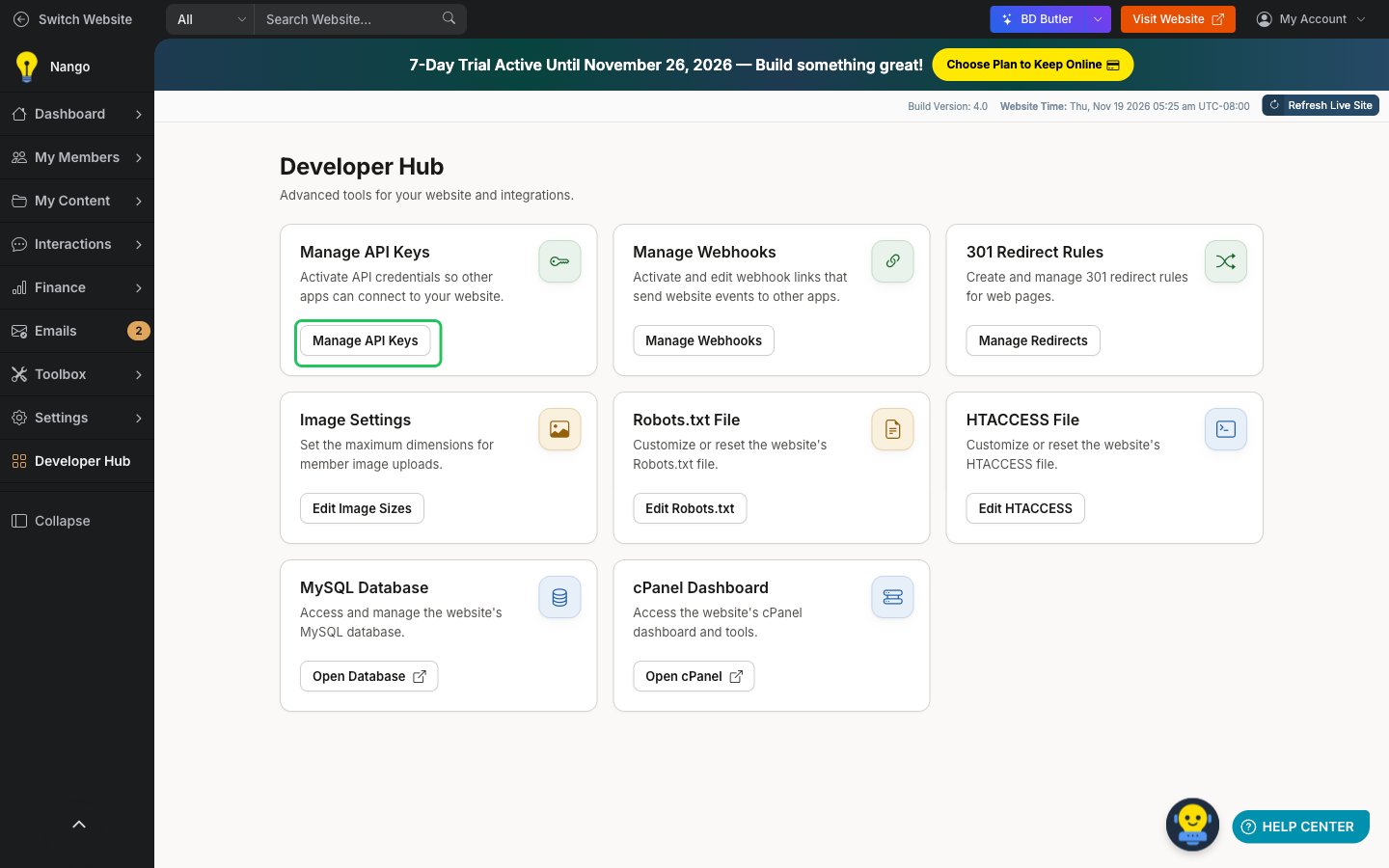
- On the Manage API Keys card, click Manage API Keys.
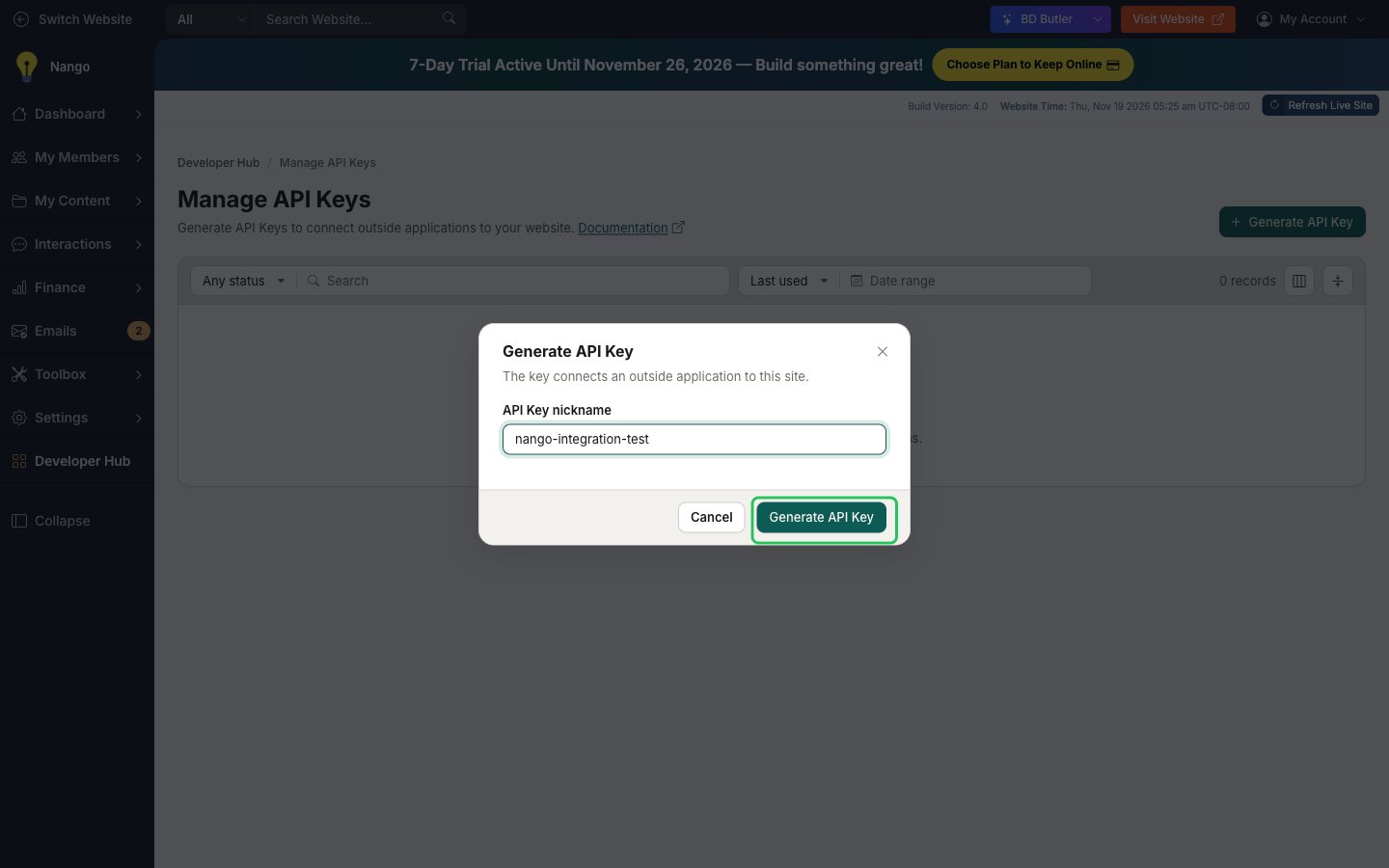
- Click Generate API Key, enter an API Key nickname that says what the key is for, then click Generate API Key.
- In the Save API Key – Only Shown Once window, click the copy button and store the key somewhere safe. It is shown only once: if you lose it, generate a new one.
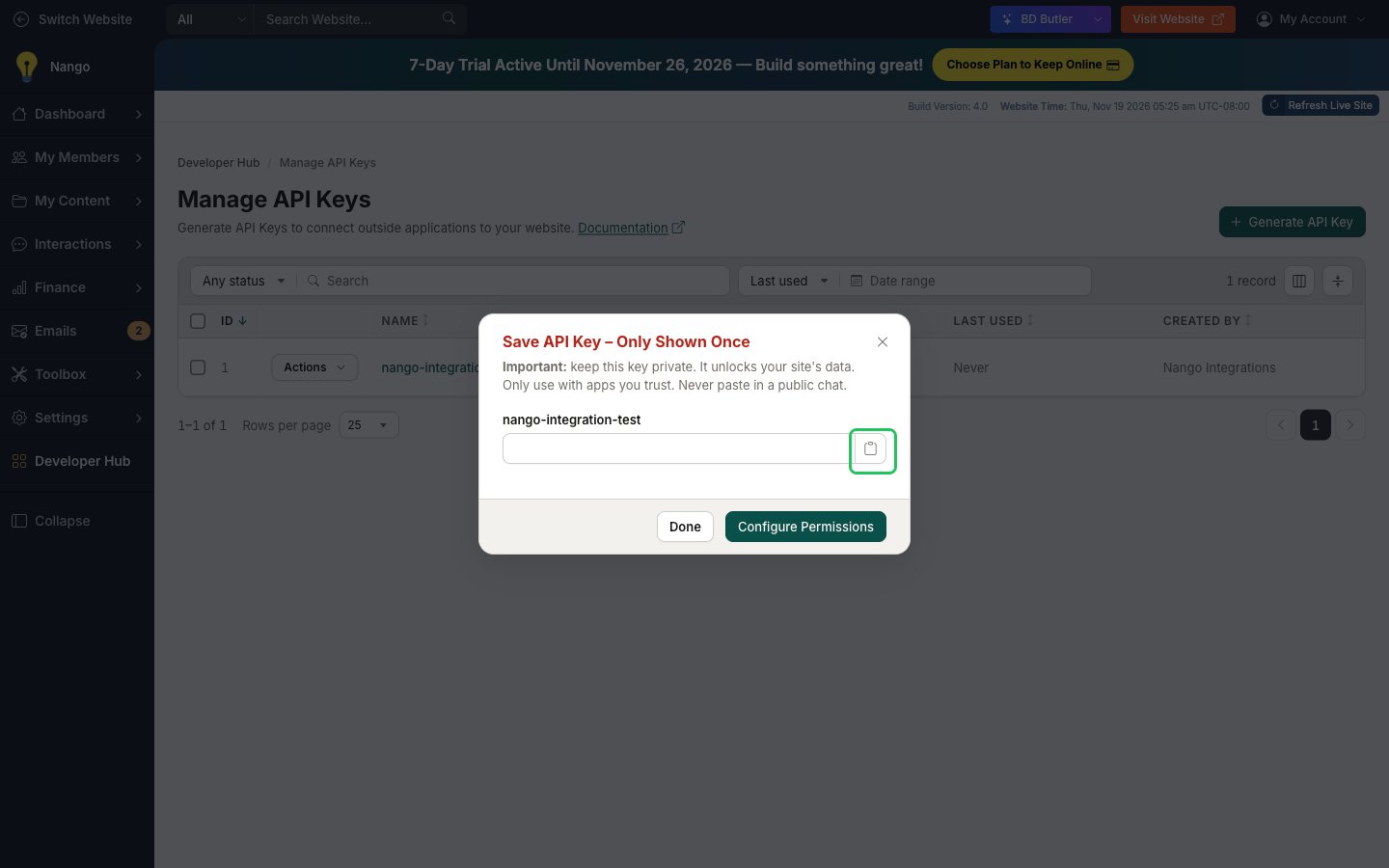
- Optionally, click Configure Permissions to choose the endpoints the key can access. A new key starts with all Standard Endpoints enabled and all Advanced Endpoints disabled.
Step 3: Enter your credentials in the Connect UI
- Open the form where you need to authenticate with Brilliant Directories.
- Enter your website domain from Step 1 in the Website Domain field.
- Paste the API key you copied in Step 2 into the API Key field.
- Submit the form.