Overview
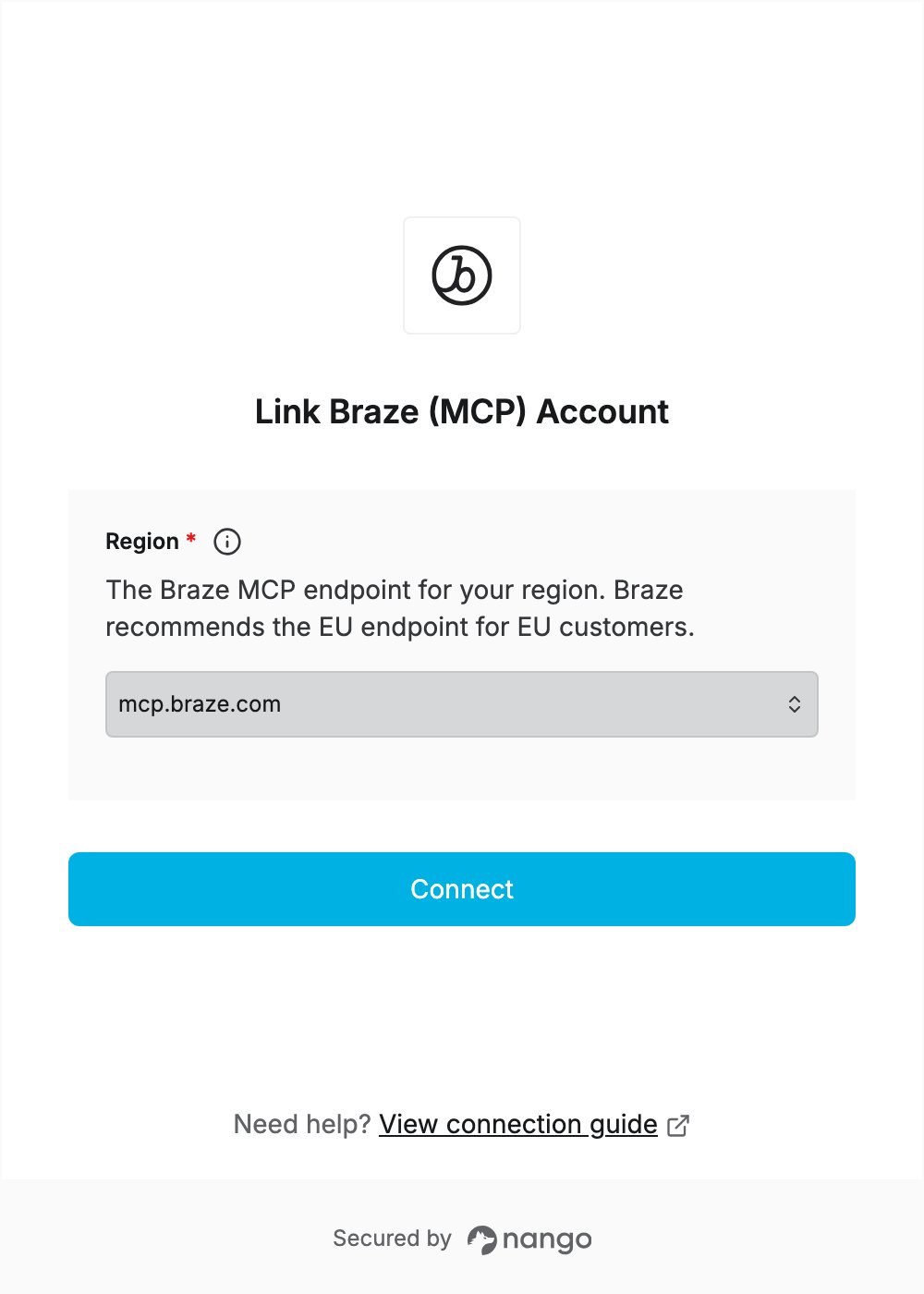
To connect Braze’s MCP server, you need:- Region — the Braze MCP endpoint for your account.
- A Braze dashboard login, with the Use MCP Server permission.
Prerequisites
- A paid Braze account. The Braze MCP server isn’t available on free trial accounts.
- A company admin has turned on MCP OAuth access and approved the app’s redirect URI in Settings → Admin Settings → External Connections.
Step 1: Choose your region
Braze runs two MCP endpoints:mcp.braze.com(US)mcp.braze.eu(EU)
Step 2: Connect in the Connect UI
- Open the form where you need to connect Braze.
- Choose your Region, then click Connect.
- Sign in to the Braze dashboard (SSO or SAML work too) and approve access.