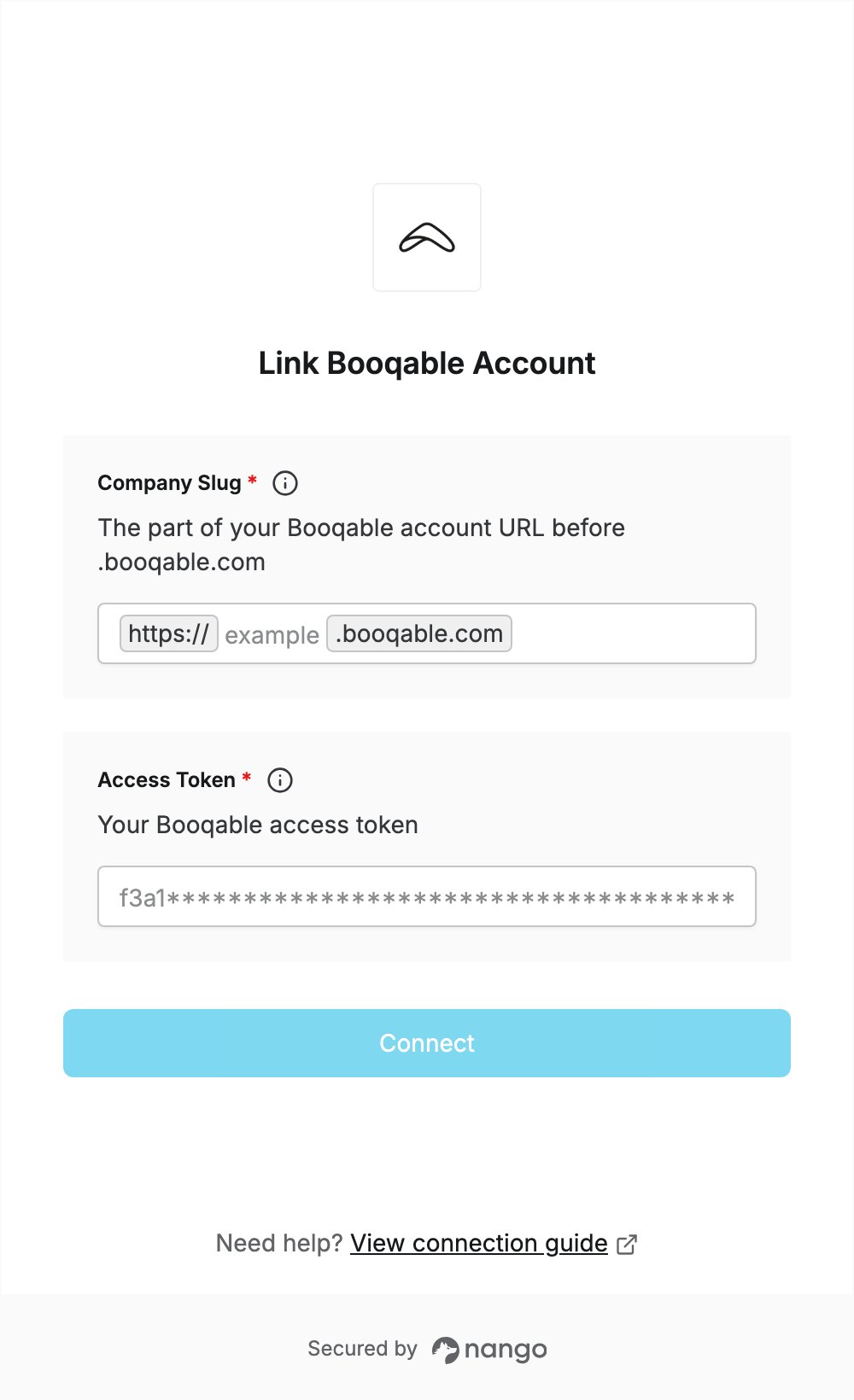
Overview
To authenticate with Booqable, you need:- Company Slug — the part of your Booqable account URL before
.booqable.com. - Access Token — a Booqable access token.
Prerequisites
- A Booqable account. You can sign up for a 14-day free trial with full access to all features, no credit card required.
Step 1: Find your company slug
- Sign in to Booqable.
- Look at the address bar of your browser. Your account URL looks like
https://<company-slug>.booqable.com. For example, if the URL ishttps://example.booqable.com, your company slug isexample.
Step 2: Create an access token
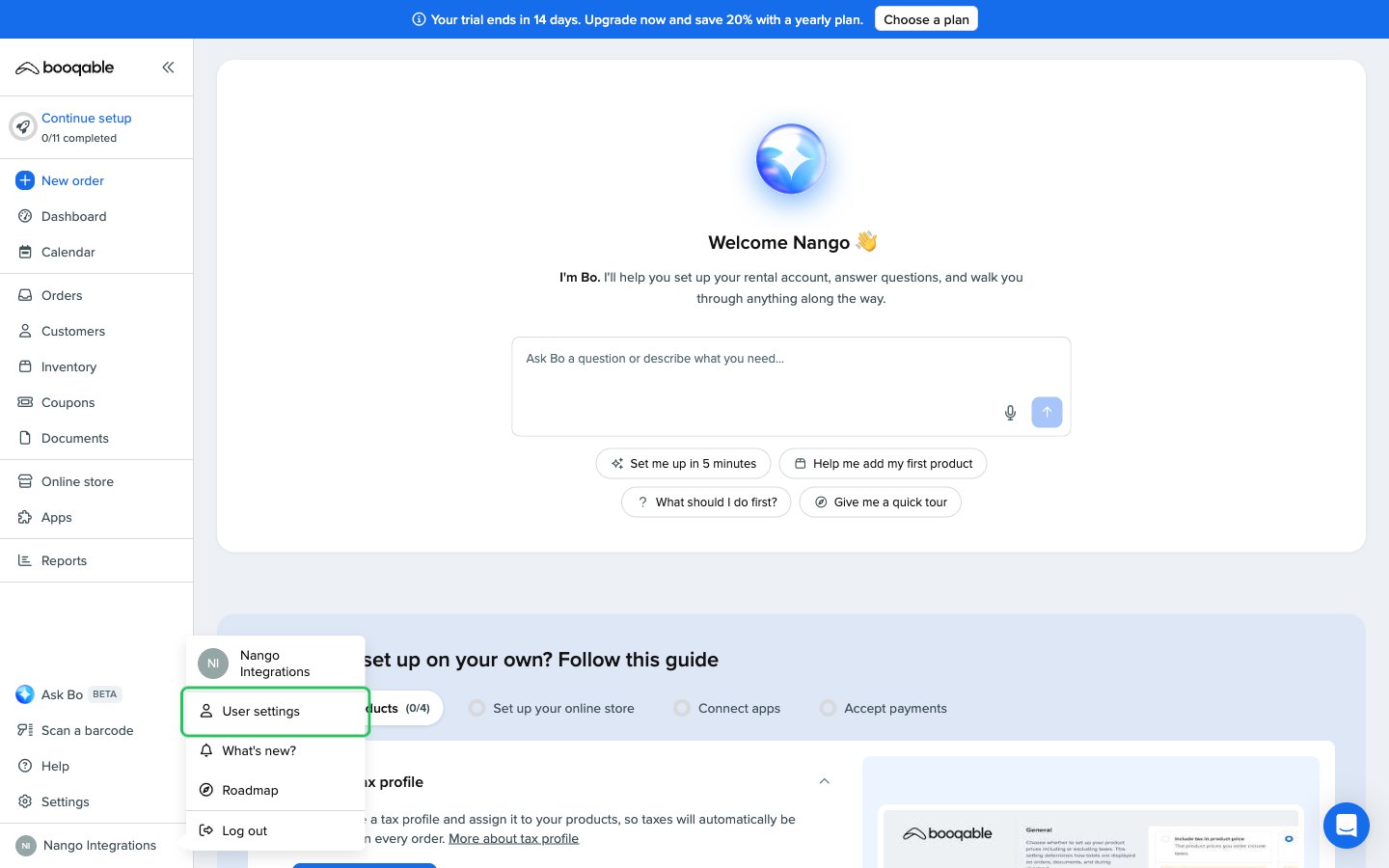
- Click your name in the lower-left corner of the sidebar, then click User settings.
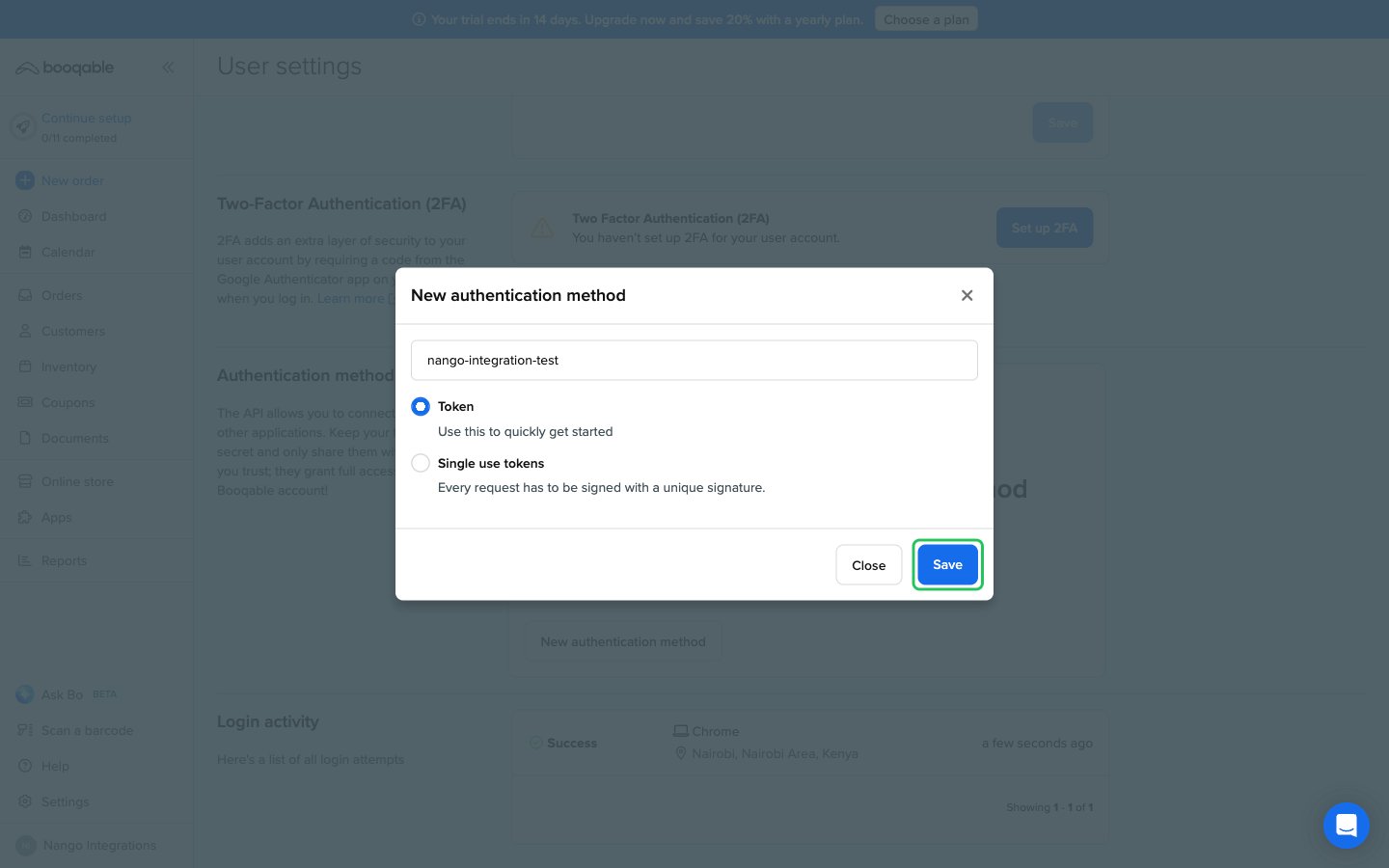
- Scroll to the Authentication methods section and click New authentication method.
- Enter a name for the token, for example the name of your integration, select Token and click Save.
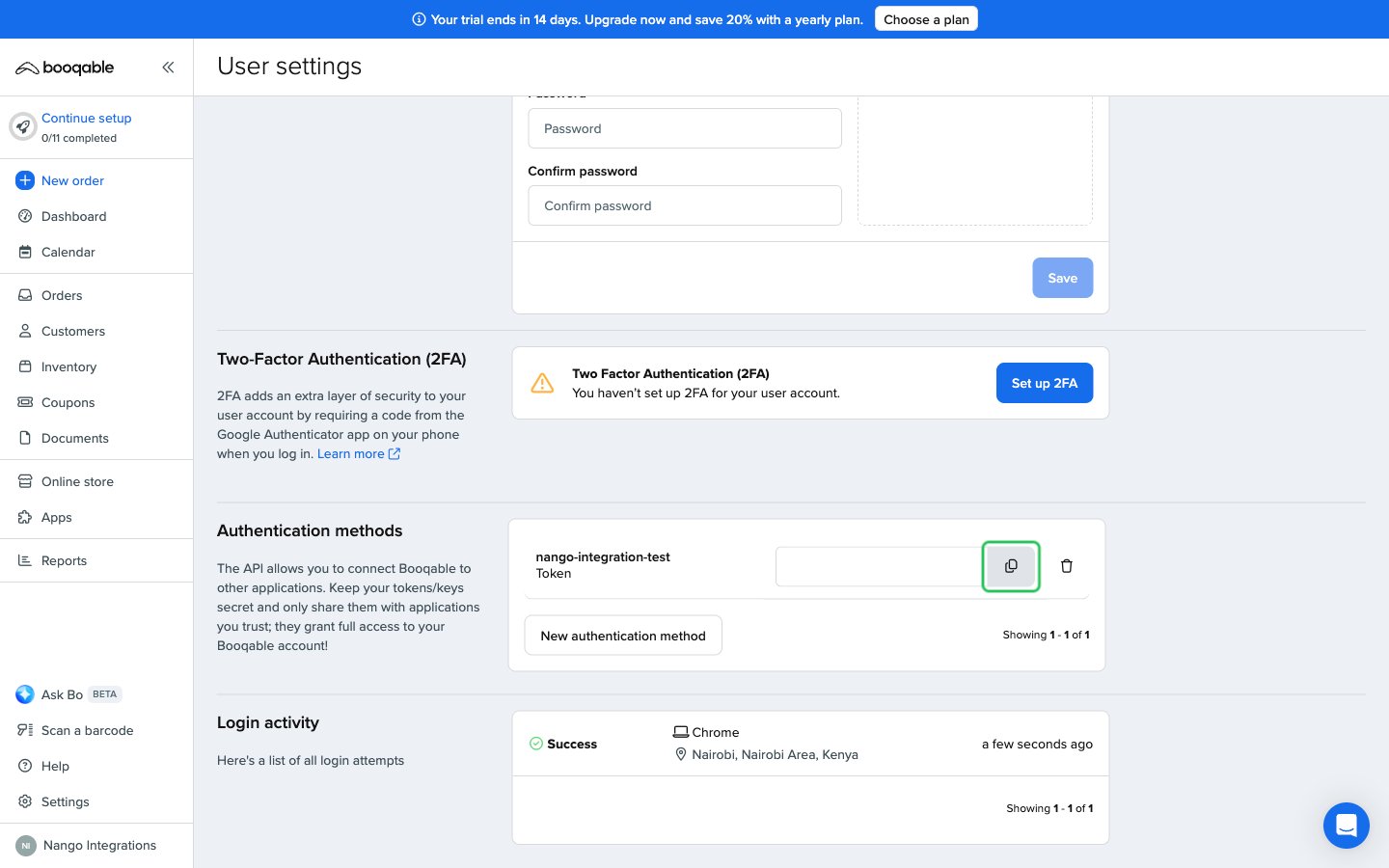
- Copy the new token with the copy button next to it.
Step 3: Enter your credentials in the Connect UI
- Open the form where you need to authenticate with Booqable.
- Enter your company slug in the Company Slug field and your token in the Access Token field.
- Submit the form, and you should be successfully authenticated.