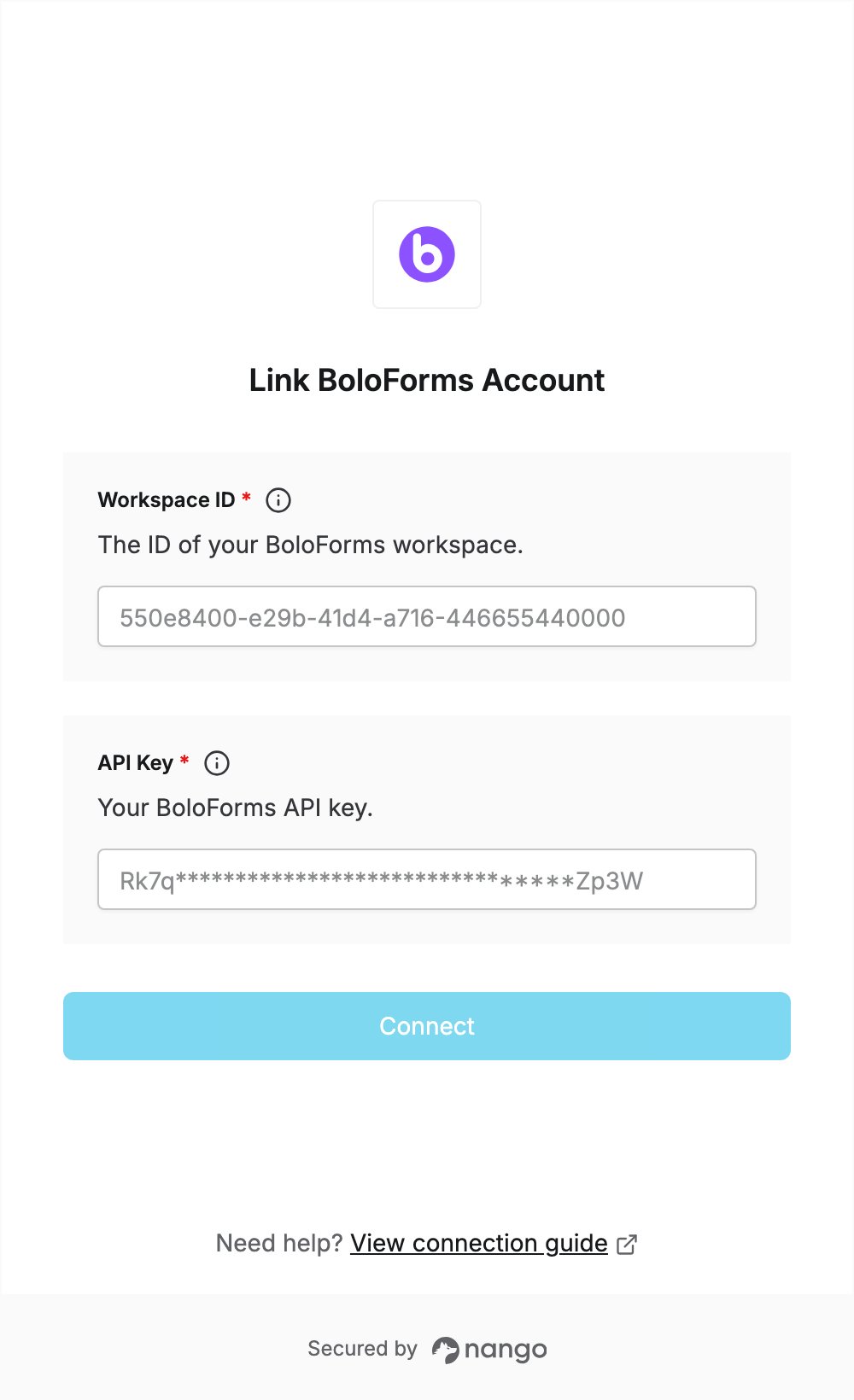
Overview
To authenticate with BoloForms, you need:- API Key - a BoloForms API key.
- Workspace ID - the ID of the BoloForms workspace the key belongs to.
Prerequisites
- A BoloForms account. You can sign up at signature.boloforms.com. The 7-day free trial gives full access, with no credit card required.
Step 1: Generate an API key
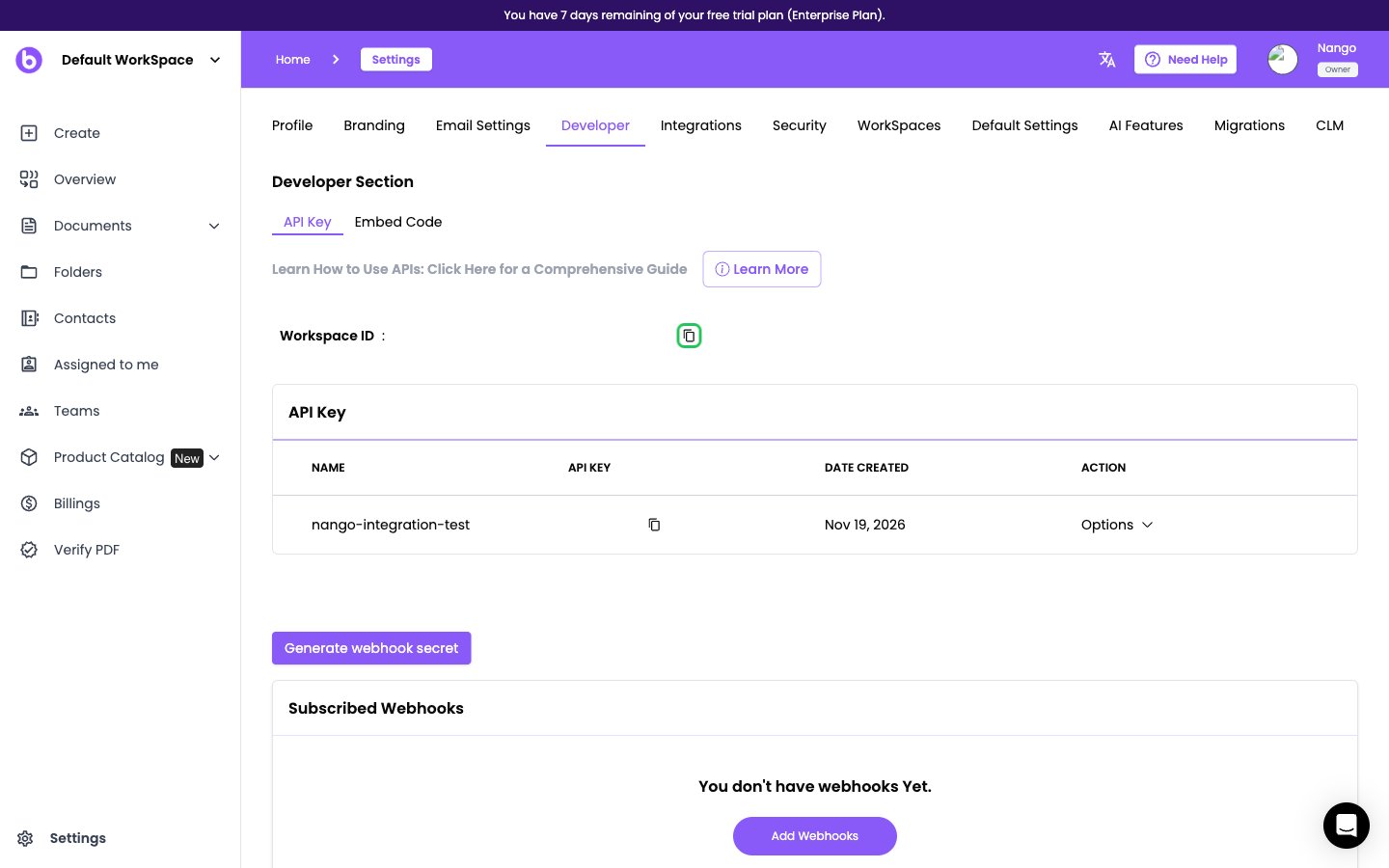
- Sign in to BoloForms and click Settings at the bottom of the left sidebar.
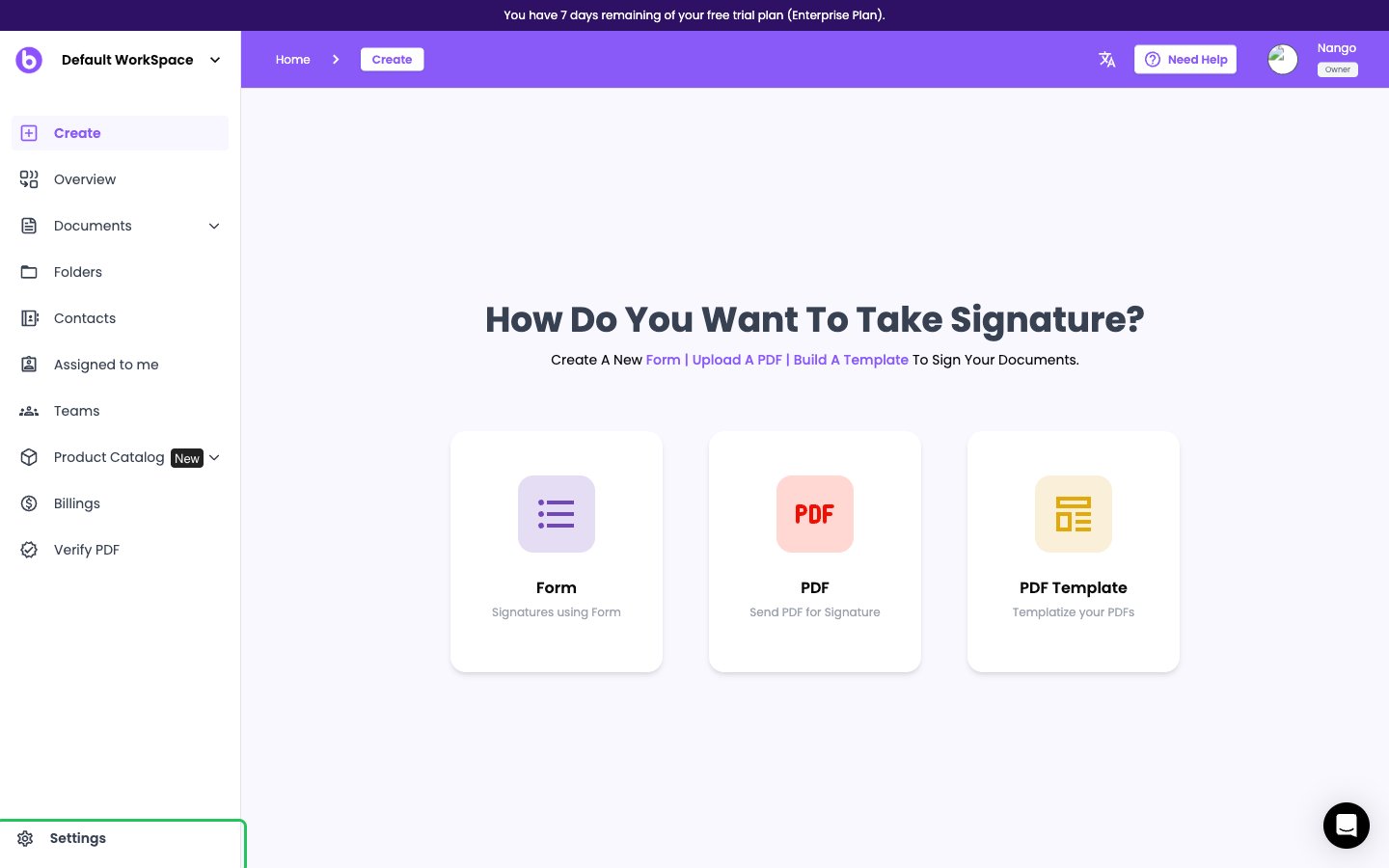
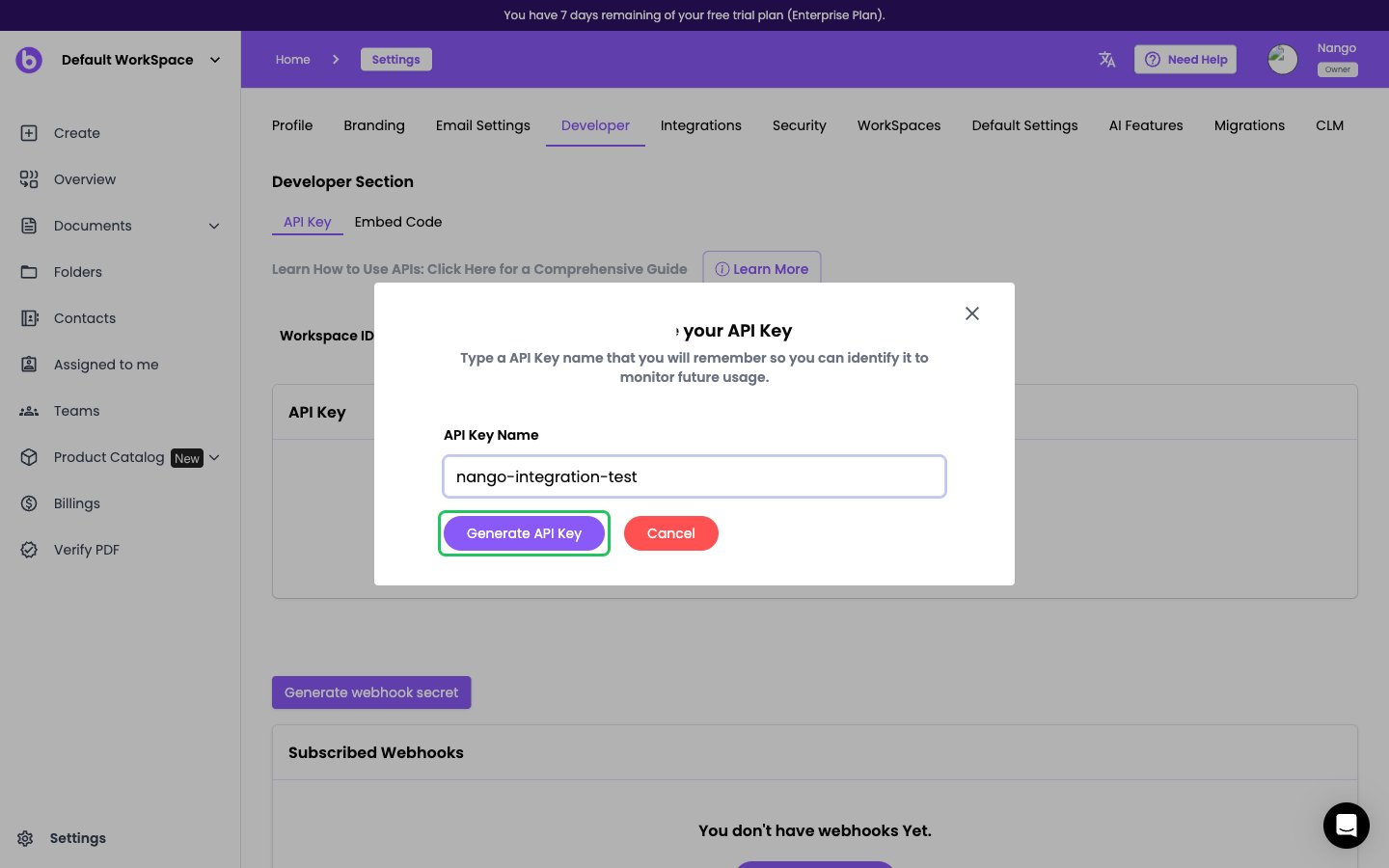
- Open the Developer tab. It opens on the API Key sub-tab.
- Click Generate API Key, enter a name for the key, then click Generate API Key again to confirm.
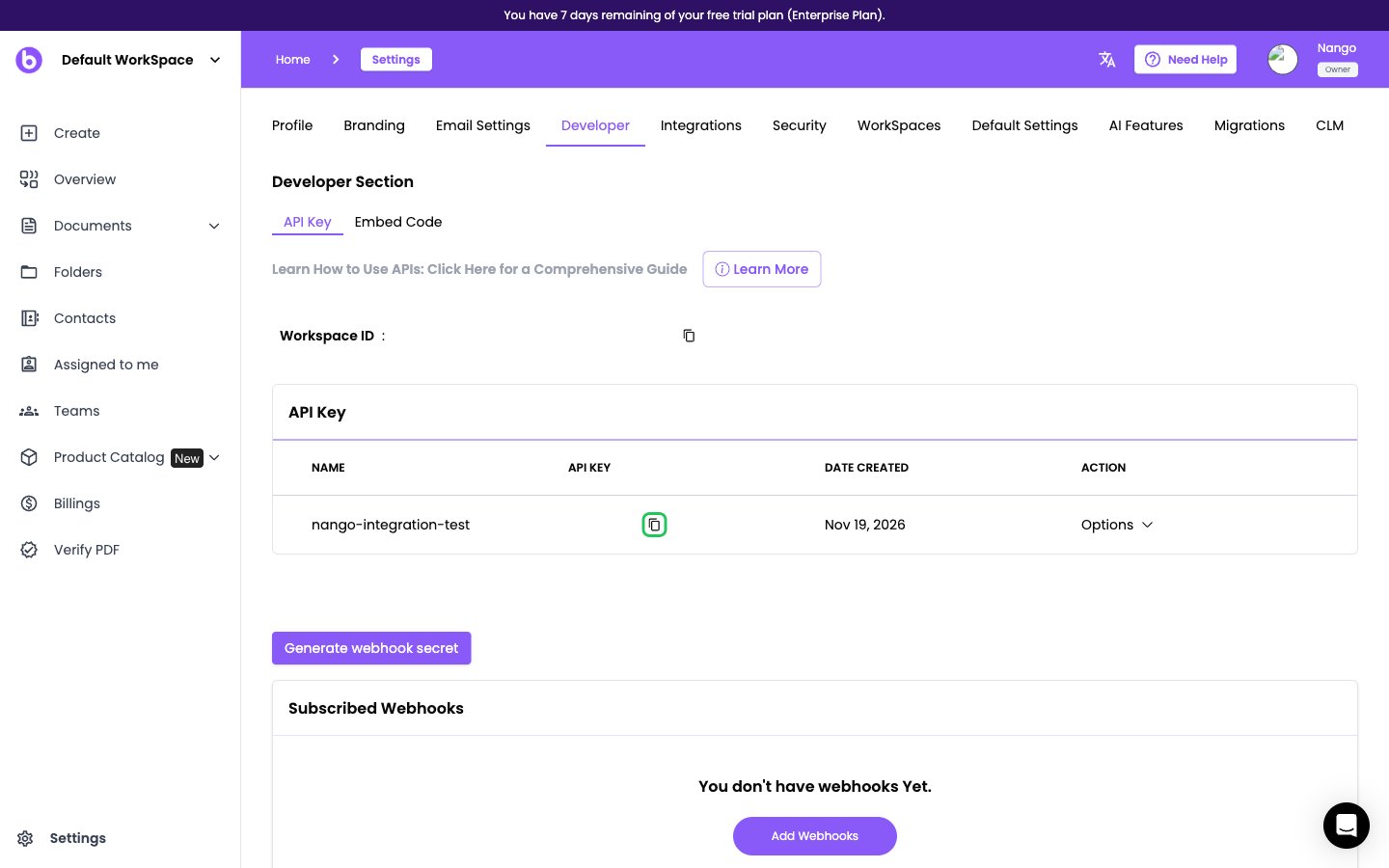
- In the API Key table, click the copy icon next to the new key.
Step 2: Copy your workspace ID
- On the same Developer > API Key page, click the copy icon next to Workspace ID, above the API key table.
- Paste only the ID itself, a UUID such as
550e8400-e29b-41d4-a716-446655440000, without the Workspace ID label.
Step 3: Enter your credentials in the Connect UI
- Open the form where you need to authenticate with BoloForms.
- Enter your Workspace ID and API Key in the designated fields.
- Submit the form, and you should be successfully authenticated.