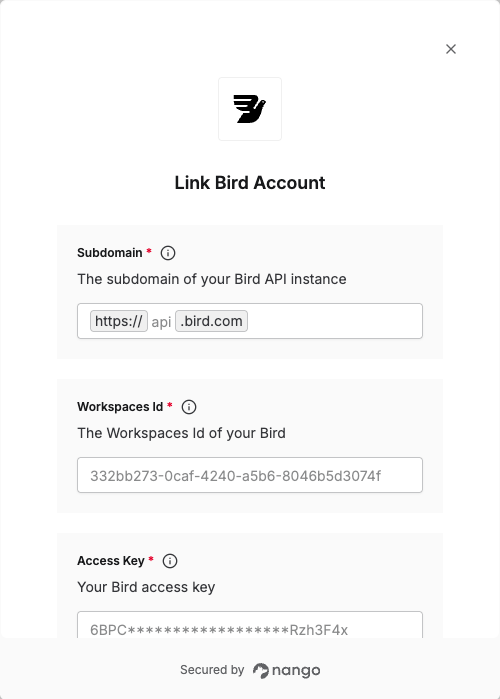
Overview
To authenticate with Bird, you will need:- Subdomain - The subdomain of your Bird API instance
- Access Key - Your Bird access key for API authentication
Prerequisites:
- You must have a Bird account
- You must have access to the Bird Dashboard
Instructions:
Step 1: Finding your subdomain
The subdomain is the part of the Bird API you wish to connect to—i.e. the host in the base URL before.bird.com. It varies by api and region:
- Emails API
- EU workspaces:
https://email.eu-west-1.api.bird.com→ subdomain isemail.eu-west-1.api - US workspaces:
https://email.us-west-2.api.bird.com→ subdomain isemail.us-west-2.api
- EU workspaces:
- MessageBird (general) API:
https://api.bird.com/→ subdomain isapi - Base media URL (for retrieving media):
https://media.api.bird.com→ subdomain ismedia.api
Step 2: Creating an Access Key
- Log in to your Bird account and navigate to the Access keys page in your Bird dashboard.
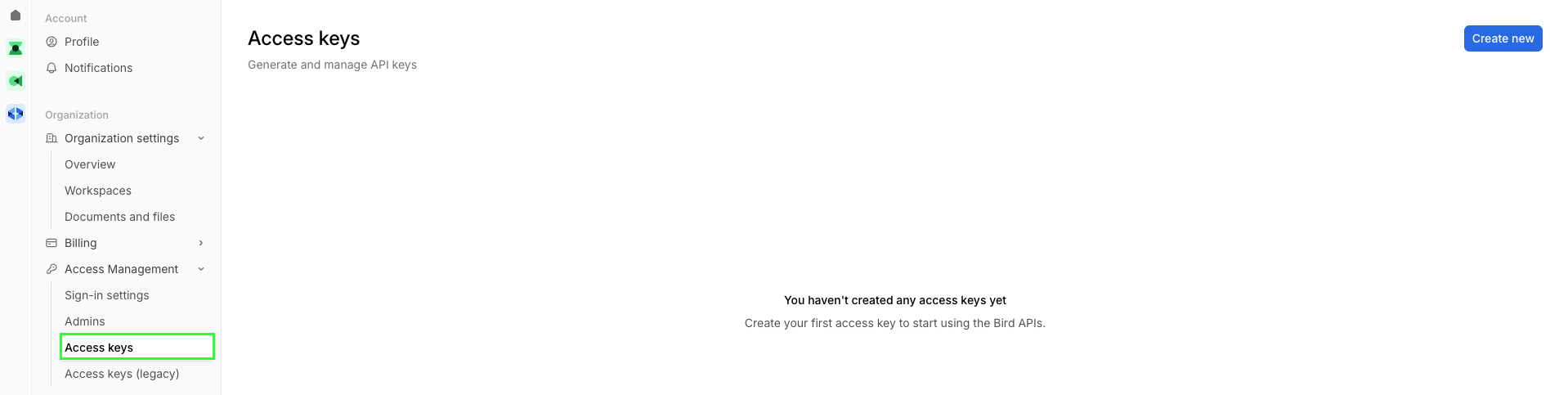
- Click Create new.
- Enter a name and description, select the permissions you want to grant to the key, then click Save.
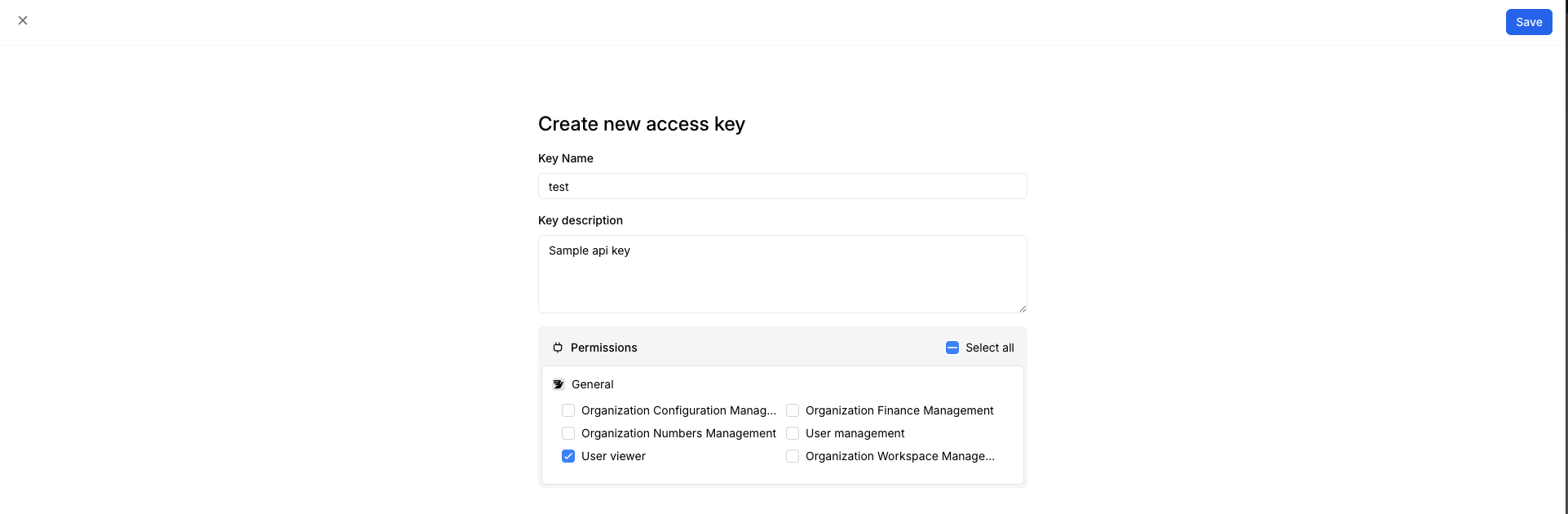
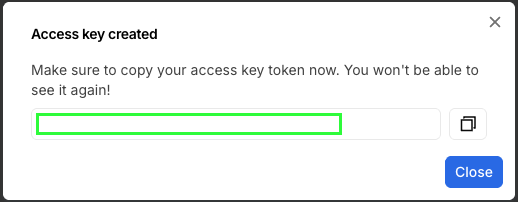
- Your API key will be generated — save it securely.
Step 3: Finding your workspace ID
From the same Access keys page, check the URL in your browser address bar. It has the form:https://app.bird.com/workspaces/<WORKSPACE_ID>/iam/access-keys
Your workspace ID is the value between workspaces/ and /iam.
Step 4: Enter credentials in the Connect UI
Once you have your Subdomain, Workspace ID, and Access Key:- Open the form where you need to authenticate with Bird
- Enter your Subdomain, Workspace ID, and Access Key in their respective fields
- Submit the form, and you should be successfully authenticated