Overview
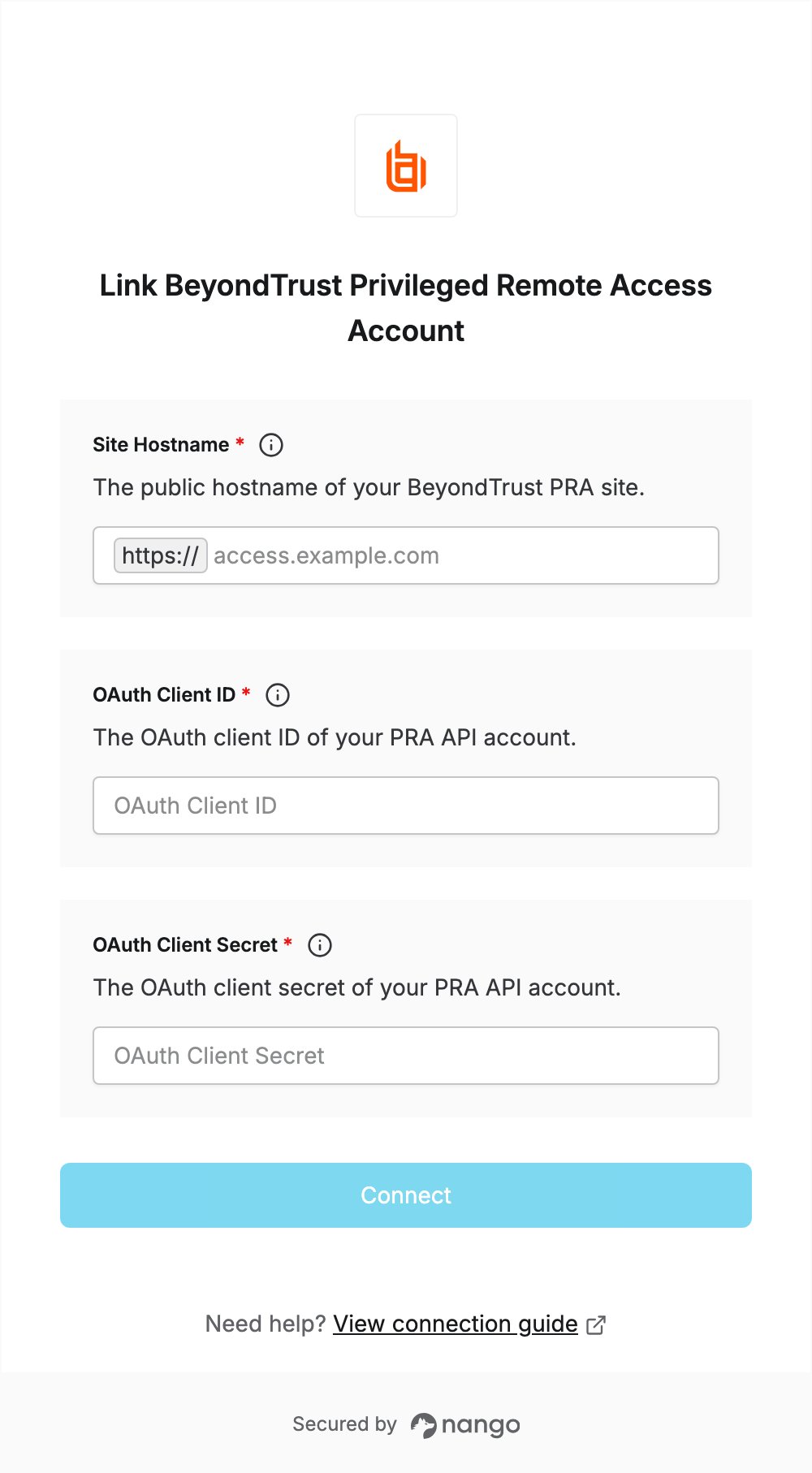
To authenticate with BeyondTrust Privileged Remote Access (PRA), you need:- OAuth Client ID and OAuth Client Secret — the credentials of a PRA API account.
- Site Hostname — the public hostname of your PRA site.
Prerequisites
- An administrator account on your BeyondTrust PRA site.
Step 1: Create an API account
- Sign in to app.beyondtrust.io.
- From the main menu, click Privileged Remote Access > Management.
- Open the API Configuration tab.
- In the API Accounts section, click Add.
- Make sure Enabled is selected and enter a Name for the account.
- Select the API permissions your application needs, such as Command API or Reporting API access, and save the account.
- Copy the OAuth Client ID and OAuth Client Secret.
If you list network address prefixes under Network Restrictions, the account can only authenticate from those addresses.
Step 2: Find your site hostname
Your PRA URL is in your BeyondTrust welcome email: your site URL followed by/login. The Site Hostname is the part between https:// and /login. For example, for https://access.example.com/login, enter access.example.com.
Leave out https:// and any path.
Step 3: Enter your credentials in the Connect UI
- Open the form where you need to authenticate with BeyondTrust Privileged Remote Access.
- Enter your Site Hostname, OAuth Client ID and OAuth Client Secret.
- Submit the form. Nango requests an access token from your site, so wrong credentials are rejected right away.