Overview
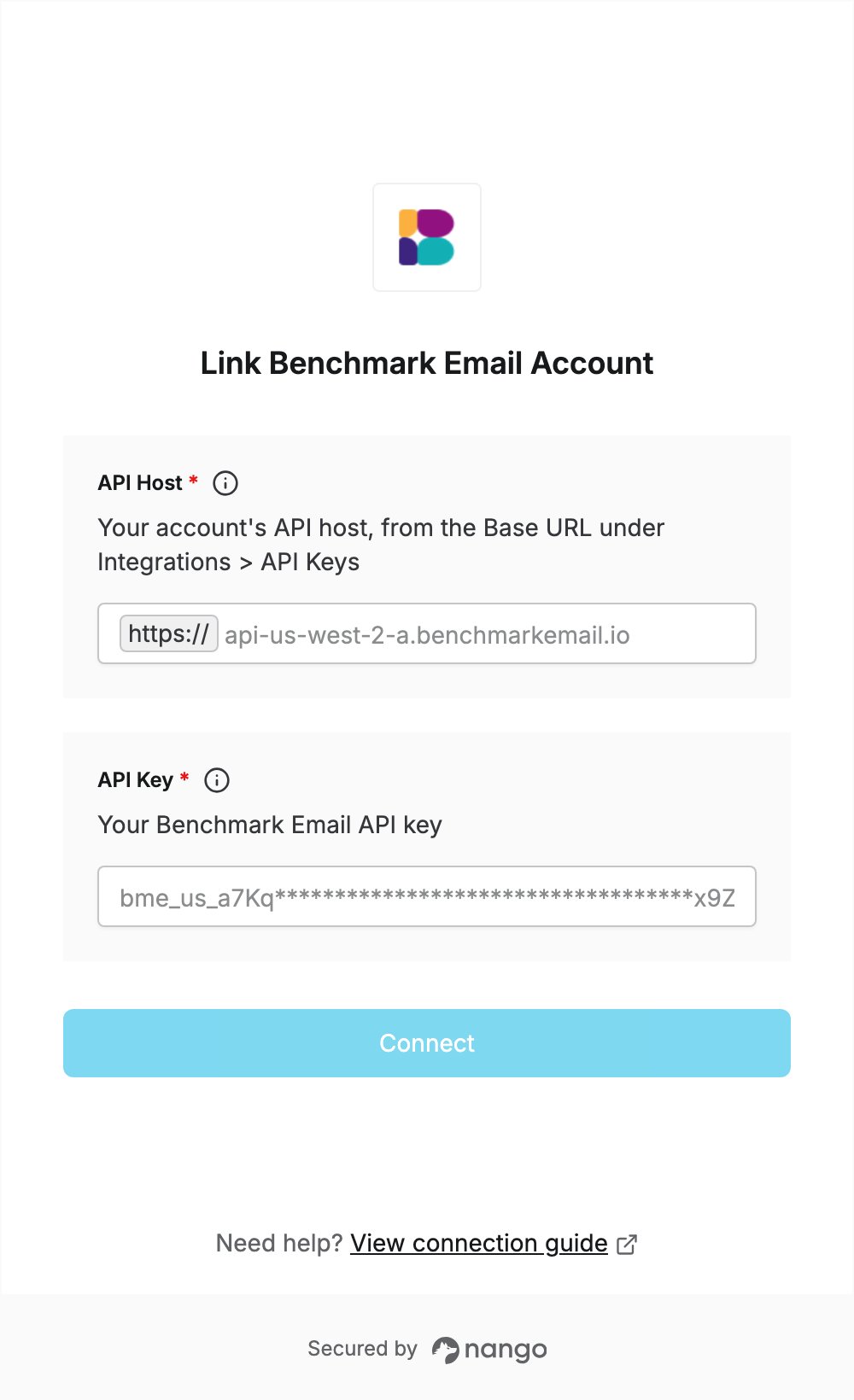
To authenticate with Benchmark Email, you need:- API Key — a Benchmark Email API key.
- API Host — the host of your account’s API base URL, for example
api-us-west-2-a.benchmarkemail.io.
Prerequisites
- A Benchmark Email account. API keys are available on every plan, including Free.
- The Owner role on the account. Only Owners can create and manage API keys.
Step 1: Create an API key
- Log in to Benchmark Email with an Owner account.
- Click Integrations in the left sidebar, then open the API Keys tab.
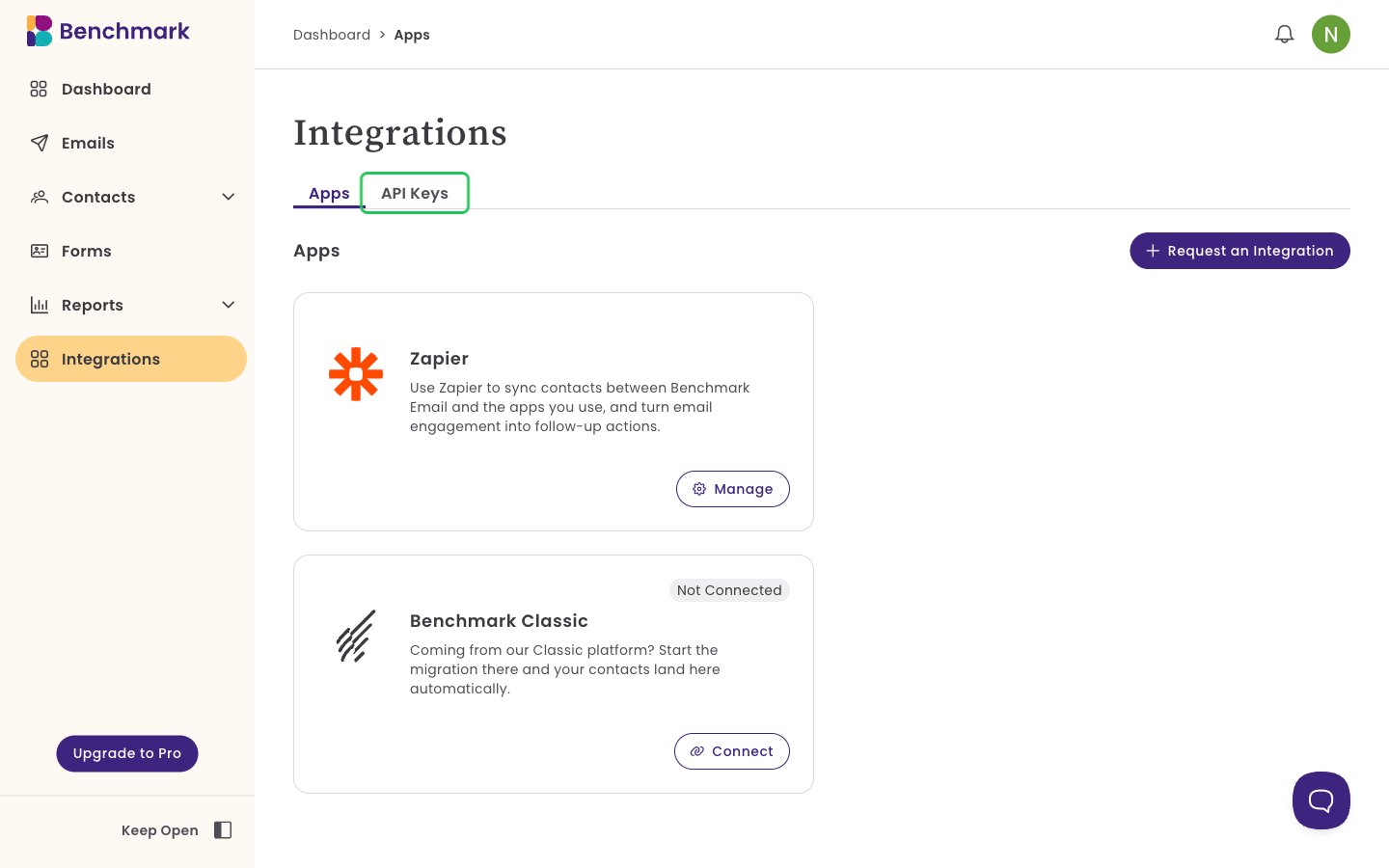
- Click Create API Key.
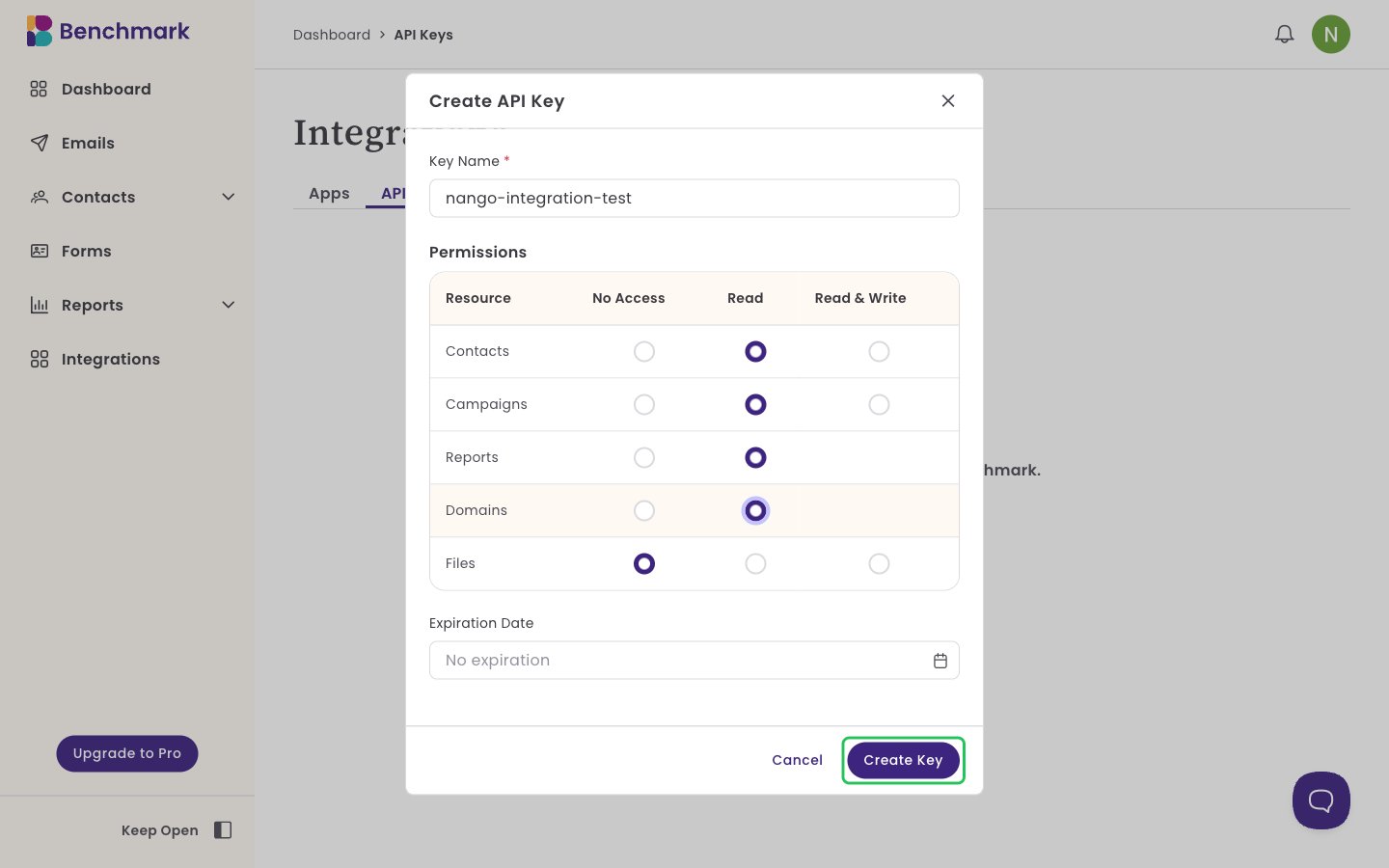
- Enter a Key Name, choose Read or Read & Write under Permissions for each resource your integration needs, and optionally set an Expiration Date. Without one, the key never expires.
- Click Create Key.
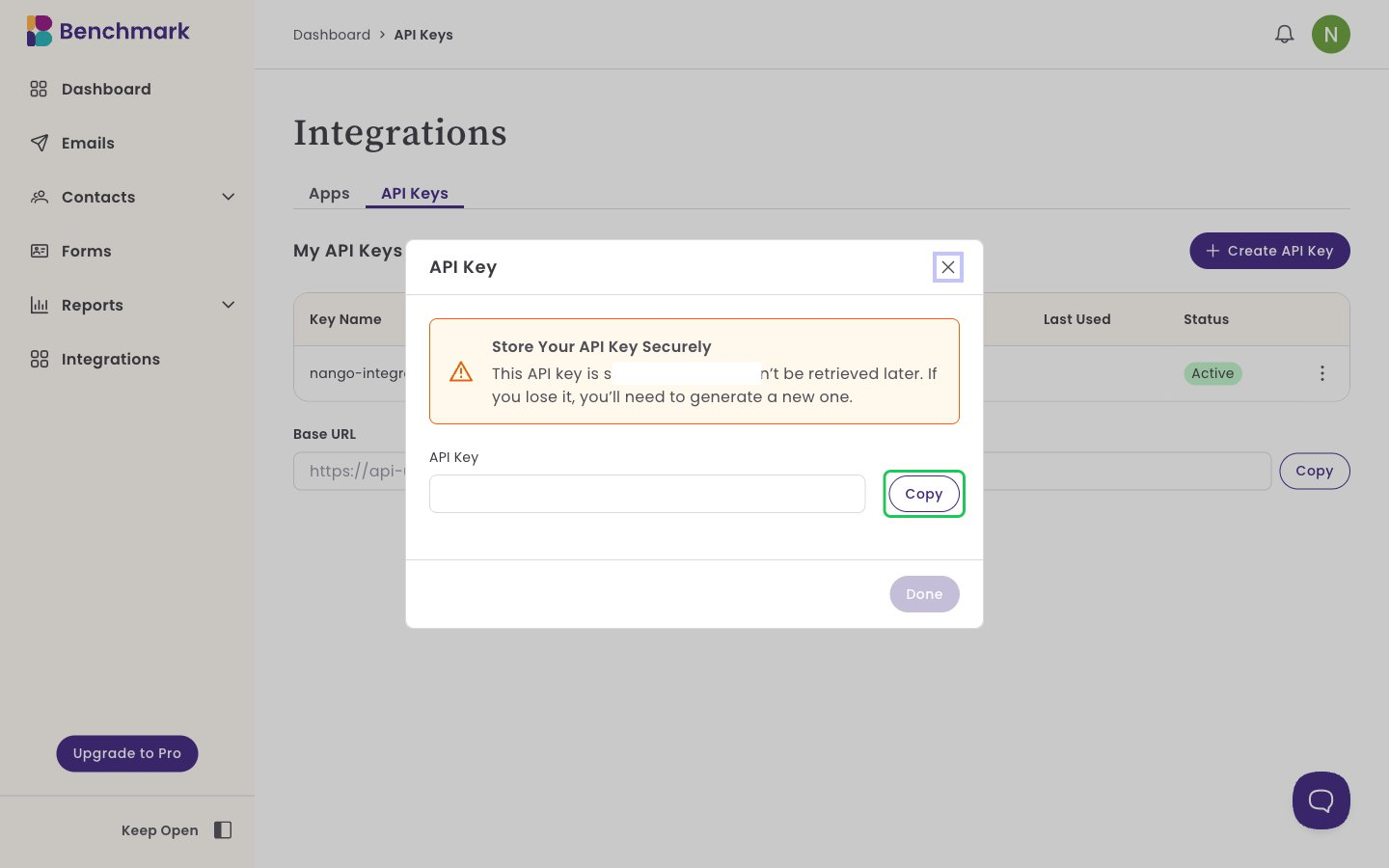
- Copy the API key now. It is shown only once, so store it somewhere safe, then click Done.
Step 2: Copy your API host
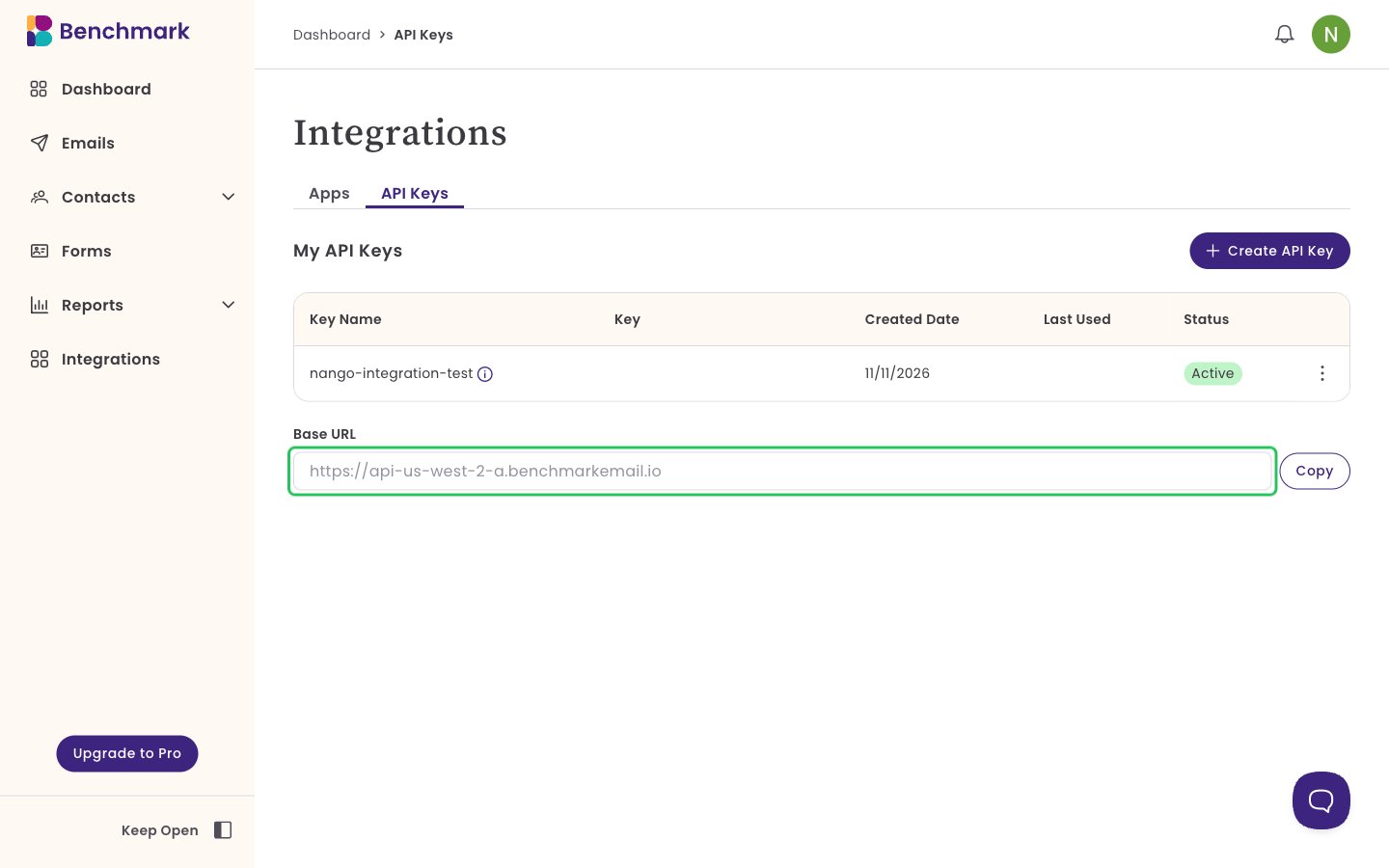
- On the same API Keys tab, find the Base URL under My API Keys.
- Copy its host, without
https://. For example, forhttps://api-us-west-2-a.benchmarkemail.io, the API host isapi-us-west-2-a.benchmarkemail.io.
Step 3: Enter your credentials in the Connect UI
- Open the form where you need to authenticate with Benchmark Email.
- Enter your API Host and API Key in the designated fields.
- Submit the form, and you should be successfully authenticated.