Overview
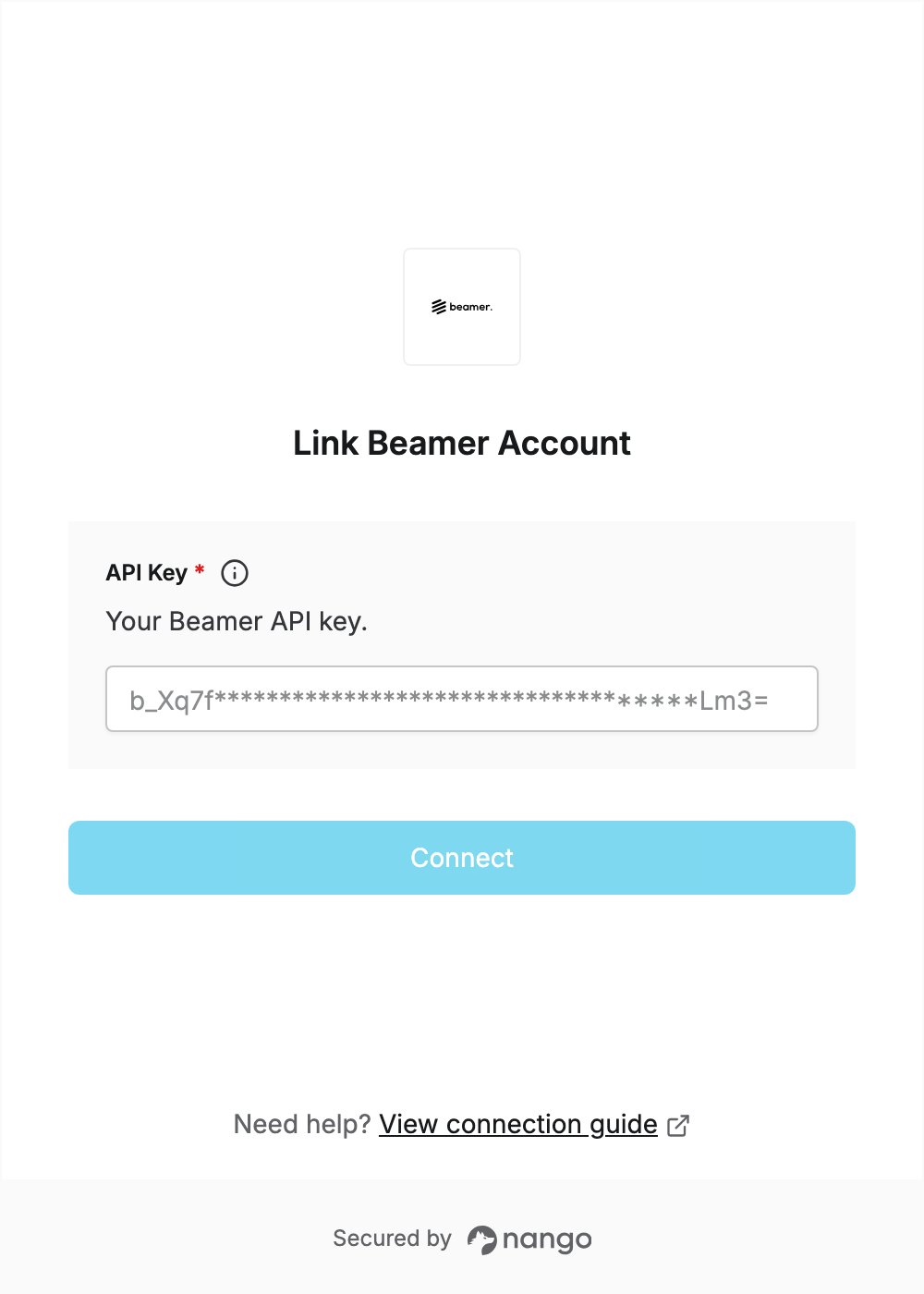
To authenticate with Beamer, you need:- API Key — a Beamer API key.
Prerequisites
- A Beamer account. You can sign up for free, no credit card needed.
Step 1: Create an API key
- Log in to Beamer and go to Settings > API.
- Under API keys, click Create new API key. You can also use an existing key, such as the Default key a new account comes with.
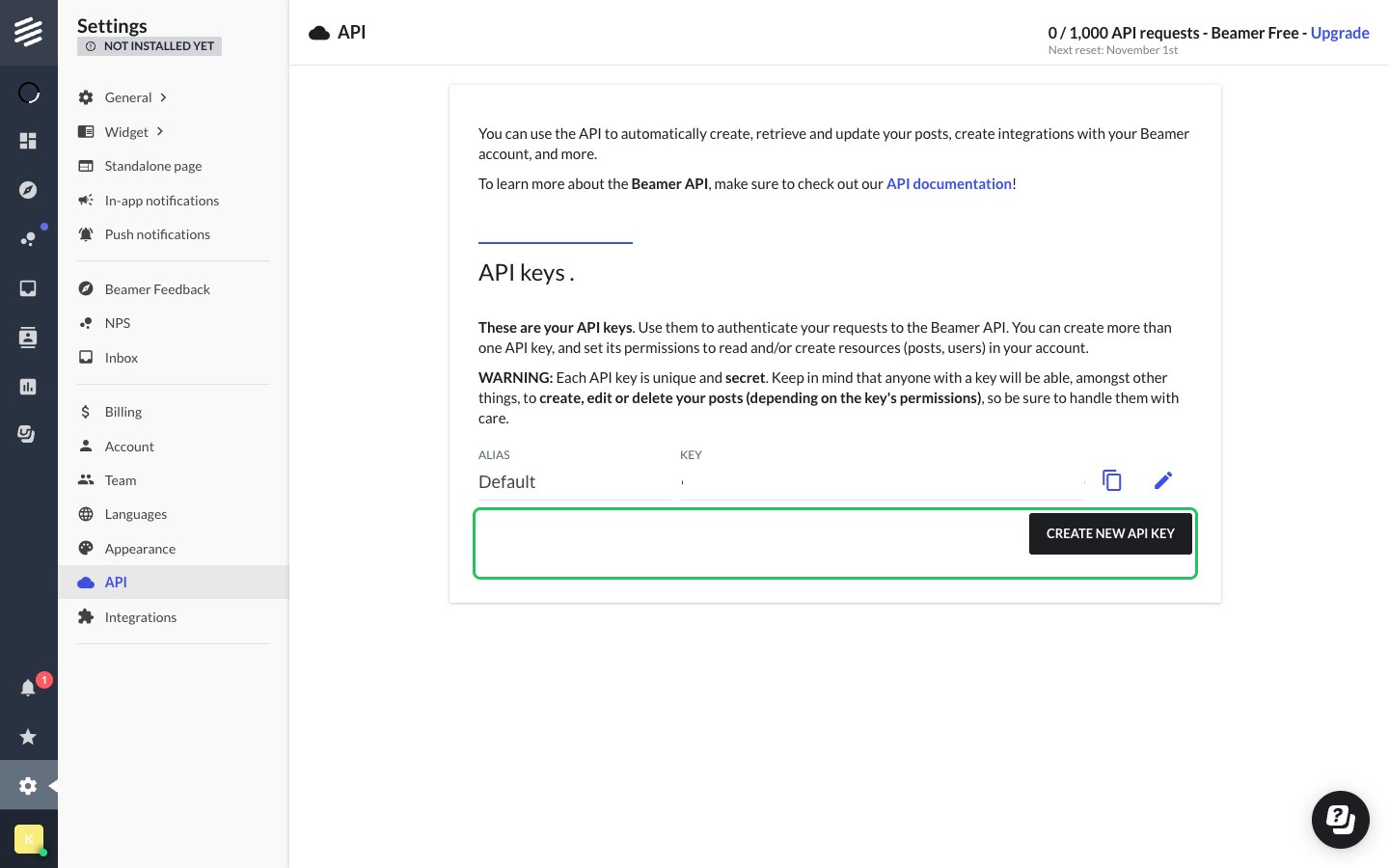
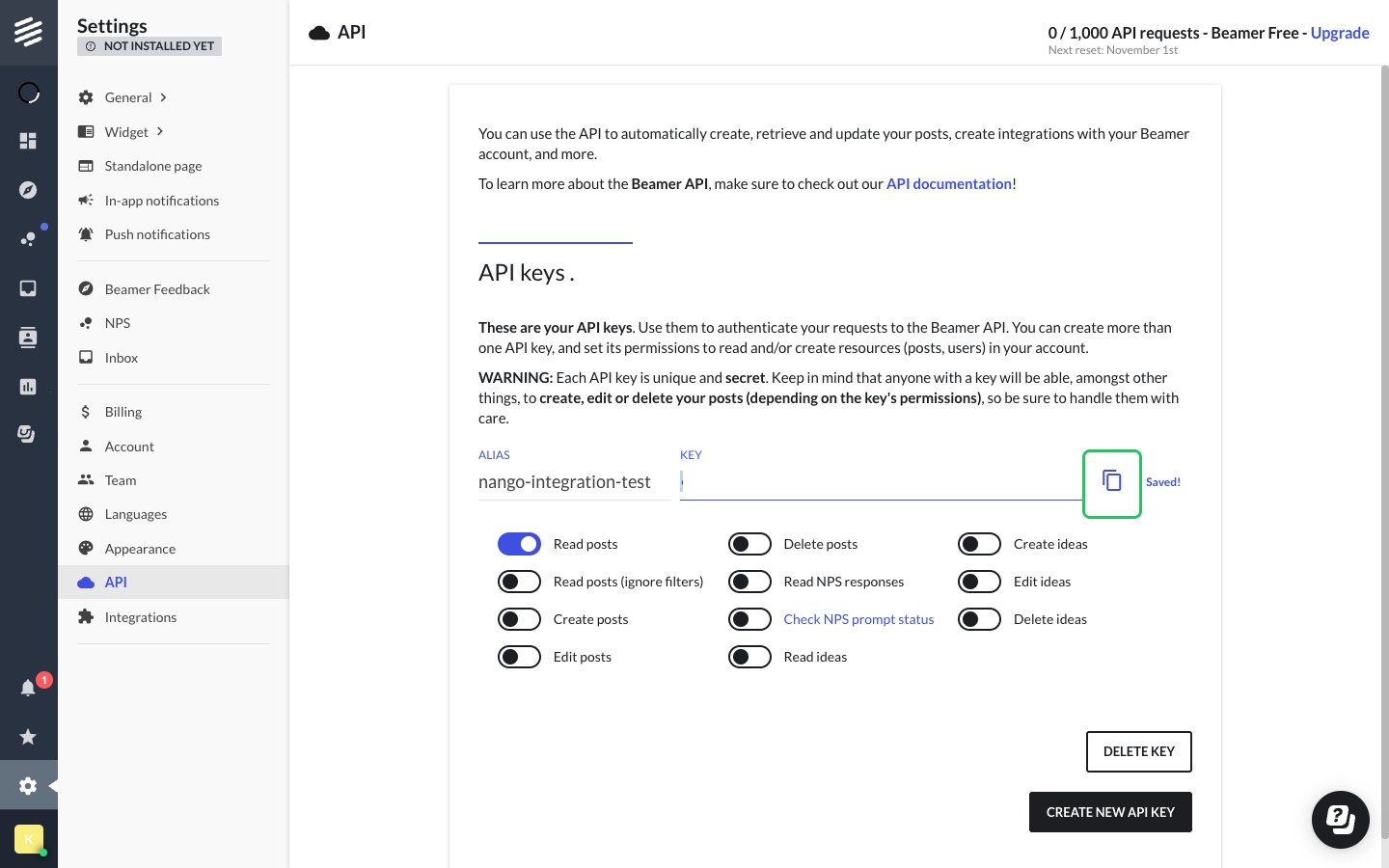
- Click the edit (pencil) icon next to the key. Give it an alias (for example,
nango) and turn on only the permissions your integration needs, such as Read posts. Changes save automatically. - Click the copy icon next to the Key field to copy the API key.
Step 2: Enter your API key in the Connect UI
- Open the form where you need to authenticate with Beamer.
- Enter your API Key in the designated field.
- Submit the form, and you should be successfully authenticated.